DingTalk Integration Guide
Connect Sage AI to a DingTalk internal-app bot so teammates can chat in DMs or groups. DingTalk supports two modes: Stream long connection and HTTP URL callback. DingTalk and AI Studio must use the same mode.
Configure an IM channel to bring Sage AI into team IM for instant Q&A and collaboration. The bot binds to the current resource domain and follows permission controls. To access all-domain data, configure under All Resource Domains. Do not bind the same IM credentials across accounts, environments, or resource domains—doing so may cause lost messages or interrupted conversations.
Prerequisites
| Requirement | Description |
|---|---|
| Menu | AI Studio / Security Operations / IM Channel |
| Permissions | Read-Write to configure or unbind |
| DingTalk account | Internal app create and publish rights recommended |
| Network | Stream long connection: outbound to DingTalk is enough; HTTP URL callback: public HTTPS receive URL required |
| Model | At least one inference model; IM defaults to Auto |
Two connection modes (required reading)
| Item | Stream long connection (WebSocket) | URL callback (HTTP) |
|---|---|---|
| Best for | No public ingress / private network; simpler setup | Public HTTPS; DingTalk pushes messages |
| AI Studio | WebSocket long connection (Stream) | Use URL callback (HTTP) |
| DingTalk message mode | Stream | HTTP |
| Credentials | Client ID, Client Secret | Client ID, Client Secret; aes_key, token optional |
| Backfill URL | Not required | After save, switch to HTTP and must paste Webhook, then publish |
| Save check | Connectivity check → Connected | Validate Client ID / Secret → Connected + Webhook |
Both sides must match: if AI Studio uses long connection, keep DingTalk on Stream; if AI Studio uses URL callback, switch DingTalk to HTTP, paste the Webhook, and use https://.
End-to-end flow
1. Create an internal app in DingTalk Open Dev and enable the bot
        ↓
2. Enable message / card permissions; get Client ID and Client Secret
        ↓
3. Choose one mode (both sides must match)
   ┌────────────────────────────────┬────────────────────────────────────┐
   │ Stream long connection         │ HTTP URL callback                  │
   │ ① Create and save/publish bot  │ ① (Optional) AES Key / Token       │
   │ ② Keep Stream and save         │ ② AI Studio: URL callback + save   │
   │ ③ AI Studio: long connection   │ ③ DingTalk HTTP + paste HTTPS URL  │
   │ ④ Connectivity check OK        │ ④ Save and publish on DingTalk     │
   └────────────────────────────────┴────────────────────────────────────┘
        ↓
4. Publish the app → test in DM / add bot to a group
1. Create a DingTalk app and bot
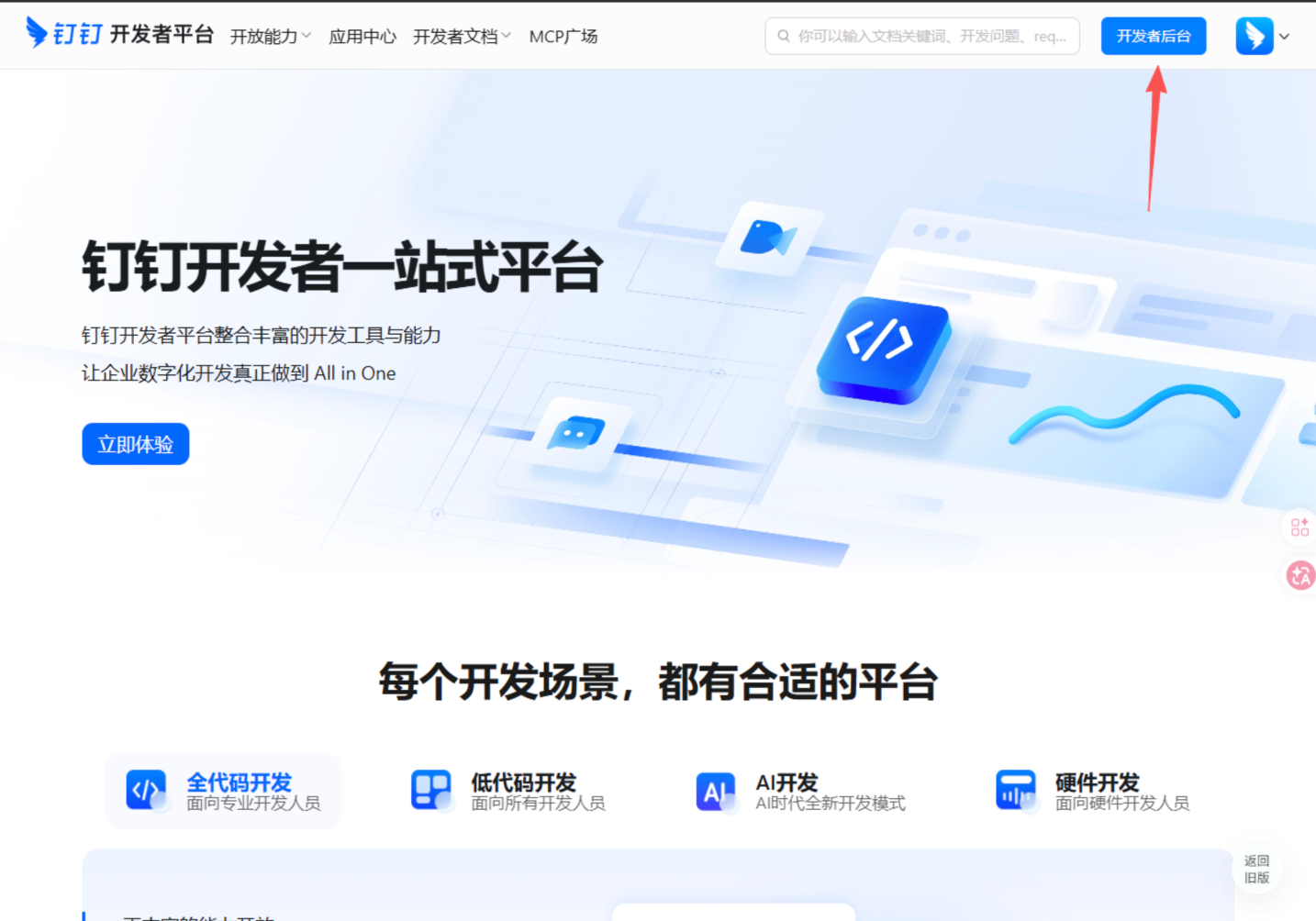
1. Sign in to Open Dev
Open DingTalk Open Dev and sign in as an admin:
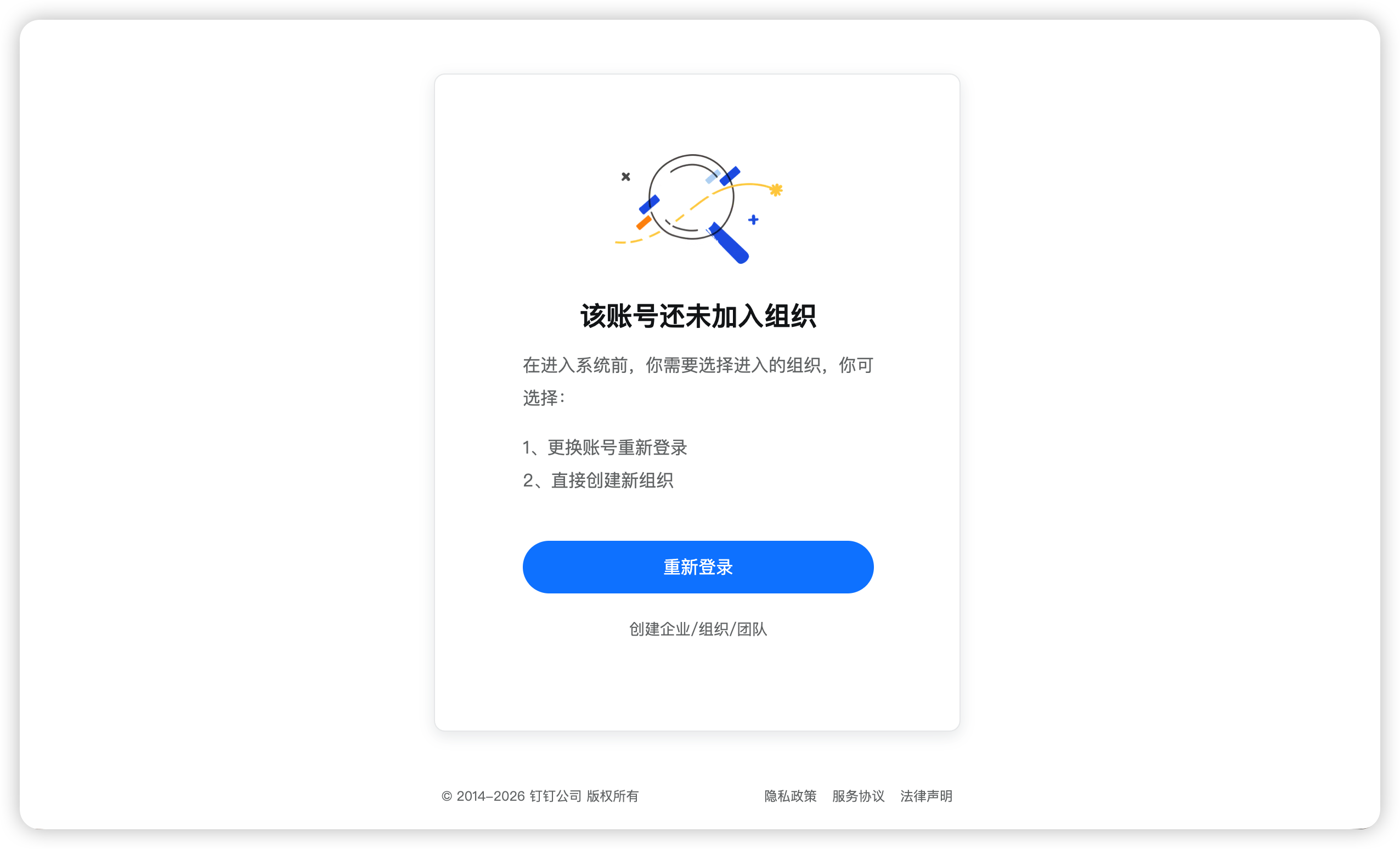
If prompted that you are not in an organization, create a personal enterprise first:
2. Create an app
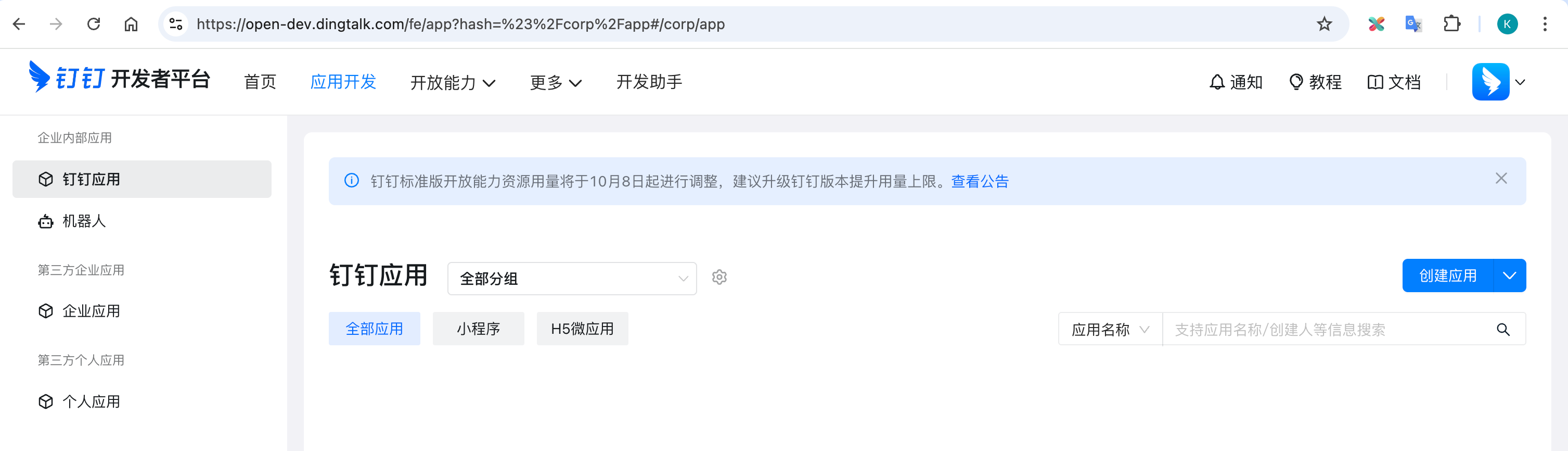
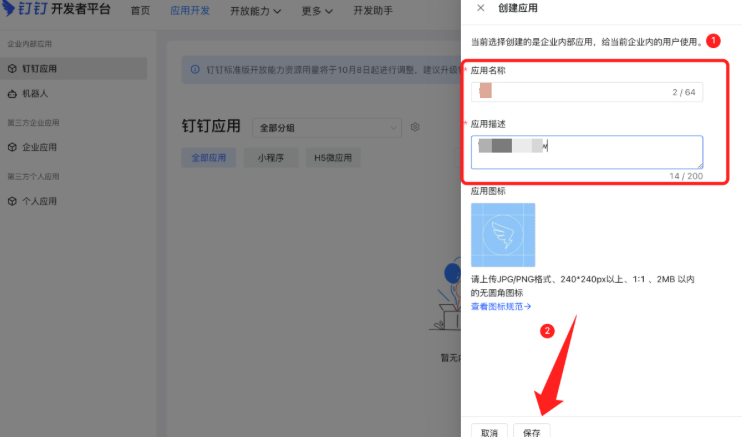
- Open App development and click Create app.
- Enter name, description, etc. (editable later), then Save.
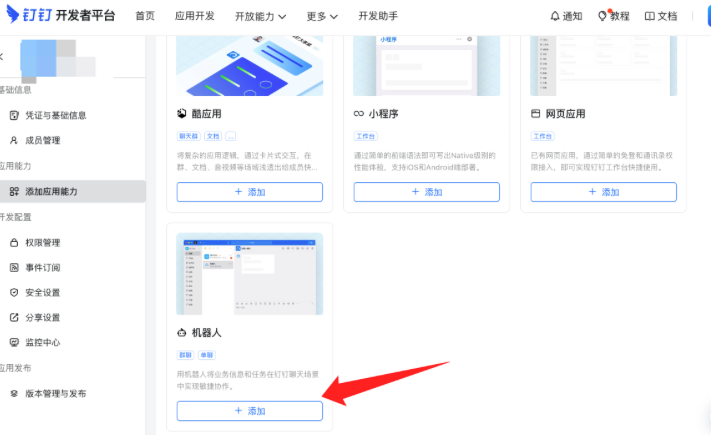
3. Add bot capability
- Under Add app capabilities, find Bot and click Add bot.
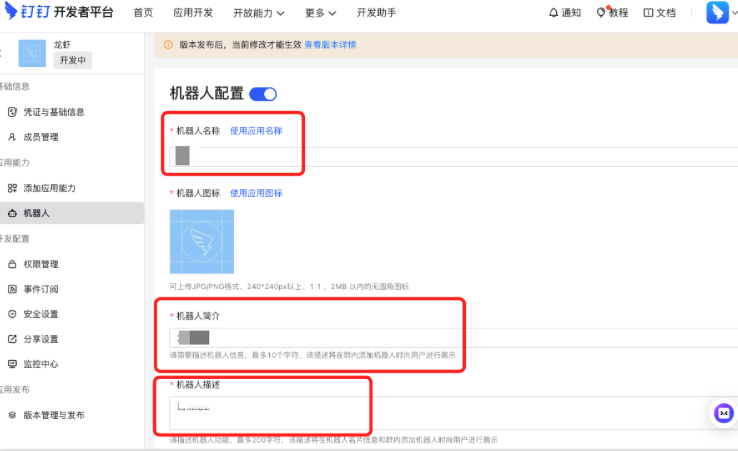
- Enter bot name, description, and preview image.
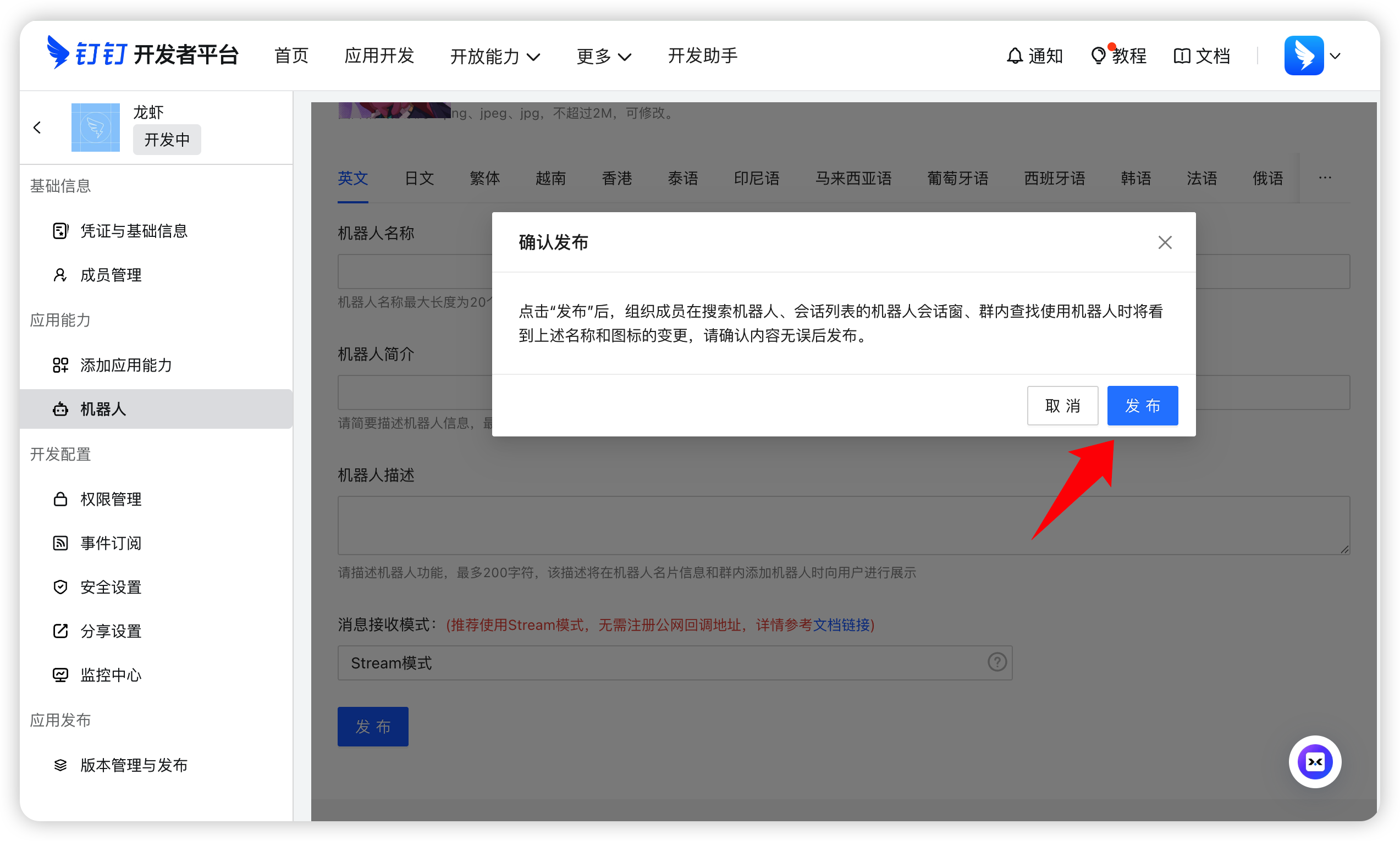
- Click Confirm publish.
2. Configure permissions
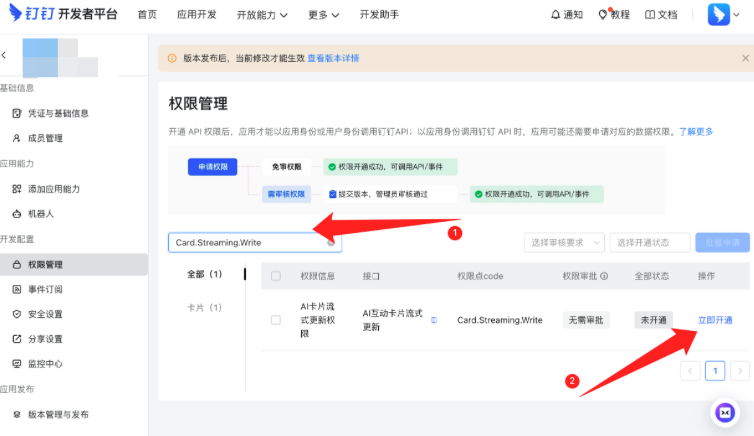
In Permission management, search for and enable (names may vary slightly in the console):
Card.Streaming.WriteCard.Instance.Writeqyapi_robot_sendmsg
3. Get credentials
1. Client ID / Client Secret
Open Credentials & basic info:
- Client ID (also AppKey)
- Client Secret (also AppSecret)
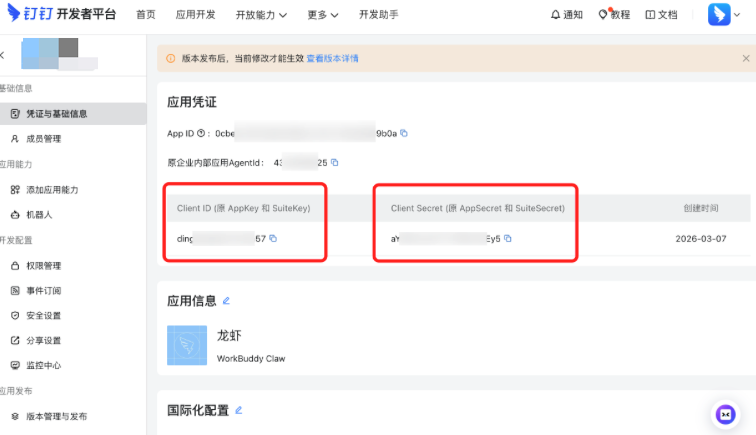
Keep Client Secret safe. Do not share it.
2. AES Key / Token (recommended for URL callback)
If you use HTTP URL callback and need message encryption:
- Go to Development config → Event subscription.
- Set push mode to HTTP push.
- Generate and save AES Key and Token (map to optional
aes_key/tokenin AI Studio).
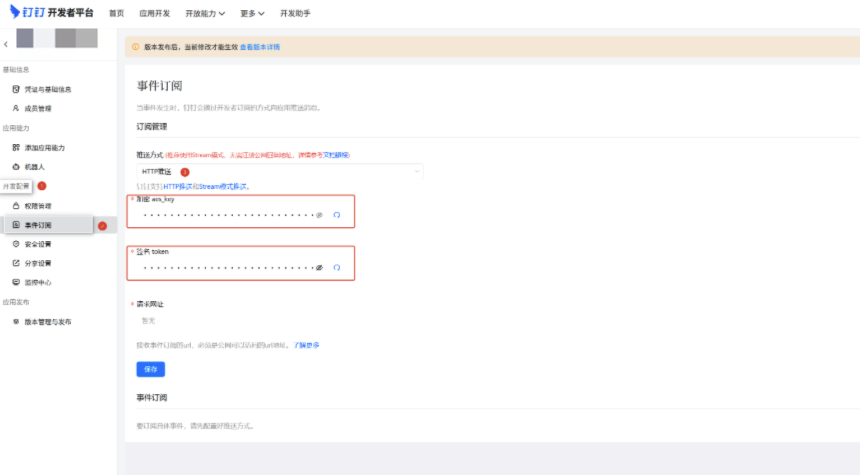
For Stream long connection, you usually do not need to configure an HTTP push URL here.
4. Mode A: Stream long connection
Best when you have no public ingress and want less setup.
For Stream long connection, first create the app / bot in DingTalk, confirm the message mode is Stream, and save / publish the bot. Only then enter Client ID / Client Secret in AI Studio and save. If you save in AI Studio before the bot is saved in DingTalk, the platform may report invalid information and refuse to save.
1. Prepare DingTalk and keep Stream
- Complete app creation, bot capability, and permissions as above, and obtain Client ID and Client Secret.
- Confirm the bot message receive mode is Stream (do not switch to HTTP). If it was changed to HTTP earlier, switch back to Stream and save / publish.
2. Configure in AI Studio
- Go to AI Studio → Security Operations → IM Channel → DingTalk → Configure.
- Select WebSocket long connection (Stream).
- Enter Client ID and Client Secret, then click Save.
| Field | Required | Description | Default | Validation |
|---|---|---|---|---|
| Client ID | Yes | Client ID / AppKey | — | Non-empty; ≤1000; not masked |
| Client Secret | Yes | Client Secret / AppSecret | — | Non-empty; ≤1000; masked |
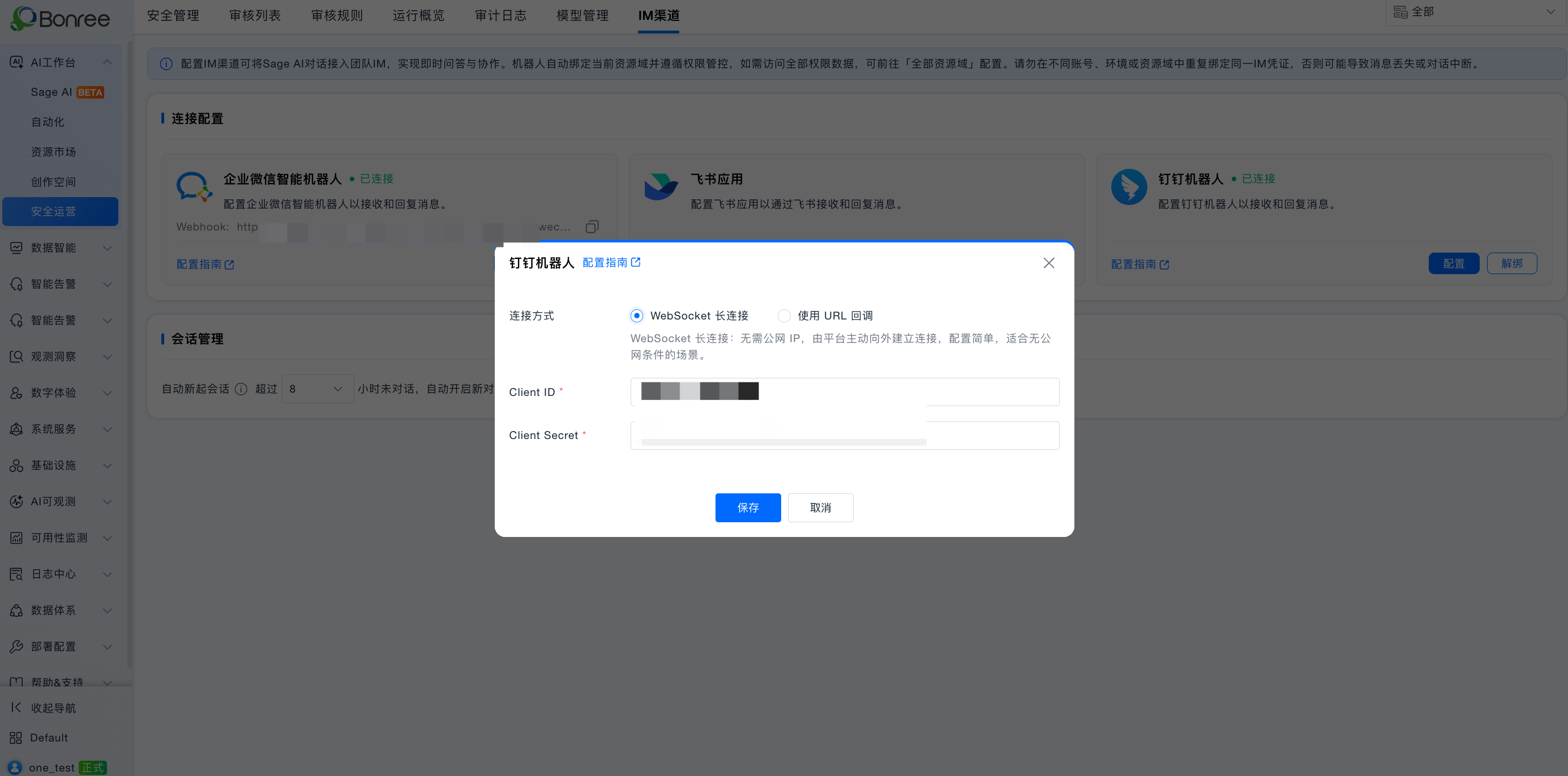
On save, connectivity is checked. When it passes, status is Connected. Long connection does not require pasting a receive URL.
5. Mode B: HTTP URL callback
Best when you already have public HTTPS and DingTalk should push events.
1. Generate the Webhook in AI Studio
- Go to AI Studio → Security Operations → IM Channel → DingTalk → Configure.
- Select Use URL callback (HTTP).
- Enter Client ID and Client Secret; optionally aes_key and token.
- Click Save and copy the Webhook.
| Field | Required | Description | Default | Validation |
|---|---|---|---|---|
| Client ID | Yes | Client ID / AppKey | — | Non-empty; ≤1000; not masked |
| Client Secret | Yes | Client Secret / AppSecret | — | Non-empty; ≤1000; masked |
| aes_key | Optional | Message encryption key; leave empty to disable encryption | — | ≤1000; masked |
| token | Optional | Callback verification token; leave empty to disable encryption | — | ≤1000; masked |
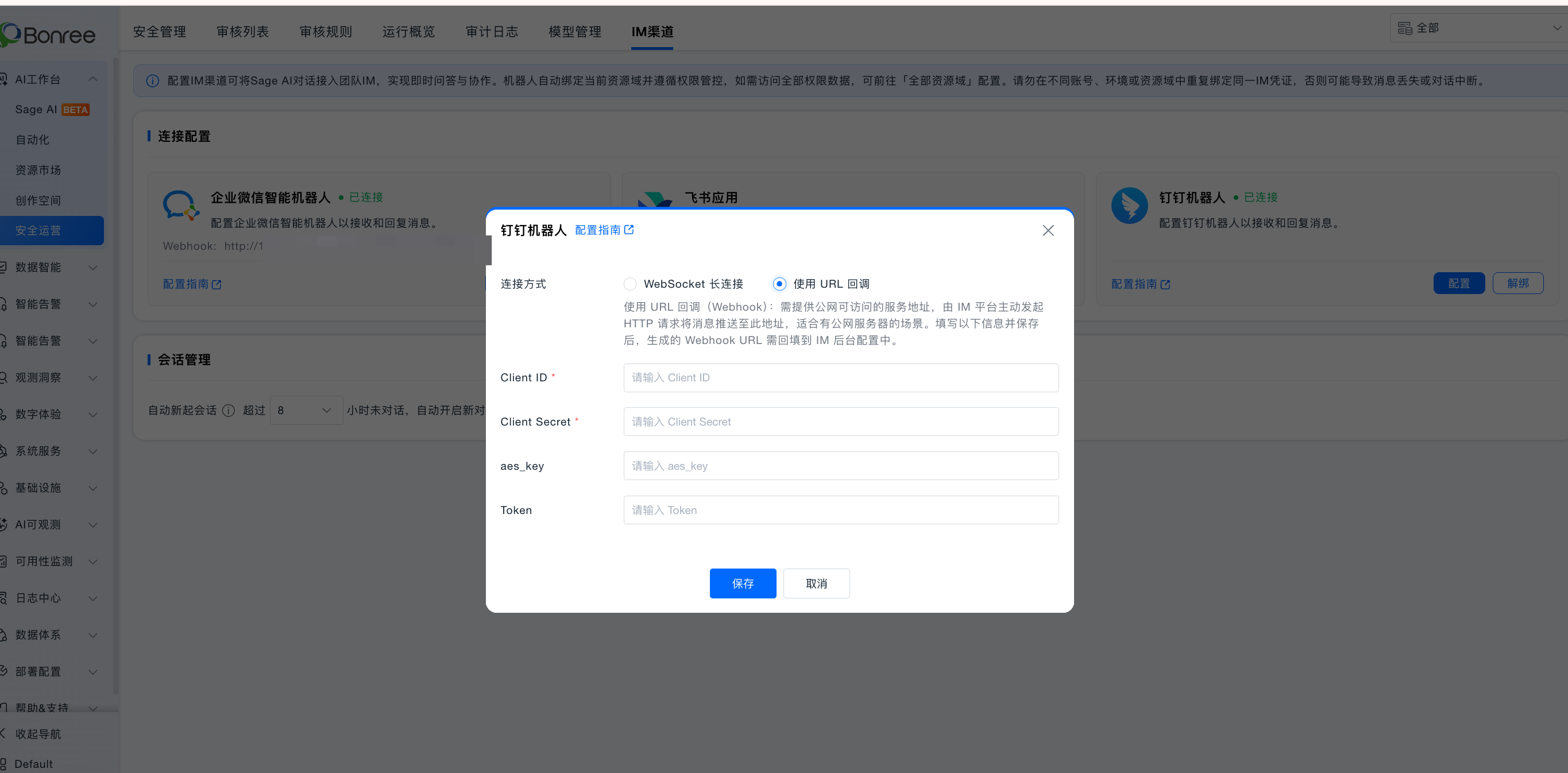
2. Paste the receive URL
- Open the DingTalk app / bot message receive settings.
- Switch Stream to HTTP:
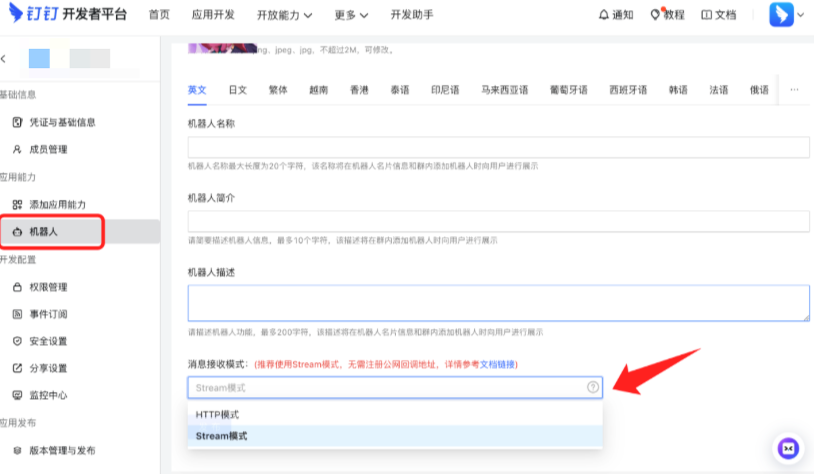
- Paste the Webhook into Message receive URL:
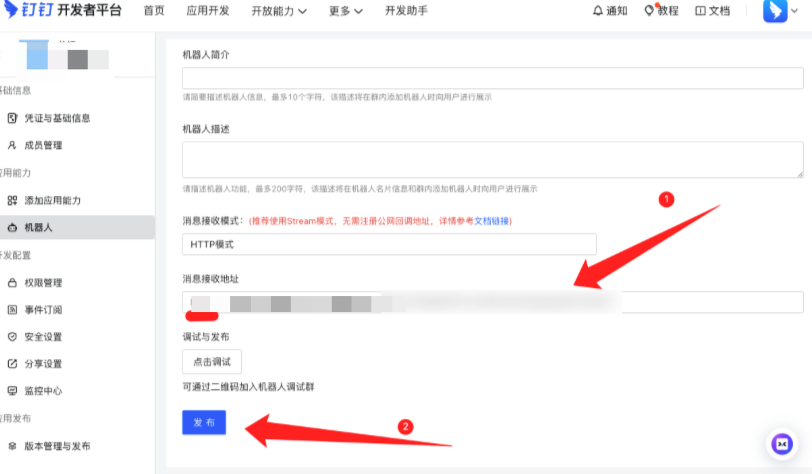
- Click Publish / save.
6. Session management and unbind
| Field | Required | Description | Default | Validation |
|---|---|---|---|---|
| Auto-start new session | Yes | Start a new session after idle timeout | 24 hours | Dropdown 1–24 hours; cannot disable |
Click Unbind and confirm to remove the binding.
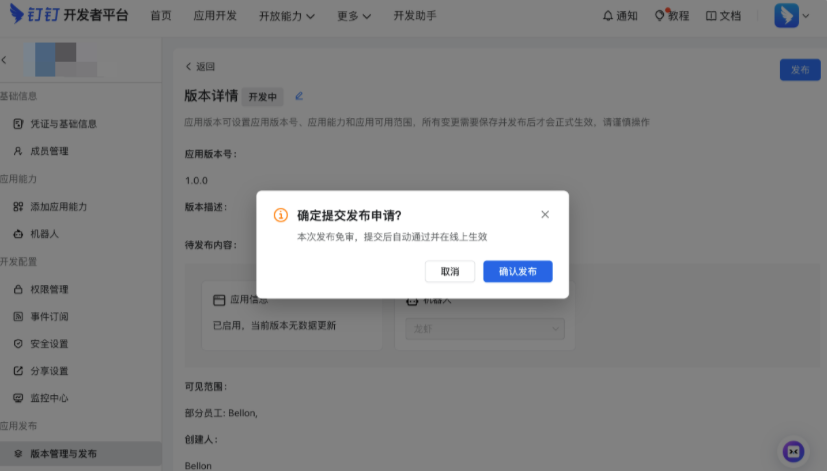
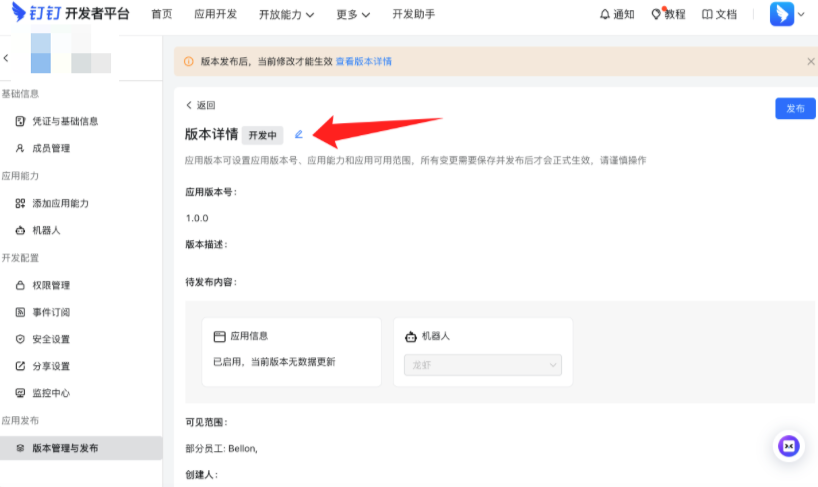
7. Publish the app
The app must be published before it is available in the enterprise:
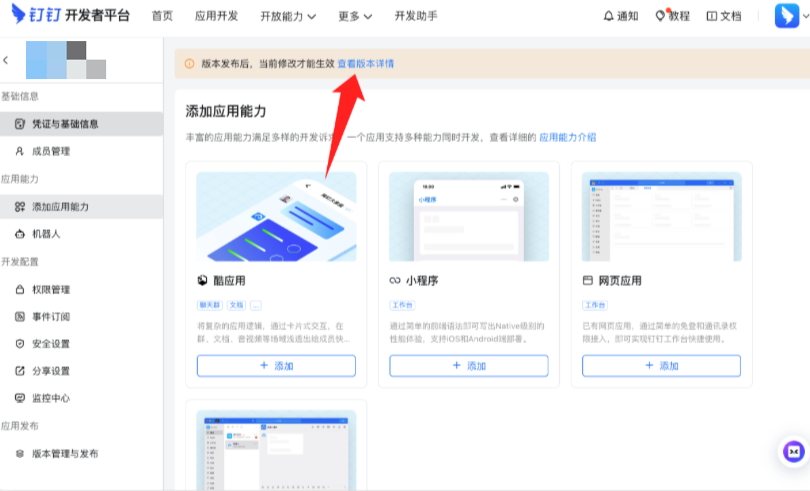
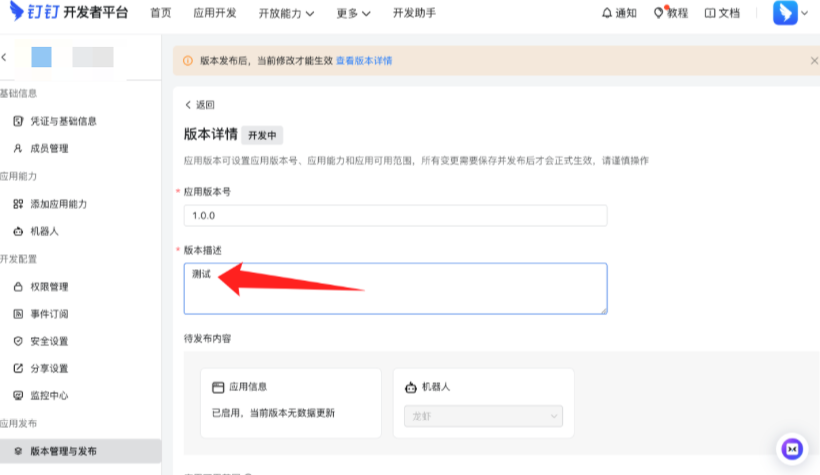
8. Get started
Group chat
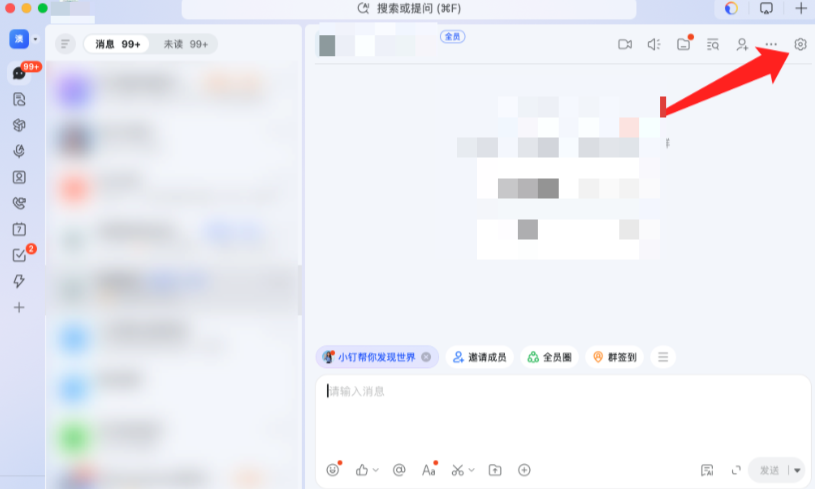
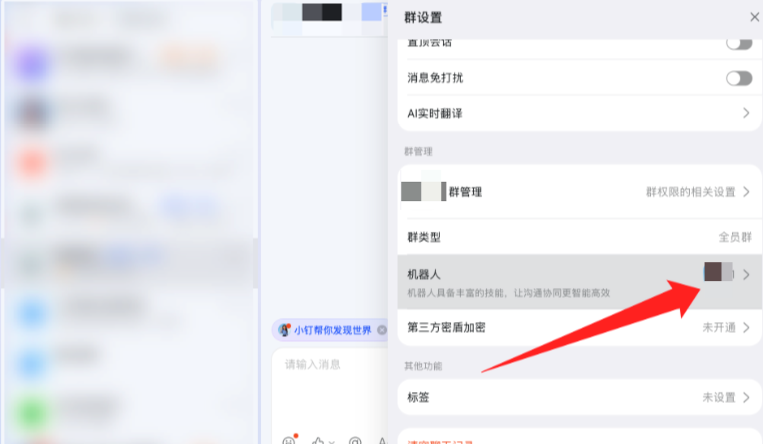
- Ensure the group’s owning organization matches the bot’s organization.
- Group settings → Bot → Add bot → search and add.
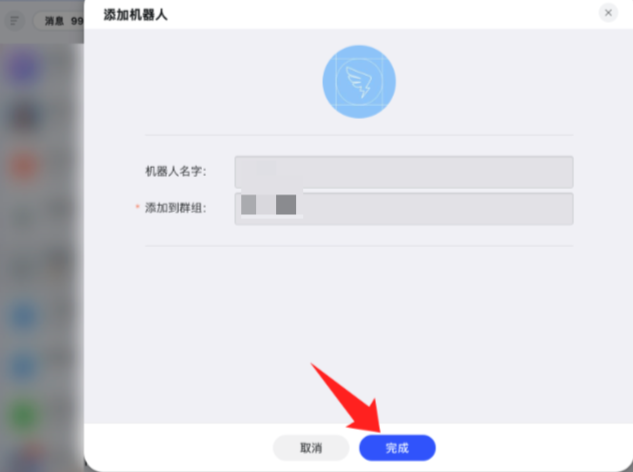
In the group, @bot and send your request.
Direct message
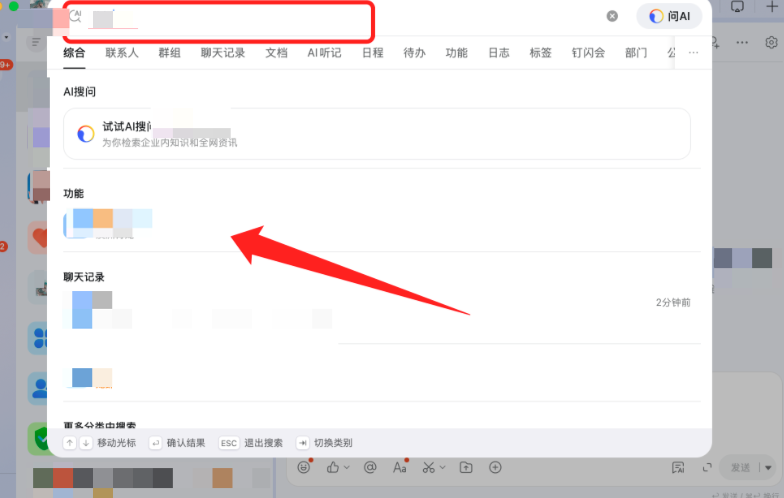
Search for the bot name at the top, open the chat, and send a message.
| Item | Description |
|---|---|
| Model | Auto routing |
| Rate limit | About ≤ 20 questions per minute per bot |
9. FAQ
No reply from the bot?
- Confirm both sides use Stream, or both use HTTP + Webhook.
- For HTTP: confirm the URL is https and the app is published.
- Check Client ID / Client Secret.
- Confirm the three permissions are enabled and the app is approved.
- Do not reuse credentials across account / environment / resource domain.
Long connection save failed?
- Confirm the bot was saved / published on DingTalk with Stream mode before you saved the config in AI Studio.
- Re-copy Client ID and Client Secret without extra spaces.
- Confirm the platform can reach DingTalk public endpoints outbound.
Bot not found in a group?
- Confirm the app is published.
- Confirm the group organization matches the bot organization.
- Try restarting the DingTalk client.