Automation
Prerequisites
- Feature menu: Access to the AI Studio / Automation menu is required.
- Operation permission: Read-Write access to AI Studio is required to create, edit, delete, and enable/disable automation tasks; Read-Only access supports viewing tasks and execution logs only.
- Data permission: Access to at least one resource domain under an environment is required. Automation tasks are managed and isolated by resource domain.
- Model configuration: At least one large language model (LLM) must be added to the model list. If no model is configured, the Create button is disabled and the message "No inference model is currently available" is shown.
Overview
The Automation module configures AI capabilities as scheduled or recurring tasks that run automatically around the clock without manual intervention. Evolved from the former "scheduled tasks" capability in Sage AI, it provides full lifecycle management including task listing, creation and editing, enable/disable control, execution logs, and report viewing.
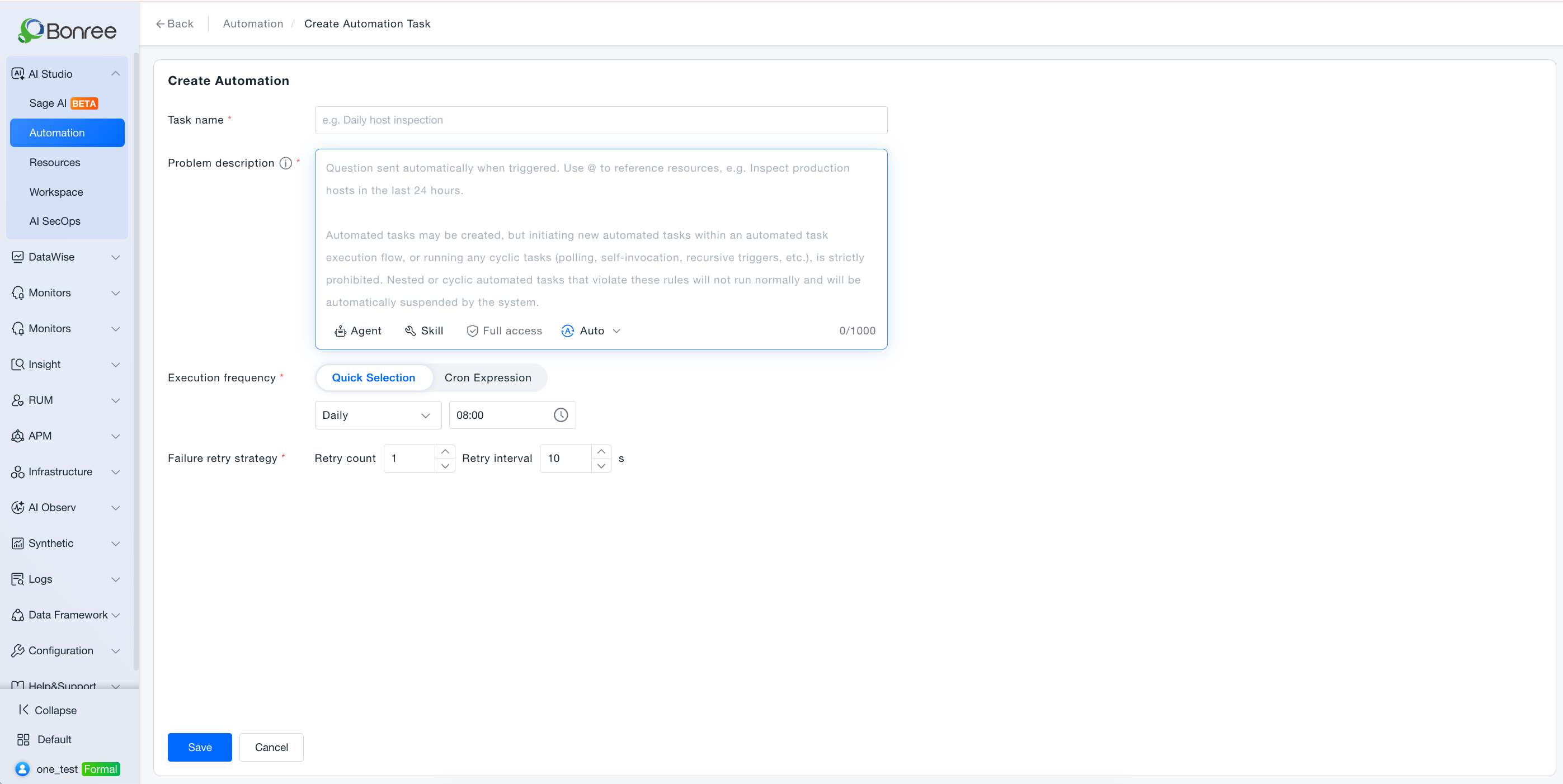
Each automation task includes a task name, problem description (content automatically sent in Sage AI when triggered; supports @ mentions and selecting Agent / Skill / model), execution frequency, and failure retry policy. Agents and Skills are chosen in the problem-description input; approval mode is fixed to Full access. Tasks run on schedule or via Run Now. Logs support viewing sessions, reports, and re-runs.
Value
-
Unattended, continuous operation
Configure repetitive inspections, report generation, and alert queries to run on a schedule, reducing manual on-call effort and manual triggering. -
Reuse of Sage AI capabilities
Task execution follows the same logic as Sage AI conversations. The problem description automatically starts an AI session, reusing existing Agents and Skills on the platform. -
Flexible scheduling
Supports both Quick Select (daily/hourly/weekly/monthly, etc.) and Cron expression frequency configuration to fit different cycle requirements. -
Problem description aligned with Sage AI
Supports @ mentions and Agent / Skill / model selection; approval mode is fixed to Full access for unattended runs. -
Recoverable from failure
Configure retry count and interval. Re-run / failure retry uses that run’s original time parameters and problem description and opens a new session record (sorted by execution time; no parent-child nesting). -
Observable and auditable
Each execution records duration, Token consumption, execution status, and execution type. Supports viewing reports, exporting, and jumping to the corresponding session.
Use Cases
Scheduled Host Inspection
- Who it's for: Infrastructure operations, SREs, on-call teams.
- Typical tasks: Check host CPU, memory, disk, critical processes, and service status at a fixed time each day, and output a health summary.
- Recommended configuration:
- Example problem description:
Inspect production environment hosts for the last 24 hours, focusing on CPU and disk usage; - Execution frequency: Daily at 08:00 (or multiple times via Cron);
- Trigger capability: Select an Agent such as System Inspection Assistant, or use Auto Match.
- Example problem description:
- Expected outcome: The task runs automatically on schedule. Successful runs support report and session viewing in logs; failed runs can be investigated and retried.
Periodic Alert Summary
- Who it's for: Alert on-call staff and NOC teams.
- Typical tasks: Summarize recent alerts every 2 hours or daily, grouped by severity/service, with TOP lists and handling suggestions.
- Recommended configuration:
- Example problem description:
Query alerts from the last 24 hours, summarize by severity, and provide brief analysis; - Execution frequency: Hourly or multiple times per day (Cron expressions offer more flexibility);
- Failure retry: 1–3 retries with 10–30 second intervals is recommended.
- Example problem description:
- Expected outcome: On-call staff no longer need to run the same query manually—they can open logs or reports for the latest summary.
Scheduled Report Generation
- Who it's for: Operations managers, capacity planning teams, DBAs.
- Typical tasks: Generate weekly slow SQL analysis reports, monthly capacity assessments, or periodic API performance trend summaries.
- Recommended configuration:
- Specify report type, time window, and output format in the problem description;
- Execution frequency: Every Monday at 09:00 or on the 1st of each month;
- Trigger capability: Specify the relevant domain Agent (e.g., Database Analysis Expert, Capacity Assessment Assistant).
- Expected outcome: Structured reports are generated on schedule. Successful records support export for archiving and review.
Periodic Execution with a Specified Agent or Skill
- Who it's for: Teams with standardized AI capabilities already in place.
- Typical tasks: Always use a specific Skill to send notifications, or always use a specific Agent for a standardized diagnosis workflow.
- Recommended configuration:
- On the create page, select Agent or Skill under Trigger Capability;
- Choose a published resource from the list (if empty, add from the Resource Marketplace or publish from Workspace first);
- Write the parameters and context required for each run in the problem description.
- Expected outcome: Task cards show a specific trigger label. Execution paths are stable and predictable, making auditing and version management easier.
Quick Creation from a Sage AI Conversation
- Who it's for: Users who have already validated a problem description in conversation.
- Typical tasks: Turn an inspection or summary workflow tested in Sage AI into a long-running scheduled task.
- Recommended approach:
- Describe the scheduling requirement in natural language in Sage AI;
- Review task name, problem description, and frequency in the confirmation dialog;
- After saving, go to the automation list to fine-tune Trigger Capability and retry policy.
- Expected outcome: Reduces duplicate data entry and quickly turns validated conversation capabilities into automation tasks.
Failure Recovery and Manual Re-run
- Who it's for: Task owners and on-call engineers.
- Typical tasks: A scheduled run failed due to network or dependency issues; a re-run or configuration adjustment is needed.
- Recommended approach:
- View session details for failed records in execution logs to identify the cause;
- Use Re-run on failed records for a manual retry;
- Keep the existing retry policy for transient issues; edit the problem description or change trigger capability for persistent failures.
- Expected outcome: Child logs mark the re-run source. Successful re-runs support normal report viewing and export.
Operation Scenarios
-
View the task list
- Go to AI Studio > Automation.
- Browse all tasks in the current resource domain as cards, viewing enable/disable status, execution frequency, latest execution result, and trigger label.
-
Filter tasks
- Enter keywords in the search box at the top.
- Filter by task name, enable/disable status, Agent/Skill, creator, and more (as indicated in the UI).
-
Create a task
- Click Create and fill in task name, problem description, execution frequency, trigger capability, and failure retry policy.
- After saving, the task is enabled by default and appears in the current resource domain list.
-
Edit a task
- Select Edit from the task card menu.
- Save changes; enabled tasks take effect on the next scheduled run with the updated configuration.
-
Enable or disable a task
- Select Enable or Disable from the menu.
- Disabled tasks show Paused on the card and no longer run on schedule; historical logs are retained.
-
Run now
- Click Run Now (play icon) on the task card.
- Triggers an immediate run without waiting for the next scheduled cycle, producing a new log entry.
-
Delete a task
- Select Delete from the menu and confirm.
- Deletion is permanent and cannot be undone—proceed with caution.
-
View execution logs
- Click a task card to open the log page.
- Review start/end time, duration, Tokens, status, and execution type for each run.
-
Follow-up log actions
- Successful records: view report, view session, re-run, and export (via checkbox selection).
- Failed records: view session to troubleshoot and re-run; report viewing and export are not available.
Getting Started
Access Automation
Log in to the Bonree ONE platform and select AI Studio > Automation from the left navigation to open the task list page.
Tasks are displayed as cards. The top bar provides a search box and Create button; switch resource domain at the top-right. Search supports task name, enable/disable status, Agent/Skill, and creator (creator dropdown lists creators present in the current list).
Create an Automation Task
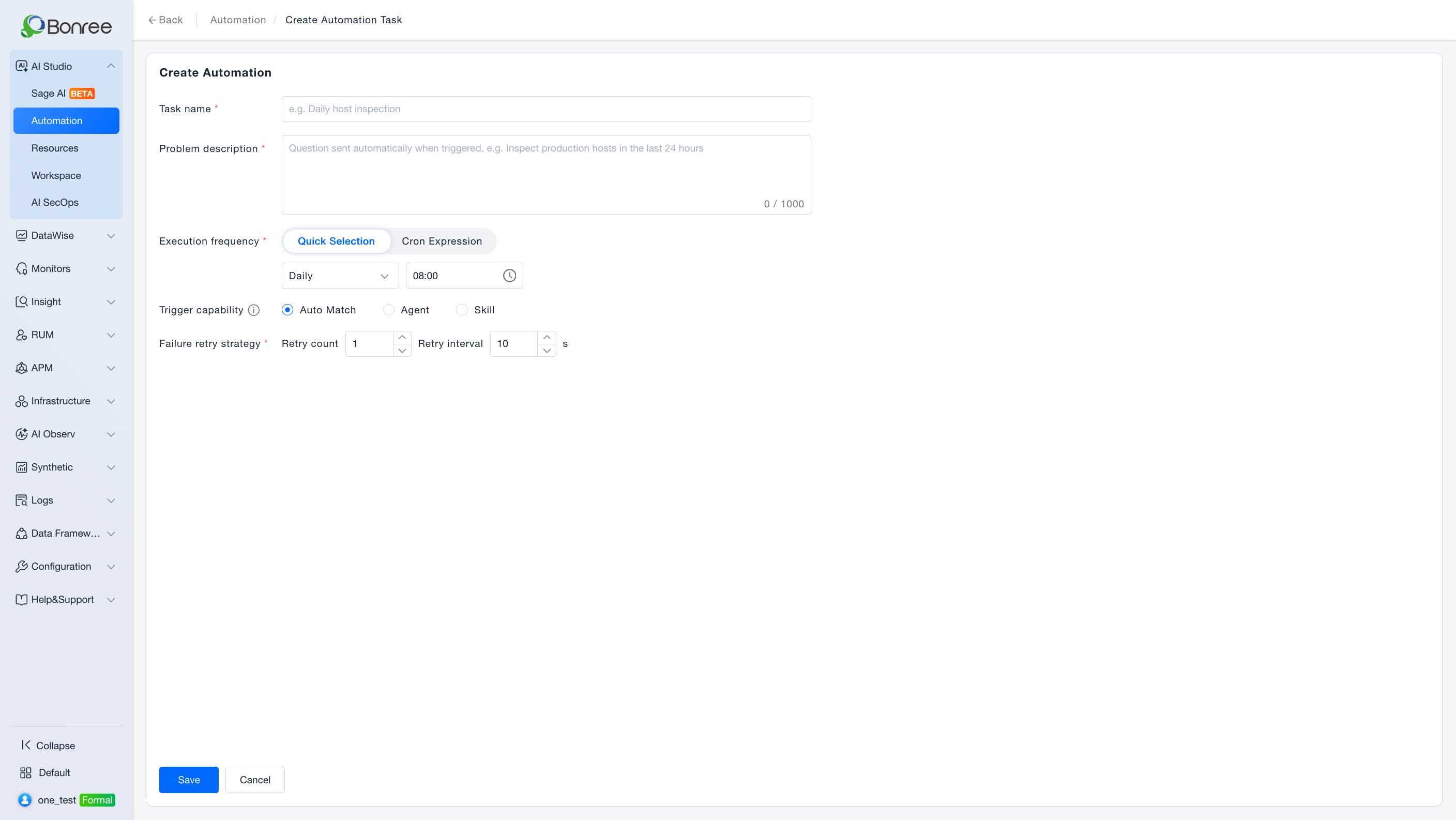
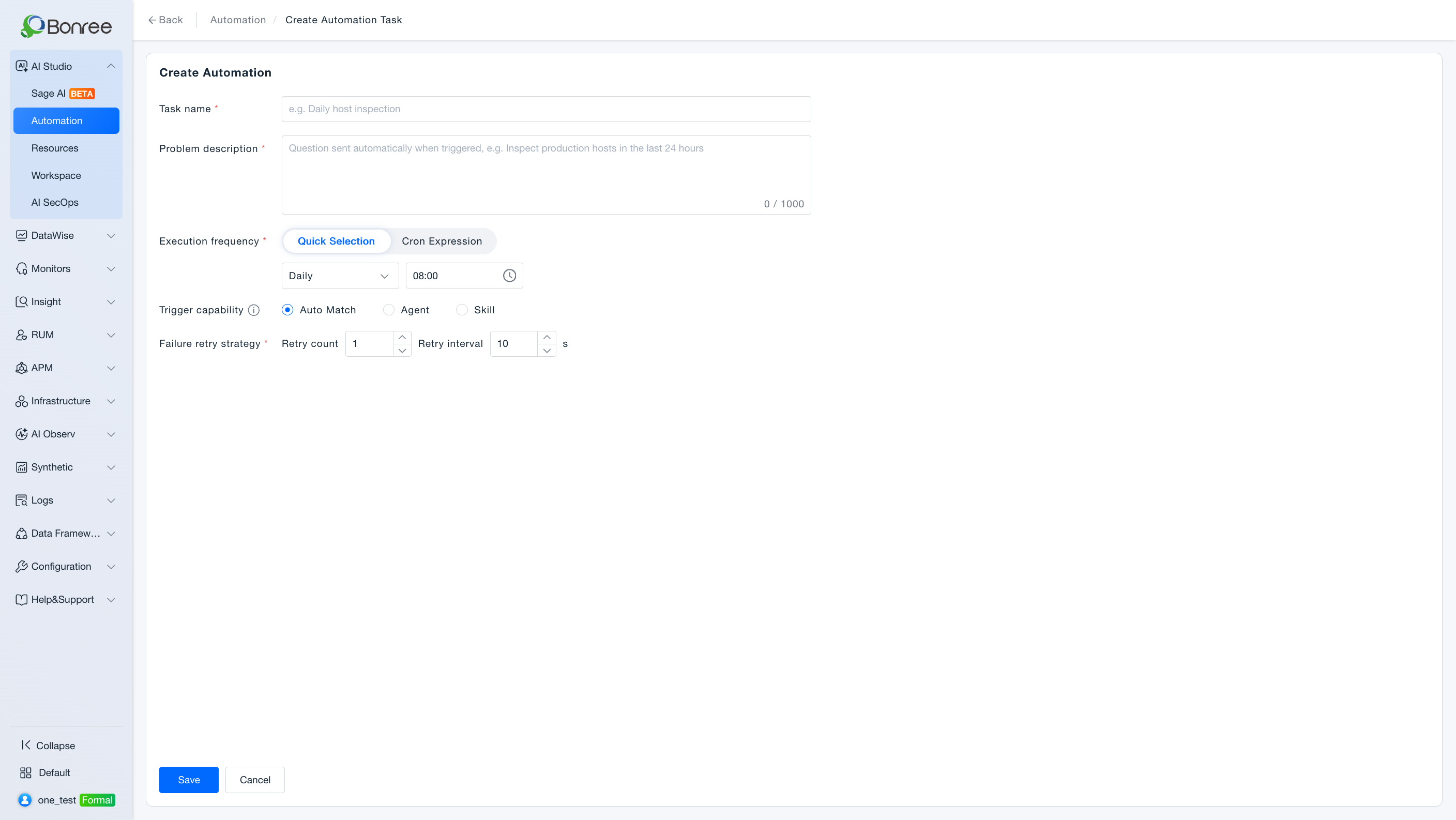
Click Create to open the creation page and fill in the following fields:
| Field | Required | Description |
|---|---|---|
| Task name | Yes | Display name, e.g., "Daily Host Inspection" |
| Problem description | Yes | Content sent in Sage AI on schedule. Placeholder: question auto-sent on trigger; @ can reference resources. Supports @, Agent / Skill / model selection; no file attachments. Tip beside the field: if the linked Agent or Skill is deleted, this scheduled task is deleted automatically. |
| Approval mode | Fixed | Always Full access (not switchable). Hover tip: Automation runs automatically end-to-end without human approval mid-run. If your flow needs user confirmation for risky ops, do not use Automation. |
| Execution frequency | Yes | Quick Select or Cron expression |
| Failure retry policy | Yes | Retry count and interval (seconds) |
Click Save. The task appears in the current domain list and is enabled by default.
Execution frequency:
- Quick Select: Daily / hourly / weekly / monthly + time.
- Cron expression: Complex schedules.
Agent / Skill / model in the problem description:
- Select Agent or Skill inside the input (the former standalone Trigger capability control is removed).
- Optionally pin an execution model; otherwise platform defaults apply.
- Historical tasks that already selected Agent/Skill keep the selection when edited.
If lists are empty, add from Resources or publish from Workspace first.
When no LLM is available, Create is disabled with tip “No inference model is currently available”.
Manage Tasks
The following actions are available on each task card:
- Run Now (play icon): Manually trigger one execution.
- Edit: Modify task configuration.
- Enable / Disable: Control whether the task runs on schedule; disabled tasks show Paused.
- Delete: Permanently delete the task after confirmation.
Task cards also show execution frequency, latest status and time, linked Agent/Skill tags, and creator plus relative creation time (e.g., “onedemo created 1 hour 9 minutes ago”).
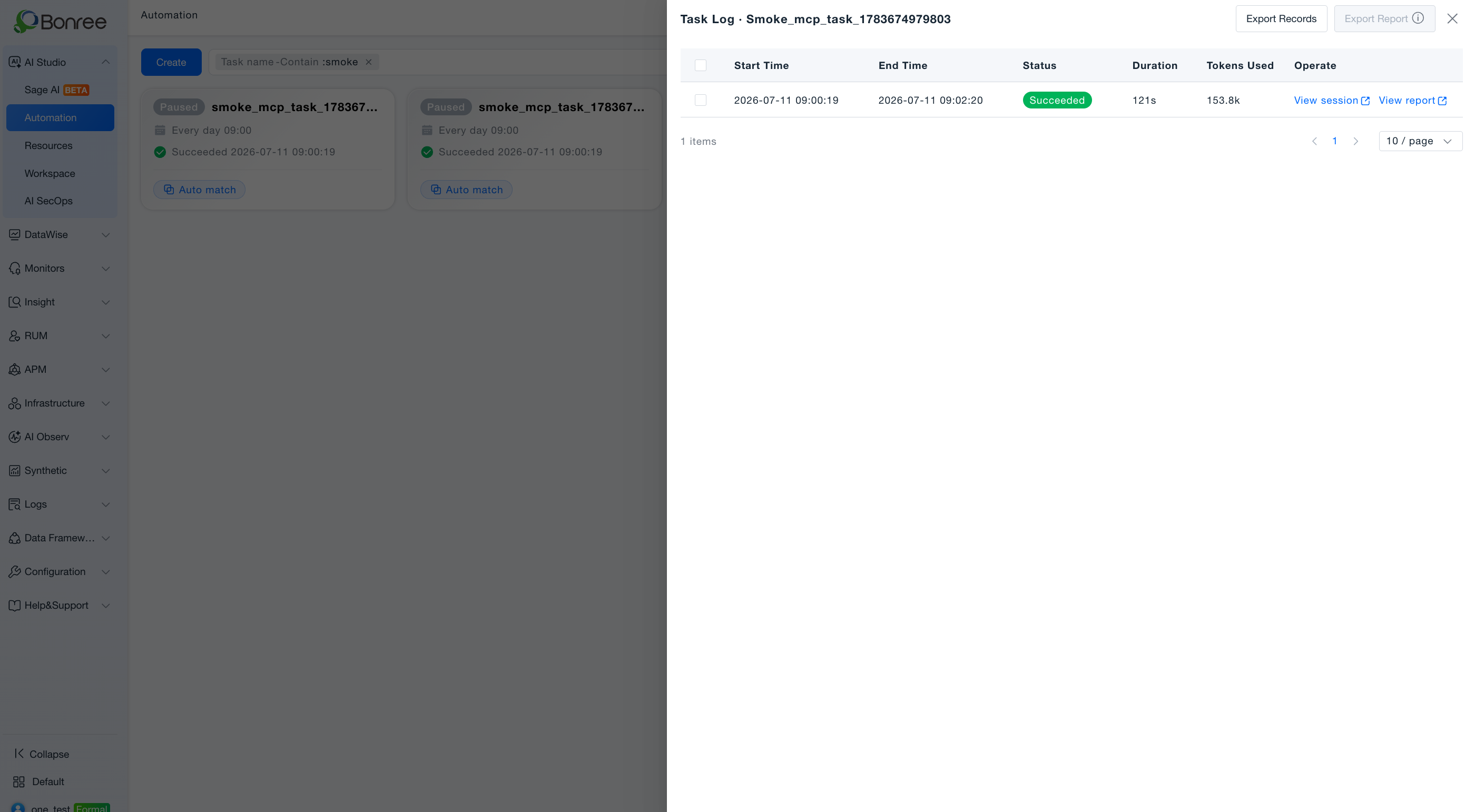
View Execution Logs
Click a task card to open the Execution Logs page.
The log list includes: start time, end time, duration, Tokens consumed, execution status, execution type, and actions.
Execution types (after status; column tip):
- Scheduled: Triggered by the configured schedule.
- Re-run: Manual from logs; re-executes using that record’s start time and problem description, and opens a new session.
- Run now: Produced by Run Now on the task card.
Column tip: Scheduled runs follow the preset frequency; Re-run is manual based on that run; Run now is an immediate card action.
Difference from Sage AI Regenerate: Automation re-run/retry uses then-time parameters; Sage AI regenerate uses latest time parameters.
Log actions:
- View session: Open the execution session.
- Re-run: Run again from that log (new session, time-sorted).
- View report: Success only; failed rows show a tip on hover of report or checkbox.
Export successful reports; export records include a report file type column (PDF / Word / HTML / Markdown). Failed rows cannot be selected.
Create a Task from Sage AI (Optional)
Describe a schedule in Sage AI (e.g., “Inspect production hosts every day at 8:00”). The system uses the current model, Agent, and intent; it may clarify if needed. On success, a task is added for the current account and resource domain, and the reply includes a deep link to open task details in a new window.
Nested Automation creation, self-calling loops, or polling self-growth are rejected with an explanation.
Notes
- At least one LLM is required; otherwise Create is disabled.
- Quota: At most 20 Automation tasks per account per resource domain (including disabled). Over the limit, Create is disabled. Seeing >20 under All domains is expected (multi-domain aggregate) and does not raise the per-domain cap.
- No nested / loop logic: Do not create Automation that starts other Automation, or polling / self-call / recursive triggers. Violating tasks may fail and be auto-paused. The problem-description guide shows a warning.
- Isolated by resource domain.
- Disable keeps logs; delete is permanent.
- If a linked Agent/Skill in the problem description is deleted, the scheduled task is deleted automatically.
- New Agent/Skill versions auto-apply to referencing tasks—assess impact.
- Failed runs cannot view/export reports; use View session.
- Run now / Re-run into Sage AI should reflect the task’s model, Agent/Skill, and Full access approval mode.