Review Rules
Prerequisites
- Menu access: Access to AI Studio > Security Operations > Review Rules is required.
- Permissions: Read-Write access is required to create and maintain review rules.
- Roles and users: Selected reviewers must have review menu access, AI Studio Read-Write permission, and access to the current environment.
Overview
Review Rules define who may review Skill and Agent listing/delisting requests. After a creator submits a request, the system routes it to reviewers configured in the rule; reviewers process items in the Review Queue.
Only the latest review rule is ever active. After creating or updating a rule, new requests automatically match the latest reviewers—creators do not pick approvers individually.
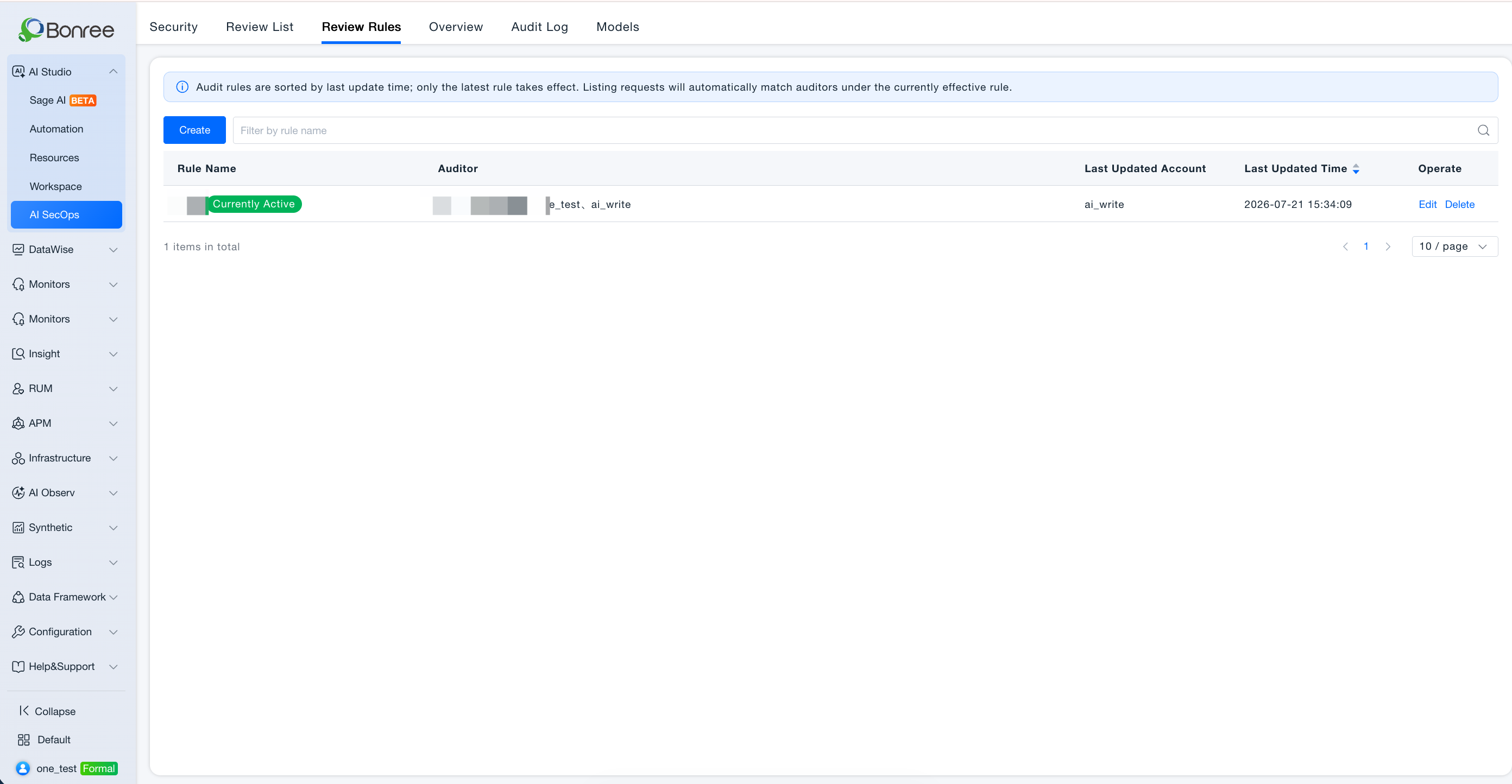
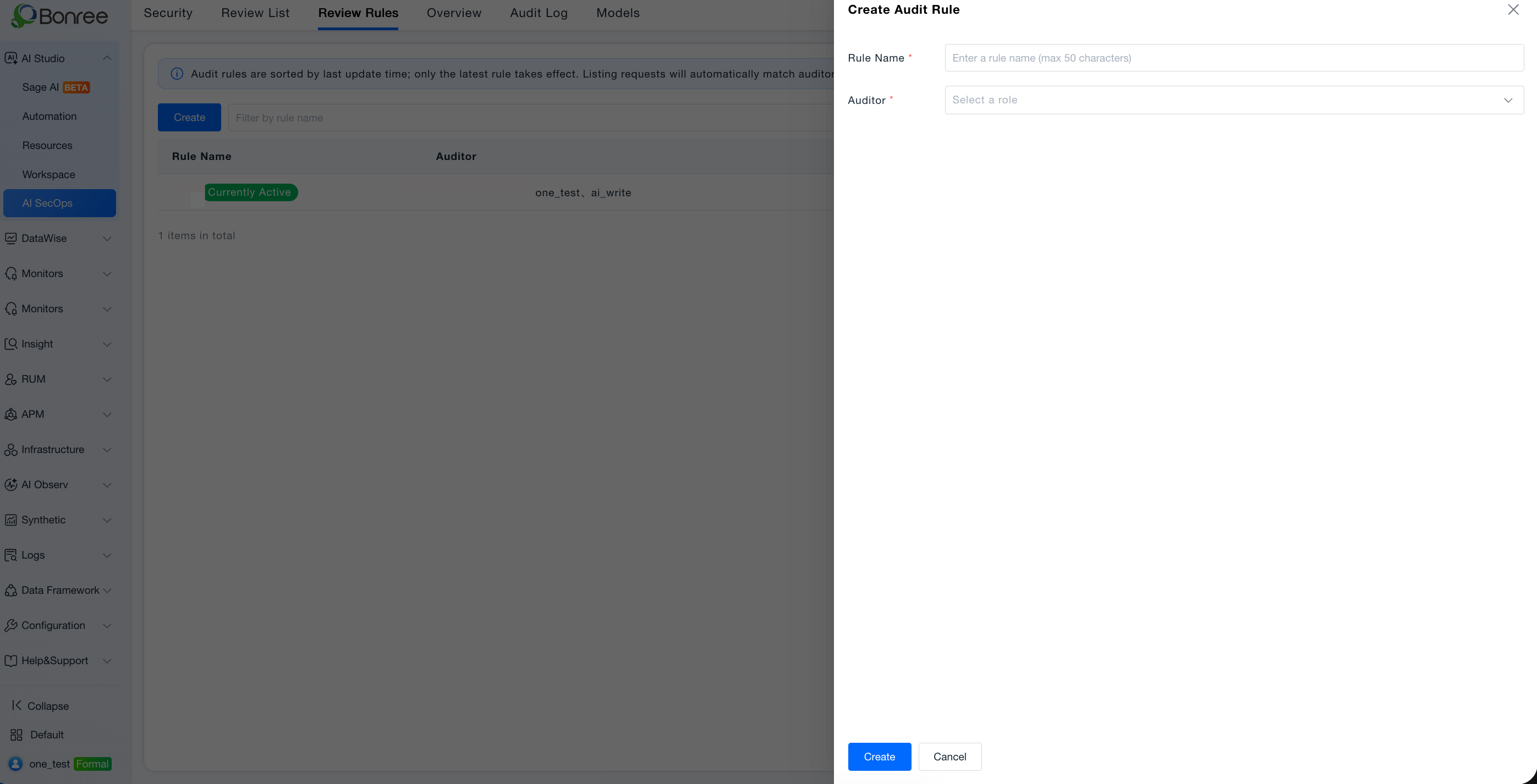
(Image: Review rules list and create form)
Page guidance (summary): Only the latest review rule is active; listing/delisting requests automatically match current reviewers.
Value
- Consistent approval chain: Prevents ad hoc approver selection; governance standards stay uniform.
- Multi-reviewer redundancy: Configure multiple reviewers per rule; one approval is enough, and others sync automatically.
- Environment isolation: Rules apply per environment; different teams can be configured per environment.
Use Cases
First-time Public marketplace listing
- Audience: Platform administrators.
- Typical task: Assign a review team before enabling public sharing for Skills/Agents in production.
- Recommended approach:
- Go to Security Operations > Review Rules;
- Create review rule and select a reviewer role;
- Select users under that role (multi-select supported);
- Save and notify creators and reviewers.
- Expected outcome: Creators can submit listing/delisting requests; items appear in reviewer Review Queue.
Change the review team
- Audience: Administrators.
- Typical task: Transfer review responsibility to a new role or personnel.
- Recommended approach: Create a new review rule (the newest entry becomes active); in-flight requests may follow prior flow; new requests match the new rule (per product behavior).
- Expected outcome: New requests route to new reviewers.
Operation Overview
-
Access Review Rules
- AI Studio > Security Operations > Review Rules (Tab 3 in menu order).
-
View current rules
- The list shows historical rules; the latest entry is the active rule.
- If empty, the page prompts: no review rule for this environment—creators cannot request listing/delisting until one is created.
-
Create a review rule
- Click Create (or equivalent entry);
- Select role: choose a role with review capability;
- Select users: list users under the role, multi-select supported; eligible users must meet permission requirements;
- Selected users appear as tags and can be removed;
- Note: requests sync to all selected reviewers; one review updates status for everyone;
- Save.
-
Verify configuration
- Have a creator try Request listing in Workspace; if still blocked, confirm the rule saved and user permissions are complete.
Relationship with Review Queue and Workspace
Review Rules (define reviewers)
      │
      ▼
Creator listing/delisting request ──► Review Queue (reviewers process)
      ▲
      └── Cannot submit without a rule
- After rules are configured, see creator paths in Workspace · User Guide.
- Reviewer processing paths are in Review Queue.
Notes
- Latest rule only: Do not rely on historical rule entries for new requests.
- Permissions required: Users missing review menu or Read-Write access should not be selected as reviewers.
- Does not replace Security Management: Security Management keyword policies block on save/publish; review rules define manual reviewers for listing/delisting—both apply in parallel.
- Built-in resources: Platform built-in Skills/Agents usually skip listing review and appear directly under Public.