Sage AI
Prerequisites
- Feature menu: Access to the AI Studio / Sage AI menu is required.
- Operation permission: Read-Write access to AI Studio is required to start conversations and manage sessions; Read-Only access supports viewing only.
- Data permission: Access to at least one resource domain under an environment is required.
- Model configuration: At least one large language model (LLM) must be added to the model list. If no model is configured, conversations cannot be started and the system will prompt you to add one.
- Embedding model: In private deployments, a compatible embedding model must also be added and enabled—in addition to the LLM—to use AI Studio capabilities end to end. The embedding model converts text into vectors and is the technical prerequisite for knowledge “memory” and precise retrieval, as well as semantic routing of MCP tools. Without it, knowledge base management is unavailable, and MCP tool invocation accuracy drops sharply or routing fails. Configure it in advance under AI Studio > Security Operations > Model Management.
Overview
Sage AI is the unified intelligent interaction entry point of AI Studio. It lets you drive Agents, Skills, and platform resources through natural language to complete operations Q&A, analysis, diagnosis, and task execution.
The home page displays built-in expert team carousel cards for platform preset Agents. Click a card to quickly enter the corresponding expert conversation context. In addition to built-in capabilities, Sage AI can invoke Agents, Skills, tools, and knowledge bases that have been added from the Resource Marketplace or created and published in Workspace within the current resource domain.
If no Agent or Skill is available in the current resource domain, add resources from the Resource Marketplace or create and publish them in Workspace first, then return to Sage AI and invoke them via @ references or the quick-select buttons in the input area.

Value
-
Unified entry, natural interaction
Q&A, tool invocation, Skill execution, and Agent collaboration are consolidated in a single conversation interface. Users can initiate tasks through natural language without understanding the underlying models or execution pipeline. -
Ready out of the box, quick to start
The home page carousel showcases built-in experts/Agents. Selecting a card brings in recommended questions and capability boundaries, helping new users quickly begin common operations tasks such as host inspection, alert analysis, and capacity assessment. -
Flexible extension, on-demand composition
Supports @ references to Agents, Skills, tools, and knowledge bases, as well as quick selection via the Agent and Skill buttons in the input area, enabling flexible combinations for different business scenarios. -
Traceable sessions, easier collaboration
Historical session management and context restoration make it easy to continue follow-up questions, post-incident review, and team sharing. -
Connected to Automation
When you describe scheduled task requirements in a conversation, the system can guide you through confirmation and create an automation task. For recurring unattended execution, manage tasks in the Automation module.
Use Cases
Daily Operations Q&A and Analysis
- Who it's for: Frontline operations staff, on-call engineers, SREs.
- Typical tasks: Ask about alert meanings, query current host/service status, understand metric fluctuations, and get troubleshooting ideas and next-step recommendations.
- Recommended approach: Describe the problem directly in the input box; add context such as environment name, time range, and object ID when relevant; for deeper analysis, @ reference the related Agent or knowledge base.
- Expected outcome: Sage AI invokes platform tools and Agents to return structured conclusions, related data, and actionable suggestions, with support for follow-up questions in the same conversation.
Getting Started Quickly with Built-in Expert Teams
- Who it's for: New AI Studio users and team members who want a quick capability overview.
- Typical tasks: Slow SQL analysis, alert root-cause analysis, host health inspection, capacity trend assessment, platform feature guidance, and more.
- Recommended approach:
- Browse built-in expert cards in the home page carousel (e.g., Database Analysis Expert, Intelligent Customer Service Assistant, Capacity Assessment Assistant);
- Click a target card to view capability tags, description, and recommended questions;
- Send a recommended question directly, or adjust the time range and object names in the input box before sending.
- Expected outcome: The system applies the expert's capability scope and context, delivering domain-specific answers and lowering the learning curve for first-time users.
Alert and Incident Root-Cause Analysis
- Who it's for: On-call staff and incident response engineers.
- Typical tasks: Root-cause analysis for P1/P2 alerts; correlating metrics, traces, and log clues; outputting recovery recommendations and impact assessment.
- Recommended approach:
- Describe the alert object, trigger time, and alert content;
- @ reference Agents such as Alert Diagnosis Assistant, or select a related built-in expert from the carousel;
- Continue follow-up questions based on the first response to narrow down the root cause.
- Expected outcome: Step-by-step diagnosis, tool invocation records, and structured conclusions suitable for tickets or shift handover logs.
Log and Database Analysis
- Who it's for: DBAs, application operations staff, and performance engineers.
- Typical tasks: Analyze ERROR log patterns, identify slow SQL, evaluate index optimization opportunities, and diagnose connection pool or resource bottlenecks.
- Recommended approach:
- Specify the database instance, service name, time window, and analysis goal in your question;
- @ reference log analysis or database-related Agents/Skills;
- Upload log snippets or SQL text as attachments when needed.
- Expected outcome: Summaries of abnormal patterns, lists of suspicious statements, optimization suggestions, or directions for further investigation.
Custom Conversations with Added Resources
- Who it's for: Team users familiar with the Resource Marketplace and Workspace.
- Typical tasks: Run standardized inspections per team SOP; invoke custom Skills for notifications, ticket creation, or report generation; answer internal policy questions using team knowledge bases.
- Recommended approach:
- Add the required Agents, Skills, tools, or knowledge bases from the Resource Marketplace;
- Return to Sage AI and @ reference the target resource, or use the Agent / Skill buttons to specify the execution target;
- Describe the business context, input parameters, and expected output format in your question.
- Expected outcome: Conversations follow your team's published capabilities and knowledge boundaries, producing results aligned with internal standards.
Use Immediately After Publishing in Workspace
- Who it's for: Creators and Agent/Skill developers.
- Typical tasks: Verify that a newly published Agent responds correctly; let business colleagues try a newly launched Skill; perform final sandbox-style conversation testing before release.
- Recommended approach:
- Complete debugging and publish to the target resource domain in Workspace;
- Switch to the corresponding resource domain and open Sage AI;
- @ reference the newly published resource or select it via the quick buttons, then send typical test questions.
- Expected outcome: No additional deployment or configuration is required—published resources are available in conversations within the current resource domain immediately.
Create Automation Tasks from a Conversation
- Who it's for: Operations staff who want to turn repetitive work into scheduled execution.
- Typical tasks: "Inspect production hosts every day at 8:00 AM", "Summarize recent alerts every 2 hours", "Generate last week's operations report every Monday".
- Recommended approach: Describe the scheduling requirement in natural language in Sage AI; review task name, problem description, and execution frequency in the confirmation dialog; then go to Automation to view, edit, or enable/disable the task.
- Expected outcome: The task is written to the automation list in the current resource domain and runs automatically on the configured schedule (see the Automation documentation for details).
Operation Scenarios
-
Access Sage AI
- Select AI Studio > Sage AI from the left navigation.
- Confirm the current resource domain in the top-right corner matches your intent.
-
Select a built-in expert
- Browse and click expert cards in the home page carousel.
- Review capability tags and recommended questions, then send with one click or customize before sending.
-
Start a conversation
- Enter a natural language question or task description in the input box.
- Use
@to reference resources and/to invoke Skills and commands. - Upload attachments when needed to supplement context such as logs or configuration files.
-
Specify execution target and policy
- Use the Agent and Skill buttons to select resources for the current conversation.
- Configure command approval policy via the Approval dropdown.
- Switch the large language model used in the current session from the input area.
-
Manage sessions
- View, search, and restore recent conversations in the history sidebar on the left.
- Click New Session to clear context and start a new Q&A or task.
-
Extend available resources
- If the @ or selection list lacks the capability you need, add resources from the Resource Marketplace.
- Or create, debug, and publish in Workspace, then return to Sage AI to invoke them.
Getting Started
Access Sage AI
Log in to the Bonree ONE platform and select AI Studio > Sage AI from the left navigation to open the Sage AI home page.
The page shows the slogan and resource domain switcher at the top, built-in expert team carousel cards in the center, and the conversation input area at the bottom.
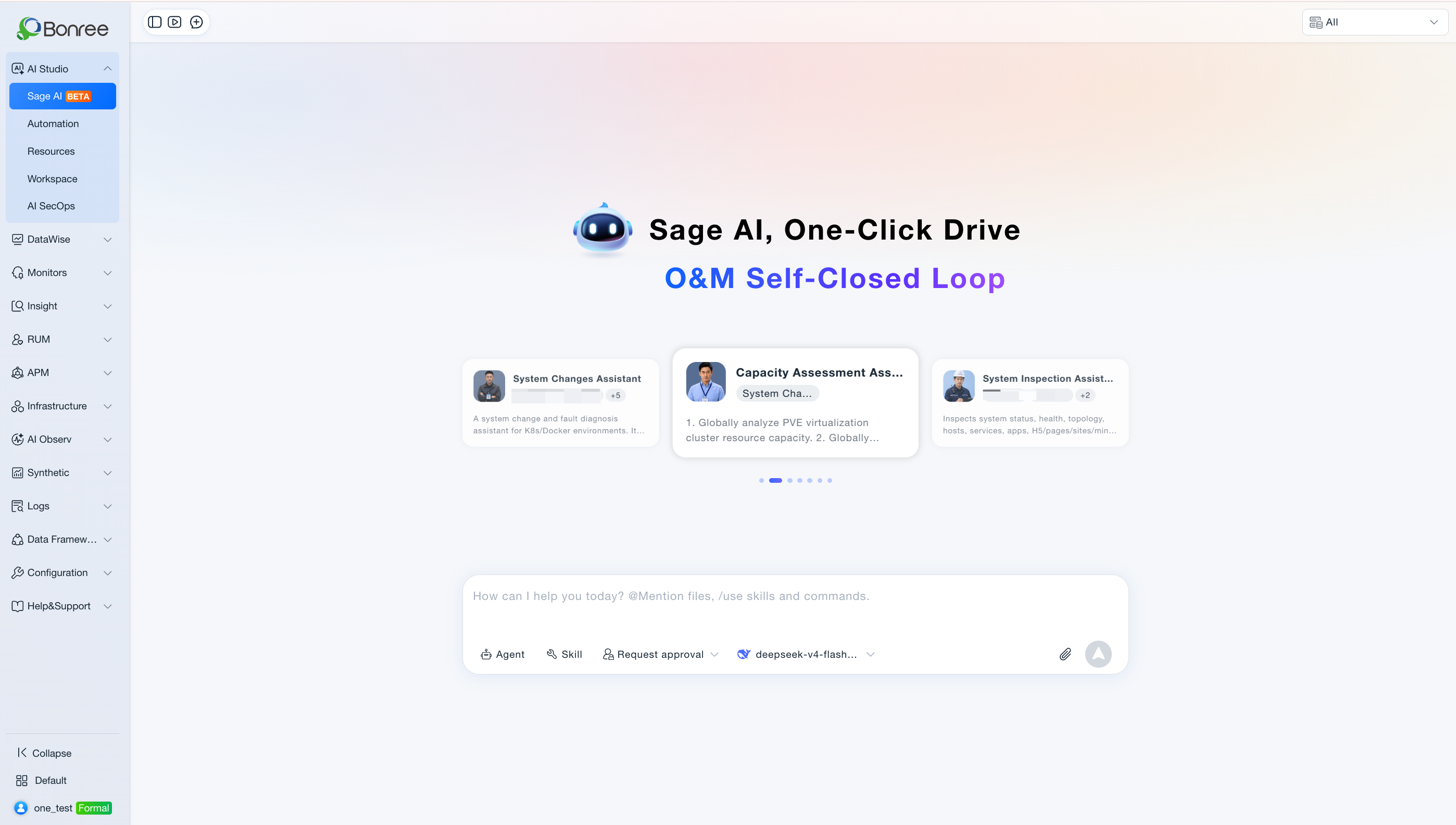
Start a Conversation via Built-in Expert Teams
- Browse built-in expert cards by switching left and right in the carousel area.
- Click a target expert card to view capability tags, description, and recommended questions.
- Send a recommended question directly, or edit and supplement it in the input box before sending.
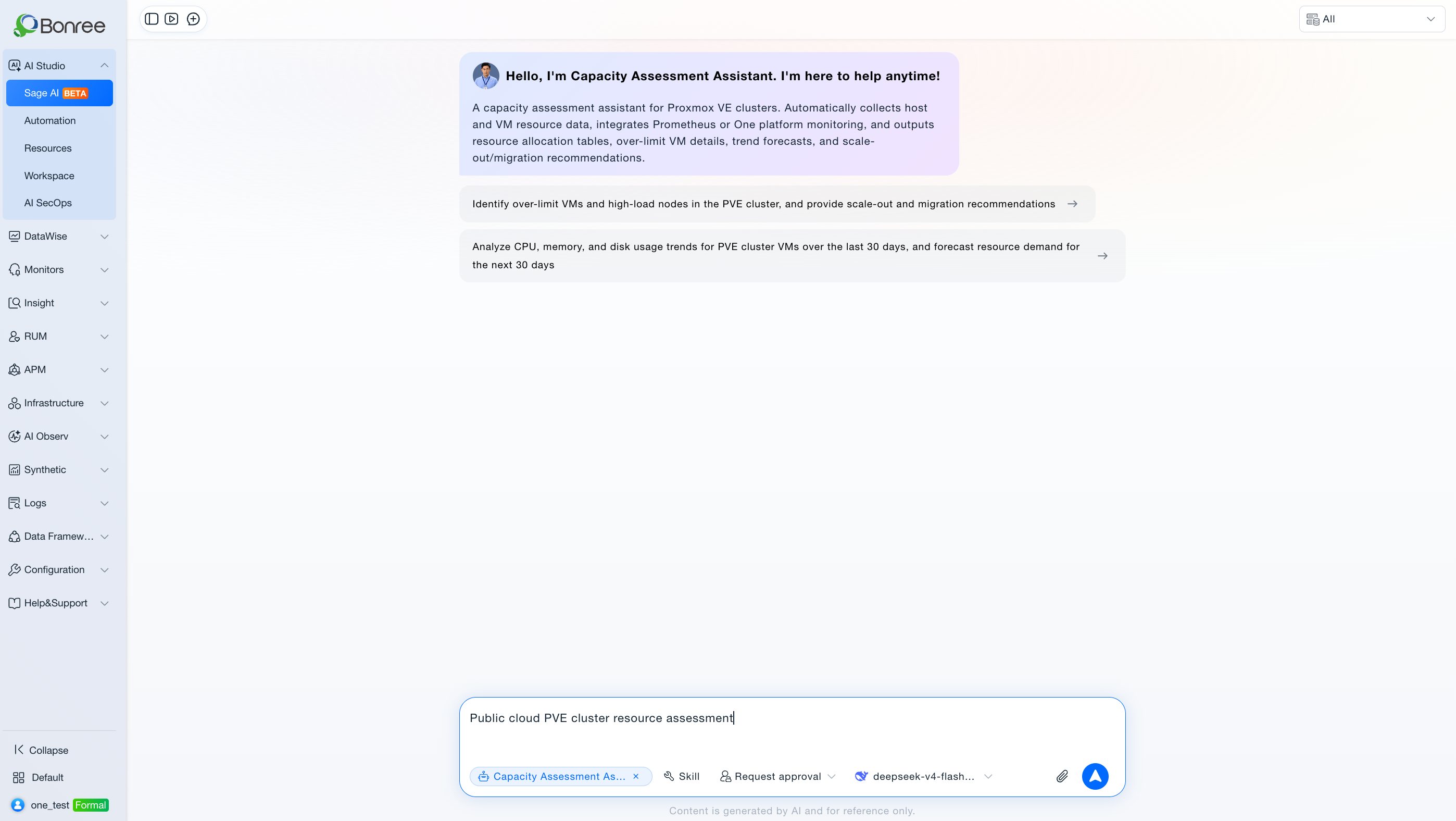
Start a Conversation
Enter your question or task description in the input box and click Send.
Input placeholder: What can I help you with today? @ to reference resources, / to call skills and commands.
Input enhancements:
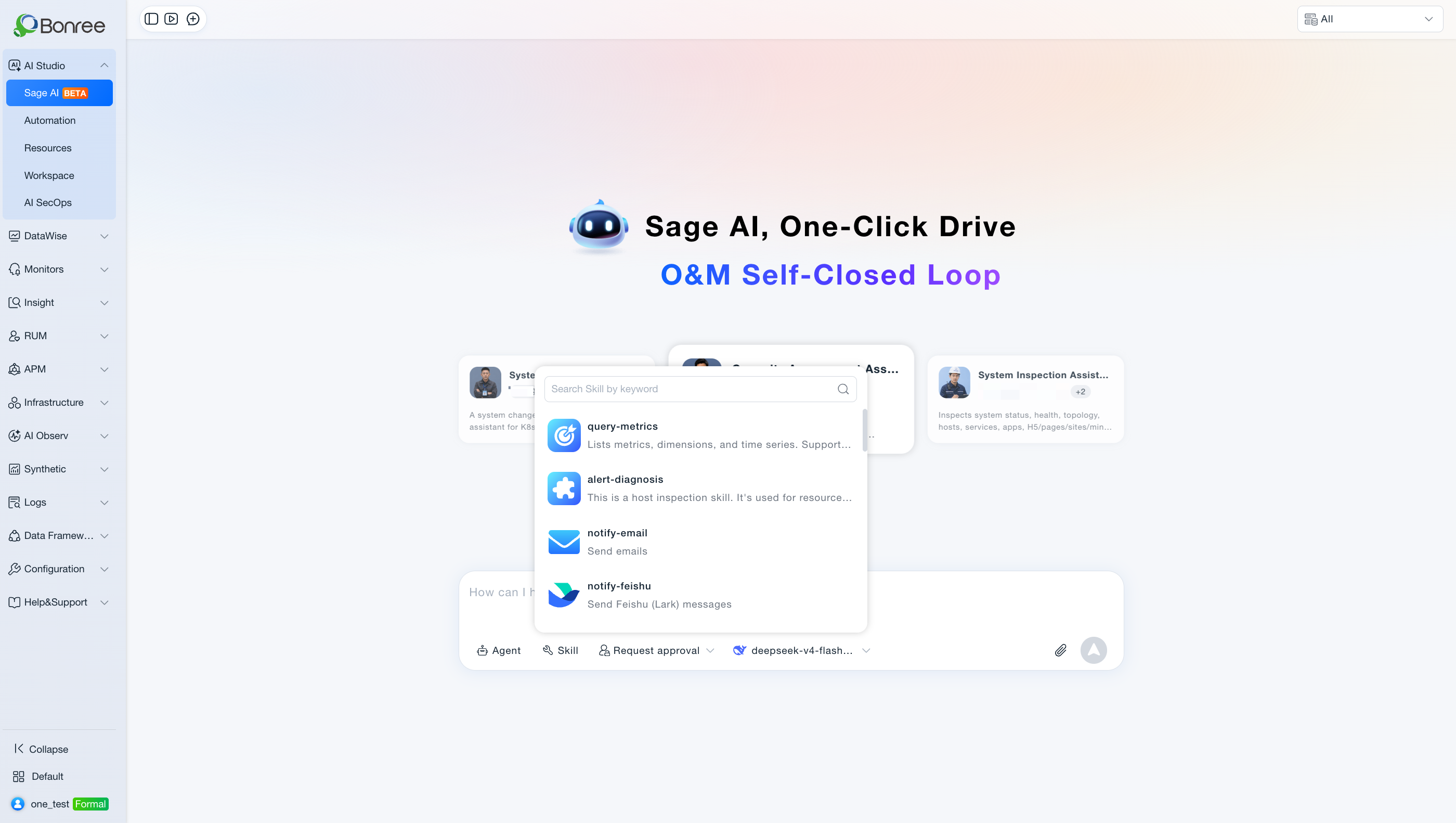
- @ Reference resources: Type
@to reference available Agents, Skills, tools, knowledge bases, and more in the current resource domain. - / Invoke Skills and commands: Type
/to quickly invoke a Skill or platform command. - Agent / Skill buttons: Quickly specify the Agent or Skill for the current conversation from the bottom of the input area.
- Approval policy: Select how command execution is approved (e.g., Always Approve; options depend on the UI).
- Upload attachments: Upload files as supplementary input (supported types depend on the UI).
- Switch model: Select a configured large language model from the input area.
(Image: Sage AI input area with @, Agent, Skill, Approval, and model selection)
Add More Available Resources
Sage AI can only invoke resources that are added or published in the current resource domain. If you cannot find what you need:
- Open AI Studio > Resource Marketplace and search for the required Agents, Skills, tools, or knowledge bases;
- Or open AI Studio > Workspace to build Agents/Skills, debug them, and publish to the current resource domain;
- Return to Sage AI and invoke the new resources via @ or the Agent / Skill buttons.
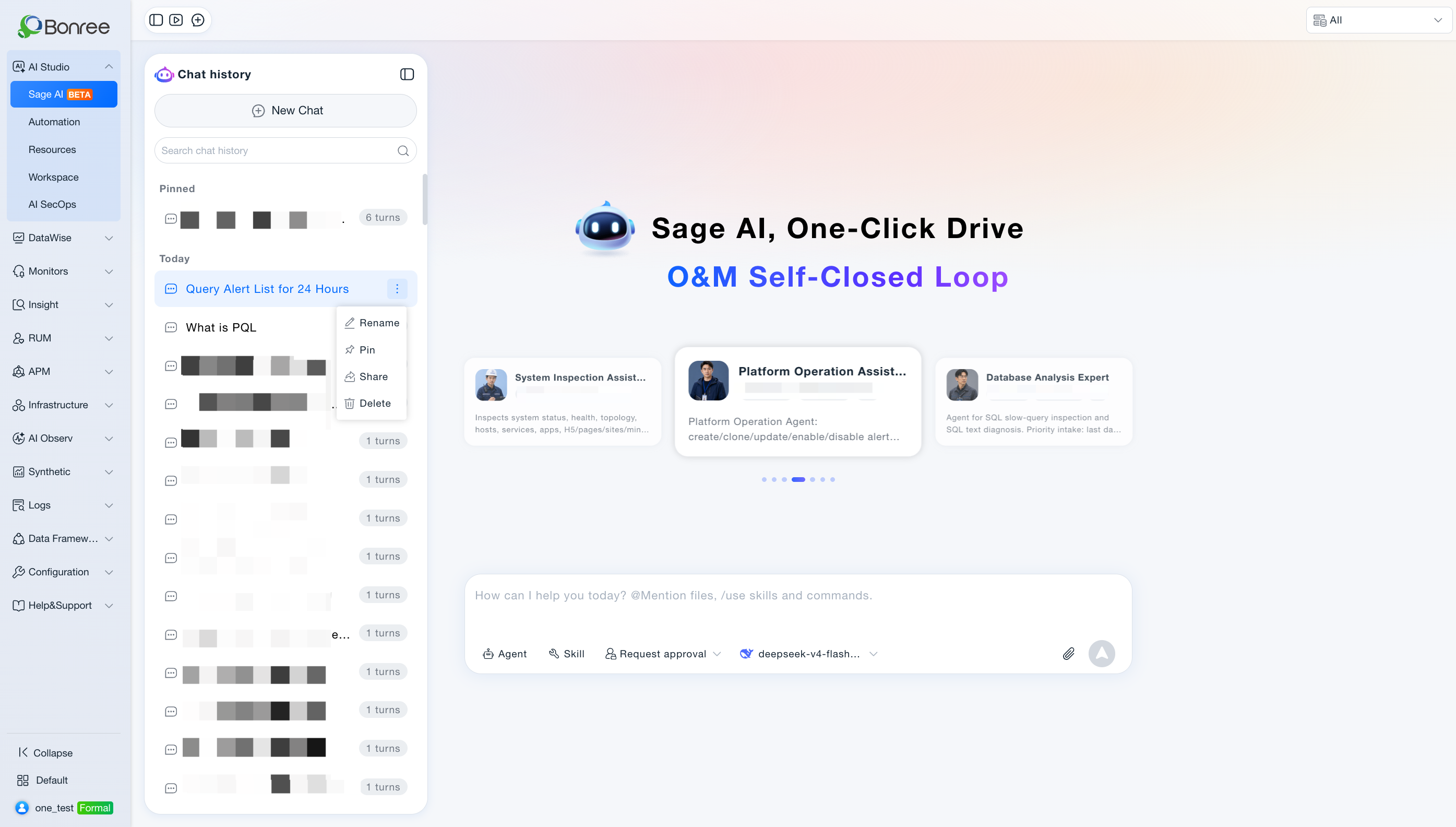
Manage Session History
Open the Session History area on the left (or expand the sidebar via the toolbar).
- View, search, and restore recent conversations from the list.
- Click New Session to clear the current context and start a new Q&A or task.
View and Share Conversation Results
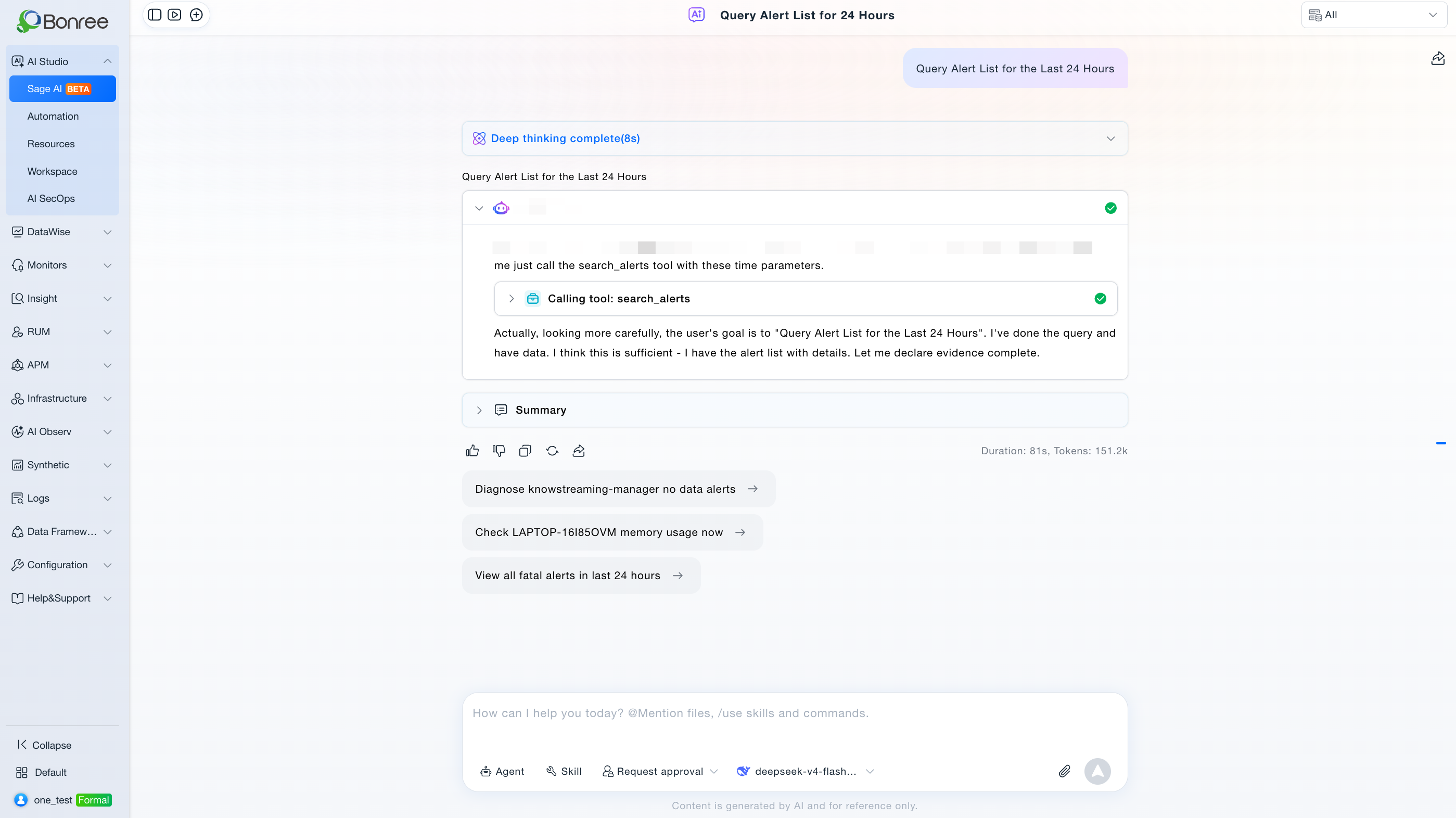
During a conversation, AI responses support expanding the reasoning process, viewing tool invocation steps, and reading structured conclusions.
Below each response, you can like, dislike, share, or copy content. A disclaimer at the bottom of the page states that all content is generated by AI models and is for reference only.
IM Sessions
After IM Channel setup, the Sage AI history sidebar can switch History / IM sessions (History is default).
IM sessions are read-only: no rename, delete, continue chat, regenerate, new session, or suggested questions. Hover a title to see account, resource domain, IM channel, bot name, and session type (DM / group).
File upload, generation, and preview (extended)
- Knowledge upload adds types such as
.md(per upload tip). - Chat upload may support
.markdown,.html,.htm,.pptx, etc. (per UI). - Generated files may include
.pdf,.docx,.xlsx,.pptx,.zip, etc. - Hover a file card to Open (browser preview) or Download. Preview covers txt/md/html/csv/json/code/pdf, etc.; HTML preview is rendered output.
Notes
- Confirm that at least one available large language model is configured before use; otherwise conversations cannot be started.
- Agents, Skills, tools, and knowledge bases referenced or selected via @ must already be added in the current resource domain or accessible to you. If none are available, add them from the Resource Marketplace or create and publish them in Workspace first.
- Conversations and session history in Sage AI are isolated by resource domain. Switching resource domains changes the visible sessions and available resources accordingly.
- For recurring, unattended tasks, create and manage them in the Automation module. Tasks created from Sage AI conversations are written to the automation task list under the same resource domain.
- Conversation content is generated by AI models and is for reference only. Confirm critical actions against actual conditions before executing them.