User Guide
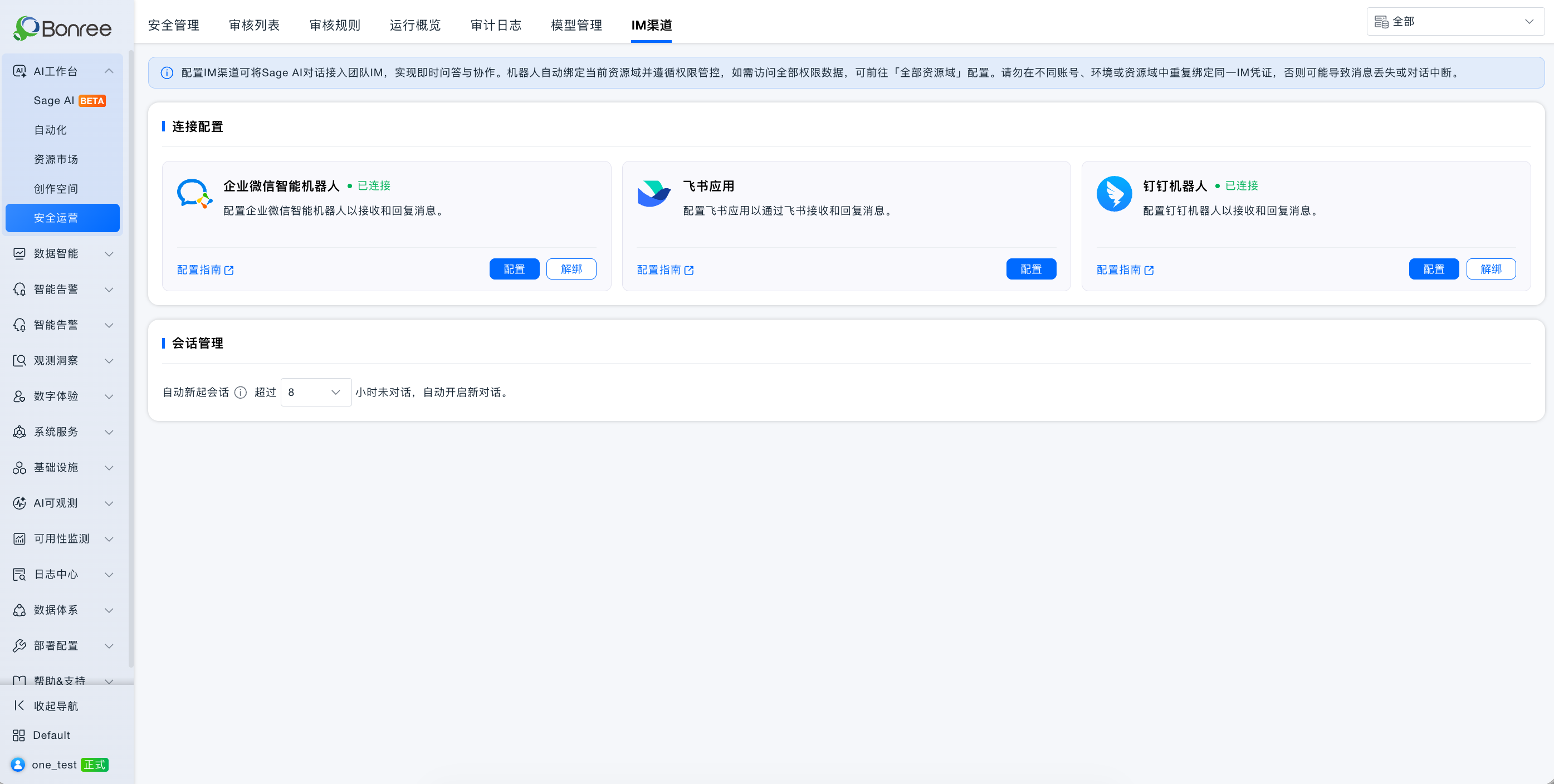
IM Channel connects Sage AI to WeCom, Feishu, and DingTalk so teammates can chat in IM clients without signing in to the ONE console. The bot is bound to the account, environment, and resource domain used at configuration time, and follows Content Security, Command Security, and data permissions in that scope.
Configure an IM channel to bring Sage AI into team IM for instant Q&A and collaboration. The bot binds to the current resource domain and follows permission controls. To access all-domain data, configure under All Resource Domains. Do not bind the same IM credentials across accounts, environments, or resource domains—doing so may cause lost messages or interrupted conversations.
Prerequisites
- Menu: AI Studio / Security Operations / IM Channel.
- Permissions: Read-Write to configure, unbind, enable/disable, or change session timeout; Read-Only can view only.
- Model: At least one inference model available; IM uses Auto routing and does not allow in-IM model switching.
- Network:
- Long connection (WebSocket / Stream): outbound access to the IM cloud is enough; no public inbound required (WeCom and DingTalk).
- URL callback (Webhook / HTTP): public HTTPS callback URL required (WeCom, Feishu, and DingTalk; Feishu is URL-only in this release).
Connection modes
| Item | Long connection | URL callback |
|---|---|---|
| How it works | Platform connects out to the IM gateway; messages arrive over the long connection | IM pushes events to your HTTPS endpoint |
| Network | Outbound only | Public domain + HTTPS inbound |
| Setup complexity | Lower; usually no URL backfill | Must paste Webhook back |
| Note | IM console and AI Studio must use the same mode | Same |
| Channel | Supported modes | Guide |
|---|---|---|
| WeCom | Long connection + URL callback | WeCom Integration Guide |
| Feishu | URL callback only (WebSocket removed from the form; app cards kept) | Feishu Integration Guide |
| DingTalk | Stream long connection + HTTP URL callback | DingTalk Integration Guide |
One bot per channel per account / environment / resource domain; updates overwrite. Do not reuse the same IM credentials across account / environment / resource domain.
For WeCom / DingTalk long connection, save (and publish if required) the bot on the IM side first, then enter credentials in AI Studio. Otherwise save may fail with invalid information. See each channel guide for details.
Read this page first, then open the channel-specific guide to finish setup.
Value
- In-place collaboration: Ask questions, inspect, and confirm in familiar IM apps without switching to the console.
- Aligned permissions: Queries and generated data stay within the bound account and resource domain, consistent with the Web experience.
- Governed sessions: Auto-start a new session after idle time; view IM sessions read-only on the Web.
- Flexible deployment: Use long connection for WeCom / DingTalk on private networks; use URL callback for Feishu and public-cloud scenarios.
Use cases
Ask in an ops on-call group
In WeCom / Feishu / DingTalk groups, @bot to query alerts, inspect hosts, or generate summaries. The group shares one group session context.
Private troubleshooting
DM the bot for diagnosis. Each IM user’s DM is an isolated session, separate from group chat.
Approval-style confirmation (Feishu cards, etc.)
Operations that need human confirmation can complete in IM via chat or app cards (per channel capability) and are recorded in execution audit.
Operations
- Configure a channel: Choose WeCom / Feishu / DingTalk; WeCom / DingTalk can use long connection or URL callback, Feishu is URL-only; enter credentials and save; for callback mode, paste the Webhook back.
- Session management: Set idle auto-new-session duration (default 24 hours, 1–24, cannot disable).
- Unbind: Confirm twice to unbind; after that, IM will not receive AI replies.
- View IM sessions: Switch to IM sessions in Sage AI history (read-only).
Getting started
Open IM Channel
Sign in to Bonree ONE, confirm environment and resource domain at the top right, then go to AI Studio → Security Operations → IM Channel.
Configure a channel (overall flow)
- Create the bot / app on the IM open platform and collect secrets per the channel guide.
- On the matching AI Studio channel card, click Configure: for WeCom / DingTalk choose long connection or URL callback (must match the IM console); for Feishu use URL callback.
- Fill in fields and Save; for URL callback, copy the Webhook and paste it back to the IM console.
- In IM, DM or
@botand send “hello” to verify.
Channel details:
Session management
| Field | Required | Description | Default | Validation |
|---|---|---|---|---|
| Auto-start new session | Yes | Start a new session after the idle timeout | 24 hours | Integer 1–24 hours; cannot disable |
Hover tip: Idle history is no longer sent to the model, which reduces token usage and improves response speed.
Sessions are isolated by environment + resource domain + account + IM channel + bot + DM user / group. Feishu, WeCom, and DingTalk sessions are not shared.
Differences vs Sage AI (Web)
| Dimension | Sage AI (Web) | IM Channel |
|---|---|---|
| Model selection | Switchable | Auto routing |
| Agent / Skill | Manual selection | Intent routing; no manual binding |
| Attachments | Fuller support | Mostly text |
| Rich text | Markdown / charts, etc. | Limited by IM format; complex charts may fall back to tables or text |
| Rate | Platform policy | About ≤ 20 questions per minute per bot |
Notes
- Do not bind the same bot credentials across different accounts, environments, or resource domains.
- WeCom / DingTalk: both sides must use the same mode (both long connection, or both URL callback).
- Feishu is URL callback only in this release—choose Send events to developer server on Feishu; do not use long-connection subscription.
- Unbind or secret mismatch causes no IM replies.
- IM triggers are recorded in Operations Overview and Audit Logs (IM Channel — WeCom / Feishu / DingTalk).
- See each channel guide for detailed steps.