Security Management
Prerequisites
- Menu access: Access to AI Studio > Security Operations > Security Management is required.
- Permissions: Read-Write access is required to maintain Content Security keywords and Command Security lists; Read-Only access supports viewing only.
- Data scope: Same isolation as Security Management overall (account / environment / resource domain), per platform permission tables.
Overview
Security Management is the unified security-policy entry of AI Studio. It contains two peer submodules for different risk surfaces:
| Submodule | Focus | When it applies |
|---|---|---|
| Content Security | Whether Skill / Agent text is compliant (prompts, summaries, descriptions, etc.) | On Workspace save / publish |
| Command Security | Allow / ask / block for commands that actually run in Sage AI, IM channels, etc. | Before a command is executed |
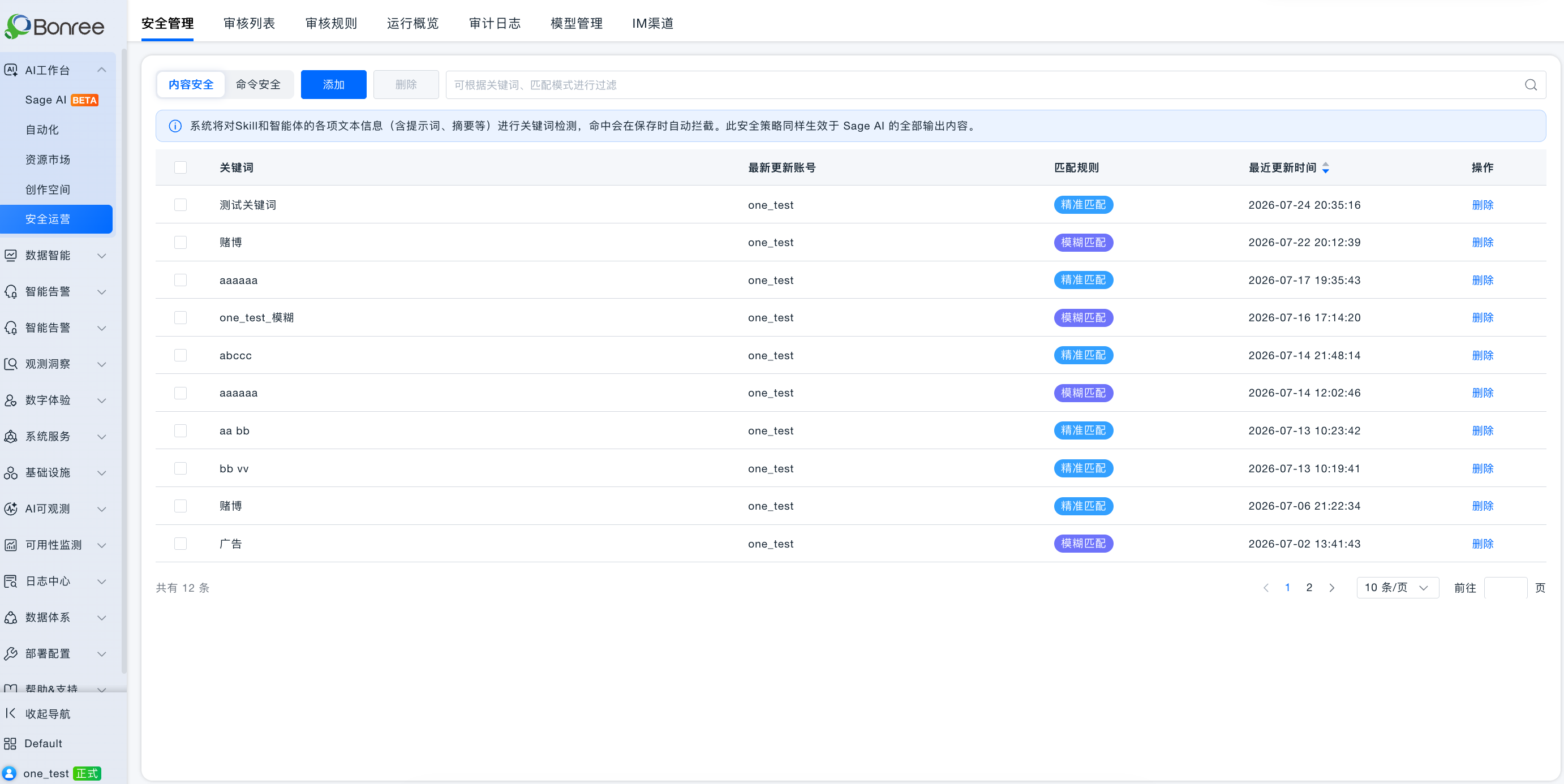
Open Security Operations > Security Management, then switch between Content Security and Command Security (same menu route; peer tabs). They are not interchangeable: Content Security governs text written into resources; Command Security governs commands that run.
Platform tip (Content Security): The system detects keywords in Skill and Agent text; hits are blocked on save (exact UI wording may vary).
Platform tip (Command Security): Controls execution permission for critical commands via prefix match lists. Priority: Block list > Ask list > Allow list > approval mode. If no list matches, the current approval mode applies.
Value
- Dual-track governance: Text compliance and command execution are managed separately.
- Pre-publish blocking (Content Security): Non-compliant wording cannot enter production resources or Public.
- Pre-execution control (Command Security): High-risk commands can be forced to block or require confirmation, coordinated with conversation approval modes.
- Auditable: Policy changes and command terminal states can be traced in Audit Logs.
Use Cases
Content Security: maintain forbidden words
Block destructive instructions or unauthorized-export wording in prompts. Add keywords under Content Security with a match mode; creators are blocked on save/publish when hit.
Command Security: control dangerous command prefixes
Put rm, kubectl delete, etc. on the Block list; keep python, shell on the Ask list (built-in by default; deletable). Sage AI executions follow lists plus approval mode.
Work with listing review
Content Security blocks on save/publish; items already in review are still handled manually in the Review Queue. Command Security does not replace listing review.
Content Security
What it does
Maintains a keyword library. The system scans Skill and Agent prompts, summaries, descriptions, and similar fields. Hits are blocked on save or publish with a reason; creators must revise and resubmit.
Steps
- Go to AI Studio > Security Operations > Security Management → Content Security.
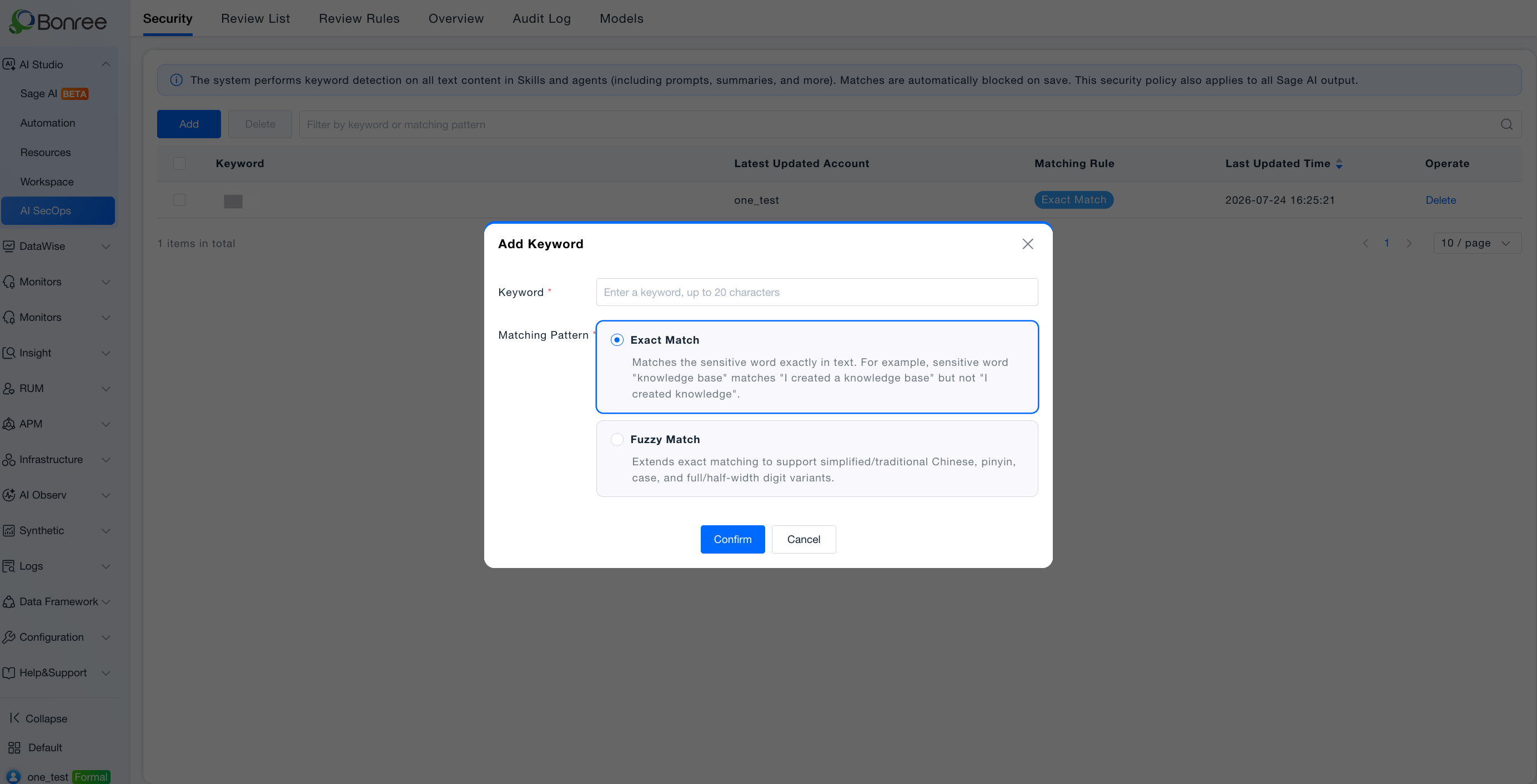
- Click Add:
- Keyword (required; length per UI, e.g. ≤ 20 characters);
- Match mode:
- Precise: Exact keyword match (e.g. keyword
knowledge basehits “I create a knowledge base”, not “I create knowledge”); - Fuzzy: Extends precise matching with simplified/traditional Chinese, pinyin, case, full/half-width variants, etc.
- Precise: Exact keyword match (e.g. keyword
- Filter with “Filter by keyword or match mode”.
- Select rows → Delete → confirm.
Notes (Content Security)
- Policies mainly affect subsequent saves and publishes; listed resources may need delisting review.
- Does not replace manual Public listing review.
- On false positives, switch to Precise or refine keywords.
Command Security
What it does
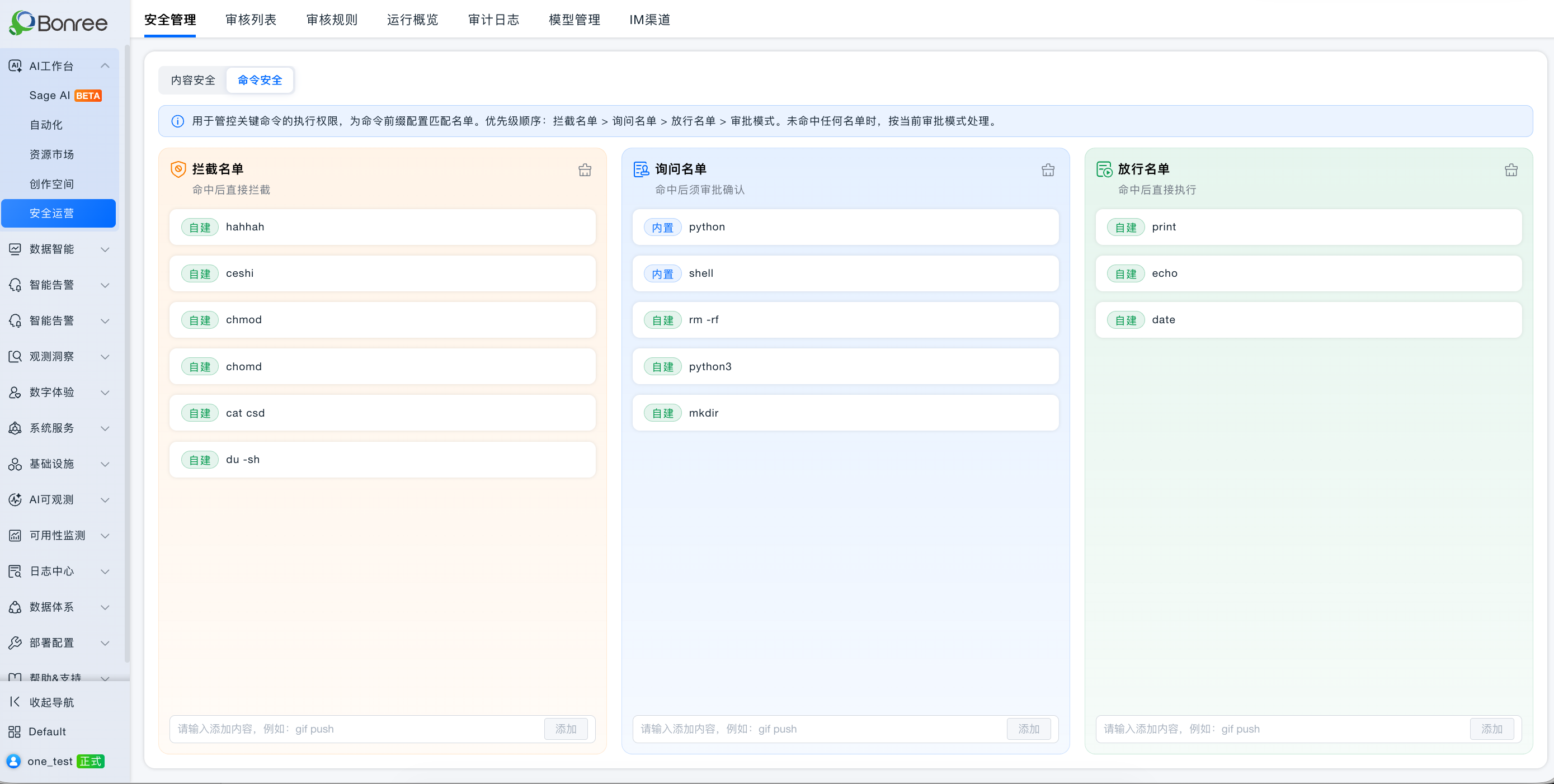
Configures three prefix match lists. Before Sage AI / IM (and similar) run a command, the platform decides: block, ask (approve), allow, or fall back to the conversation approval mode.
| Content Security | Command Security | |
|---|---|---|
| Object | Resource text (prompts, etc.) | Command string to execute |
| Timing | Save / publish | Before execution |
| Outcome | Block writing the resource | Block / ask / allow / follow approval mode |
Page structure
Command Security
├── Description (priority & no-match behavior)
├── Block list     [Reset to default]
├── Ask list       [Reset to default]
└── Allow list     [Reset to default]
Each list has its own Reset to default (clears custom rules for that list only). Confirmations:
- Block: Clear custom Block list rules and restore system defaults. Continue?
- Ask: Clear custom Ask list rules and restore system defaults. Continue?
- Allow: Clear custom Allow list rules and restore system defaults. Continue?
Deleting a single command: After deletion this command will no longer take effect. Confirm deletion?
List effects
| List | On hit |
|---|---|
| Block list | Block immediately; do not execute; applies in any approval mode |
| Ask list | Must approve before execute; applies in any approval mode |
| Allow list | Execute without approval; applies in any approval mode |
Tip text: Controls execution permission for critical commands via prefix match lists. Priority: Block > Ask > Allow > approval mode. If nothing matches, use the current approval mode.
Relation to approval modes
Approval mode is chosen in Sage AI chat and applies only when no list matches:
| Mode | Behavior |
|---|---|
| Always approve | Everything requires approval (including clarify-intent confirmations) |
| Risk approval | Risky commands require approval; clarify-intent only (e.g. “Restart nginx on prod?”) does not |
| Full access | Execute directly |
Decision flow:
Command to run
  → Block hit? → Block and stop
  → Ask hit? → Confirm (modal / chat), then run if approved
  → Allow hit? → Run directly
  → No list hit → Follow current approval mode
Matching rules
Preprocess (same when saving rules and matching):
| Rule | Example |
|---|---|
| Trim | kubectl get → kubectl get |
| Lowercase | Kubectl GET → kubectl get |
| Split on spaces | kubectl get pods → kubectl · get · pods |
Single-rule prefix (whole tokens):
| Rule | Example |
|---|---|
| First N tokens of rule must equal first N of command | cat csd matches cat csd file, not cat n csd |
| Command must have ≥ rule token count | kubectl delete does not match kubectl |
| Whole-token prefix only | cat matches cat file, not category |
Compound commands: Split on &&, ||, ;, |; match each segment; take the strictest result (one allow + one block → overall block).
List priority:
| Rule | Example |
|---|---|
| Order: Block → Ask → Allow → approval mode; stop at first hit | Block has cat, Ask has cat n csd, command cat n csd → blocked |
| Any rule in the same list counts as a hit | Block has rm and kubectl delete → either blocks |
| Across lists, type priority beats rule length | Ask cat n csd beats Allow cat, but Block cat beats everything |
Add rules & validation
| Field | Required | Description | Default | Validation |
|---|---|---|---|---|
| Command | Yes | Rule for the current list | — | See below |
Rules that contain |, &&, ||, ;, or |& are interpreted by who runs, how they are joined, and in what order—not only by whether those characters appear. For example, curl | sh means “curl’s output piped to sh”: curl URL | sh matches; curl URL | echo and sh | curl URL do not.
Simple commands without those connectors (e.g. rm -rf, curl $) still use the original string / prefix rules and do not go through the structure checks below.
Save failures have two layers: instant UI validation (before submit) and structure validation after submit (message like “Command rule cannot be compiled: …”). Empty or invalid input disables Add; Add succeeds only when validation passes.
Instant UI validation
| What you enter | Tip | Notes |
|---|---|---|
| Empty, or duplicate within the same list | Enter a command; duplicates in the same list are not allowed | Required and unique per list |
| More than 64 characters | Cannot exceed 64 characters | UI length limit |
Characters outside the allowlist (quotes, parentheses, >, etc.) | Only letters, digits, spaces, and -_./: & $ | are allowed | Allowed: letters, digits, spaces, - _ . / : & $ |. Patterns like if ...; then, (curl | sh), > file are usually blocked here first |
$, &, and | can be typed; whether the rule can be saved still depends on the structure checks below.
Structure validation after submit
If you see “Command rule cannot be compiled: …”, the system could not recognize the rule as command structure. Common cases:
Incomplete pipe
| Example | Notes |
|---|---|
curl |, curl $ | | Right side of the pipe is empty; both sides are required. Contrast: curl $ | curl can be saved ($ is only an argument) |
Unsupported rule shape
Lists accept “segments of commands + how they are joined”, not scripts or parenthesized expressions.
| Example | Tip focus |
|---|---|
(curl | sh), { curl | sh; } | Unsupported rule structure; do not wrap the rule itself in parentheses |
if ...; then curl | sh; fi, for ...; do ...; done | Same; write curl | sh directly |
Using if / for / [[ as a program name | Unsupported shell syntax |
Do not mix two join styles in one rule
|, |&, &&, and || can each be used alone, but do not mix them in the same rule:
| Example | Can save? | Notes |
|---|---|---|
curl | sh, curl |& sh | Yes | One pipe style only |
curl && sh, curl || sh | Yes | One logical join only |
curl | cat |& sh | No | Cannot mix | and |& |
curl && cat || sh | No | Cannot mix && and || |
curl & sh (middle &) | No | Middle & backgrounds the left command; put & only at the end, e.g. curl | sh & |
Each segment needs a clear program name
For curl | sh, the system must see curl on the left and sh on the right. Program names must be literal—not empty, not a variable, not split/obfuscated, and not a launcher that runs something else.
| Example | Tip focus |
|---|---|
| Empty segment | Rule command is missing an executable |
FOO=1 | sh | Assignment only; missing executable |
$cmd | sh | Dynamic executable not allowed (contrast: curl $ | sh can be saved) |
c""url | sh | Obfuscated executable not allowed |
eval / source / . file / exec … | Dynamic shell launchers not supported |
find ... -exec ... | find execution actions not supported |
Redirect only, e.g. > file | Redirect rule is missing a command |
Examples that can be saved
| Example | Notes |
|---|---|
curl | sh | Valid two-segment pipe |
curl | sh & | Trailing & means background; not the same rule as curl | sh |
curl $ | curl | $ is an argument, not the program name |
curl | sh && rm | Pipe and AND can be combined |
bash -c curl | sh | Interpreted as outer bash piped to sh, not equal to curl | sh |
rm -rf, curl $ | No compound connectors; original string rules apply |
Default rules
| List | Built-in |
|---|---|
| Ask list | python, shell (deletable) |
| Block / Allow | System defaults; Reset to default restores them |
When Ask list triggers a confirmation in Sage AI, the UI guides users: to skip repeated asks, remove the rule under Security Operations / Security Management / Command Security → Ask list.
Hit details
Shown only when Block / Ask / Allow hits: {list type} · {rule} (e.g. Block list · cat). Appears in block tips, approval dialogs, and direct-run tips. No list hit → no list detail (approval mode applies).
Execution Audit
Terminal outcomes are recorded under Audit Logs → Execution Audit (success, failure, blocked, canceled, skipped, timed out, etc.). Waiting for approval or rejected-without-run is not stored. Columns include command security rule and list type, with filters.
Notes
- Content Security and Command Security are peers—maintain them for their own goals.
- IM channel chats also follow Content / Command Security for the bound account / environment / resource domain.
- Restrict maintenance to security / platform governance roles.
- Reset and delete require confirmation; check impact first.
Further Reading
- Security Operations · User Guide
- Review Queue
- Audit Logs
- Workspace · User Guide
- WeCom Integration Guide (Command Security also applies on IM)