AI Forecast
AI forecast alerting predicts metric trends based on historical data and issues alerts before metrics exceed limits . Unlike real-time threshold alerts, it targets future time windows, suitable for scenarios that require lead time for handling, such as capacity planning and resource early warning.
Quick Start
Step 1: Enter the New Page
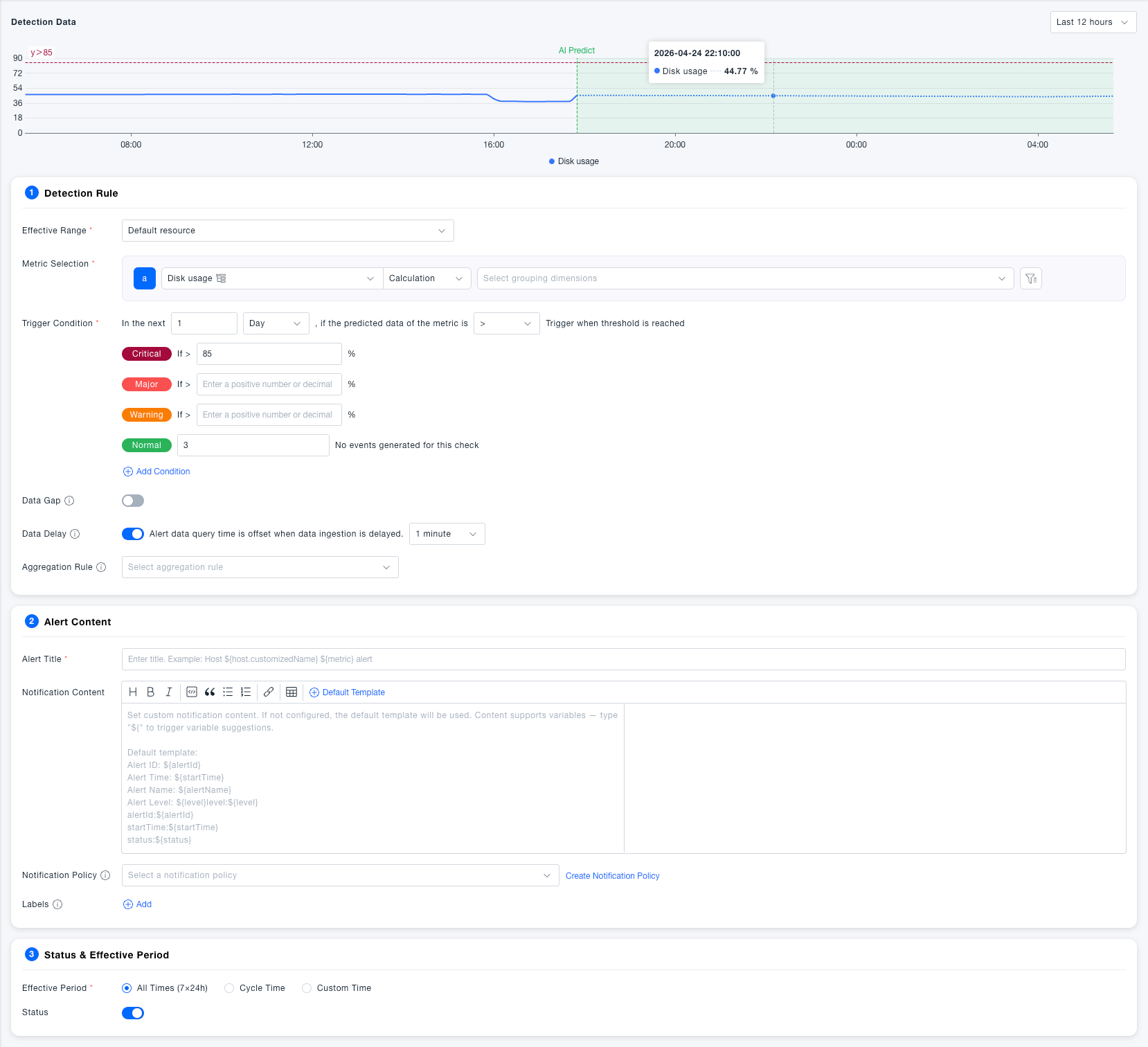
Enter Alert Rules, click New Alert Rule, select AI forecast detection type and enter the configuration page.
Step 2: Configure Detection Rules
- Select the resource domain in Effective Scope
- In Metric Selection, select the target metric, aggregation function, and grouping dimension
- In Trigger Conditions, set the prediction time window (next N days) and comparison method, and fill in absolute value thresholds for each level
- Configure Aggregation Rule as needed to specify which dimension to merge alerts by
Step 3: Fill in Alert Content
- Fill in Alert Title, supports the use of variables
- Edit Notification Content as needed, or keep the default template
- Select Notification Strategy; if not created, click Create Notification Strategy
Step 4: Set Effective Time and Save
- Select Effective Time (default 7×24 hours full day)
- Confirm Start/Stop Status is enabled
- Click Save to complete creation; if you need to reuse, click Save to Custom Template
Feature Description
Detection Rules
Basic Configuration
| Field | Required | Description |
|---|---|---|
| Effective Scope | Yes | Select the resource domain monitored by this rule, the rule only applies to data within the selected scope |
| Metric Selection | Yes | Select the monitored metric, aggregation function (such as average, maximum) and grouping dimension (such as split by host), determining which timeline AI predicts |
Trigger Conditions
In AI forecast mode, the detection object is predicted values within the future time window , not current real-time data. The threshold is an absolute value.
| Field | Required | Description |
|---|---|---|
| Prediction Time Window | Yes | Withinnext N days , trigger an alert if the predicted data of the metric meets the condition. The longer the time, the earlier the warning, but the higher the prediction uncertainty |
| Comparison Method | Yes | Supports operators like >, <, etc., combined with thresholds at each level to judge whether to trigger |
| Critical Threshold | No | If the predicted value meets the condition, generateCritical level alert |
| Error Threshold | No | If the predicted value meets the condition, generateError level alert |
| Warning Threshold | No | If the predicted value meets the condition, generateWarning level alert |
| Normal Recovery | No | After N consecutive detections where the predicted value no longer meets the condition, the alert automatically returns toNormal state, default 3 times |
Advanced Configuration
| Field | Required | Description |
|---|---|---|
| Data Gap | No | After enabling, when there isno historical data at all within the detection interval leading to inability to predict, it also triggers an alert. Default Off |
| Data Delay | No | After enabling, the query time window is shifted back by the specified duration to avoid affecting prediction accuracy due to data storage delay. DefaultEnabled, offset 1 minute |
| Aggregation Rule | No | Specify which dimension to merge alerts for multiple timelines (such as by host), merging multiple prediction results under the same dimension into one alert to reduce duplicate notifications |
Alert Content
| Field | Required | Description |
|---|---|---|
| Alert Title | Yes | The title displayed when the alert is triggered, supports dynamic filling using variables, such as Host ${host} ${metric} alert |
| Notification Content | No | The body sent to recipients, supports rich text editing and variable insertion. If not filled, the default template is used, including:${alertId}, ${startTime}, ${alertName}, ${level} |
| Notification Strategy | No | Specify who to notify and through which channel after the alert is triggered. When not configured, alerts are only recorded, not sent |
| Labels | No | Add custom labels to rules for easy classification, filtering, and batch management |
Status & Effective Time
| Field | Required | Description |
|---|---|---|
| Effective Time | Yes | All Time (7×24 hours): The rule always runs; Periodic Time: Effective repeatedly by day of week; Custom Time: Specify specific time periods. Default All Time |
| Start/Stop Status | Yes | When enabled, the rule normally detects and generates alerts; when disabled, the rule pauses and does not generate any detection or notification. DefaultEnabled |
Common Scenarios
Scenario: Disk capacity early warning Select disk usage metric, select maximum value for aggregation function, set prediction time window to next 3 days , trigger Warning when predicted value > 85%, Error when > 95%, receive notification before the disk is full, leaving time for capacity expansion or cleanup.
Scenario: Business traffic prediction, early capacity expansion Select request volume metric, set prediction time window to next 1 day , coordinate with business rhythm before holidays or sales promotions, trigger alerts in advance when predicted peaks exceed system processing limits, driving automatic or manual capacity expansion decisions.
Scenario: Multi-host grouped prediction alert Set Grouping Dimension to host in metric selection, cooperate with Aggregation Rule to merge by host. The system will establish prediction models for each host separately and trigger alerts independently, avoiding mixing of alert information from multiple hosts.
Notes
The Detection Data chart at the top of the page will display both historical measured curves (solid lines) and AI predicted trends (dotted lines + green intervals). Before saving, you can intuitively judge whether the predicted trend meets expectations through the chart, assisting in calibrating thresholds.
The prediction time window is recommended to be set based on the handling cycle: if expansion or repair requires 1 day, set the prediction window to 1–2 days; too long a window will introduce more uncertainty, leading to increased false alarms.
AI prediction relies on sufficient historical data . For metrics with insufficient data or short collection time, prediction accuracy is limited. It is recommended to accumulate at least 2 weeks of historical data before enabling prediction alerts.