Notification Strategy
Notification strategy defines who to notify, through which channel, and when to notify after an alert is triggered. A single strategy can be associated with multiple alert rules, supports distributing notification recipients based on alert conditions, and can configure repeat reminders and escalation notifications to ensure alerts are not missed.
Quick Start
Step 1: Enter Notification Strategy
In the navigation bar, enter Notification Strategy and click Create.
Step 2: Fill in Strategy Association
- Select Effective Scope (resource domain)
- Fill in Strategy Name
- Click Add Association and select the alert rules that need to use this strategy (multiple rules can be associated)
Step 3: Configure Notification Rules
- In the Notification Rules area, set alert filtering conditions for the default Rule 1 (optional)
- Select Notification Channel (such as email, DingTalk, etc.) and add Recipients
- If you need to escalate notifications for unresponsive alerts, click Add Escalation Notification and configure escalation channels and recipients
- If you need to notify different people for different types of alerts, click Add Rule to add a new notification rule
Step 4: Set Notification Frequency
- Enable or disable Alert Notification, Recovery Notification, Close Notification
- Enable Repeat Notification as needed, set repeat interval and maximum repeat times
Step 5: Save
Confirm the configuration is correct and click Save.
Feature Description
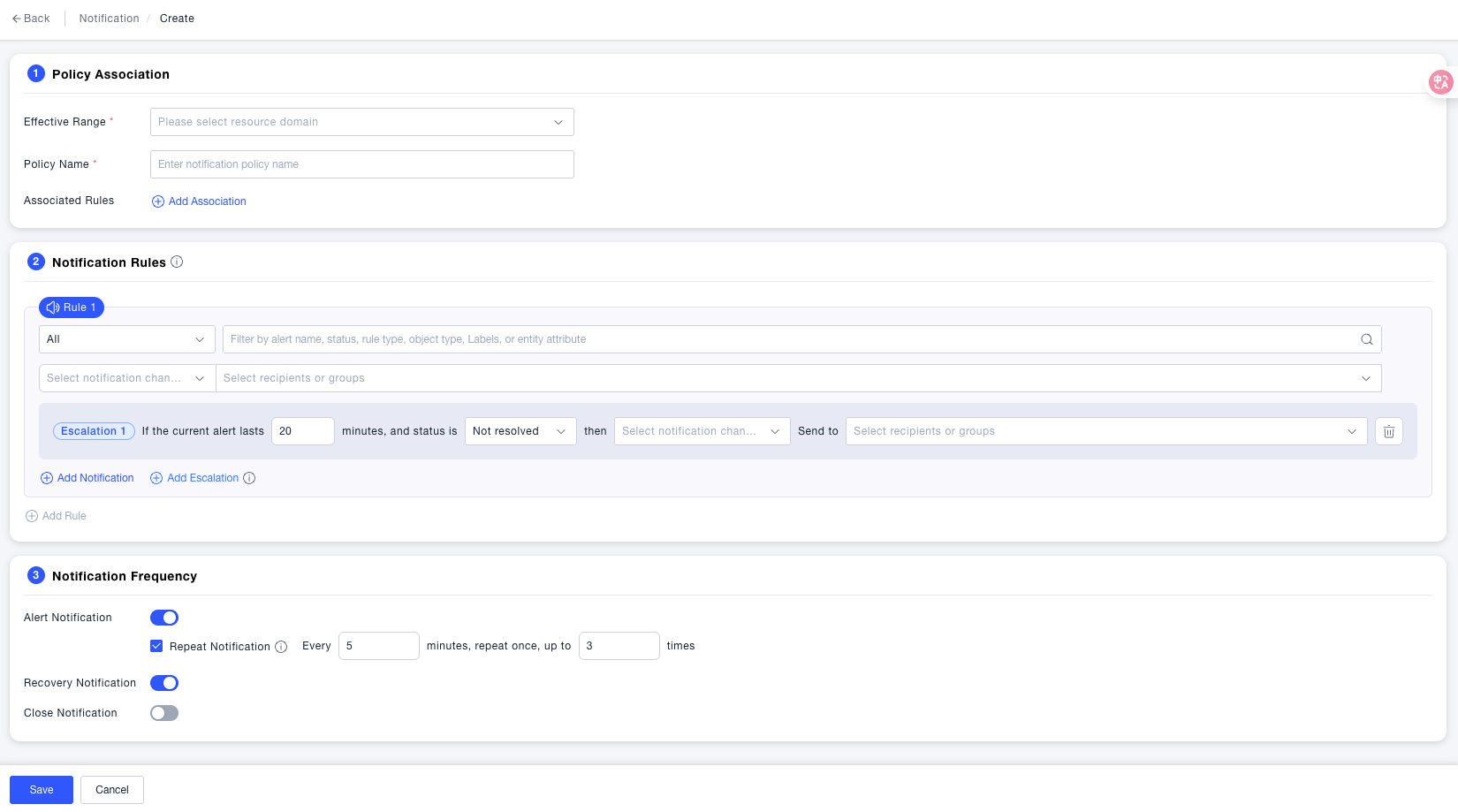
Strategy Association
| Field | Required | Description |
|---|---|---|
| Effective Scope | Yes | Select the resource domain to which this strategy belongs. Only alert rules within this resource domain can be associated with this strategy |
| Strategy Name | Yes | The display name of the strategy. It is recommended to name it according to the business scenario for quick identification when configuring alert rules |
| Associated Rules | No | Select alert rules that use this strategy to send notifications, supports multiple associations. Clicking the rule name can jump to the configuration page of the corresponding rule. The list also displays the start/stop status of the rules (Enabled / Disabled) |
Notification Rules
A strategy can contain multiple notification rules, each rule independently specifies filtering conditions, notification channels, and recipients. When an alert is triggered, the system matches in the order of rules, and sends notifications if matched.
Alert Filtering Conditions
The filter box at the top of each notification rule supports filtering by alert name, rule type, object type, Labels, and entity attributes, achieving distributing different types of alerts to different recipients (e.g.: critical alerts notify oncall team, warning level notify ordinary members). Leave blank to match all alerts.
Notification Channels and Recipients
| Configuration Item | Description |
|---|---|
| Notification Channel | Select sending channels, such as email, DingTalk, WeChat Work, etc. |
| Recipients | Specify recipients under the selected channel, support adding multiple people |
| Add Notification | Add more channel + recipient combinations in the same rule to achieve multi-channel parallel notification;Current IM channels cannot be mixed with webhook |
| Add Escalation Notification | Configure escalation notification: if the alert is not processed within a certain time, automatically notify another group of recipients (such as on-duty responsible person) to avoid the alert being ignored |
Multi-Rule Distribution
Click Add Rule to add a new notification rule. Multiple rules are executed in order, and alerts that meet the filtering conditions will trigger notifications for the corresponding rule, suitable for scenarios where different teams are notified based on alert levels or types within the same strategy.
Notification Frequency
| Field | Required | Description |
|---|---|---|
| Alert Notification | No | When enabled, send notification when the alert is first triggered. Defaultenabled |
| Repeat Notification | No | When enabled, when the alert continues to be unrecovered, repeat sending every N minutes (maximum interval 60 minutes), up to M times (input maximum limit 100 times, clear for unlimited continuous sending until the alert recovers). Default interval5 minutes, times 3 times. Only configurable when "Alert Notification" is enabled |
| Recovery Notification | No | When enabled, send recovery notification when the alert status changes from alerting to recovered. Defaultdisabled Affected by precondition, must first enable alert notification |
| Close Notification | No | When enabled, send close notification when the alert is manually closed. Defaultdisabled Affected by precondition, must first enable alert notification |
Notification Strategy List
The list displays all created notification strategies under the current resource domain. Field descriptions are as follows:
| Field | Description |
|---|---|
| Notification Strategy Name | Strategy display name, supports searching by name |
| Associated Rules | Number of alert rules associated with this strategy. Click the number to view associated rule details (rule name and start/stop status) |
| Creator | User who created the strategy |
| Resource Domain | The resource domain to which the strategy belongs |
| Update Time | Last modification time |
Each strategy supports the following operations:
| Operation | Description |
|---|---|
| Edit | Modify strategy configuration |
| Clone | Create a copy using the current strategy as a template, suitable for quickly reusing existing configurations |
| Delete | Delete strategy.Note: Please unbind from alert rules before deleting, otherwise associated rules will lose notification capability |
Common Scenarios
Scenario: Different level alerts notify different teams Add two notification rules within the same strategy: Rule 1 sets filter conditions to "Critical / Error", selects DingTalk group as the notification channel, and sets recipients to oncall duty group; Rule 2 sets filter conditions to "Warning", selects email as the notification channel, and recipients as ordinary members, achieving hierarchical distribution notification.
Scenario: Escalation reminder when alert continues unrecovered Click Add Escalation Notification in the notification rule, set that if the alert is not processed within 30 minutes, automatically notify the team leader to avoid the alert being missed due to the recipient not checking in time.
Scenario: Reuse existing strategy to quickly create new strategy Click Clone on an existing strategy in the list page, generate a copy, then only modify the strategy name and recipients without reconfiguring rules and frequency, saving configuration time.
Notes
Maintaining Notification Targets: person-level information is maintained under user information; see Recipient Management. IM bots and Webhook notifications are maintained in Notification Target; see Notification Target.
Before deleting a notification strategy, please unbind it from associated alert rules . After the strategy is deleted, alerts from associated rules will no longer send notifications. You can click the associated rule number in the list to confirm the associated rules before operation.
When repeat notification times are set to "Unlimited" , the system will continue to send notifications at the set interval as long as the alert remains unrecovered. If you want to reduce disturbances during non-business hours, it is recommended to set a maximum repeat times, or use it with the effective time of alert rules.
"Disabled" status in the associated rule list indicates that the alert rule is currently disabled and will not generate alerts, so it will not trigger notifications for this strategy. There is no need to manually remove it from the strategy; notifications will automatically resume when the rule is re-enabled.
Notification channels and recipients can be stacked in the same rule , click "Add Notification" to configure multiple channels such as email + DingTalk for the same filter condition at the same time, no need to create multiple rules.
Private deployments support script-based notification (Shell/Python) . See Script Notification for the detailed setup.