Tools
Prerequisites
Feature menu: Access to AI Studio / Tools menu is required.
Permissions: Read-Write access is required for add/edit/delete operations. Read-Only access allows viewing only.
Overview
The Tools module is the key entry point for extending agent capabilities. It allows external service tools to be securely integrated into the platform via the Model Context Protocol (MCP). Once an MCP Server URL is configured, the platform automatically loads its associated tools (such as log query, metrics analysis, change retrieval, etc.) for use by agents in fault diagnosis, intelligent summarization, and other scenarios.
Platform tip: "The platform includes built-in MCP tools ready to use out of the box. You can also connect your own MCP Server — currently only streamable HTTP is supported — to integrate tools such as log queries and metrics analysis directly into your fault diagnosis workflows, providing standardized and extensible tool invocation capabilities."
The Tools module offers two views that can be toggled at the top of the page: MCP Services View (default) and Tools View, each providing a different perspective for managing tool resources.
Value
Out-of-the-box: Built-in MCP tools are ready to use without any configuration, letting you get started with fault diagnosis immediately.
Standardized extensibility: Compliant with the MCP protocol — provide a valid Server URL and your custom tools are integrated in bulk, with no upper limit on extensibility.
Dual-view management: Switch between MCP Services View and Tools View to manage either entire service connections or individual tools flexibly, with label-based categorization.
Fine-grained invocation control: When configuring agents, specify the exact set of tools available, preventing tool misuse and improving execution efficiency and security.
View Description
MCP Services View (Default)
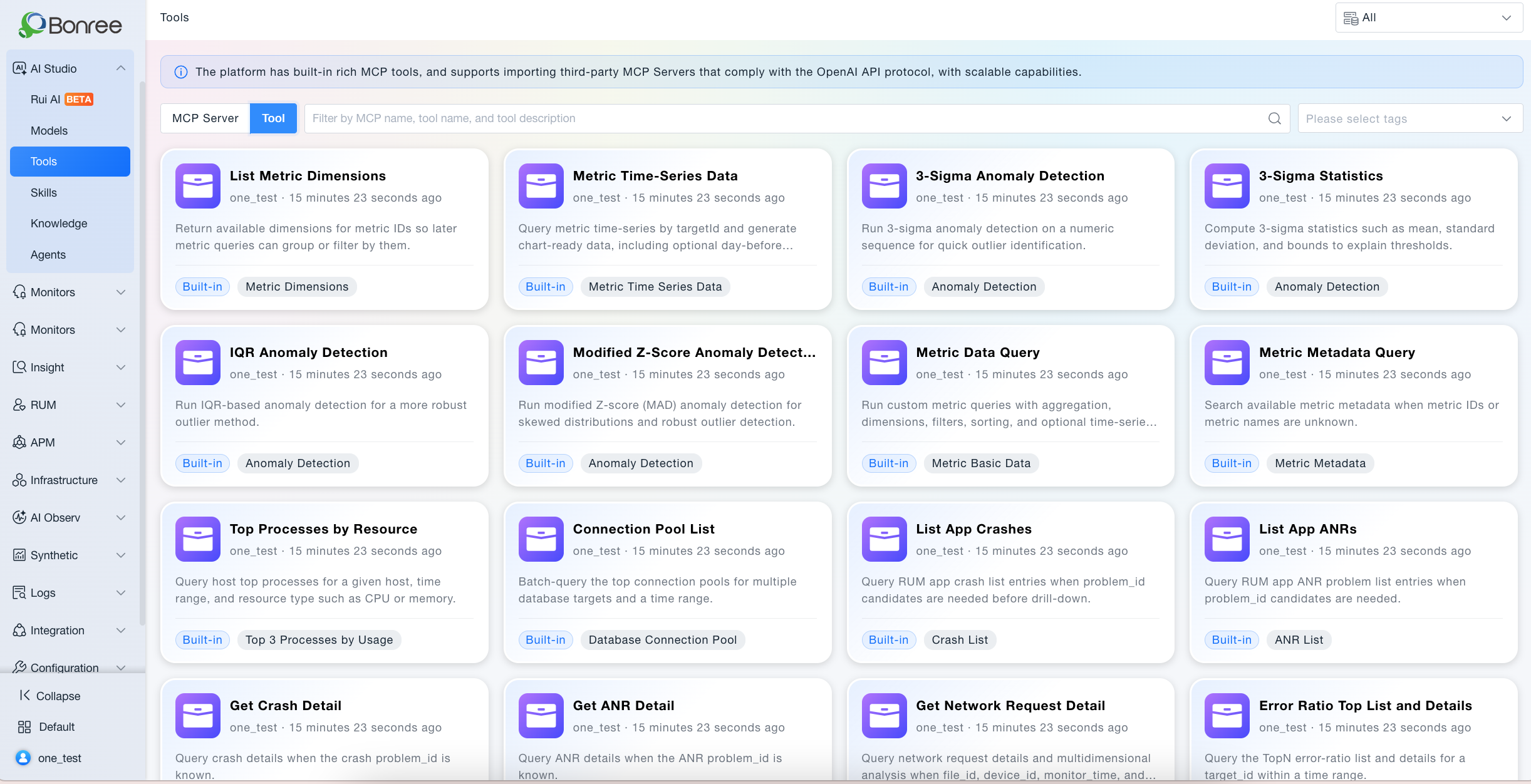
Displays each MCP Server as a card showing its basic information and the number of tools it contains. This is the primary interface for managing server connection configurations — adding, editing, and deleting MCP Servers.
The built-in MCP Server has a distinct visual style and is always pinned to the top of the list. It cannot be edited or deleted — only viewed.
Tools View
Displays individual tools in a flat list, aggregating all tools from all MCP Servers into a single view. This is ideal for finding and managing tools from a tool-centric perspective. You can add labels to tools in this view; labels can be used for filtering and are also visible in the MCP Services View detail panel.
Operations
View MCP service list: The Tools page defaults to MCP Services View. Use the search bar to filter by MCP service name (fuzzy match).
Add an MCP Server: Click "Add", fill in the service information and URL, save — the system validates connectivity automatically and loads the associated tool list upon success.
Refresh tool list: Click "Update" to refresh the tool lists of all added MCP Servers. URL connectivity is validated at the same time; a failure message is shown if any Server fails.
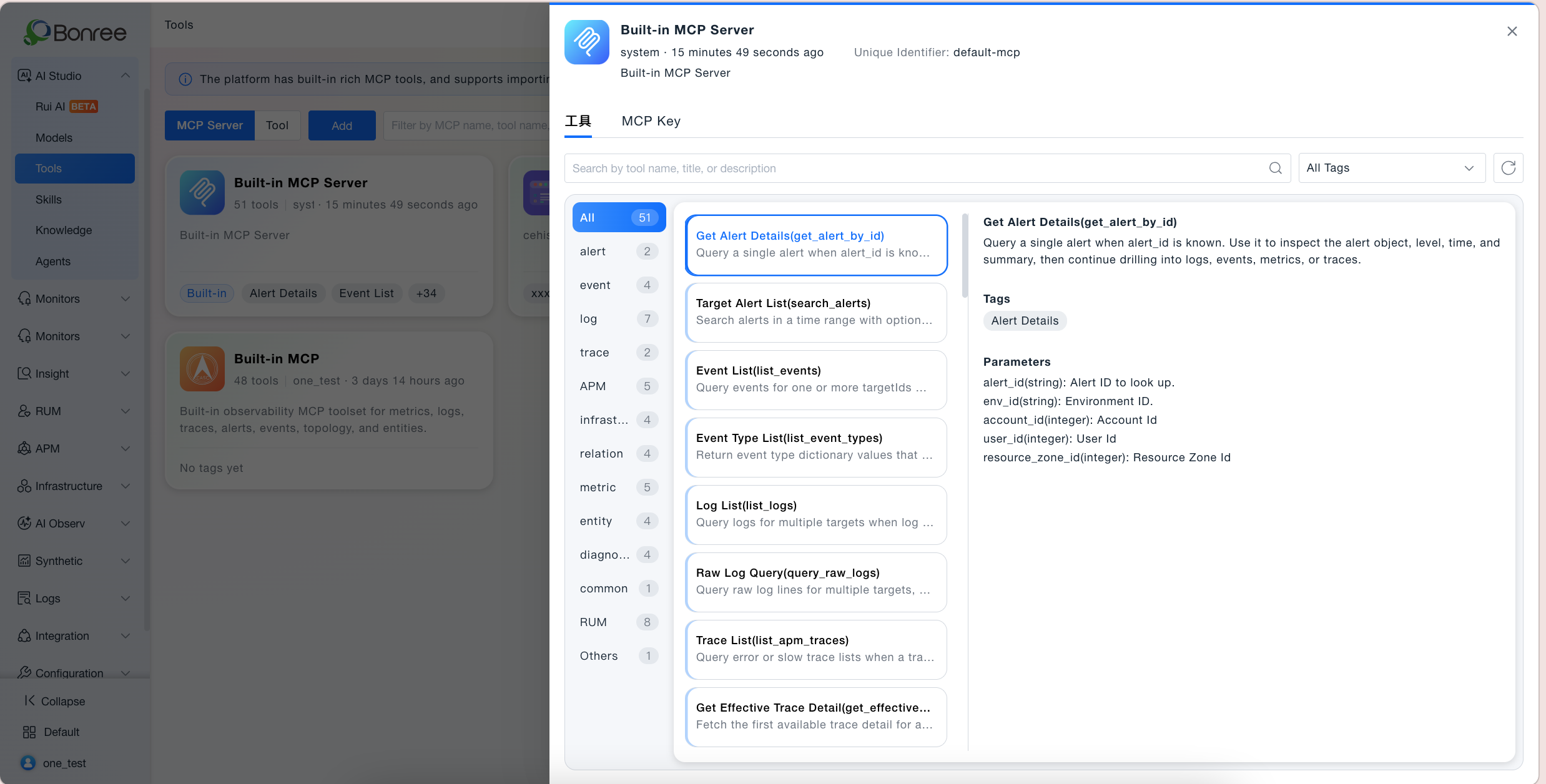
View service details: Click an MCP service card to open the detail panel showing the service's basic information and its list of tools (name, description, parameters).
Edit an MCP Server: Click the action button (⋯) on the card and select "Edit" to modify any field of the service configuration.
Delete an MCP Server: Click the action button (⋯) on the card and select "Delete". Confirm in the dialog. Agents using tools from this server may be affected.
Manage tools in Tools View: Switch to Tools View to filter by tool name, description, label, or parent MCP Server. Click a tool card to view its details, and add or modify labels.
Getting Started
Adding an MCP Server
Log in to Bonree ONE and go to AI Studio > Tools.
In MCP Services View, click "Add" to open the Add form.
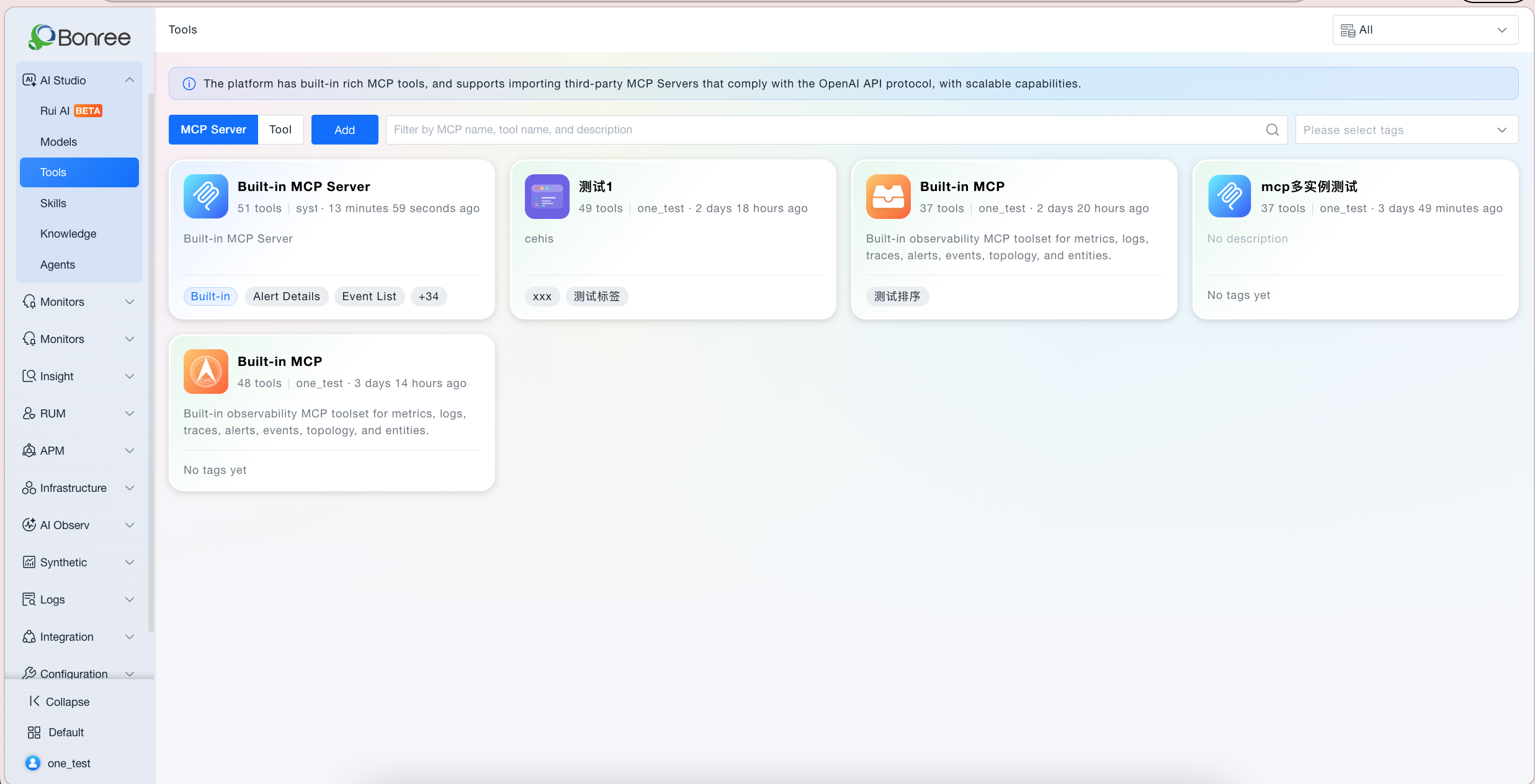
Fill in the fields according to the table below:
| Field | Required | Description | Default | Validation |
|---|---|---|---|---|
| Name | Required | Display name of the MCP service, used for identification in the UI | — | 2–50 characters; letters, digits, Chinese, underscore, hyphen, brackets |
| Icon | Optional | A default icon is provided. Upload a custom image (JPG/PNG, ≤200 KB) or choose from the icon library. | Default icon | JPG or PNG, ≤200 KB |
| Unique Identifier | Required | Unique key used by the backend to distinguish services. Must be unique within the same account and environment. | — | 2–100 characters; lowercase letters, digits, hyphens only |
| Description | Optional | Supplementary description of the MCP service. Maximum 500 characters. | — | Max 500 characters |
| URL | Required | Endpoint URL of the MCP Server. Only streamable HTTP protocol is supported. | — | 5–500 characters; valid URL (http:// or https://) |
| Advanced — Request Headers | Optional | Additional HTTP headers sent to the MCP Server. Up to 10 key-value pairs. | — | Name and value each ≤50 characters |
| Request Timeout (s) | Required | Maximum wait time for the request to be accepted | 30 | Non-negative integer, ≤3600 |
| Execution Timeout (s) | Required | Maximum wait time for tool execution to complete | 300 | Non-negative integer, ≤3600 |
Click "Save". The system validates the URL connectivity. If successful, the tool list associated with this MCP Server is automatically loaded.
Adding Labels to Tools in Tools View
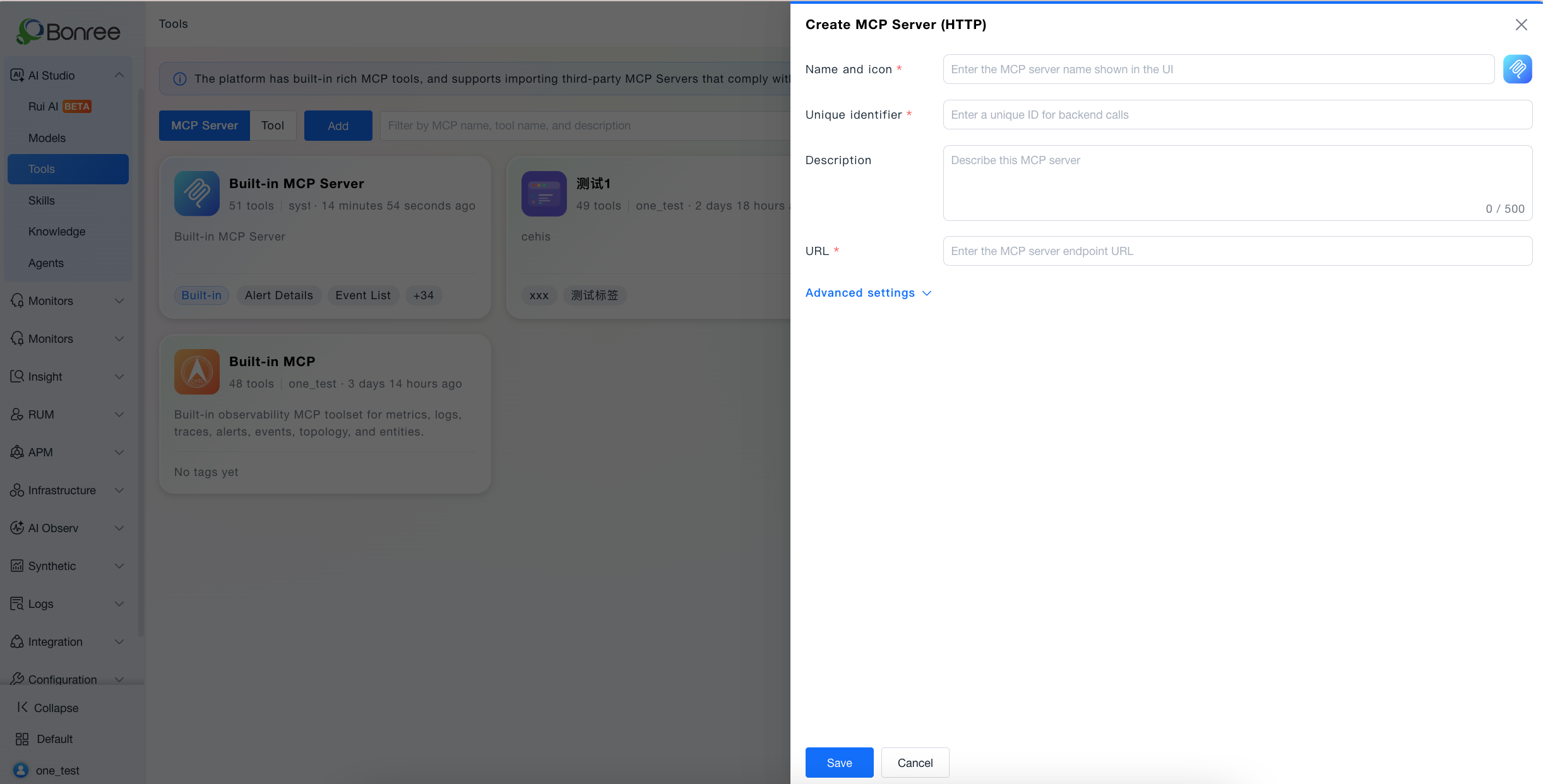
Click the view toggle at the top of the page to switch to "Tools View".
Find the target tool card and click it to open the tool detail panel. Add or modify labels in the label section.
Labels support up to 10 characters (Chinese characters, letters, digits). Once added, labels can be used for filtering in the Tools View filter bar and are also visible in the MCP service detail panel.
MCP Services View Details
Service Card Fields
| Field | Description |
|---|---|
| Icon | The service's identifying icon |
| Service Name | Display name of the MCP service |
| Tool Count | Total number of tools loaded from this MCP Server |
| Description | User-provided description; blank if not filled in |
| Last Updated By | Account that last modified this service |
| Last Updated At | Timestamp of last modification; cards sorted by this in descending order. Built-in service is always pinned first. |
| Action Button | Appears on hover; provides Edit and Delete options. Not shown for built-in services. |
Service Detail Panel
Click an MCP service card to open the detail panel, which shows the service's basic information card, request headers (if configured), and the tool list for this service (including tool name, description, parameters, and labels). Hover over a tool row to see its full details in a tooltip.
Tools View Details
Features
Tools View aggregates all tools from all MCP Servers into a single flat list, supporting multi-dimensional filtering to quickly locate target tools.
| Filter | Description |
|---|---|
| Tool Name / Description | Fuzzy keyword match |
| Label | Multi-select dropdown; lists all labels added by users |
| Parent MCP Server | Single-select dropdown; filter by source service |
Notes
The built-in MCP Server cannot be edited or deleted. It is always pinned to the top of the list and supports view-only access.
The unique identifier cannot be changed after saving. If a change is needed, delete the service and re-add it.
Labels added to tools in Tools View are synced and visible in the MCP Services View detail panel. Labels are scoped to this module and do not interact with labels elsewhere on the platform.
The "Update" operation refreshes tool lists for all added MCP Servers simultaneously. If a Server's URL fails connectivity validation, that Server's tool update fails and a specific error message is shown.
MCP Key
What is MCP Key
Bonree ONE has a built-in MCP Server that exposes core platform capabilities to external systems, including alert queries, log retrieval, event lists, and call chain analysis, among many other tools. External systems or AI clients can connect via the standard MCP protocol to directly invoke these tools and retrieve platform data for diagnostics, analysis, or Q&A.
An MCP Key is the authentication credential required to access the Bonree ONE built-in MCP Server. When an external system or AI client connects to the MCP Server, it must include the MCP Key in the request header to complete identity verification. Only after successful verification can the client invoke platform tools. Each MCP Key is bound to a specific environment and resource zone at creation time, which determines the data scope accessible by that Key.
Typical use cases:
Connect platform data to AI tools such as Claude Desktop or Cursor, enabling natural language queries for alerts and logs.
Allow custom platforms or scripts to automatically retrieve platform operations data via MCP protocol and trigger analysis workflows.
Enable third-party diagnostic systems to call platform tools and combine them with AI models to perform root cause analysis.
Prerequisites
Menu access: The user must have access to the AI Workbench / Tools menu.
Operation permission: Read-write permission on AI Workbench is required. Read-only users can view MCP Keys but cannot create them.
Account type: Only the primary account can manage MCP Keys.
Step 1: Create an MCP Key
Log in to the Bonree ONE platform. In the left navigation, go to AI Workbench > Tools.
Click the Built-in MCP Service card. In the right-side detail drawer, switch to the MCP Key tab.
Click Create and fill in the following fields:
Key name (required): 2-50 characters. Supports letters, digits, Chinese characters, - _ / . Use a descriptive name such as "Production Monitoring".
Status: Enabled by default. Takes effect immediately after creation.
Click Save. A creation success dialog will appear.
Important: The MCP Key value is displayed in plain text only once in the creation success dialog.It cannot be retrieved after the dialog is closed. Copy it before closing.If you miss copying it, delete the Key and create a new one.
Step 2: Retrieve connection information
The creation success dialog contains all the information needed to connect:
| Item | Description | Example |
|---|---|---|
| MCP Key | Authentication credential for verifying request identity | brn_sk_3f8aGXS4···c92d |
| MCP Endpoint | Service address of the MCP Server | https://mcp.bonree.com/mcp |
Step 3: Configure your MCP client
In any MCP-compatible client, use the following parameters to set up the connection:
| Parameter | Value |
|---|---|
| Type | streamableHttp |
| URL | The MCP Endpoint automatically generated when creating the MCP Key |
| MCP-Access-Key header | Bearer your MCP Key |
For client-specific configuration instructions, please refer to the documentation center.
MCP Key Management
In the MCP Key tab, you can perform the following management operations on existing Keys:
| Action | Description | Notes |
|---|---|---|
| Edit | Modify Key name, status, scope environment | The MCP Key value cannot be changed. To replace it, delete the Key and create a new one. |
| Enable / Disable | Toggle the Key on or off instantly using the switch | When disabled, requests using this Key will immediately return 401. The Key can be re-enabled at any time. |
| Delete | Permanently delete the Key | This action cannot be undone. External systems will no longer be able to call the MCP Server using this Key. |
Disable vs Delete:Disable: The Key becomes temporarily inactive and can be re-enabled at any time. Use this to temporarily block a system's access.Delete: The Key is permanently invalidated and cannot be recovered. Use Disable if you only need temporary suspension.
Data Access Scope
MCP Keys use a three-level isolation mechanism — account, environment, and resource zone — to ensure secure data access.
Scope environment and resource zone
Each MCP Key is bound to specific environments and resource zones at creation. When an external system invokes a tool using that Key, it can only retrieve data within the bound scope. No cross-scope data is returned.
Scope restriction: When creating or editing an MCP Key, the selectable environments and resource zones are strictly limited to those accessible by the current account. Users cannot select beyond their own permission boundary.
Account isolation rules
| Account type | Visible MCP Keys |
|---|---|
| Primary account | Keys created by itself + Keys created by all sub-accounts under it |
| Sub-account | Only Keys created by itself (cannot see primary account Keys or other sub-accounts' Keys) |
| Between different primary accounts | Fully isolated — neither can see the other's Keys |
FAQ
Q: I forgot to copy the MCP Key after creation. What should I do?
The MCP Key value is displayed in plain text only once in the creation success dialog. The system only stores a hash of the Key and cannot show the plain text again. Please delete the Key and create a new one.
Q: Calls to the MCP Server return a 401 error. How do I troubleshoot?
Check whether the MCP Key has been disabled or deleted. You can verify the status in the MCP Key list.
Verify that the request header format is correct: MCP-Access-Key: Bearer MCP Key
Confirm that the MCP Endpoint address matches the one generated at creation.
Q: Tool calls return empty or incomplete data. What might be wrong?
Check whether the scope environment and resource zone bound to the MCP Key include the data you are querying.
Confirm that the target resource zone actually contains the relevant data (alerts, logs, etc.).
Q: Can a single MCP Key be used to query data across multiple resource zones?
Yes. When creating an MCP Key, you can select multiple resource zones in the Scope resource zone field. The Key will then be able to query data across all selected resource zones.