Skills
Prerequisites
Feature Menu: Access to the AI Studio / Skill menu is required.
Operation Permission: Read and write access to AI Studio is required.
Model Configuration: At least one LLM must be added to the model list before importing a Skill, as it is required for import validation. If no model is available, the import process will prompt you to add one first.
Overview
- Skill is a reusable unit that encapsulates specific operational capabilities within Bonree ONE AI Studio. Skills are either built in by the platform or imported by users from external sources. When executing tasks, Agents can invoke Skills to perform concrete actions such as sending notifications, creating tickets, or pushing logs — making Skills a key component for extending Agent capabilities. Skills can also be directly selected and invoked in Rui AI.
- The platform supports two types of Skills: Built-in Skills are pre-installed and ready to use out of the box, though some require channel parameters to be configured before they can be called; Imported Skills are uploaded by users as zip/skill packages that conform to the OpenClaw specification, and are imported after passing LLM security and compliance validation. Imported Skills support editing and deletion.
Value
Ready to use, quickly extend Agent capabilities
Built-in Skills require no development. Once parameters are configured, they can be invoked directly by Agents, significantly lowering the barrier to extending Agent capabilities and enabling standardized, reusable operations workflows.
Open import to meet customized extension needs
Third-party Skills that conform to the OpenClaw specification can be imported into the platform. Users can freely extend the operational capability boundaries of their Agents according to actual business needs, without being limited to the built-in Skill catalog. Please ensure compliance with security standards when importing.
Centralized management to reduce maintenance overhead
All Skills — both built-in and imported — are displayed and managed in a unified list. Built-in Skills that require parameter configuration can be configured here; imported Skills can be edited and deleted. Agents reference Skills directly, eliminating the need for repeated configuration.
Per-Agent parameter override for differentiated configurations
Built-in Skills support setting Agent-specific parameters that override the global configuration, enabling the same Skill to use different destination addresses or credentials across different Agents.
Use Cases
The following scenarios are for reference only. It is recommended to define and invoke Agents based on your own usage patterns.
Alert Notification Push
After Agents such as fault diagnosis complete their analysis, they can invoke Skills like "Send DingTalk Notification" or "Send WeCom Notification" to automatically push diagnosis summaries and remediation recommendations to the operations group, eliminating manual relay and improving response speed.
Automated Ticket Creation
When an Agent determines that follow-up action is needed, it invokes the "Create Ticket" Skill to automatically submit a ticket to the internal ticketing system, pre-filled with alert information and suggested handling steps — enabling end-to-end automation from alert to ticket.
Operations Log Archiving
After an Agent completes an inspection or diagnostic task, it invokes the "Push Operations Log" Skill to automatically write the execution results to the internal logging system, creating a traceable operations record that supports post-incident audits and knowledge accumulation.
Custom Business Capability Integration
When built-in Skills do not meet specific business requirements, users can import self-developed or third-party Skill packages that conform to the OpenClaw specification. After validation, these Skills become available for Agents to invoke, enabling deep integration with internal systems.
Operation Scenarios
- View Skill list: Browse all built-in and imported Skills in card format on the Skill list page. Use keyword search and source filters to quickly locate a target Skill.
- View Skill details: Click a Skill card to open a detail drawer on the right side of the page, showing the complete information including name, description, source, configuration parameters (for built-in Skills), and file preview (for imported Skills).
- Configure built-in Skill parameters: Click a built-in Skill card, then click the "Configure" button in the detail drawer. Fill in the required channel address, credentials, and other parameters and save. Once configured, the Skill can be normally invoked by Agents.
- Import an external Skill: Click the "Import" button at the top of the Skill list page. Upload a zip package that conforms to the OpenClaw specification. The system uses an LLM to perform security and compliance validation. If validation passes, the Skill is imported automatically and pinned to the top; if validation fails, detailed failure reasons are shown and re-uploading is supported.
- Edit an imported Skill: Click an imported Skill card, then click the "Edit" button in the detail drawer to modify the name, description, and other information. Built-in Skills do not support editing.
- Invoke a Skill in an Agent: After adding a Skill in the Agent orchestration page, you can configure Agent-specific parameters to override the global configuration. If the Agent-specific parameters are empty, the global Skill configuration will be used at invocation time.
Getting Started
Viewing and Managing Skills
Log in to Bonree ONE.
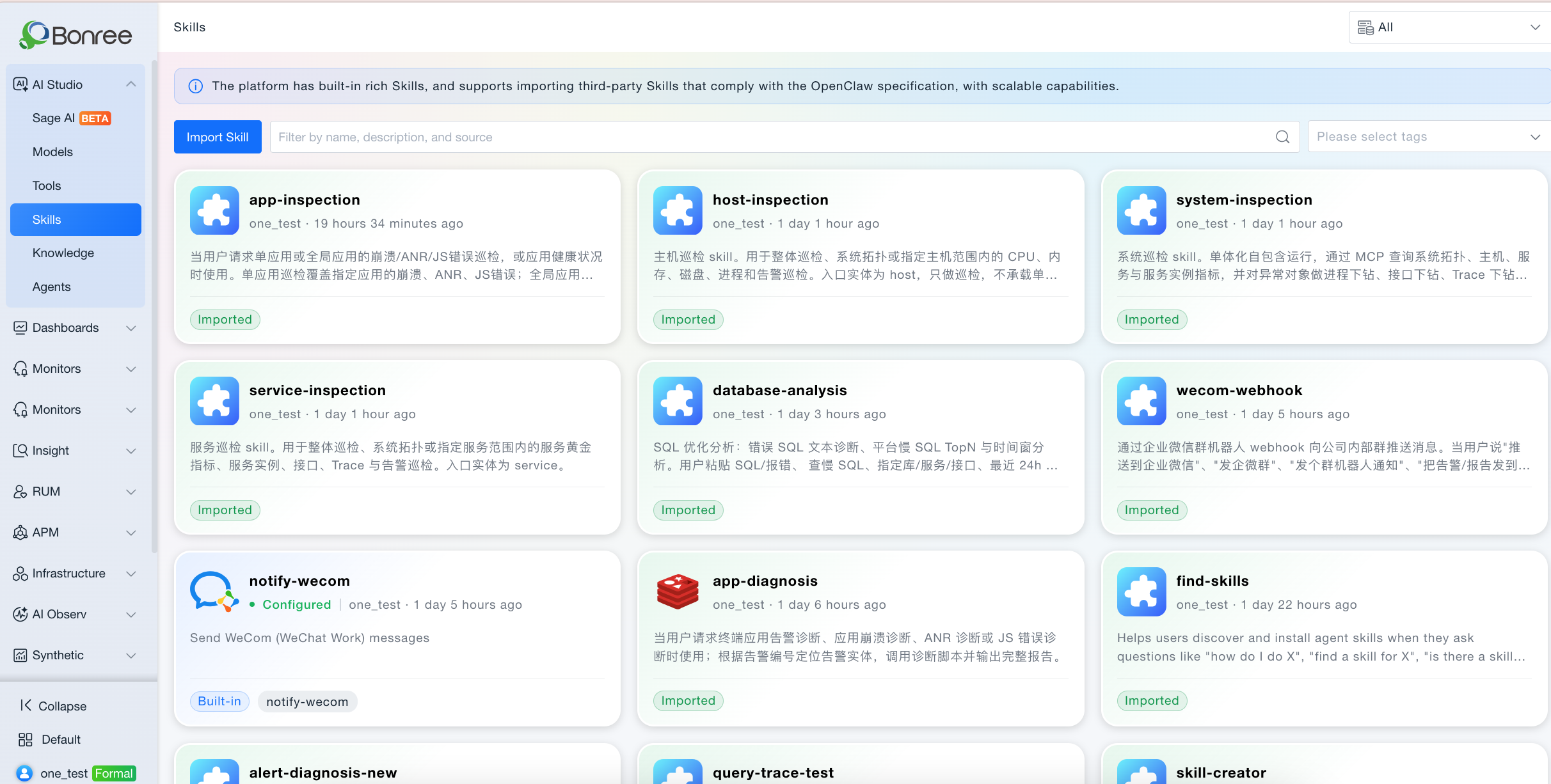
Select AI Studio Skill from the left navigation to enter the Skill list page.
The list displays all built-in and imported Skills as cards, showing the name, description, source label, and configuration status.
Click any Skill card to view the complete details in the right-side drawer.
Configuring a Built-in Skill
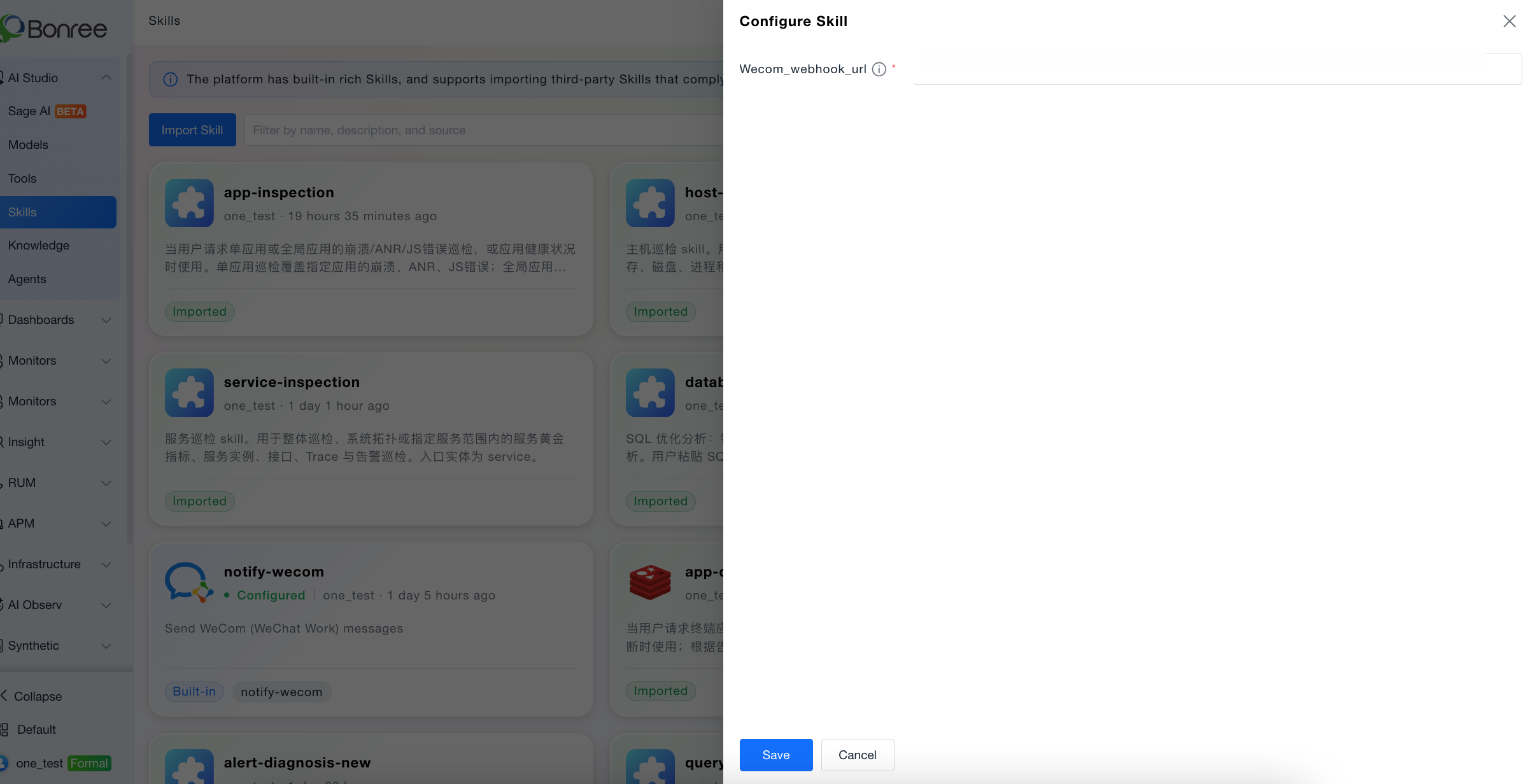
Find the built-in Skill to configure in the Skill list, and click the Configure button on the card to open the configuration drawer.
Fill in the required parameters such as channel address and credentials in the configuration area.
After saving, the Skill status changes to "Configured" and it can be normally invoked by Agents.
If a specific Agent needs to use different parameters (such as the Webhook address for a particular group), fill in Agent-specific parameters under that Skill in the Agent orchestration page to override the global configuration.
Importing an External Skill
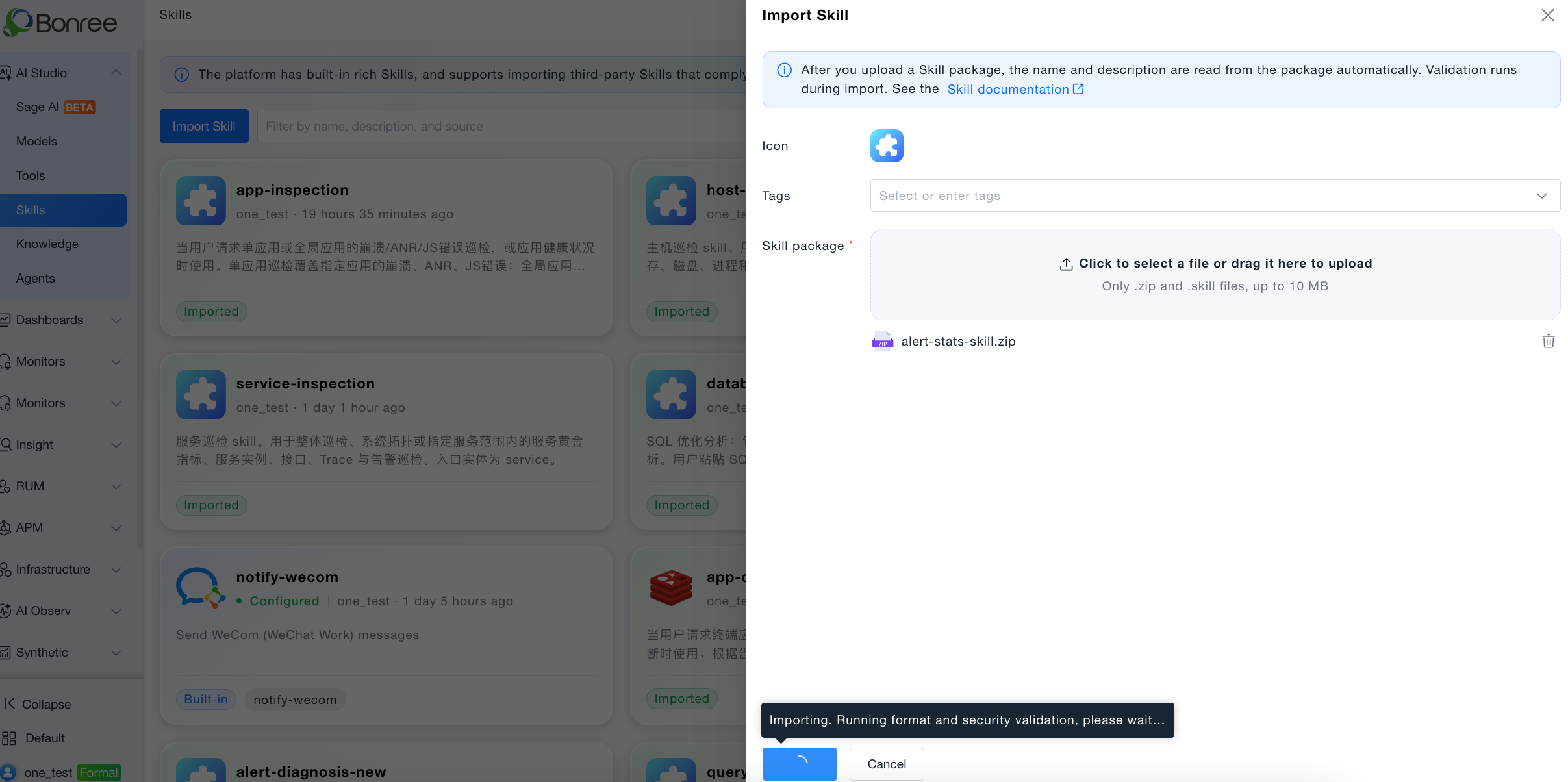
On the Skill list page, click the "Import" button.
In the form that appears, upload a Skill zip package that conforms to the OpenClaw specification, and fill in the name and description (defaults to the name/description fields from the package).
Click "Import". The system uses the LLM currently selected in Rui AI to perform security and compliance validation. If no model is configured, please go to the model list to add an LLM first.
If validation passes, the Skill is automatically imported and pinned to the top with a source label of "Imported".
If validation fails, the system displays detailed failure reasons. You can make corrections based on the prompts and re-upload.
Import Validation Rules
1. ZIP Validity Checks
| Check Item | Description |
|---|---|
| Empty package body | Blocked. No bytes inside the package. |
| Outer filename extension | Blocked. Uploaded filename must end with .zip or .skill (outer package name only). |
| Outer package size | Blocked. Default limit 10MB; configured via skill.import.max_package_mb. |
| Unable to open zip | Blocked. Not a valid zip file (BadZipFile). |
| No files in zip | Blocked. No file entries inside the archive. |
| Encrypted zip entries | Blocked. Encrypted compressed entries are not supported. |
| Absolute path entries | Blocked. Member paths cannot start with / or be absolute paths. |
| Path contains .. | Blocked. Path segments must not contain ... |
| Directory depth exceeded | Blocked. Default max 5 levels (nested after zip root); configured via Nacos max_dir_depth. |
| Single file too large | Blocked. Default uncompressed size limit per file 10MB; configured via Nacos max_single_file_mb. |
| High compression ratio (zip bomb) | Blocked. Per-entry file_size/compress_size ratio must not exceed 50x by default; configured via Nacos max_compress_ratio. |
| Total uncompressed size exceeded | Blocked. Sum of uncompressed sizes of all files in package defaults to 100MB limit; configured via Nacos max_total_unzip_mb. |
2. Skill-Vetter
Skill-Vetter uses an LLM to perform a static security review of the uploaded package according to the built-in skill-vetter protocol. The gateway only parses the VERDICT/NOTES in the final round of the report body and normalizes to "installable" before allowing the package through. The review is an offline static check and does not execute scripts inside the package being imported.
2.1 Prerequisites and Operating Conditions
| Check Item | Description |
|---|---|
| No LLM available for tenant | Blocked. |
| Vetter call timeout | Blocked. Default timeout per review is 120 seconds. |
| Rate-limited / context exceeded with no fallback model | Blocked. Can automatically switch to another LLM for retry; fails after all options exhausted. |
| Other vetter call exceptions | Blocked. Non-retryable errors fail immediately. |
| Single file exceeds prompt token limit | Not blocked. Max ~24,000 characters per file; excess is truncated and flagged. |
| Total prompt character budget exceeded | Not blocked. ~120,000 characters total; excess files marked as omitted. |
| Ignored directories/files | Not scanned. pycache / .git / .svn / node_modules / .DS_Store / .pyc etc. are skipped. |
2.2 REJECT-Level Red Flags (DO NOT INSTALL upon detection)
| Check Item | Description |
|---|---|
| curl/wget to unknown URL | Blocked. Includes downloading from unknown addresses. |
| Sending data to external servers | Blocked. Data exfiltration behavior. |
| Requesting credentials / token / API key | Blocked. Inducing collection of keys. |
| Reading ~/.ssh, ~/.aws, ~/.config without clear reason | Blocked. Sensitive directory access. |
| Accessing MEMORY.md / USER.md / SOUL.md / IDENTITY.md | Blocked. Agent private memory files. |
| Base64-decoding arbitrary content | Blocked. Common obfuscation/payload technique. |
| eval() / exec() with external input | Blocked. Arbitrary code execution. |
| Modifying system files outside workspace | Blocked. Out-of-scope disk writes. |
| Installing dependencies without listing them | Blocked. Covert installation behavior. |
| Network requests using IP instead of domain | Blocked. Suspicious C2 characteristic. |
| Obfuscated code (compressed/encoded/minified to hide intent) | Blocked. |
| Requesting sudo / privilege escalation | Blocked. |
| Accessing browser cookies / session | Blocked. |
| Touching credential files | Blocked. e.g. id_rsa, .env, docker/config.json, kubeconfig, etc. |
2.3 Extended High-Risk Command Patterns (Full Package Scan Required)
| Check Item | Description |
|---|---|
| Destructive file operations | Blocked. rm -rf, del /f /s /q, Remove-Item -Recurse -Force, shred, etc. |
| Disk / filesystem operations | Blocked. dd if=, mkfs, fdisk, diskpart, format, etc. |
| Privilege escalation / persistence | Blocked. sudo, runas, crontab, schtasks, systemctl enable, reg add, etc. |
| Arbitrary code execution | Blocked. eval, exec, bash -c, powershell -Command, python -c (with external input), etc. |
| Download and execute | Blocked. curl|sh, wget|sh, Invoke-WebRequest|iex, certutil download, etc. |
| Credential / key harvesting | Blocked. Reading ~/.ssh/*, id_rsa, known_hosts, .env, etc. |
| Exfiltration channels | Blocked. nc/ncat/socat, scp/rsync to unknown hosts, anomalous webhooks, etc. |
| Firewall / network tampering | Blocked. iptables, ufw, netsh advfirewall, DNS/route manipulation, etc. |
| Multiple similar commands | Blocked. Any single REJECT-level hit causes denial; all occurrences across the entire package must be scanned. |
2.4 Source, Permissions, and OAuth Assessment
| Check Item | Description |
|---|---|
| Source trustworthiness evaluation | Not blocked. Reviews source/author/repo/update time; official ClawdHub listing does not automatically mean safe. |
| OAuth / SaaS documentation | Not blocked. Documentation instructs users to set up their own GOOGLE_* / AZURE_* credentials with least-privilege access typically INSTALL WITH CAUTION. |
| Hardcoded keys / inducing token paste | Blocked. Requires keys to be written into the repo or sent to untrusted endpoints. |
| Broad OAuth granted solely for authorization | Not blocked. Broad OAuth for Gmail/Drive etc. defaults to MEDIUM~HIGH; if documentation is clear, it is CAUTION rather than outright rejection. |
| curl|sh combined with OAuth documentation | Blocked. Documented OAuth combined with download-and-execute chain is high risk. |
3. File Validation Inside the ZIP Package
Validation is performed by reading zip entries before extracting to disk (rule-based, not LLM).
3.1 SKILL.md Validation
| Check Item | Description |
|---|---|
| Filename casing | Blocked. Must be exactly "SKILL.md"; skill.md and other variants do not match. |
| Primary manifest must exist | Blocked. Must be SKILL.md in the zip root, or top-dir/SKILL.md under the single top-level directory; SKILL.md deeper in the tree cannot serve as the primary manifest. |
| Multiple SKILL.md files | The shallowest path is used as the primary manifest (same depth: lexicographic order); no separate error is raised. |
| Flat package structure | If SKILL.md exists in the zip root, multiple top-level items (e.g. scripts/, references/) are allowed; the top-level folder name need not match the slug. |
| Single-folder package structure | If there is no SKILL.md in the root, all files must be under one top-level directory; blocked if multiple top-level directories exist. |
| Single-folder top-level directory name | Blocked. Top-level directory name must equal the slug in SKILL.md (or the name field if slug is not set). |
| SKILL.md encoding | Blocked. Must be UTF-8. |
| YAML front matter | Blocked. Fields such as name and description at the start of the file must be enclosed in --- ... ---; the enclosed content must be valid YAML metadata. |
| name | Blocked. Required; max 64 characters; regex ^[a-z0-9]+(?:-[a-z0-9]+)*$ (starts with digit or lowercase letter; allows lowercase letters / digits / hyphens; no leading/trailing hyphens or consecutive hyphens; must exactly match the top-level folder name). |
| slug | If provided, follows the same rules as name; defaults to name if not set. |
| description | Blocked. Required; 1-1024 characters. |
3.2 File Extension Whitelist Validation
| Check Item | Description |
|---|---|
| Allowed file extensions (default 31 types) | .cfg .cjs .conf .css .csv .gif .htm .html .ico .ini .jpeg .jpg .js .json .jsx .md .mjs .png .py .rst .sh .sql .svg .toml .ts .tsv .tsx .txt .webp .yaml .yml |
| Allowed extension-less files | license / copying / makefile / dockerfile / gemfile / rakefile / procfile / jenkinsfile (case-insensitive) |
| Allowed dot config files | .gitignore / .dockerignore / .editorconfig / .npmrc / .nvmrc (full filename match) |
| SKILL.md | Exempt from the extension whitelist, but must still satisfy all rules in Section 3.1. |
| Ignore list (not blocked; deleted after extraction) | MACOSX/ / pycache__ / .git / .svn / .DS_Store / desktop.ini / Thumbs.db / ._* / .pyc / .pyo; skipped during validation and do not count as allowed types. |
| Double-extension files | Only the last extension is recognized, e.g. archive.tar.gz is treated as .gz; blocked by default if not in the whitelist. |
| Extension not in whitelist | Blocked. e.g. .exe / .pdf / .zip / .ps1 / .env etc.; can be extended via Nacos skill.import.allowed_suffix. |
3.3 Script Dangerous Content Scan (Rule Engine)
| Check Item | Description |
|---|---|
| Scan scope | Only .sh / .py / .js / .mjs / .cjs / .ts / .tsx / .jsx files with size; .md / .json and other documents are not scanned. |
| .sh scripts | Blocked. High-risk patterns such as rm -rf, curl|sh, mkfs, dd, chattr, etc. |
| Code files | Blocked. Patterns such as os.system, subprocess(shell=True), eval, exec, child_process, etc. |
| Sensitive path / key references | Blocked. Patterns such as /etc/shadow, ~/.ssh, PRIVATE KEY, etc. |
3.4 Extraction and Other Checks
| Check Item | Description |
|---|---|
| Extraction path safety | Blocked. Absolute paths, .., and extraction targets that escape the directory are prohibited. |
| SKILL.md missing after extraction | Blocked. SKILL.md must exist after flattening into the skill directory. |
| Duplicate slug in same environment | Blocked. slug must be unique per account_id + env_id. |
| Conflict with built-in skill | Blocked. name and slug must not duplicate any globally built-in skill. |
| icon | Blocked if invalid. Empty passes; a short string with no injection characteristics passes; otherwise must be a valid base64-encoded image. |
| Authorization dimensions | Blocked. account_id, env_id, and resource_zone_id are all required. |