knowledge
Knowledge Base
Prerequisites
Feature menu: Access to AI Studio / Knowledge Base menu is required.
Permissions: Read-Write access is required for create/edit/delete operations. Read-Only access allows search and view only.
Model configuration: An Embedding Model must be added to the Models list before creating a knowledge base, as it is required during creation.
Overview
The Knowledge Base is the module in Bonree ONE AI Studio for centrally managing operations knowledge documents. It supports building and maintaining an operations knowledge repository in one place. Users can upload technical expertise, solution guides, troubleshooting runbooks, and other documents to the knowledge base. After vectorization processing, these documents become available for intelligent fault diagnosis, knowledge Q&A, or custom agents to reference, effectively solving the problems of fragmented team knowledge and difficult knowledge transfer.
Documents in the knowledge base must complete index processing and reach "Available" status before they can be selected and referenced by agents (workflow nodes, Autonomous Decision Agents).
Value
Systematically accumulate team knowledge — eliminate knowledge silos:
Consolidate troubleshooting experience and solutions scattered across individuals into a shared knowledge repository, forming a team-wide knowledge asset and effectively mitigating the risk of knowledge loss due to staff turnover.
Power AI diagnosis — improve fault localization accuracy:
Fault diagnosis agents can directly reference troubleshooting steps and scenario descriptions from the knowledge base, giving the AI an understanding of business context and significantly improving diagnostic accuracy and relevance.
Enable real-time technical Q&A — reduce manual support costs:
The knowledge base serves as the knowledge source for intelligent Q&A. Operations engineers can query knowledge base content in natural language, quickly obtaining operational guidance and reducing the frequency of manual support interactions.
Multi-mode reuse — one knowledge base, many scenarios:
The same knowledge base can be referenced simultaneously by workflow nodes, Autonomous Decision Agents, and other modes. Maintain once, apply everywhere — reducing duplicate effort and keeping knowledge consistent.
Use Cases
Accumulating Fault Troubleshooting Knowledge
Upload historical incident records, standard troubleshooting SOPs, and system architecture documentation to the knowledge base. When Autonomous Decision Agents reference this knowledge, they decompose the document content into actionable diagnostic steps that can be invoked directly when faults occur.
Knowledge Source for Q&A
Add operations runbooks, configuration guides, and FAQs to the knowledge base. When engineers ask questions in Rui AI, the system automatically retrieves the relevant knowledge and provides accurate answers, reducing the time spent searching through documentation manually.
Cross-Scenario Knowledge Sharing
A single knowledge base can be associated with multiple agents. Fault diagnosis workflows for different scenarios can all reference the same knowledge base, avoiding duplicate maintenance and ensuring knowledge consistency.
Operations
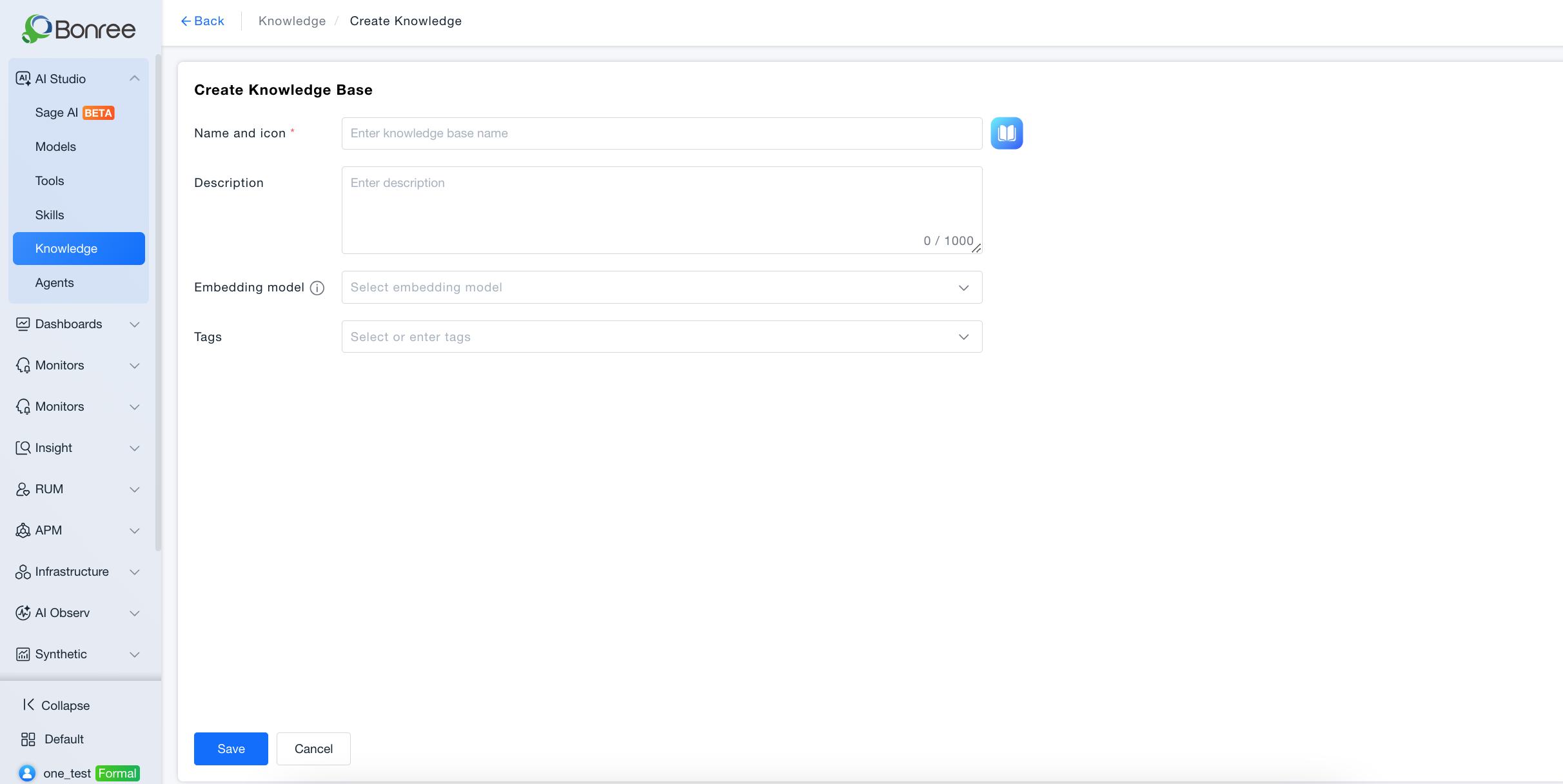
Create a knowledge base: Click "Create", fill in the knowledge base name, icon, description, and keywords, select an Embedding Model, and save. After saving, the system automatically navigates to the knowledge base detail page where you can begin uploading documents.
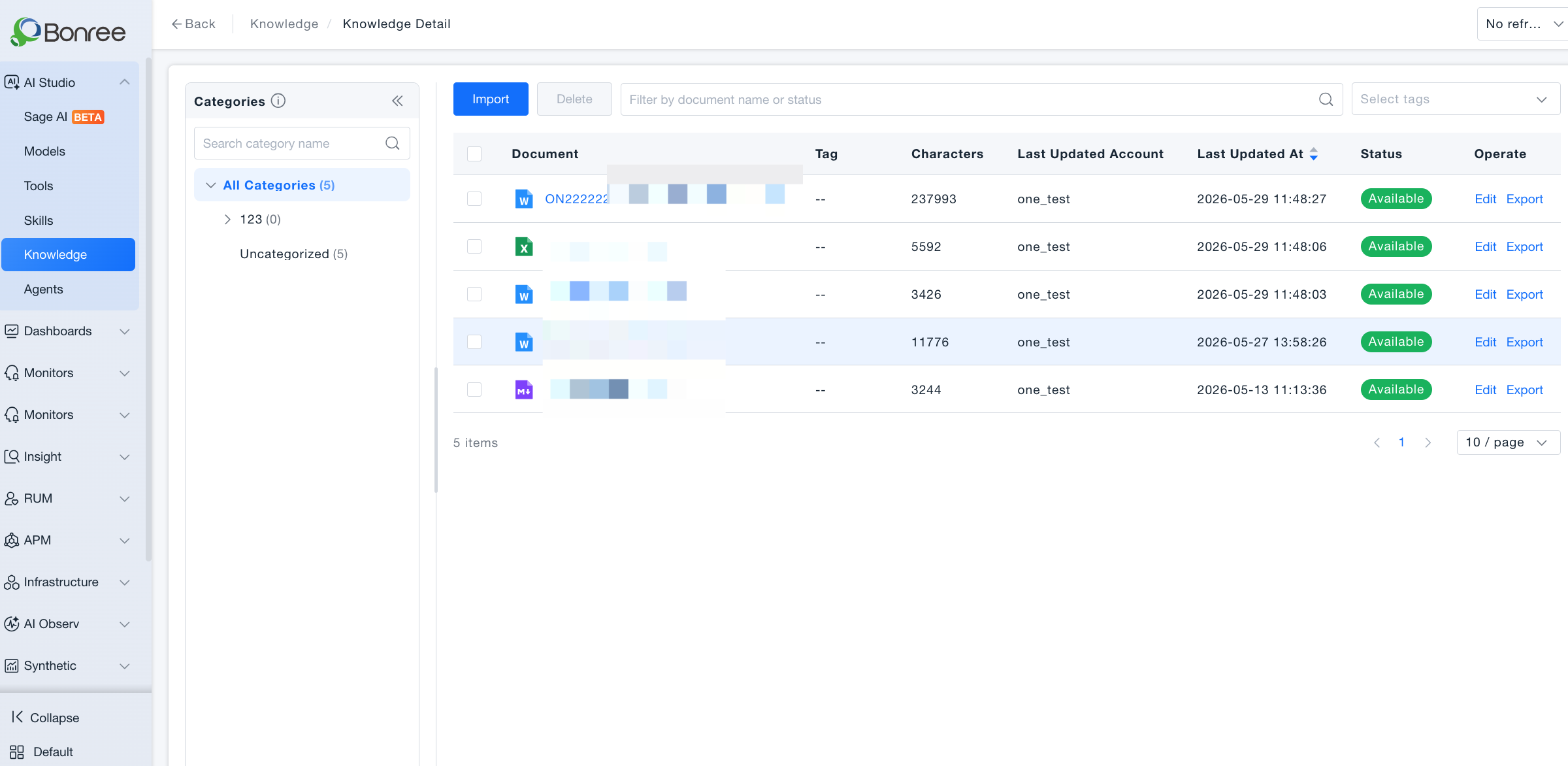
Upload documents: On the knowledge base detail page, click "Import" to upload document files. The system automatically performs vectorization indexing. Document status progresses through: Queued → Indexing → Available. Only documents in "Available" status can be referenced by agents.
Manage documents: Individual documents support rename, export (original file), and delete operations. Batch operations support deleting multiple documents simultaneously.
Edit a knowledge base: Click "Edit" on the knowledge base card to modify the name, icon, description, and keywords. Note: the Embedding Model cannot be changed once documents have been uploaded to the knowledge base.
Delete a knowledge base: Deleting a knowledge base also deletes all documents within it. Agents associated with this knowledge base will no longer be able to use it. Assess the impact before proceeding.
Search knowledge bases: Filter by knowledge base name keyword or status to quickly locate the target knowledge base.
Getting Started
Creating a Knowledge Base and Uploading Documents
Log in to Bonree ONE and go to AI Studio > Knowledge Base from the left navigation.
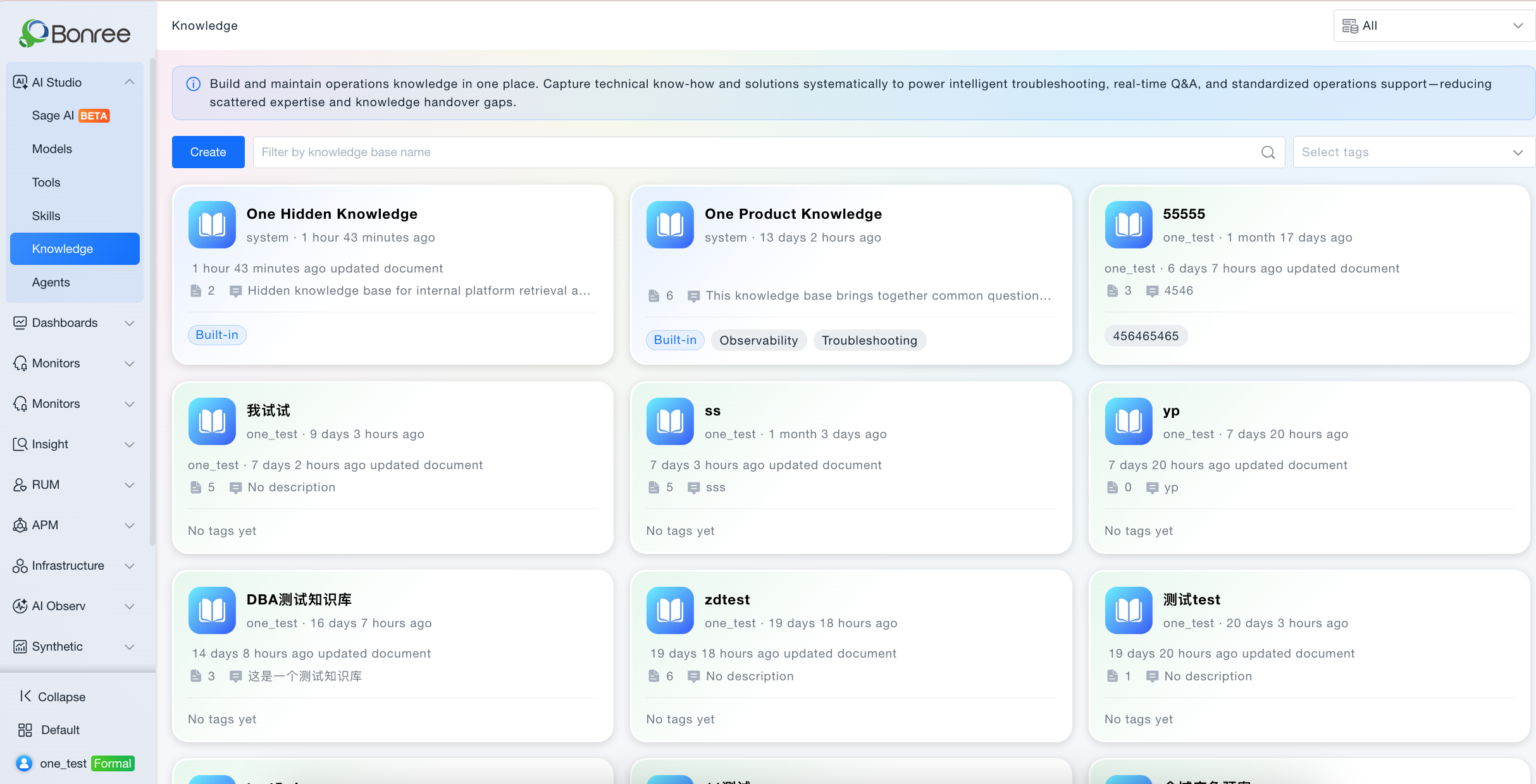
Click "Create", fill in the knowledge base name (required), description, and keywords, select an Embedding Model (required), and save.
After saving, the system automatically navigates to the knowledge base detail page. Click "Import" to upload document files.
After upload, documents enter the indexing queue. Once the status changes to "Available", they can be referenced by agents.
Using the Knowledge Base in Agents
Workflow Agent: Add a Knowledge node on the workflow canvas and select the desired knowledge base documents from the dropdown to associate them.
Autonomous Decision Agent: Select the target knowledge base in the "Knowledge Base" field on the configuration page. The agent will automatically retrieve and reference relevant content during reasoning.
Document Status Description
| Status | Description |
|---|---|
| Queued | The document has been uploaded and is waiting in the indexing queue. |
| Indexing | The system is performing vectorization processing on the document. |
| Available | Indexing is complete. The document can be referenced by agents. |
| Failed | Indexing failed. Check the document format and re-upload, or contact support. |
Notes
The Embedding Model selected when creating a knowledge base cannot be changed after documents have been uploaded. To use a different model, create a new knowledge base.
Deleting a knowledge base is irreversible and deletes all documents within it. Agents associated with this knowledge base will stop functioning. Assess the impact carefully before proceeding.
Only documents in "Available" status can be referenced by agents. Documents still in "Queued" or "Indexing" status are not yet usable.
If the Models list does not contain an Embedding Model, the knowledge base creation form cannot be completed. Add an Embedding Model first.