Models
Prerequisites
Feature menu: Access to AI Studio / Models menu is required.
Permissions: Read-Write access is required for add/edit/delete operations. Read-Only access allows viewing only.
Overview
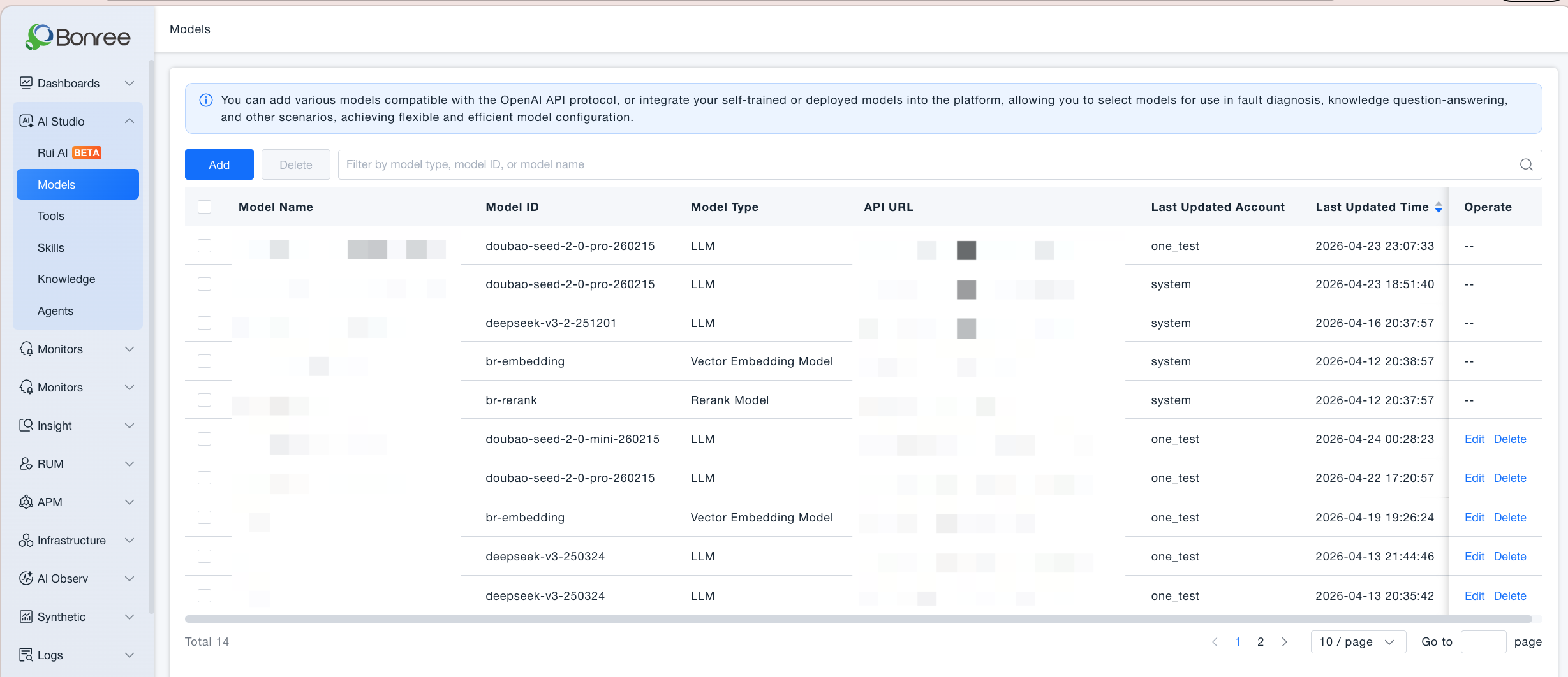
The Models module allows users to integrate large language models that are compatible with the OpenAI API protocol. Through the OpenAI-compatible interface, users can connect self-trained or self-deployed models to the Bonree ONE platform, making them available for fault diagnosis, intelligent Q&A, and other AI-powered scenarios.
Platform tip: "You can add any large language model compatible with the OpenAI API protocol. Through the OpenAI-compatible interface, connect your self-trained or self-deployed models to the ONE platform for use in fault diagnosis, intelligent Q&A, and other LLM applications — enabling flexible and efficient AI configuration."
Value
Unified model management: Manage all integrated models in one place. Models are shared across fault diagnosis, workflows, intelligent Q&A, and other scenarios.
Flexible model selection: Supports three model types — LLM, Embedding Model, and Reranking Model — to meet the differentiated needs of different scenarios.
Private deployment friendly: Compatible with the OpenAI API protocol for easy integration of locally deployed or self-trained models, keeping data within your environment.
Real-time connectivity validation: Automatically checks the reachability of the model endpoint and API key when saving, surfacing issues before they cause runtime failures.
Use Cases
Integrating a Private Large Language Model
If your organization has deployed an OpenAI-compatible LLM (e.g., Qwen, ChatGLM), you can connect it to the platform by providing the base URL and API key, making it available for fault diagnosis, intelligent Q&A, and other scenarios.
Configuring Multiple Models for Different Scenarios
Different scenarios require different model capabilities. You can add dedicated LLMs for reasoning, embedding models for knowledge retrieval, and reranking models to improve retrieval accuracy — combining them to maximize diagnostic quality.
Operations
View model list: Browse all integrated models on the Models page. Filter by model type, model name, or model ID.
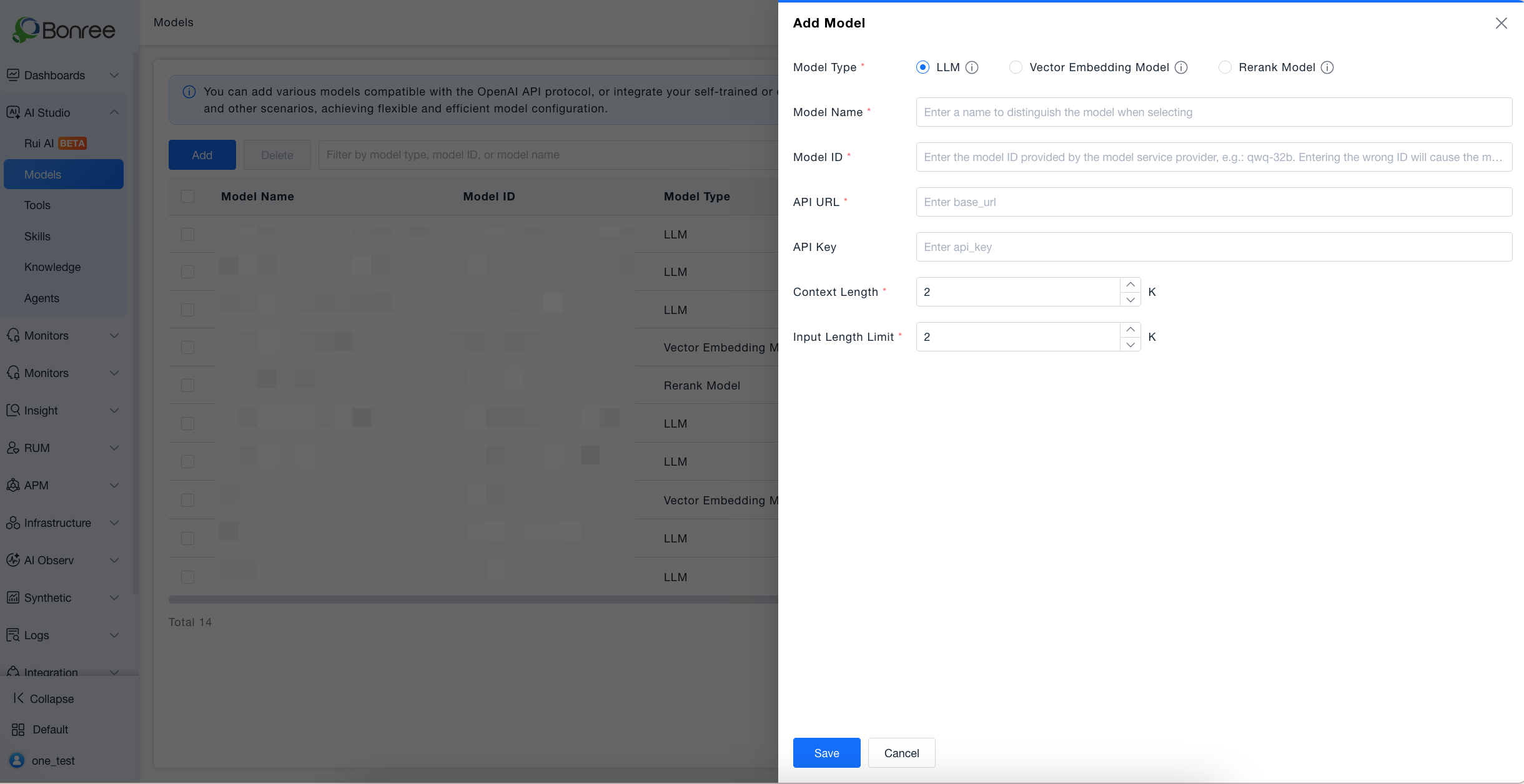
Add a model: Click "Add", fill in the model type, name, ID, endpoint URL, API key, and other fields. The system performs a connectivity check automatically when saving.
Edit a model: Click "Edit" in the action column. Only the API key, input length limit, and model context length are editable after the model is saved — all other fields are locked.
Delete a model: Select one or more models and click "Delete", or click "Delete" in the action column. Confirm in the dialog. Note that deleting a model referenced by active workflows or agents may cause those features to stop working.
Getting Started
Adding a Model
Log in to Bonree ONE and go to AI Studio > Models.
Click "Add" to open the Add Model form.
Fill in the fields according to the table below:
| Field | Required | Description | Default | Validation |
|---|---|---|---|---|
| Model Type | Required | LLM / Embedding / Reranking — select one | LLM | Single select |
| Model Name | Required | Display name for easy identification when selecting models | — | 2–50 characters; letters, digits, Chinese, underscore, hyphen, brackets allowed |
| Model ID | Required | Unique identifier used by the backend, e.g., gpt-4 | — | 2–100 characters; lowercase letters, digits, hyphens only |
| Endpoint URL | Required | The base_url of the model service | — | 5–500 characters; valid URL format (http:// or https://) |
| API Key | Optional | Model API key; displayed as masked text after saving | — | 10–200 characters |
| Context Length | Required (LLM only) | Maximum context token count supported by the model | 2K | Positive integer, 1–4 digits |
| Input Length Limit | Required | Maximum input tokens per request. For LLMs, 50%–70% of context length is recommended. | 2K | Positive integer, 1–4 digits; for LLMs must be ≤ context length |
Click "Save". The system automatically validates the connectivity of the endpoint URL. If validation fails, a detailed error message is shown — review the URL and API key and try again.
Editing a Model
Click "Edit" in the action column of the target model. Only the API key, input length limit, and model context length can be modified. All other fields are locked after the initial save.
Deleting a Model
Select the target model(s) and click "Delete". Confirm in the dialog. After deletion, any workflows or agents that reference this model may stop functioning — evaluate the impact before proceeding.
Notes
Model ID and endpoint URL cannot be modified after saving. To change them, delete the model and re-add it.
Deleting a model that is actively referenced by workflows or agents may cause those features to malfunction. Assess the impact before deleting.
If the AI package is not deployed, the Models page will be blank and no operations will be available.