Alert Rule Template Library
Prerequisites
Functional Menu: Includes the alert rule template library function menu
Operational Permissions: Includes create, read/write, and read-only permissions for alert configuration
Data Permissions: Has access to at least one resource domain within an environment
Data Prerequisites: Has access to metric and event data.
Overview
-
The Alert Rule Template Library is a unified rule management module designed for multiple roles and resource domains, offering three types of templates: Baseline Templates, Recommended Templates, and Personal Templates. It supports hierarchical configuration needs ranging from global standards to individual customization.
-
Through flexible distribution and referencing of templates, it enables rapid deployment of alert rules, unified standardization, and personalized expansion.
Value
-
Unified Standards, Improved Management Efficiency
- Managers can use baseline templates to uniformly set minimum alert requirements, ensuring all systems meet basic monitoring standards.
- Recommended templates provide optional best practices, helping operations personnel quickly supplement rules and reduce configuration barriers.
-
Hierarchical Authorization & Multi-Role Adaptation
- Super Administrators: Possess a global perspective, capable of creating and distributing baseline templates and recommended templates, while also supporting personal templates to meet their own operational needs.
- Operations Administrators: While adhering to baseline templates, they can reference recommended templates and create personal templates to adapt to specific business scenarios.
-
Flexible Reuse & Reduced Configuration Costs
- Templates support cross-resource domain distribution and reference, avoiding duplicate configurations.
- Personal templates support private customization to meet individualized requirements.
Use Cases
-
Standardized Rule Construction
Super administrators use baseline templates to unify fundamental rules and provide extended capabilities through recommended templates, addressing the issue of "most personnel being reluctant to create rules."
-
Rapid Rule Supplementation
Business operations personnel directly reference templates to quickly meet general service monitoring requirements without needing to understand complex configuration logic.
-
Personalized Rule Management
While adhering to baseline requirements, business operations personnel utilize personal templates to achieve multi-system rule reuse, enhancing configuration efficiency.
Operational Scenario
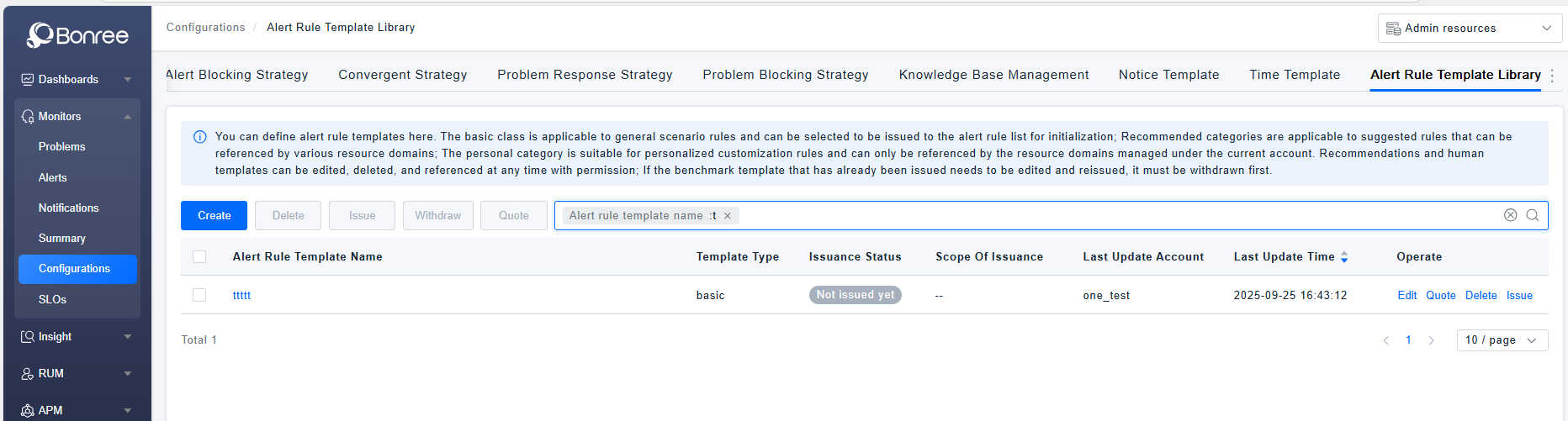
- Query: When users need to search for rule templates in the alert rule template library list, they can filter based on alert rule template name, template type, and distribution status in the search box.
- Create: When users need to define an alert rule template, they can click the 【Create】 button to create a new alert rule template.
- Delete: When certain alert rule templates are no longer applicable, users can click the 【Delete】 button in the actions column, or batch select templates and click the 【Delete】 button above the list to perform the operation.
- Copy: When users need to create a new rule template but can modify it based on an existing one, they can click the 【Copy】 button to adjust based on an existing alert rule template.
- Edit: When users need to adjust an alert rule template, they can locate the created template and click the 【Edit】 button to modify the alert rule template.
- Distribute: Only baseline-type templates provide the 【Distribute】 button. Templates already in distributed status cannot be distributed again, while the 【Distribute】 button for templates in non-distributed status can be clicked and operated normally.
- Withdraw: Only baseline-type templates provide the 【Withdraw】 button. The 【Withdraw】 button for templates already in distributed status can be clicked and operated normally, while the 【Withdraw】 button for templates in non-distributed status cannot be operated.
- Reference: Reference the alert rule template to the alert rule list and enable it for use. The same template can be referenced multiple times.
Get Started
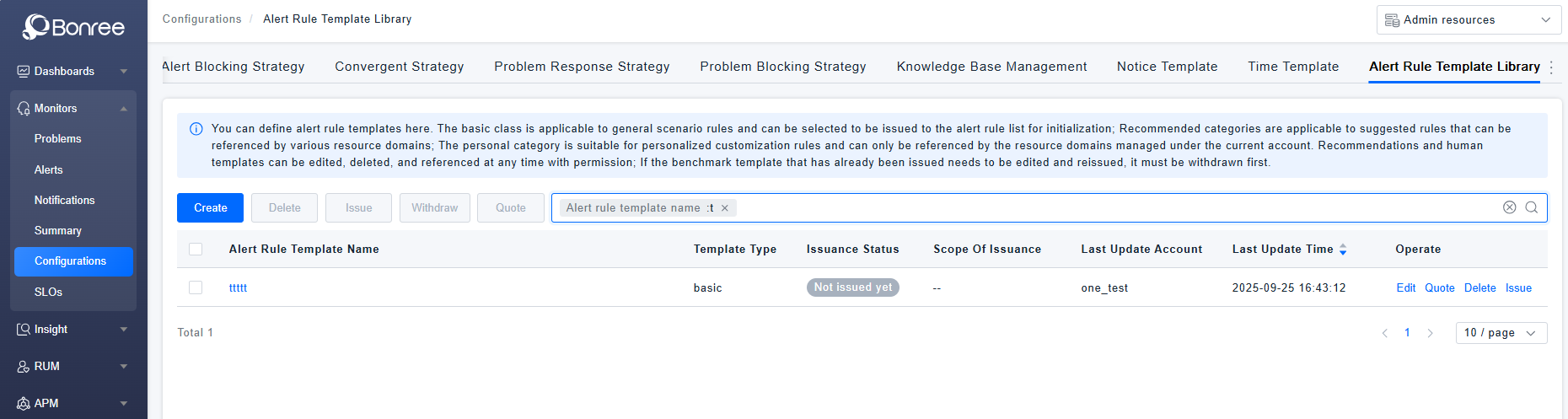
- Log in to Bonree ONE.
- Navigate to Intelligent Alerting > Alert Configuration > Alert Rule Template Library.
- Supports alert rule querying, creating, editing, copying, enabling, disabling, deleting, distributing, withdrawing, and referencing.
- The list provides the following fields: alert rule template name, template type, distribution status, distribution scope, last updated time, last updated account, and action column.
Alert Rule Template Library Details
-
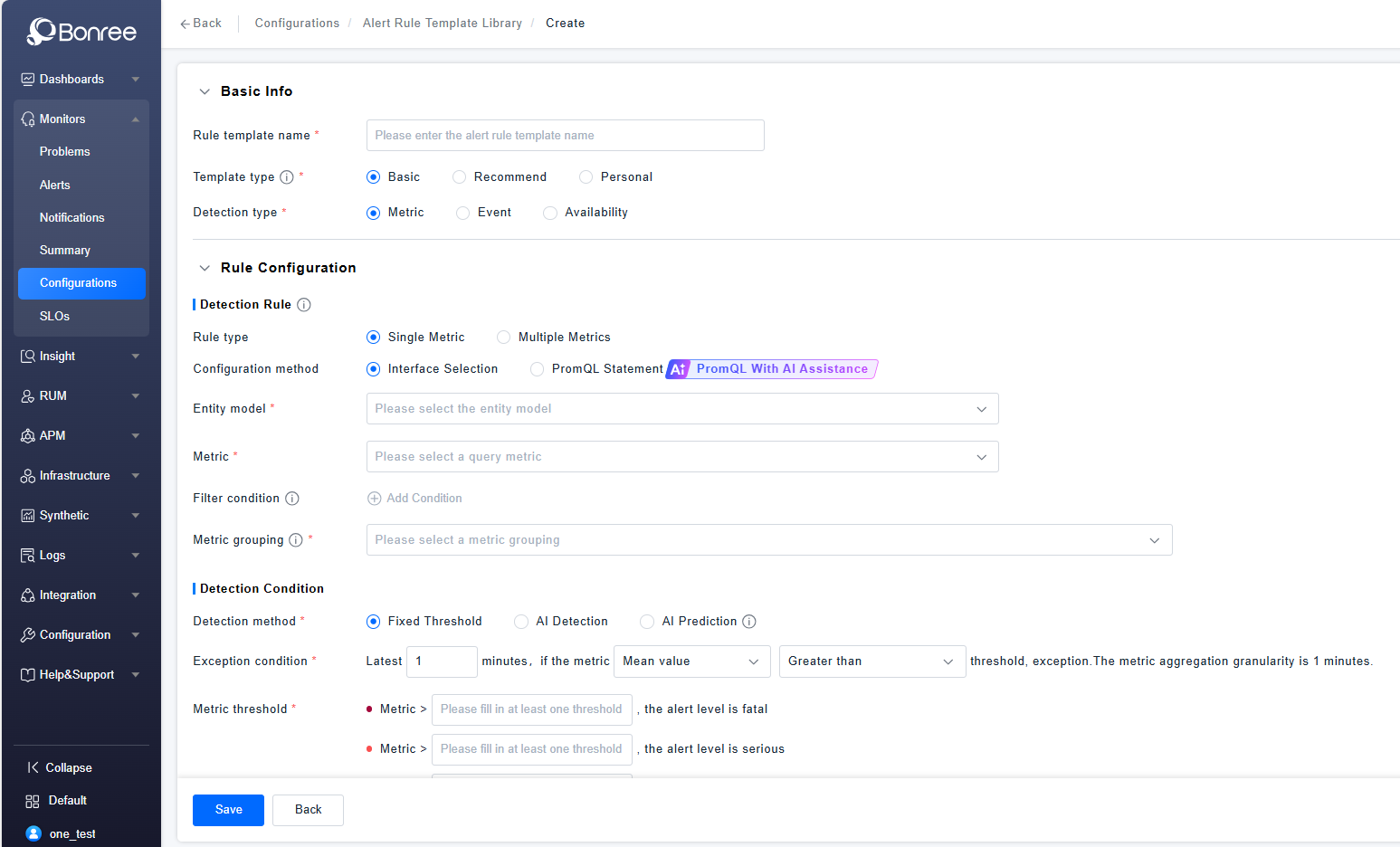
Click Create/Edit/Copy in the alert rule template library to configure the details of the alert rule template.
-
The detailed configuration consists of four parts: Basic Information, Rule Configuration, Alert Response Strategy Configuration, and Detection Period Configuration.
-
Basic information includes filling in the alert rule name, selecting the template type (including Baseline, Recommended, and Personal), and selecting the detection type (Metric, Event, and Availability).
-
Rule Configuration includes Detection Rules, Detection Conditions, Trend Preview Chart, and Advanced Anomaly Configuration. In Detection Rules, you need to configure the rule type, configuration method, entity model, metrics, filter conditions, and metric grouping. In Detection Conditions, you need to configure the detection method, anomaly conditions, and anomaly thresholds. The Trend Preview Chart allows trend preview after selecting metrics and grouping. In Advanced Configuration, you can configure settings such as "no data" anomalies, delayed metric queries, and determining normalcy if no data is queried within the selected time period.
-
Alert Response Strategy Configuration
The alert response strategy data is isolated by resource domain. If matching the specified strategy is selected, it may result in data exceeding authority, and the corresponding response strategy will not take effect after issuing or quoting the template. Therefore, the alert template does not allow specifying the response strategy.
-
Detection Period Configuration
All Hours: 7×24 uninterrupted coverage.
All Hours Excluding Special Dates: Supports excluding pre-defined special dates (i.e., deducting pre-configured time templates) from the "All Hours" schedule.
Cyclical Time: Operates on a weekly cycle, allowing selection of specific times for each day of the week. Also supports excluding special dates (i.e., time templates).
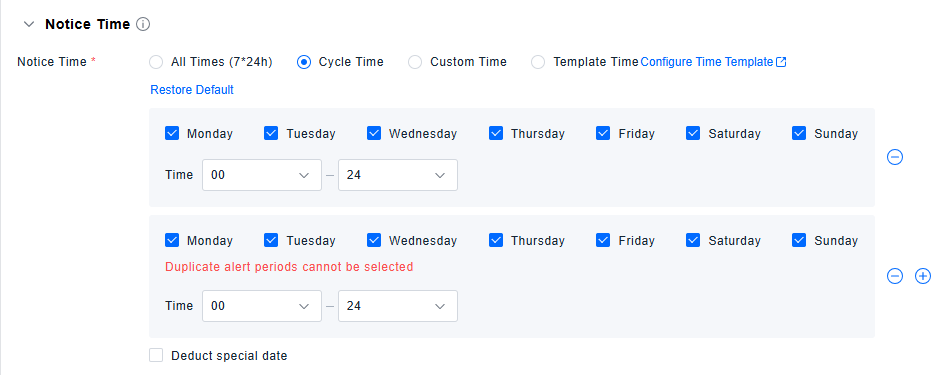
Custom Time: Enables defining one or multiple specific time periods for this policy.
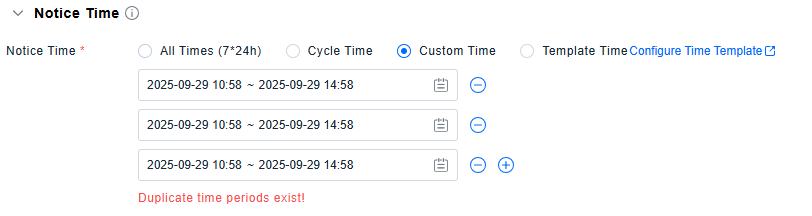
Template Time: Directly uses special dates defined in the Time Template list.