Time Template
Overview
Time Template is a pre-defined special time range that allows for the customization of specific dates to generate tailored templates. It is used for advanced time configuration in alert rules, response policies, and suppression policies.
Once time templates are defined here, they support various applications in the time configuration of alert rules, response policies, and suppression policies—such as direct application or exclusion. This not only simplifies the operation and configuration of effective time settings but also enhances consistency and ease of use across different rules and policies. Additionally, it accommodates personalized needs for various scenarios.
Use Cases
- Personalize alert rule effective time: For example, if system upgrades occur every Monday from 20:00 to 22:00, this time period can be defined as a time template. Then, alert rules that should not trigger during this period can exclude this template.
- Personalize notification methods: For example, if different notification methods are required during daytime and nighttime, defining these periods as time templates allows them to be referenced in the effective time configuration of response policies.
- Industry-specific time period configuration: For example, shopping festivals in the retail and e-commerce industry, or trading days in the securities industry, can all be implemented using time templates.
- Managers define templates for general users: For example, administrators can pre-define various time templates, enabling operations staff within each system (resource domain) to select and use them with one click when defining rules and policies.
Operational Scenario
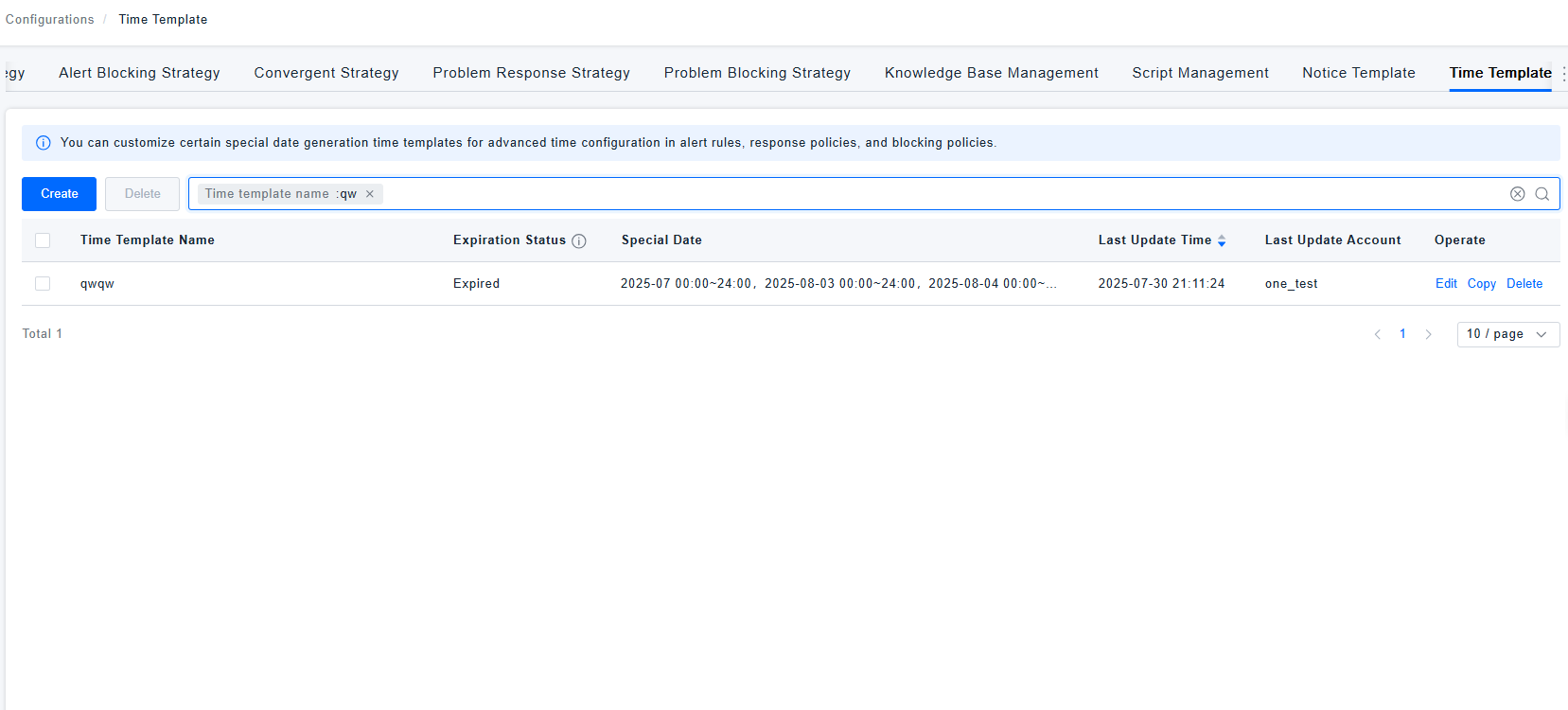
- Search: When users need to find a specific template in the time template list, they can quickly search by template name or expiration status in the search box.
- Create: When users need to customize a time template, they can click the 【Create】 button to create a new time template.
- Edit: When users need to modify a customized time template, they can click the 【Edit】 button in the actions column to make changes.
- Copy: When users need to create a new time template that can be defined by making minor adjustments to an existing customized template, they can click the 【Copy】 button in the actions column to create and modify a copy.
- Delete: When users need to delete a time template, they can click the 【Delete】 button in the actions column to remove a specific template. They can also batch select multiple templates and click the top 【Delete】 button to confirm deletion.
Start Using
Time Template List
- Log in to Bonree ONE.
- Navigate to Intelligent Alerting > Alert Configuration > Time Templates.
- The following operations are supported: Search, Create, Edit, Copy, and Delete time templates.
- The list displays the following fields for each template:
- Time Template Name
- Expiration Status
- Special Dates
- Last Updated Time
- Last Updated By
- Actions
- Expiration Status: This is determined by whether all time ranges defined in the template are entirely in the past relative to the current time. If so, the template is marked as Expired. Expired time templates cannot be applied to the effective time settings of rules or policies.
- Special Dates: The specific time period(s) defined within the template.
Time Template Details
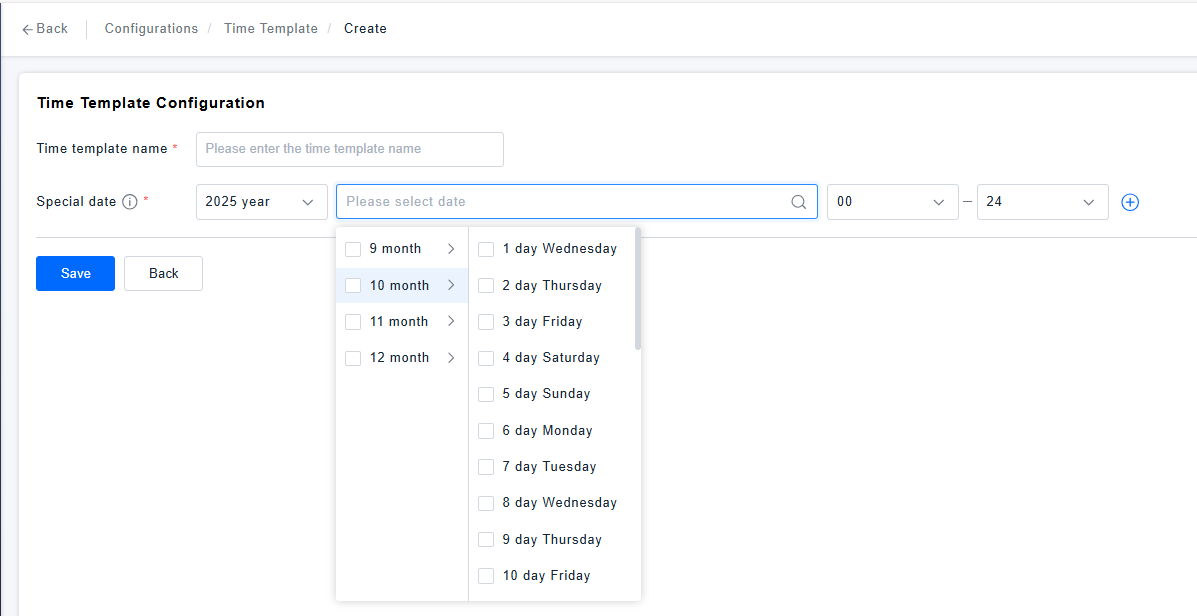
- Click Create, Edit, or Copy Time Template to configure the template details.
- The time template details include the following configurable fields:
- Time Template Name
- Special Date Selection
- Special Dates can be selected via a dropdown interface, allowing for precise definition down to the hour level. The calendar provides dates for the next three years for your selection. After choosing, a preview of the selected time range will appear below, as shown in the following figure: