Alert Rules
Prerequisites
Functional Menu: Includes the alert rule function menu
Operational Permissions: Includes create, read/write, and read-only permissions for alert configuration
Data Permissions: Has access to at least one resource domain within an environment
Data Prerequisites: Has access to metric and event data.
Overview
- Alert rules serve as the strategic control center of the operations monitoring module, responsible for defining the abnormal judgment logic of monitoring data and the alert generation mechanism.
- Users can flexibly configure monitoring objects and scope (metrics/events/availability), set abnormal detection conditions (fixed thresholds/AI detection/predictive analysis), define alert severity levels (critical/severe/warning/info/reminder), and associate response strategies, ultimately achieving an automated pipeline from data detection to alert generation.
Value
-
Precision Monitoring Through multi-dimensional detection configurations (entity model filtering, metric grouping, filter conditions), it achieves precise targeting of monitoring objectives, avoiding interference from invalid alerts.
-
Intelligent Detection Supports three detection modes: fixed thresholds, dynamic baselines (AI detection), and AI prediction, balancing rule clarity with environmental adaptability.
-
Tiered Management A five-level alert severity system (from critical to reminder), combined with response strategy configuration, ensures that alerts are accurately routed according to their importance.
-
Process-Oriented Collaboration The association of detection timeframes with response strategies forms a complete "detection-judgment-response" workflow closed loop.
Use Cases
-
Business Anomaly Detection
Select the "Event" detection type and configure aggregation rules for payment failure events to quickly identify business process interruptions.
-
Intelligent Predictive Alerting
Enable the "AI Prediction" detection method and configure early warnings for disk usage growth trends, shifting from reactive response to proactive prevention.
-
Strategy Linkage
Deep integration of alert response strategies with detection rules enables tiered handling of incidents.
Operational Scenario
- Query: When users need to search for rules in the alert rules list, they can filter based on alert rule name, detection rule type, detection method, and enable/disable status in the search box.
- Create: When users need to define an alert rule, they can click the 【Create】 button to create a new alert rule.
- Delete: When certain alert rules are no longer applicable, users can click the [Delete] button in the actions column, or batch select rules and click the 【Delete】 button above the list to perform the operation.
- Copy: When users need to create a new rule but can modify it based on an existing one, they can click the 【Copy】 button to adjust based on an existing alert rule.
- Edit: When users need to adjust an alert rule, they can locate the created rule and click the 【Edit】 button to modify the alert rule.
- Enable/Disable: When a created alert rule needs to take effect, users can click the enable button; when it doesn't need to take effect, they can click the disable button to perform the operation.
- Export: When users need to export alert rules locally, they can batch select data and click the 【Export】 button to export locally, generating a JSON format file for quick processing, reuse, etc.
- Import: When users have locally organized alert rules that comply with the format, they can click the import button for one-click import. After successful import, the list will display normally; if import fails, corresponding situation descriptions will be provided, and adjustments must be made according to the validation results before reattempting the operation.
- Import Default Rules: When needing to use the default rules provided by the ONE platform, users can click "Import Default Rules" to import them into the alert rules list with one click.
- Rule Duplication/Contradiction Check: If multiple alert rules with duplicate or contradictory content exist in the current resource domain, the system will perform validation and provide feedback.
Get Started
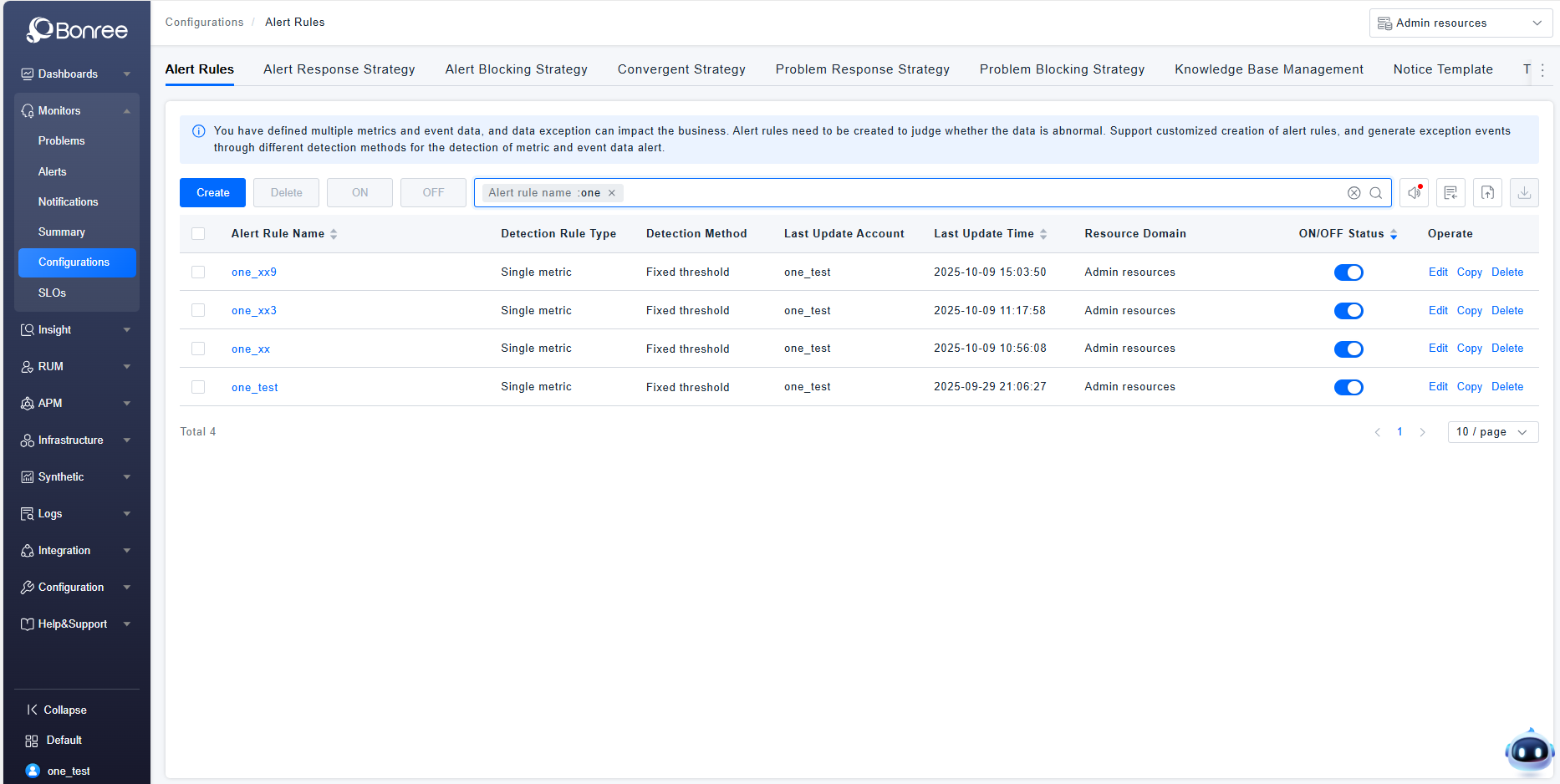
- Log in to Bonree ONE.
- Navigate to Intelligent Alerting > Alert Configuration > Alert Rules.
- Supports alert rule querying, creation, editing, copying, enabling, disabling, deletion, importing, exporting, and importing default rules.
- The list provides the following fields: alert rule name, detection rule type, detection method, last updated time, last updated account, associated resource domain, enable/disable status, and action column.
Alert Rules Details
-
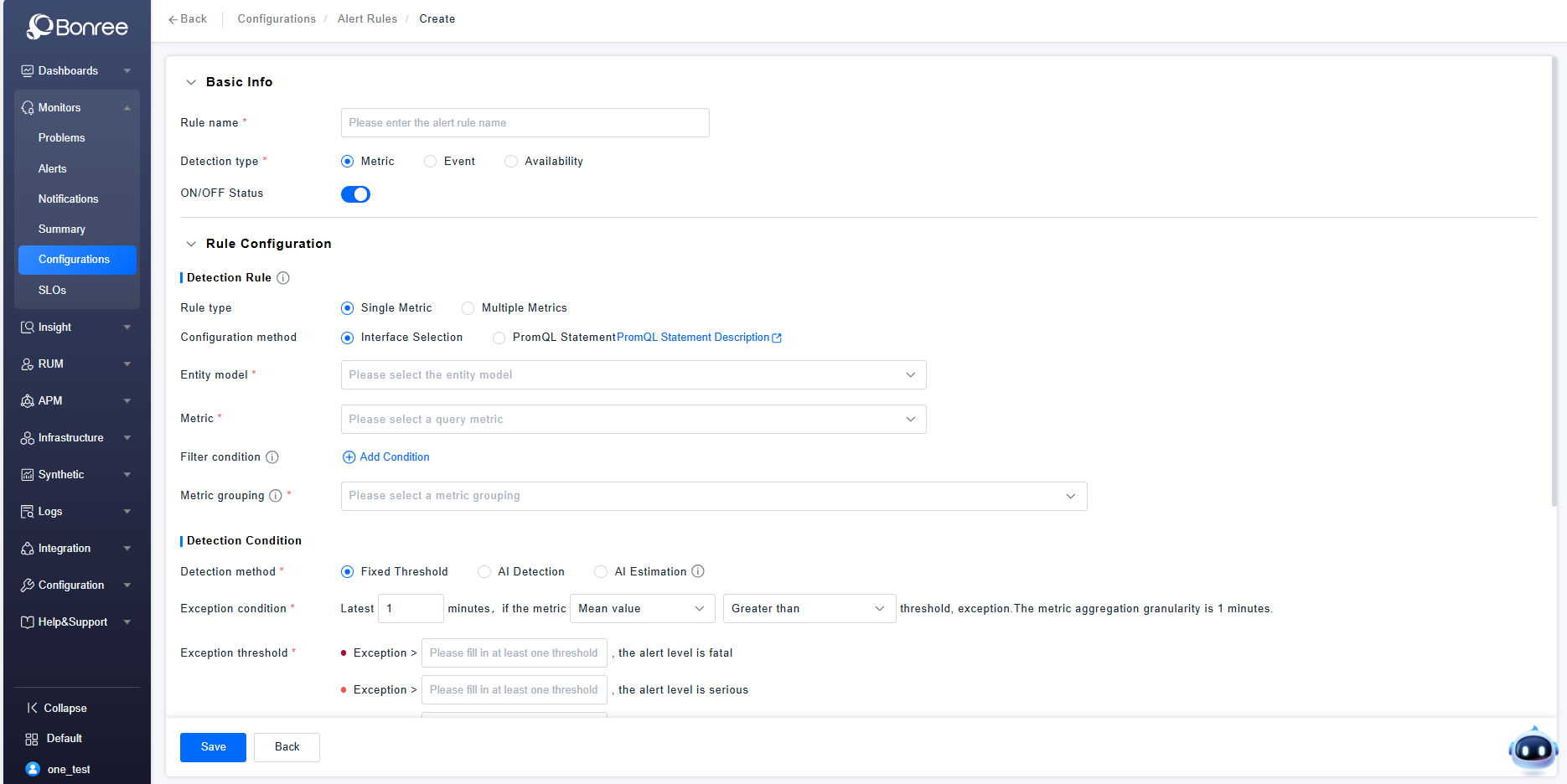
Click Create / Edit / Copy Alert Rule to configure the details of an alert rule.
-
The detailed configuration consists of four parts: Basic Information, Rule Configuration, Alert Response Strategy Configuration, and Detection Period Configuration.
-
Basic Information includes filling in the alert rule name, selecting the detection type (Metric, Event, Availability), and toggling the enable/disable status. The enable/disable status is turned on by default.
-
Rule Configuration includes Detection Rules, Detection Conditions, Trend Preview Chart, and Advanced Anomaly Configuration. In Detection Rules, you need to configure the rule type, configuration method, entity model, metrics, filter conditions, and metric grouping. In Detection Conditions, you need to configure the detection method, anomaly conditions, and anomaly thresholds. The Trend Preview Chart allows trend preview after selecting metrics and grouping. In Advanced Configuration, you can configure settings such as "no data" anomalies, delayed metric queries, and determining normalcy if no data is queried within the selected time period.

-
Alert Response Strategy Configuration
- You can choose whether alerts generated by this rule will match global strategies, specified strategies, or not match any, thereby determining alert notification behavior.
- Matching Global Response Strategies means that alerts from this rule will be notified according to all created alert response strategies.
- Matching Specified Response Strategies allows selecting up to 3 alert response strategies per rule. Once alerts are generated, they will be notified according to your selected strategies. (The available response strategies are those you created in the Alert Configuration - Alert Response Strategy list.)
- No Matching means that alerts generated by this rule will not trigger any notifications.
-
Detection Period Configuration
All Hours: 7×24 uninterrupted coverage.
All Hours Excluding Special Dates: Supports excluding pre-defined special dates (i.e., deducting pre-configured time templates) from the "All Hours" schedule.
Cyclical Time: Operates on a weekly cycle, allowing selection of specific times for each day of the week. Also supports excluding special dates (i.e., time templates).
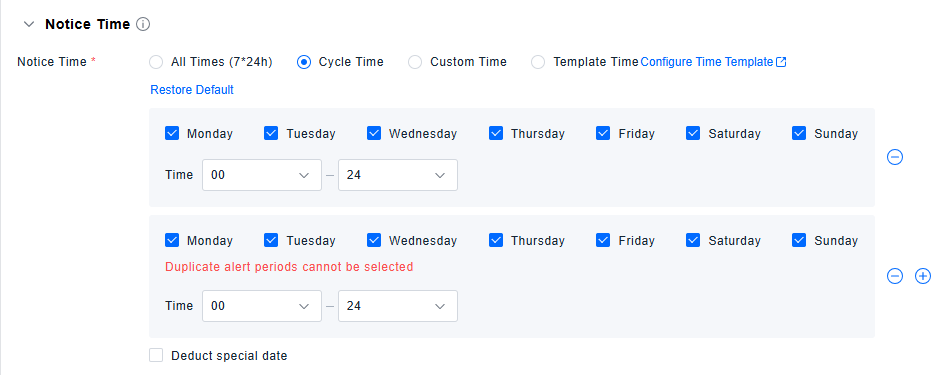
Custom Time: Enables defining one or multiple specific time periods for this policy.
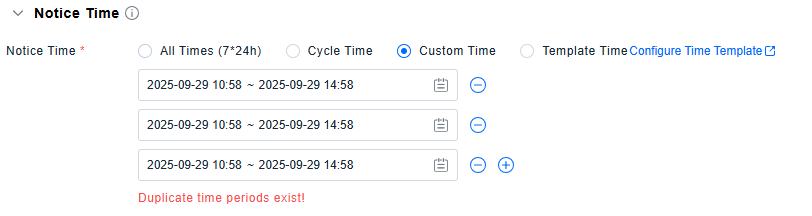
Template Time: Directly uses special dates defined in the Time Template list.