Edit Field
Modify the Key or Value of existing fields based on the configured rules.
Getting Started
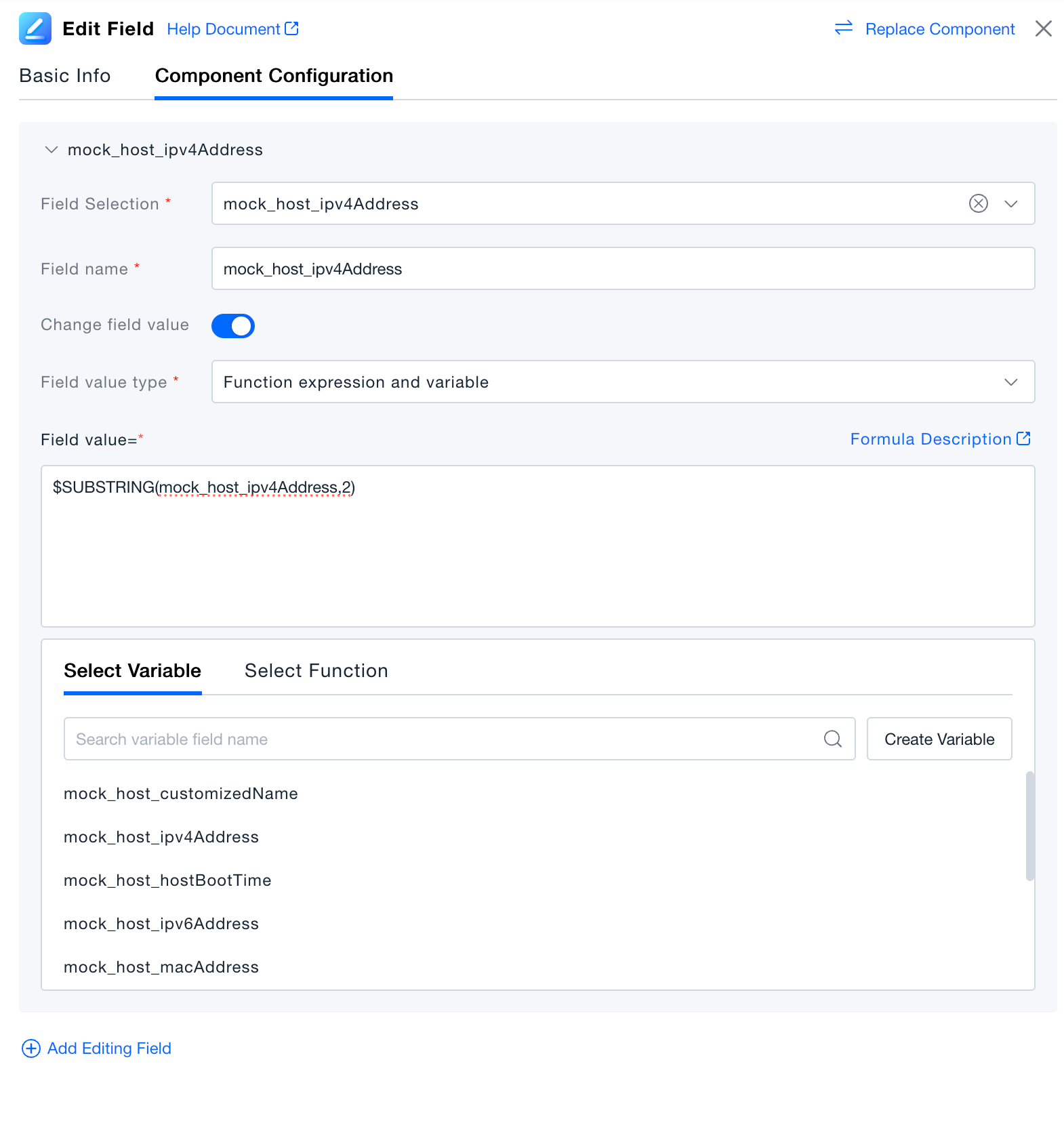
You can edit multiple fields within a single component. For nested field editing, configuration must be done in order. For example, if you configure Field A and Field B, and Field B's value depends on Field A, you should configure Field A before Field B.
Field Selection
Select the key of the field that needs to be modified.
Field Name
The key of the field being modified. You can manually input a new key to change the field's key.
Field Value Type
When changing the field value, you can assign a fixed value or use functions and variables to compute and assign the value.
-
Fixed Value: Assign a static value to the field, stored in the data as a string. Basic arithmetic operations (+, -, *, /) are supported.
-
Variable and Function Expressions: Use data variables and function expressions to assign values to fields. For function usage, refer to the Function Usage Guide.
Validation
Click "Execute Preview" to view the results in the data preview panel. In the execution preview state, this is a simulation of data processing, and no real data will be generated in the platform.