Creating and Managing IAM Users
In the ONE platform, one Master Account represents one tenant, and tenants are completely isolated from each other. Typically, one enterprise customer uses only one Master Account, while other users within the organization can register/be added as IAM Users to log in and use the platform's functionalities. If your ONE platform account needs to be shared by other personnel within your organization, you can refer to this section to create and manage the corresponding IAM Users.
For detailed meanings and relationships of concepts such as Master Account, IAM User, Tenant, Environment, and Resource Domain, please refer to the document Resource Domains Overview and Usage.
Creating an IAM User
After logging into the ONE platform, navigate to the IAM User Management tab on the IAM Controls page within the Account Management module to create a new IAM User using the page functions.
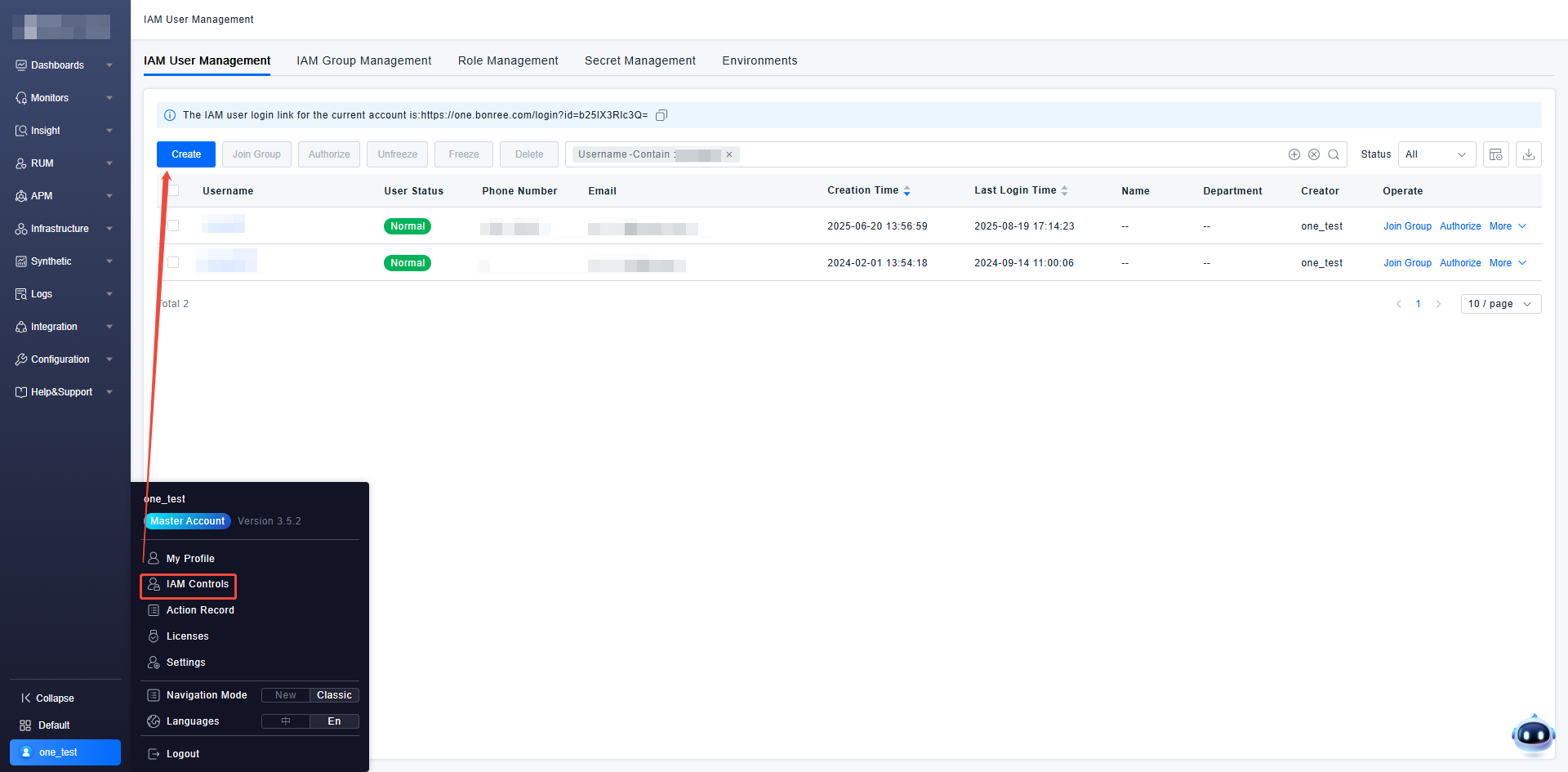
When creating an IAM User, you need to fill in the user's login information, contact information, access information, etc., based on the actual user situation.
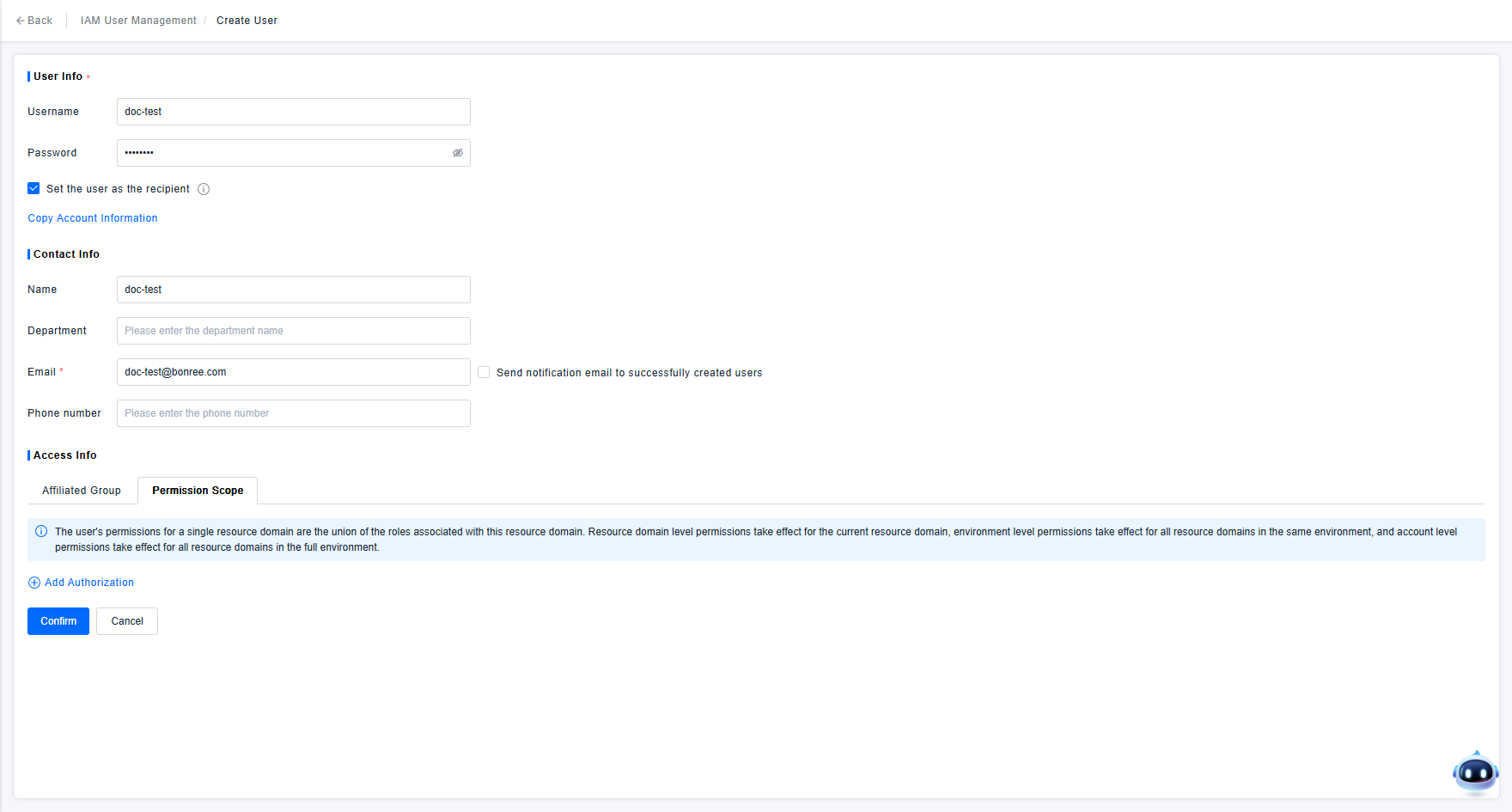
Explanation of the information required on the IAM User creation page:
- User Information: The defined username and password are the credentials for the IAM User to subsequently log in to the ONE platform. This username will also be used to uniquely identify this user in other functional modules of the platform.
- Contact Information: Records the user's email, phone number, and other contact details, primarily for user lookup and notifications in various scenarios.
- Access Information: Used to specify the permission control effects for subsequent platform access. You can add the user to a User Group to inherit the group's permissions, or directly assign the necessary access permissions to the user. If you wish to learn more about the practical effects of user permission configuration, please refer to the document Granting Permissions to IAM Users.
The ONE platform has strict permission control policies. If a newly created user is not bound to any permission control policy, that user will be unable to view or use any functionality or data requiring permission control upon logging into the ONE platform. Therefore, when creating a user, please be sure to add appropriate permission policies for the user according to your permission control expectations.
If you wish to understand the platform's access control functionality in detail, please go to the Control Access chapter to view the specific documentation.
Other function descriptions on the IAM User creation page:
- Set User as Recipient: When checked, a recipient is automatically created based on the current user information. Only recipients created via the "Recipient Management" function can receive alarm notifications and automatic report pushes. If you want to learn more about the functions and usage of Recipient Management, please refer to the document Recipient Management.
- Send Notification Email to Successfully Created User: By default, no email notification is sent after a user is successfully created. If you wish to notify the user via email about the successful creation of the ONE platform IAM User, please check this option.
IAM User Login
After an IAM User is successfully created, members of the organization can use this IAM User to log in and use the ONE platform's functionalities.
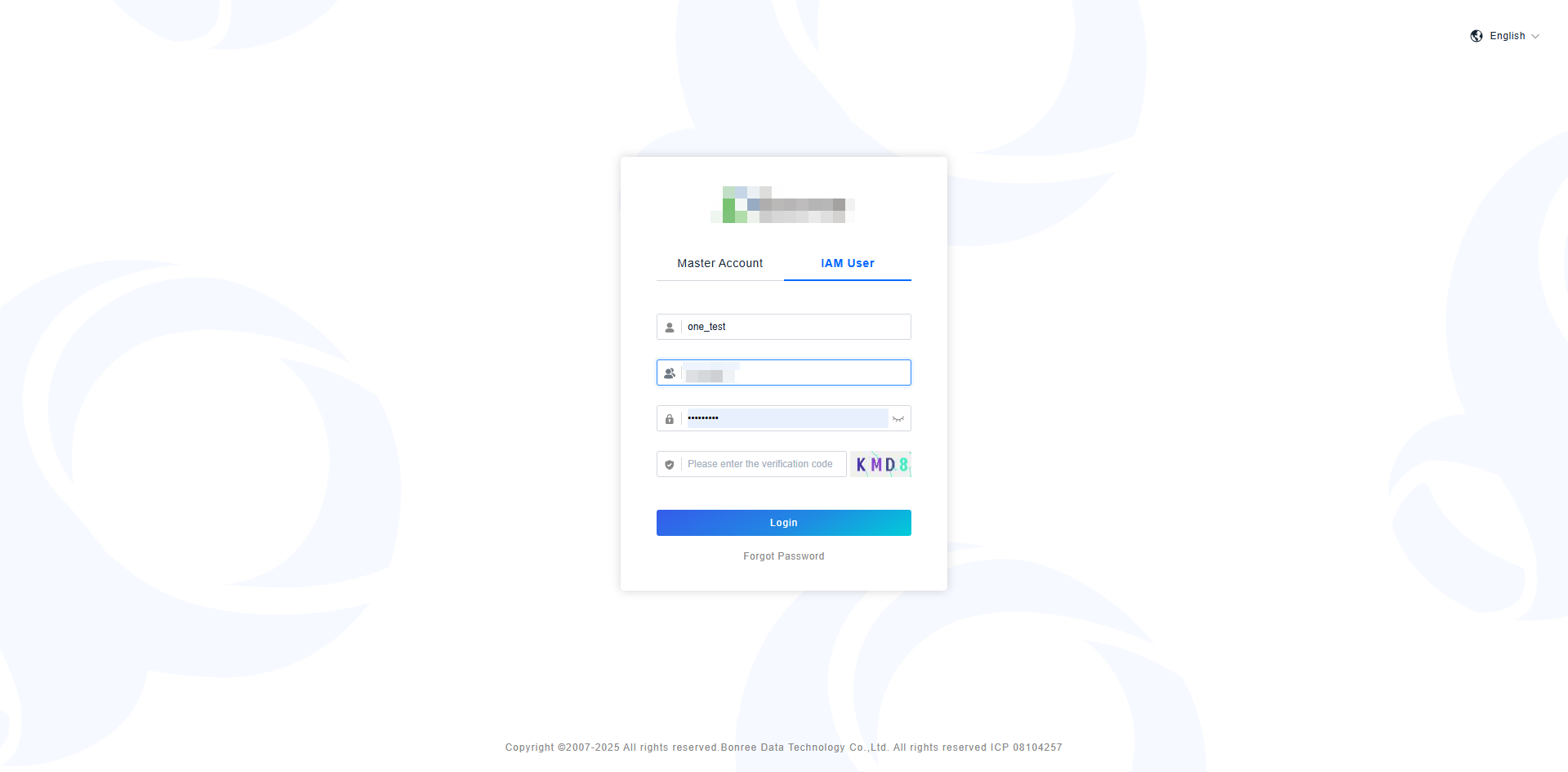
The platform distinguishes between Master Account login and IAM User login. IAM Users must use the "IAM User Login" mode, entering the owning Master Account and IAM User login information to access the platform. The "Master Account Login" mode does not recognize IAM Users.
IAM User Management
For created IAM Users, the Master Account can log in to the platform to manage them. The user management functions provided by the platform include: Reset Password, Freeze, Unfreeze, Modify Authorization, Edit User Information, and Delete User.
To enable login-free access, visit http://ip:port/login?passToken={passToken}.
The Master Account is the platform administrator and has all functional permissions by default. If a specific IAM User also needs permissions for user management functions, this can be achieved by modifying the user's role permission configuration.
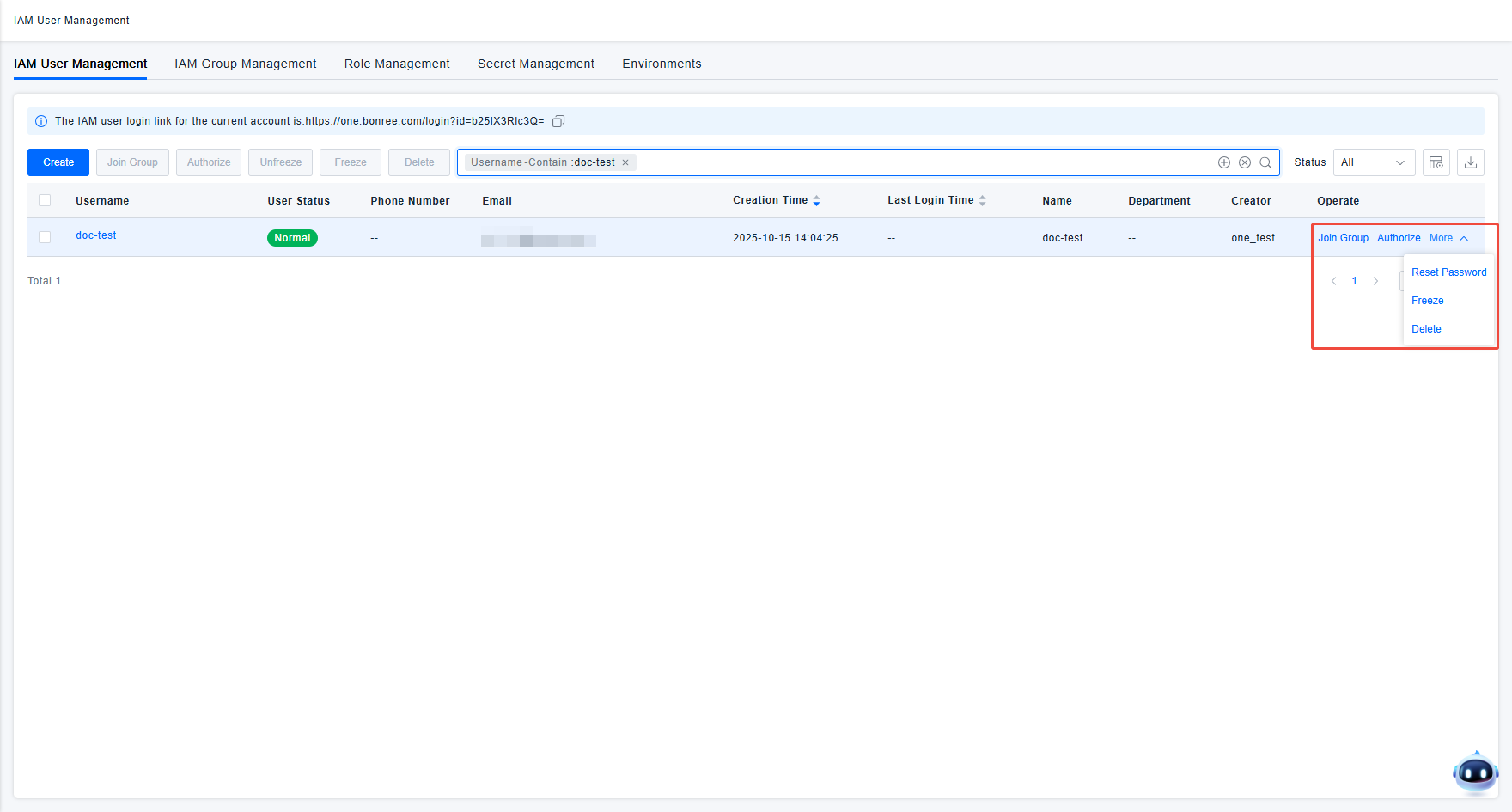
Special Notes Regarding User Freezing
Frozen users cannot log in or use platform functionalities. To restore login capability, an administrator must perform an unfreeze operation. In addition to manually freezing users from the list, the platform also provides an automatic freezing function. When a user has not logged into the platform beyond a specified period, the system will automatically freeze that user. If you wish to enable the "Inactive User Freeze" feature, please go to the "Settings/ Safety Setting" page to enable it.
If your deployed ONE platform address is https://ip:port/, then:
- Accessing
https://ip:port/loginallows switching between the primary account and IAM accounts. - Accessing
https://ip:port/login?type=accountallows only primary account login, with no switching to other login methods. - Accessing
https://ip:port/login?type=userallows only sub-account login, with no switching to other login methods. - Accessing
https://ip:port/login?type=ssoallows only SSO login, with no switching to other login methods.