Granting Permissions to IAM Users
If you have already understood the meanings and usage of concepts like Resource Domain and Role in the ONE platform's access control system through other documents in the Access Control section, you can refer to this document to configure permissions for platform IAM Users. This controls what platform functionalities and data users can access and use upon logging into the ONE platform, according to the organization's access control expectations.
Configuring Permissions for New Users
During the user creation process, administrators can directly add permission policies for new users based on the desired permissions for that user. As shown in the figure below, the administrator needs to specify which data permissions (in terms of Environment and Resource Domain) the user should have, and the user's Role when using this data (Environment and Resource Domain determine the user's data scope, while the Role determines which functionalities the user can use and what operations they can perform on the authorized data).
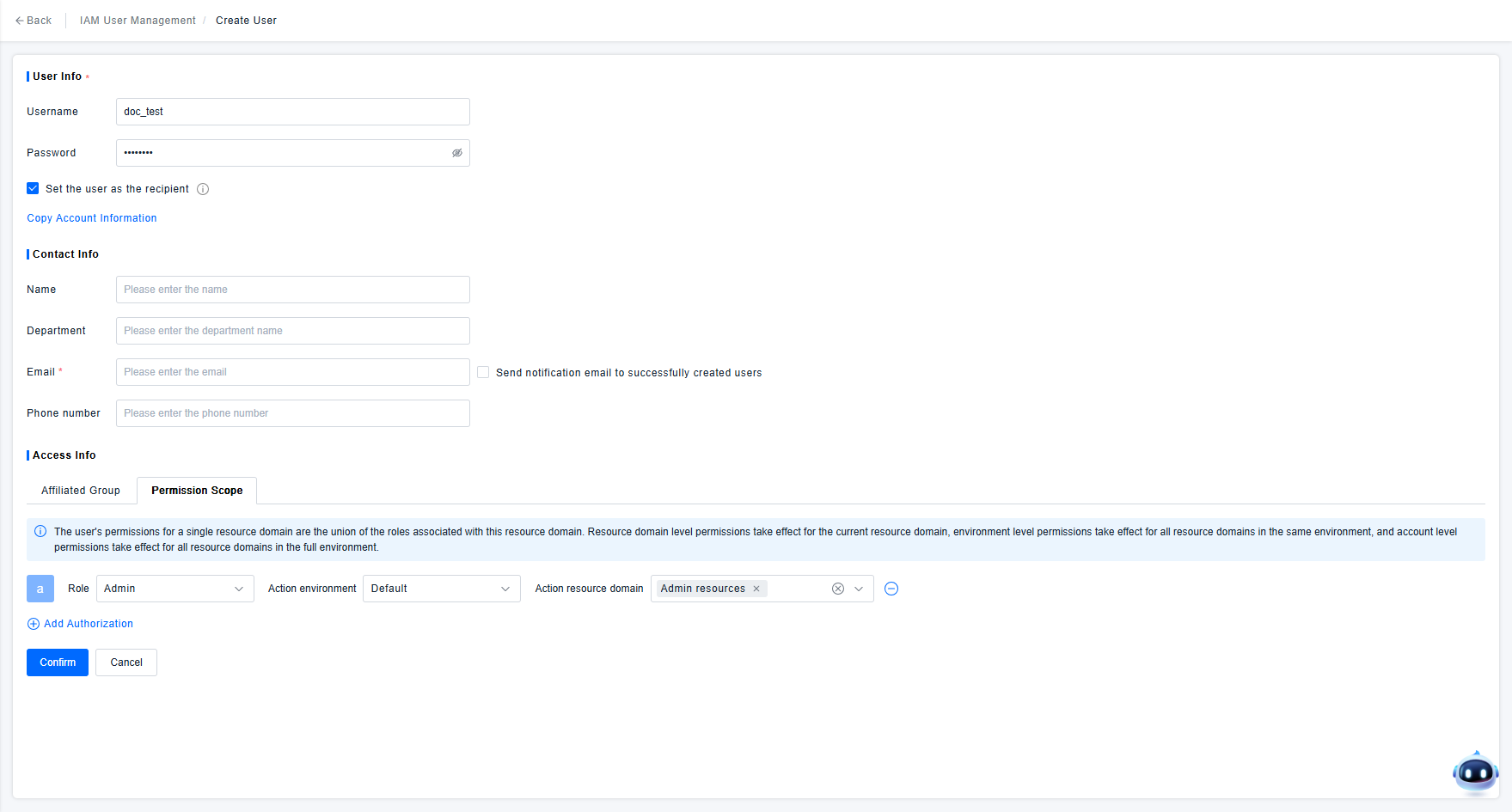
Based on past customer experience, administrators specifying permissions individually for users is only suitable for simple scenarios or configuring permissions for specific users. If there are many users and their permission control methods are relatively uniform, consider Managing Permissions in Bulk Using User Groups to simplify the administrator's permission configuration work.
Modifying Permissions for Existing Users
For users that have already been created, administrators can view the current permissions of the user in the Permission Scope section of the user details. This includes permissions directly added by the administrator to the user and permissions inherited by the user from joining User Groups. As shown in the figure below, when the Permission Source is "Individual", it means the current permission was manually configured by the administrator. When the Permission Source is not "Individual" but a User Group name, it indicates the current permission is inherited by the user from joining that User Group.
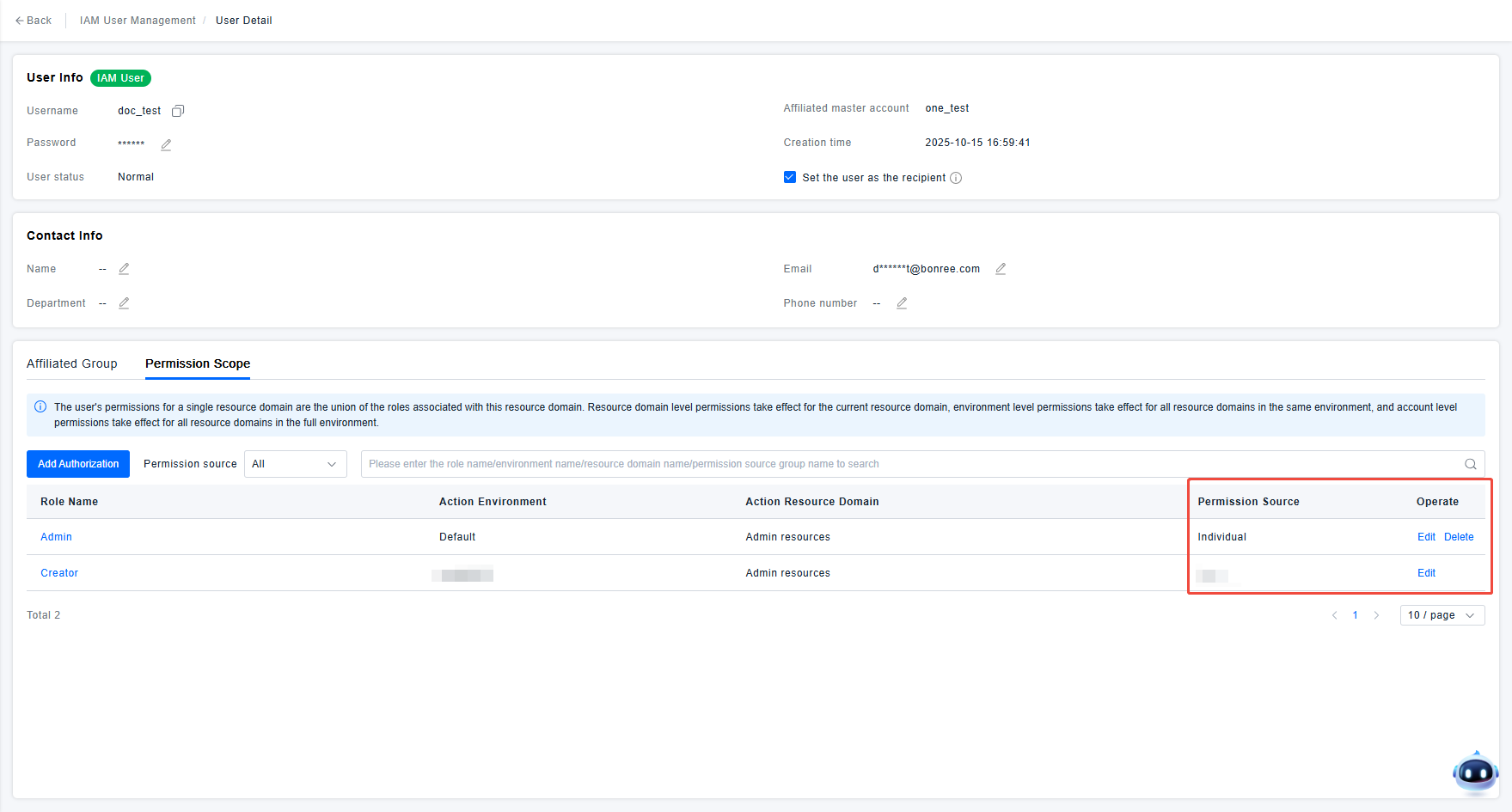
If user permissions need adjustment, administrators can modify user permissions using the edit/delete functions in the user's Permission Scope list. Specific usage is as follows:
- When the Permission Source is "Individual", the administrator can edit or delete the current permission policy. The edit function is only used to adjust the Resource Domain affected by the current permission policy. After adjustment, the data scope accessible to the user upon re-login will take effect based on the adjusted Resource Domain. Since configurations like Role and target Environment within the permission policy do not support editing, if adjustments are needed, please delete the old permission policy and create a new one.
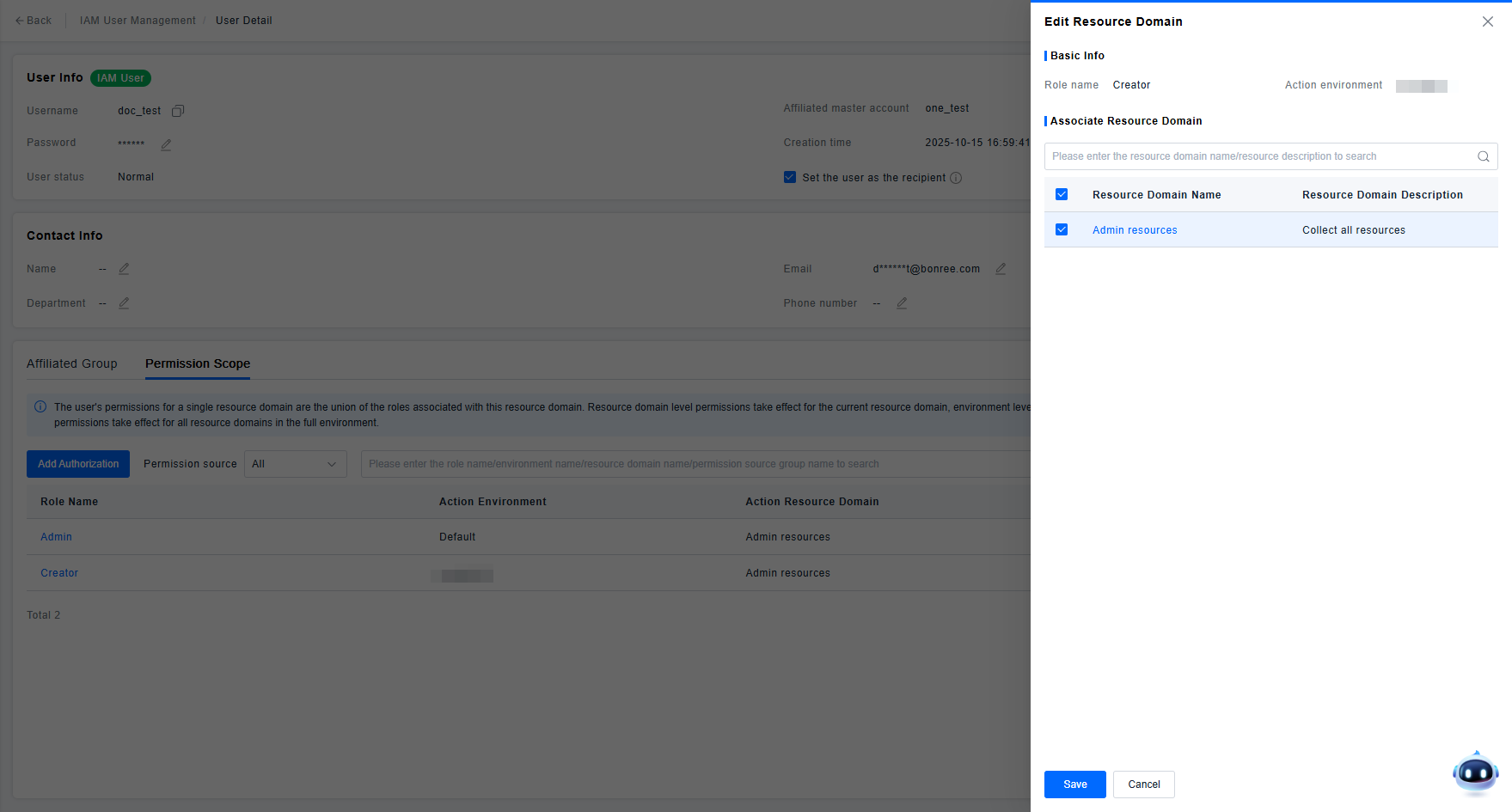
- When the Permission Source is a "User Group", because the user's permissions are inherited from the group, the delete function is not provided. If deletion is required, you can switch to the respective group page and remove the user from the corresponding User Group.
- To ensure that user permission adjustments take effect immediately, when an administrator adjusts permissions, if the corresponding user is currently logged in and using platform features, the system will automatically log out that user. The user will need to log in again to use platform features under the new permission policy.
- When a user does not possess any permission control policy, that user will be unable to view or use any functionality or data requiring permission control upon logging into the ONE platform. If administrators need to perform complex permission adjustments, please choose an appropriate time window to avoid affecting the user's normal platform usage.
If the administrator does not need to modify existing user configurations but only needs to add new permission policies for the user, they can directly use the Authorize function in the user list to add new permission policies for the user.
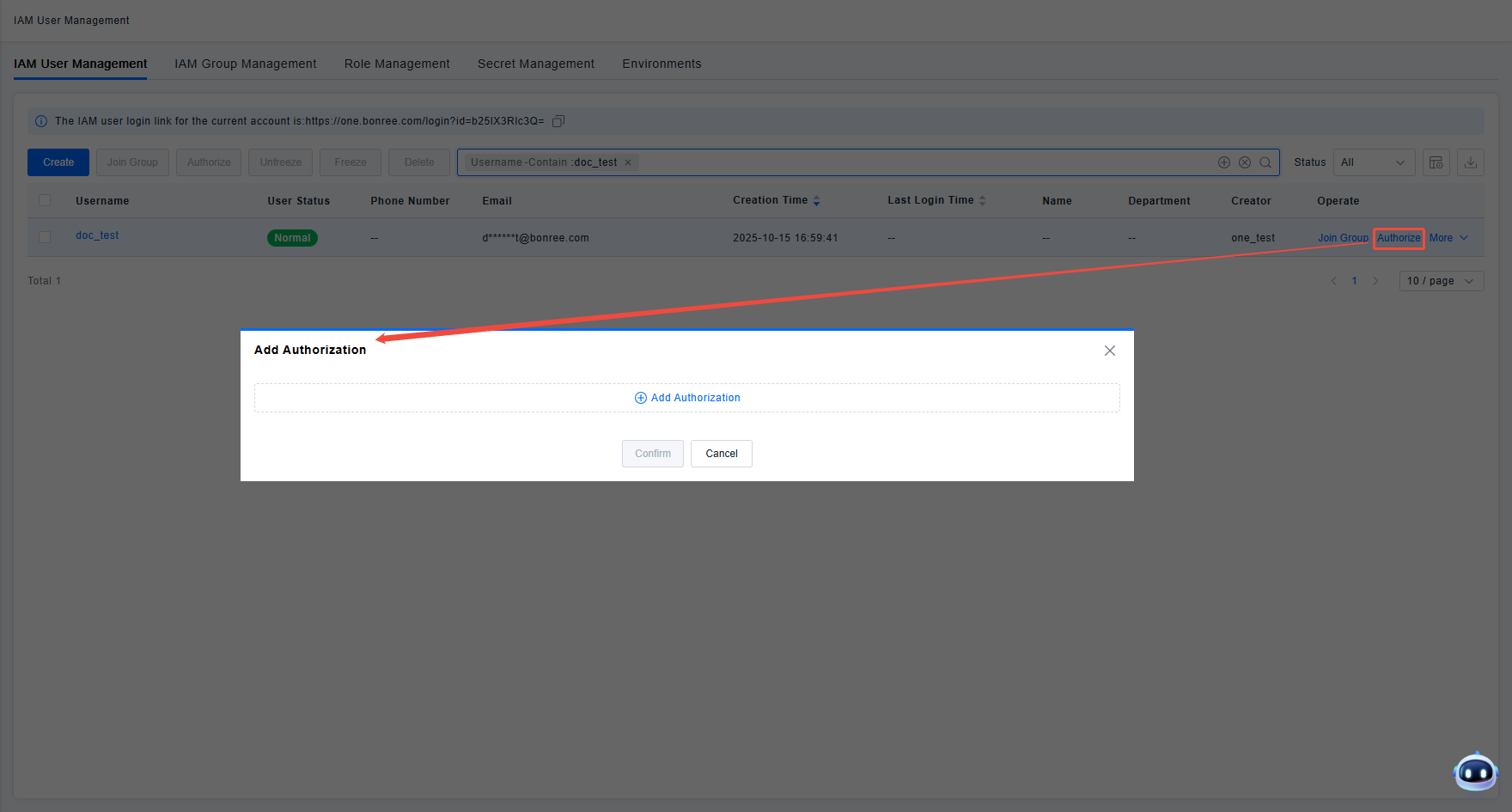
If the administrator needs to add the same new permission policy for multiple users, they can directly use the Bulk Authorize function in the list. Select the users to be operated on and uniformly add the authorization for the selected users.