Creating and Managing IAM Groups
To enhance the effectiveness of administrators' permission management for IAM Users, the platform provides IAM Group related functionalities for administrators. If certain IAM Users within the organization require the same permissions, administrators can create an IAM Group, configure permission policies for this group according to the desired permissions, and then add IAM Users to this group. These users will inherit the group's permissions. To revoke these permissions later, simply remove the IAM Users from the user group. This section details the features and usage of platform IAM Groups.
Creating an IAM Group
After logging into the ONE platform, navigate to the IAM Group Management tab on the Access Control page within the Account Management module to create a new IAM Group using the page functions.
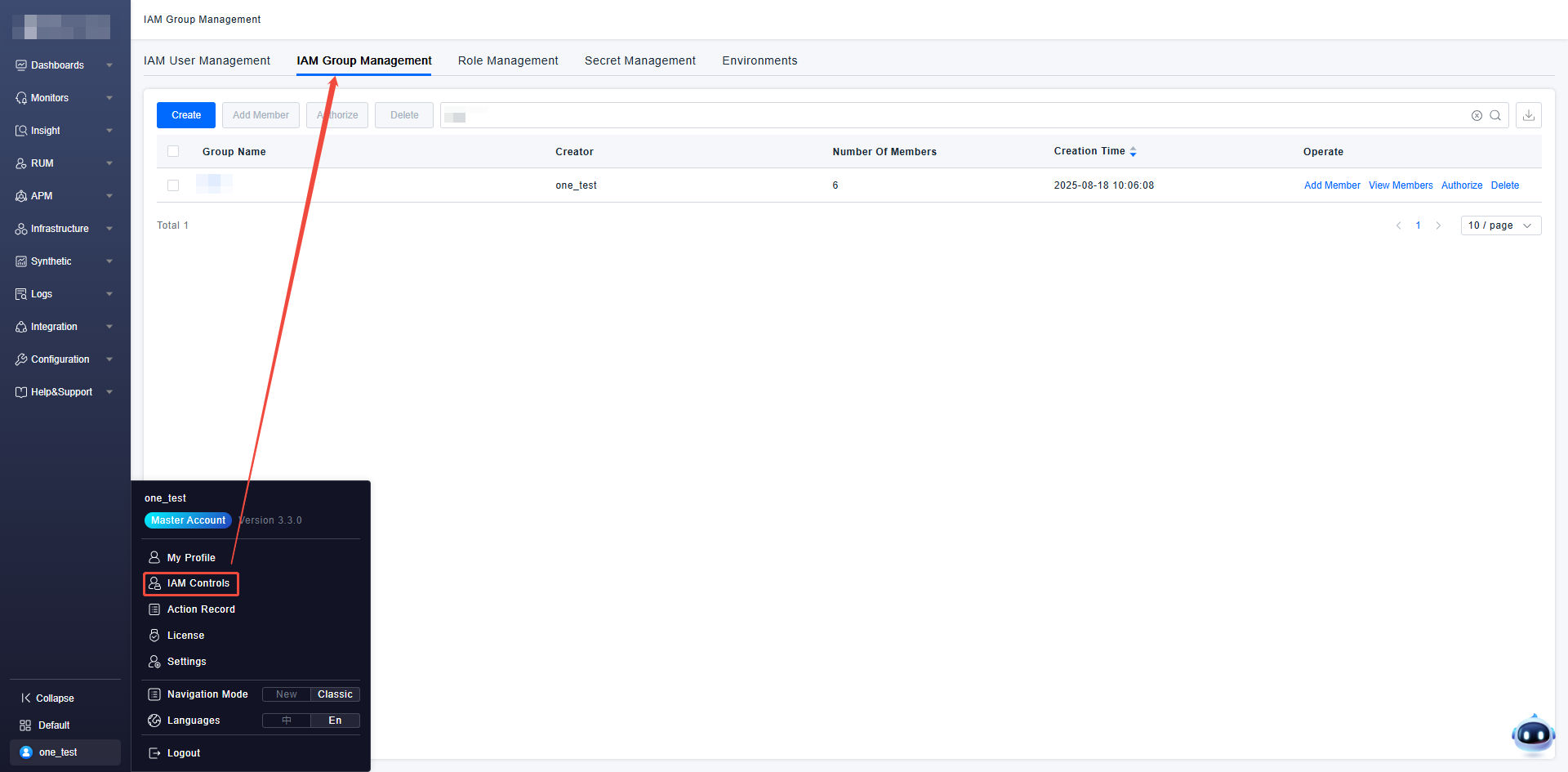
When creating an IAM Group, you need to define the group name, remarks, the IAM Users to be included in the group, and the permission scope that users within this group need to inherit.
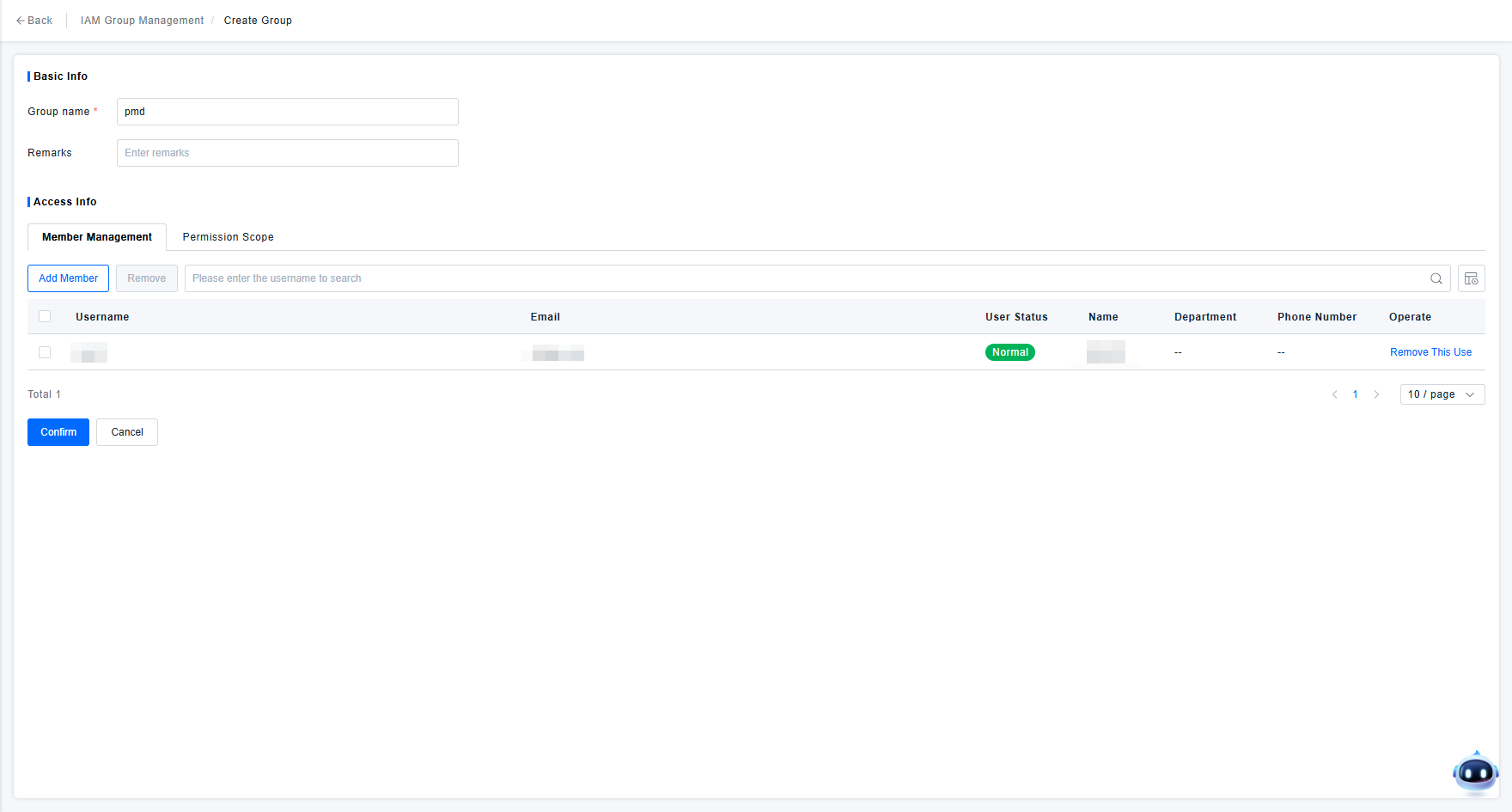
Explanation of the functional elements on the IAM Group creation page:
- Group Name: Used solely to identify the IAM Group. It is recommended to use an easily understandable and highly recognizable name. This facilitates quickly adding newly created users to the appropriate group via page shortcuts later.
- Member Management: Manages the IAM Users to be included under the IAM Group. Add the IAM Users who need to inherit this group's permissions to this group.
- Permission Scope: Used to specify the permission control effects for subsequent platform access by IAM Users under this group. If you wish to learn more about the practical effects of group permission configuration, please refer to the document Managing Permissions in Bulk with User Groups.
The platform supports a user joining multiple groups simultaneously. The permissions for such a user upon logging into the platform will be the union of the permissions they individually possess and the permission scopes of all groups they have joined.
Managing IAM Groups
The Master Account can log in to the platform to manage created IAM Groups. The group management functions provided by the platform include editing group information, managing members, modifying permissions, and deleting the group.
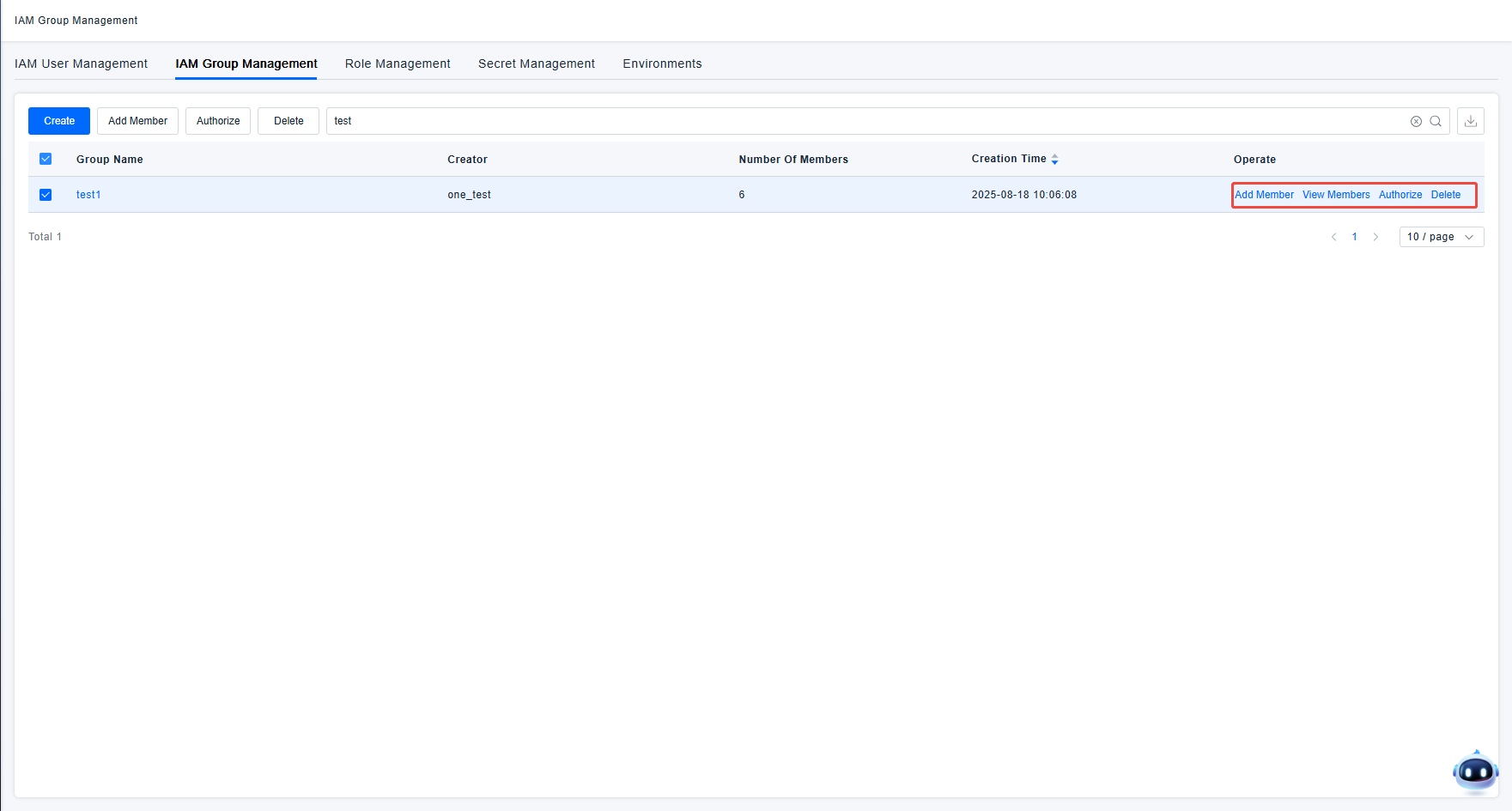
- The Master Account is the platform administrator and has all functional permissions by default. If a specific IAM User also needs permissions for IAM Group management functions, this can be achieved by modifying the user's role permission configuration.
- Deleting an IAM Group does not affect the IAM Users who were members, aside from the loss of inherited permissions. However, because deleting a user group may cause users to lose permissions and unable to use ONE platform functions normally, it is not recommended to delete user groups directly.
IAM Group Usage Practice
To facilitate a better understanding of the role of IAM Groups, usage examples are provided below. You can use IAM Groups by following these example steps:
Step 1: Analyze permission requirements within the organization. For instance, if the organization is divided by department and members within a department have largely similar permission requirements, you can plan to map departments to the concept of IAM Groups in the ONE platform.
Step 2: Create IAM Groups according to the departments within the organization, with one group corresponding to one department.
Step 3: Add the corresponding IAM Users to the created groups based on the relationship between personnel and departments within the organization. If a special role requires permissions from multiple departments, simply add them to multiple groups.
By following the steps above, users accessing the ONE platform will automatically have the appropriate permissions based on their department. If personnel are added later or department assignments change, simply modify the association between IAM Users and IAM Groups.