Using Navigation
The original first-level and second-level hierarchical navigation menus are integrated into the Application Center, using a flat layout to centrally display all function entrances. It supports keyword search for second-level menus to quickly locate target functions; provides a menu favorite function to pin frequently used menus to the left navigation bar; and automatically records and displays recently used menus to improve the efficiency of function access.
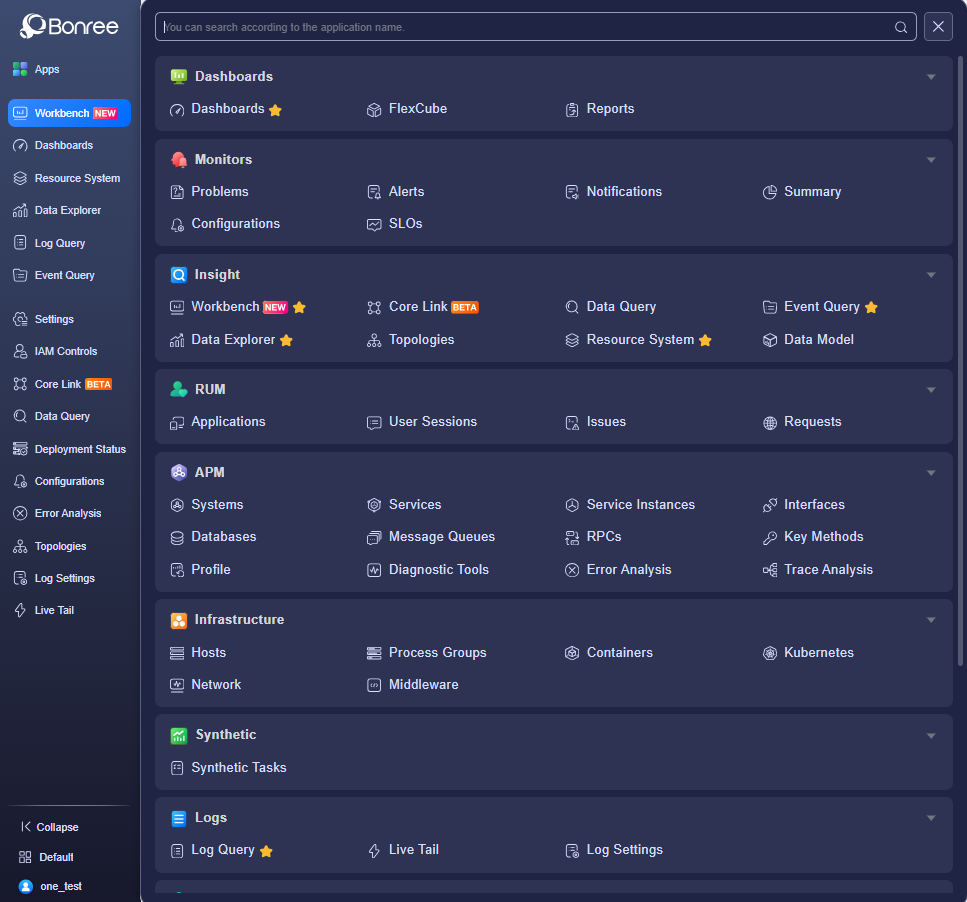
Use Scenarios
- Quick Search Scenario for Multiple Menus: When users need to locate a specific function (such as "RUM - Session Segmentation") among numerous second-level menus, they can enter keywords (such as "Session") through the search function to directly filter out matching second-level menus, avoiding the tedious operation of expanding nested navigation layer by layer.
- Convenient Access Scenario for High-Frequency Functions: For functions frequently used in daily work, users can favorite them. Later, they can directly click to enter from the left navigation bar without searching, making usage more convenient.
- Recent Operation Retracement Scenario: When users need to access functions used in recent days again, the "Recently Used" area of the Application Center will automatically display the relevant menus. Users can quickly retrace without re-memorizing the function path, which is especially suitable for multi-task switching scenarios.
- Quick Onboarding Scenario for New Users: When new users are not familiar with the system navigation structure, the flatly displayed menus allow them to intuitively understand all functional modules of the system. Combined with the search function, they can quickly find the required operation items, reducing the learning cost.
Getting Started
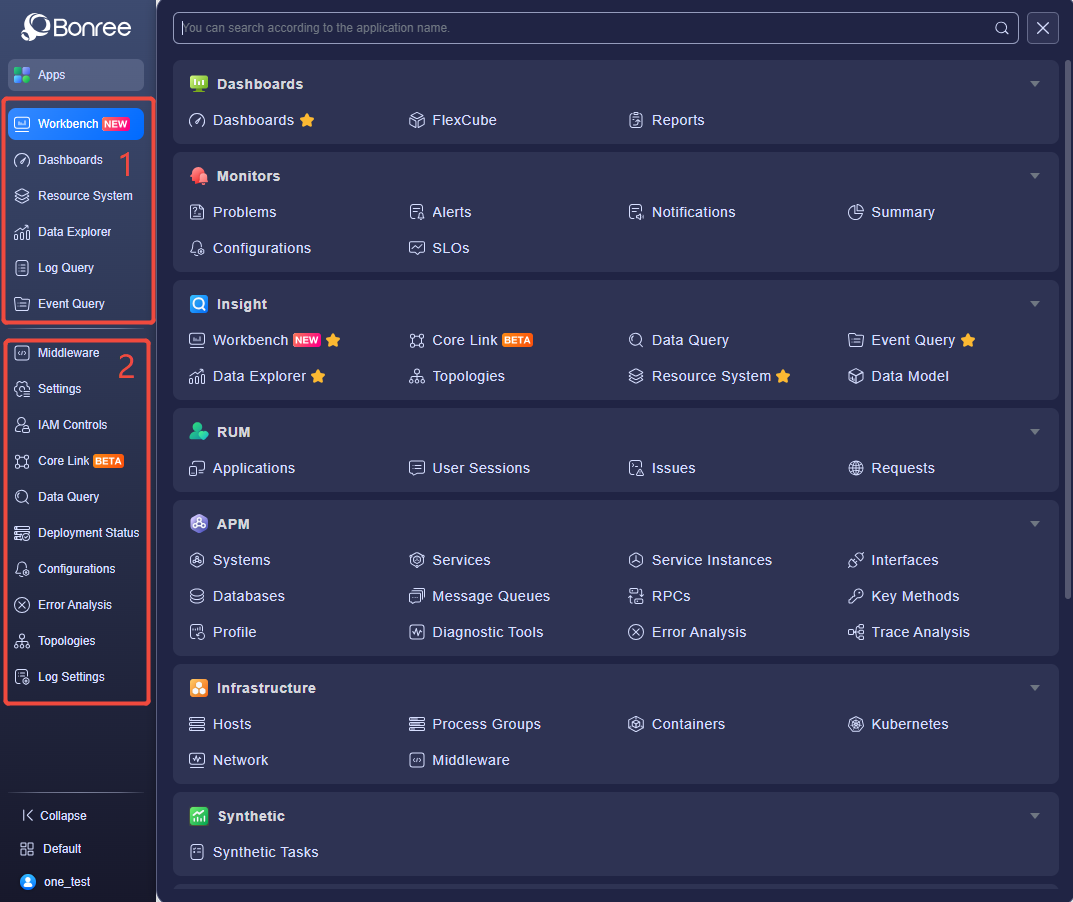
- Favorite menus will be added to Area 1 of the left navigation bar, and recently accessed menus will be added to Area 2 of the left navigation bar, making it easy to quickly find the corresponding functions.
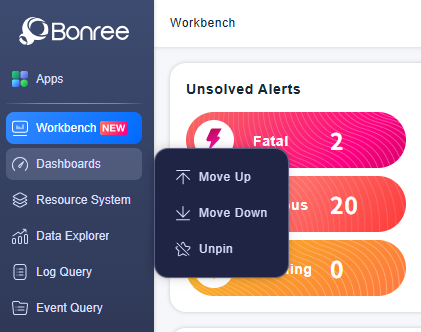
- When hovering the mouse over a favorite menu, buttons for "Move Up", "Move Down", and "Unfavorite" will be displayed, allowing you to adjust the position of the favorite menu. At the same time, you can press and hold the left mouse button to drag the menu to adjust its position, or drag it to the "Recently Accessed" area to unfavorite it.
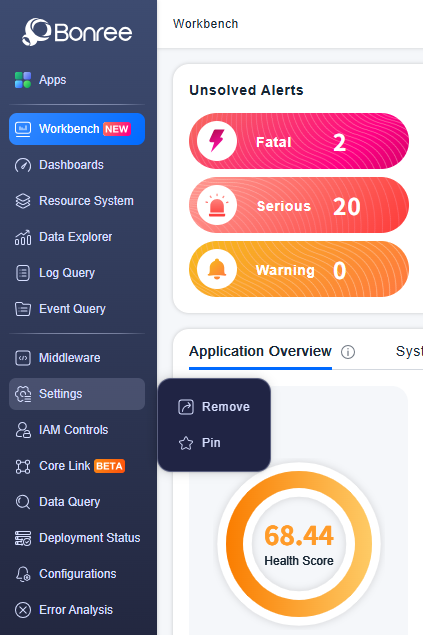
- When hovering the mouse over a recently accessed menu, buttons for "Remove" and "Favorite" will be displayed. At the same time, you can press and hold the left mouse button to drag the menu to the "Favorite Menus" area to favorite it.
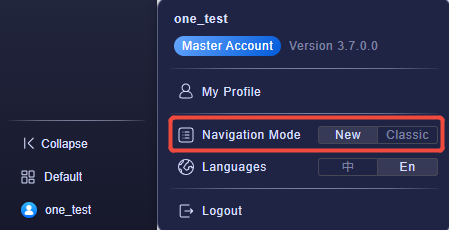
- Switch Navigation Mode: Supports switching between navigation modes. The new mode is shown on the left side of the figure below, and the old mode is shown on the right side of the figure below.
- Clicking "Bonree" in the upper left corner of the navigation bar will take you to the platform homepage workbench, facilitating quick jumps for users.