Quota Management
After a License is imported, its resources are shared by default among all resources under the account. To meet the needs of some enterprise customers for fine-grained control over Licenses, the platform provides a Quota Management feature. This allows users to allocate License usage based on the platform's resource management concepts. This section explains the usage of the Quota Management feature and important functional characteristics to note during its use.
Before You Start
1. ONE's Resource Management Concepts
To meet enterprise-level permission management requirements, ONE provides two concepts for data permission control: Environment and Resource Domain. The Environment serves as the largest data management unit under a tenant; data between different environments is completely isolated. If users wish to isolate data within the ONE platform, they can choose to report data that needs isolation to different environments. If users want to control the cost consumption and resource usage of different environments, they can use the Quota Management feature to specify the quota limits that each environment can consume.
For more detailed introduction to the platform's resource management features, please go to the Resource Domains Overview and Usage section.
2. Addition and Mutual Exclusivity Between License Billing Items
To ensure transparent and controllable platform billing, if multiple Licenses are imported under a user account, the billing items under these Licenses will take effect according to the following rules:
-
Quotas for the same billing item under the same billing module are additive.
-
Different billing items under the same billing module are mutually exclusive; the billing item from the later imported License takes precedence.
-
Billing items under different billing modules take effect simultaneously without affecting each other.
License Quota Management
Quota Management
The Quota Management tab under the License Management page displays information for all effective billing items under the current account. Users can view the total quantity and allocation method of each billing item.
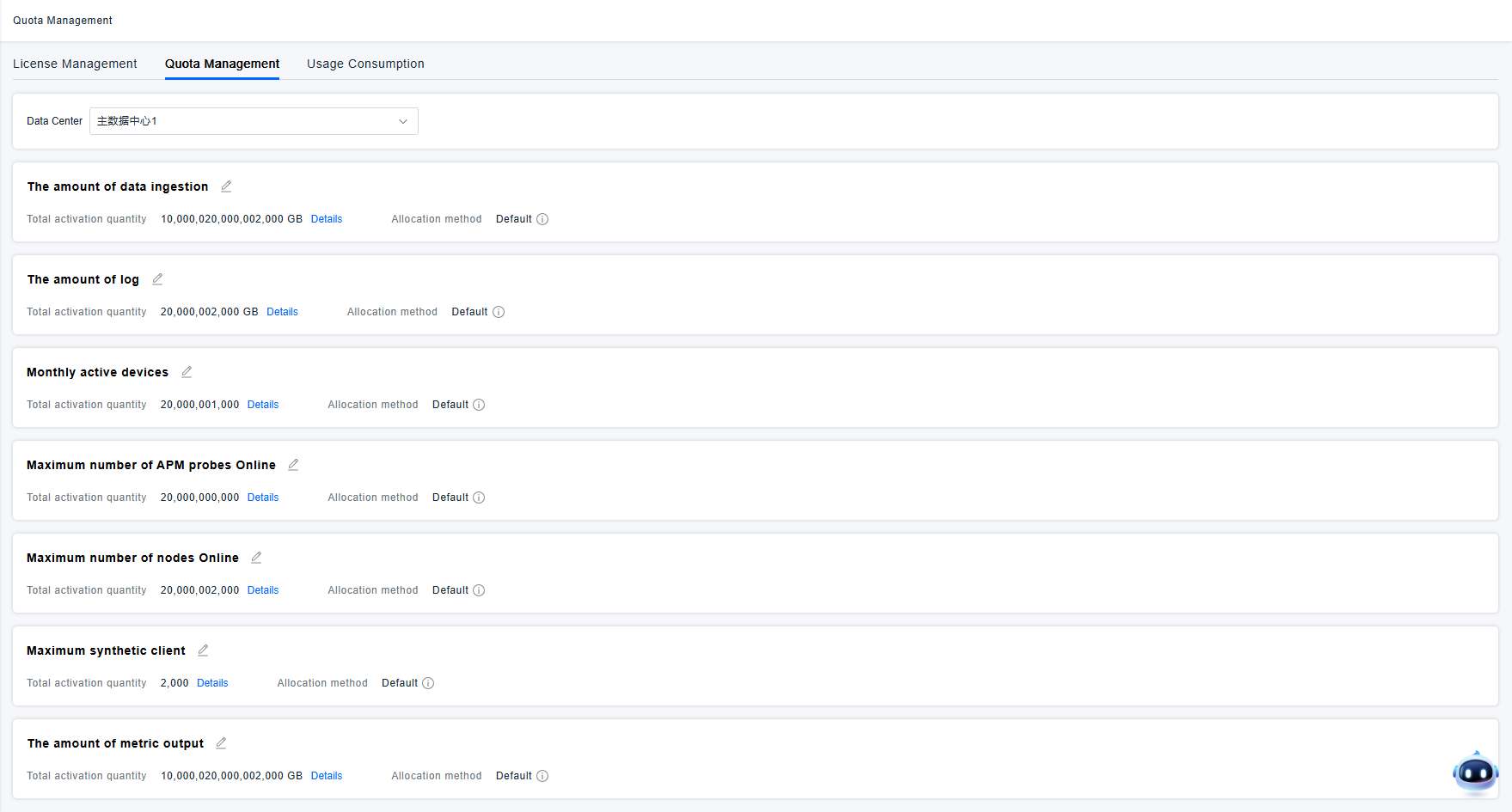
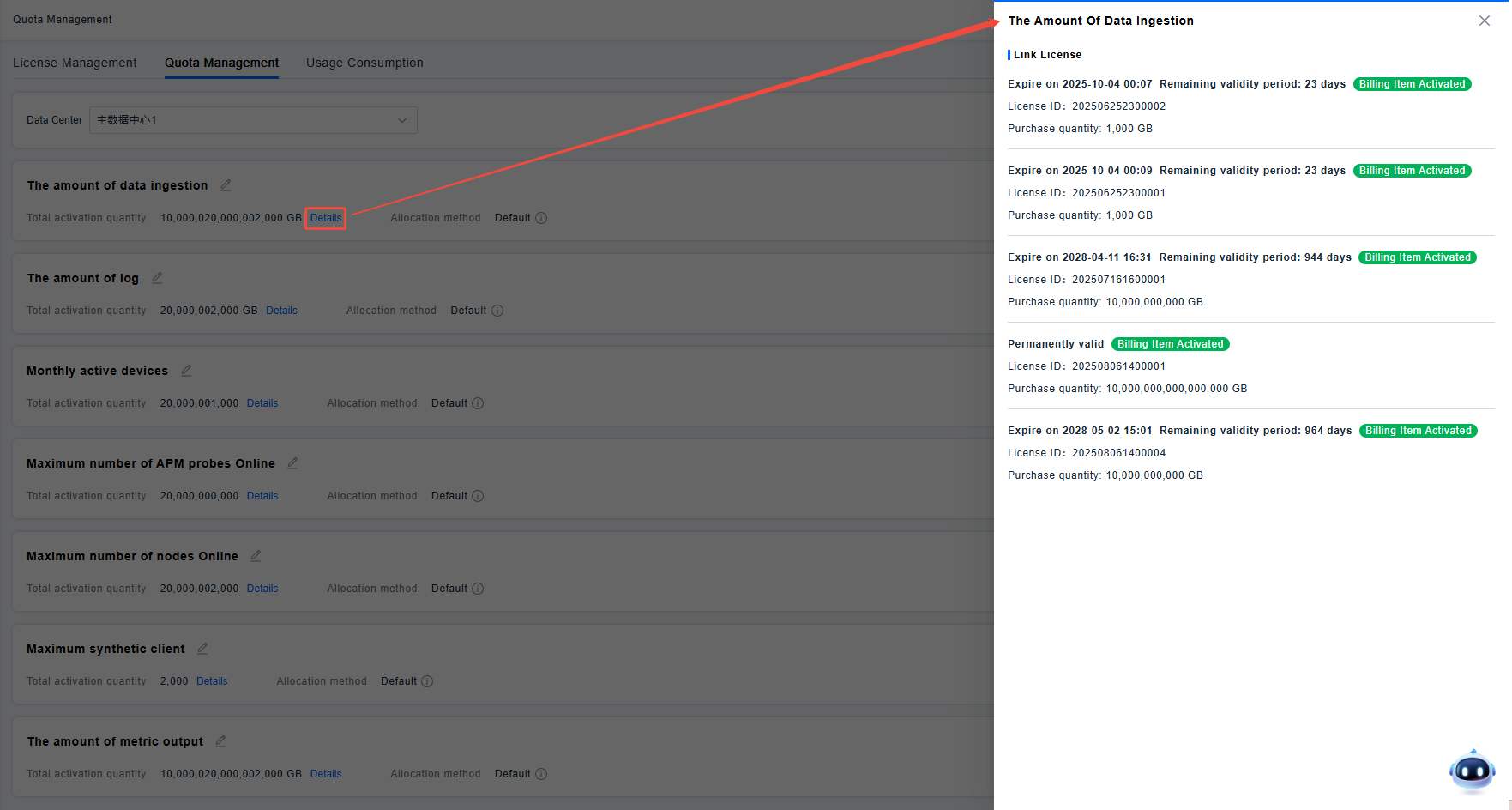
In the page shown above, the "Total Activated Quantity" of a billing item represents the total quota for that billing item across all currently activated and non-expired Licenses (this is also the total amount available for allocation in subsequent usage distribution). If users wish to understand the source of the quota for a specific billing item, they can use the "View Details" function on the page. (In the demonstration content shown in the figure below, the total quota for the billing item "Data Ingestion" comes from the sum of 4 Licenses).
Usage Allocation
The allocation method for billing items is divided into two types: Default and Custom, with the following meanings:
- Default: All environments collectively consume the imported billing item usage until it is depleted.
- Custom: Set usage limits individually for one or multiple environments. Environments not allocated a quota will be unable to use the billing item usage.
Once the user adopts the Custom allocation method, quotas are locked. Each environment can only use the allocated amount. Please ensure that all environments requiring the License have been allocated usage; otherwise, some environments may be unable to report data normally.
When a new License is imported into the platform, it initially uses the "Default" method to manage quotas. If users wish to customize billing item quotas by environment, they can follow these steps to complete usage allocation:
- Click the edit button for the corresponding billing item on the page to enter the Usage Allocation view;

- Change the allocation method from Default to Custom;

- Allocate appropriate quotas to each environment as needed and save.

After usage allocation is completed, the platform will automatically control data reporting behavior under each environment based on the allocated quotas. You can view the License consumption of each environment on the Usage Consumption page.

Explanation of key concepts for feature usage:
- Unallocated Activated Quantity: Total Activated Quantity - Allocated Activated Quantity;
- Consumed Quantity: The most recent statistical data (total historical consumption), used only as a reference value during allocation;
- Allocated Quantity: The number of billing units allocated to a specific environment;
- Allocated Activated Quantity: Allocated Quantity - License Invalidated Quantity (expired quantity), representing the actual usable upper limit for the environment.