Usage Consumption
The platform provides Usage Statistics functionality to enable users to intuitively understand the usage status of various billing items within the imported Licenses. This section explains the usage of the Usage Statistics feature and important functional characteristics to note during its use.
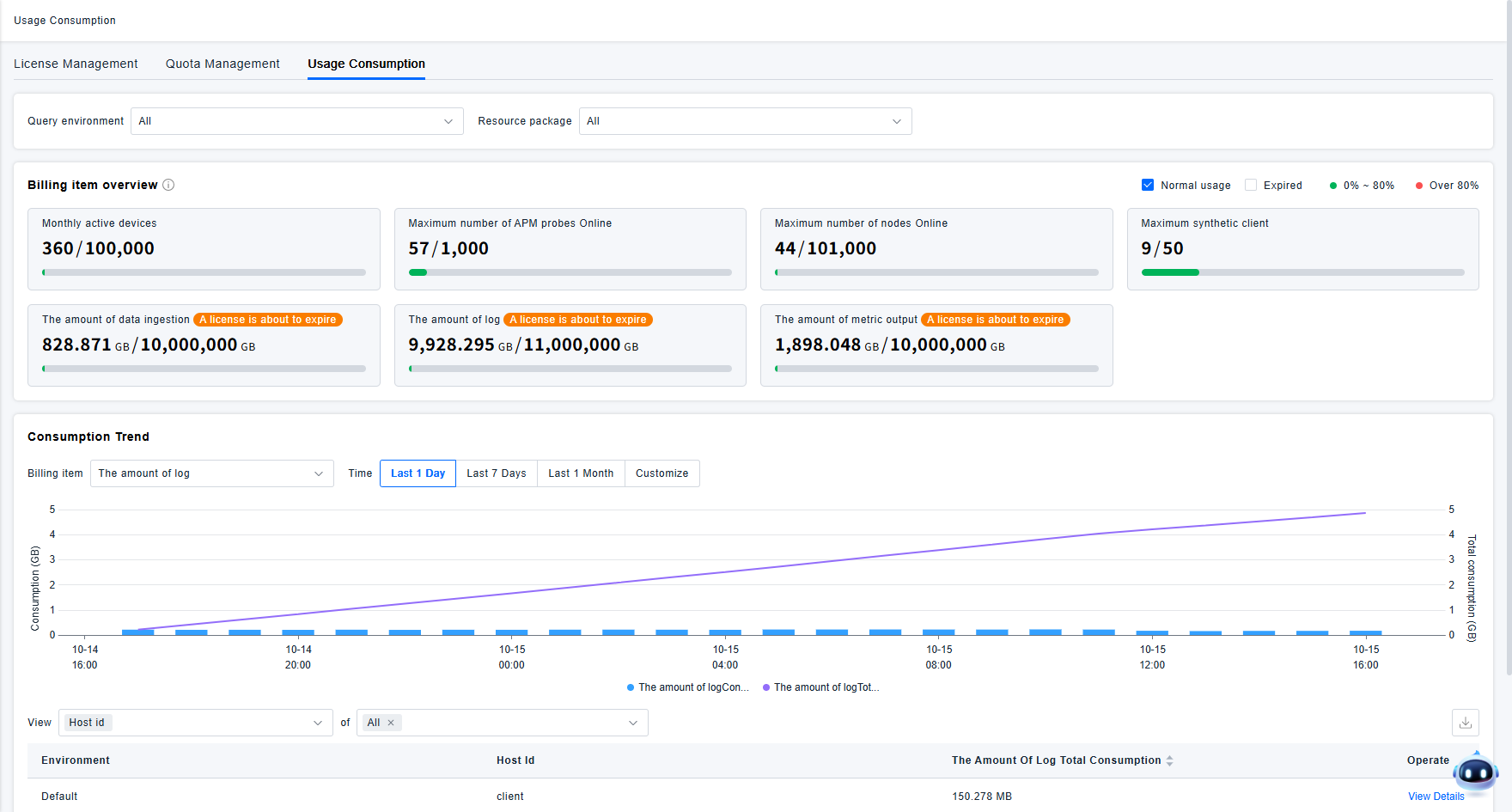
Billing Item Overview
The Billing Item Overview displays the usage status of all billing items included in your currently imported Licenses. You can quickly assess if any billing items are at risk of depletion by viewing the usage bar charts, allowing for timely intervention to prevent data reporting issues caused by quota exhaustion.

If you have questions about the source of a particular billing item, click on the corresponding overview card to view all Licenses contributing quota to that billing item, along with their validity period information.
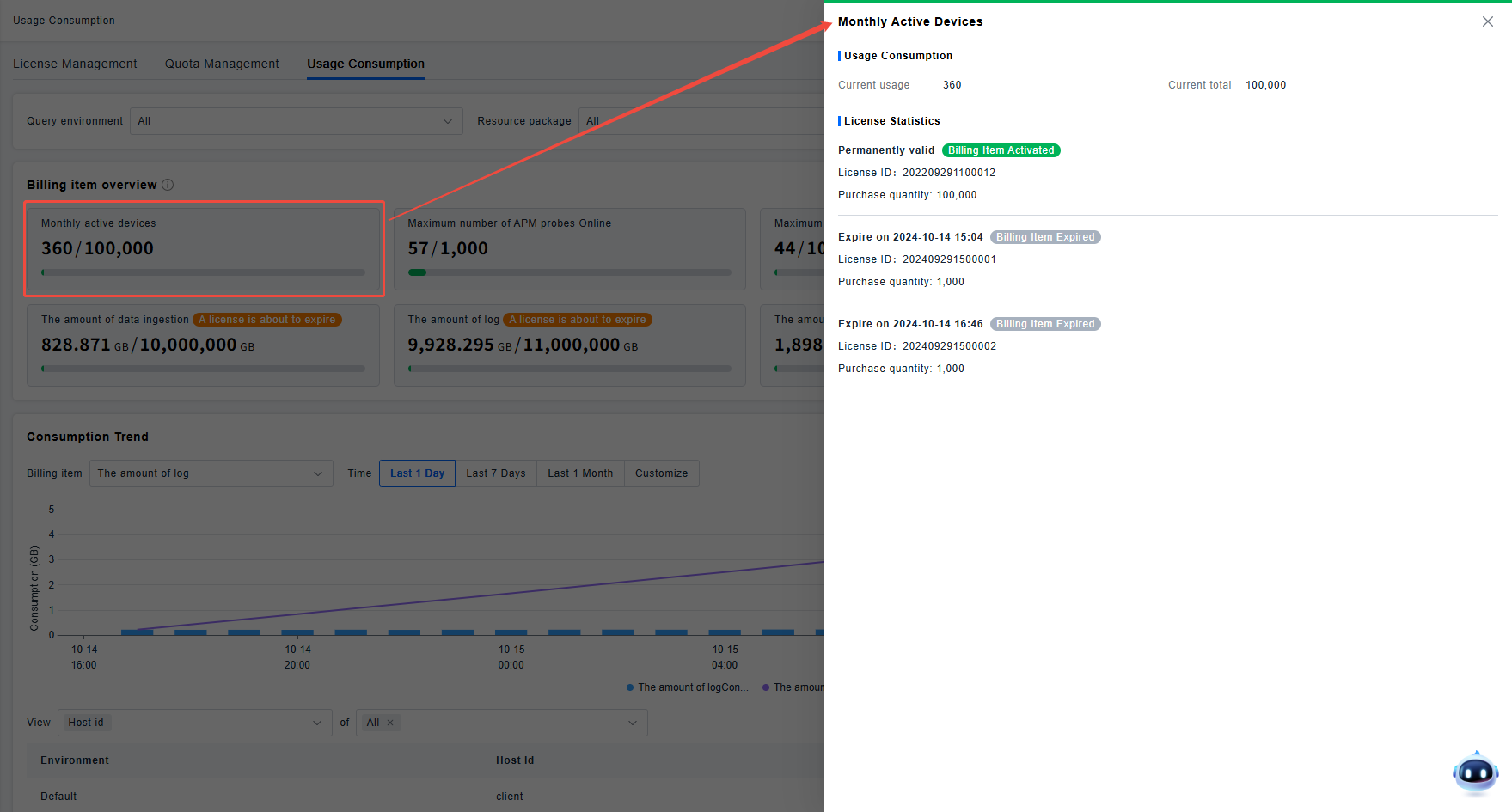
- The total quantity displayed in the billing item overview cards might be the cumulative result of the same billing item configuration from multiple Licenses. Therefore, License expiration can cause a sudden drop in the total quantity. Please also pay timely attention to the platform's License expiration reminders.
- The billing item consumption is calculated based on billing data reported by various billing components according to the billing cycle and is not real-time. If billing anomalies occur, the content in the billing item overview should only serve as a basis for subsequent reconciliation and cannot be directly used as real-time data for troubleshooting.
Usage Consumption Details
Based on billing information, the platform provides trend charts for billing item usage consumption for user analysis. You can switch between different billing items or time ranges to view the trend performance of various billing items across different time periods.
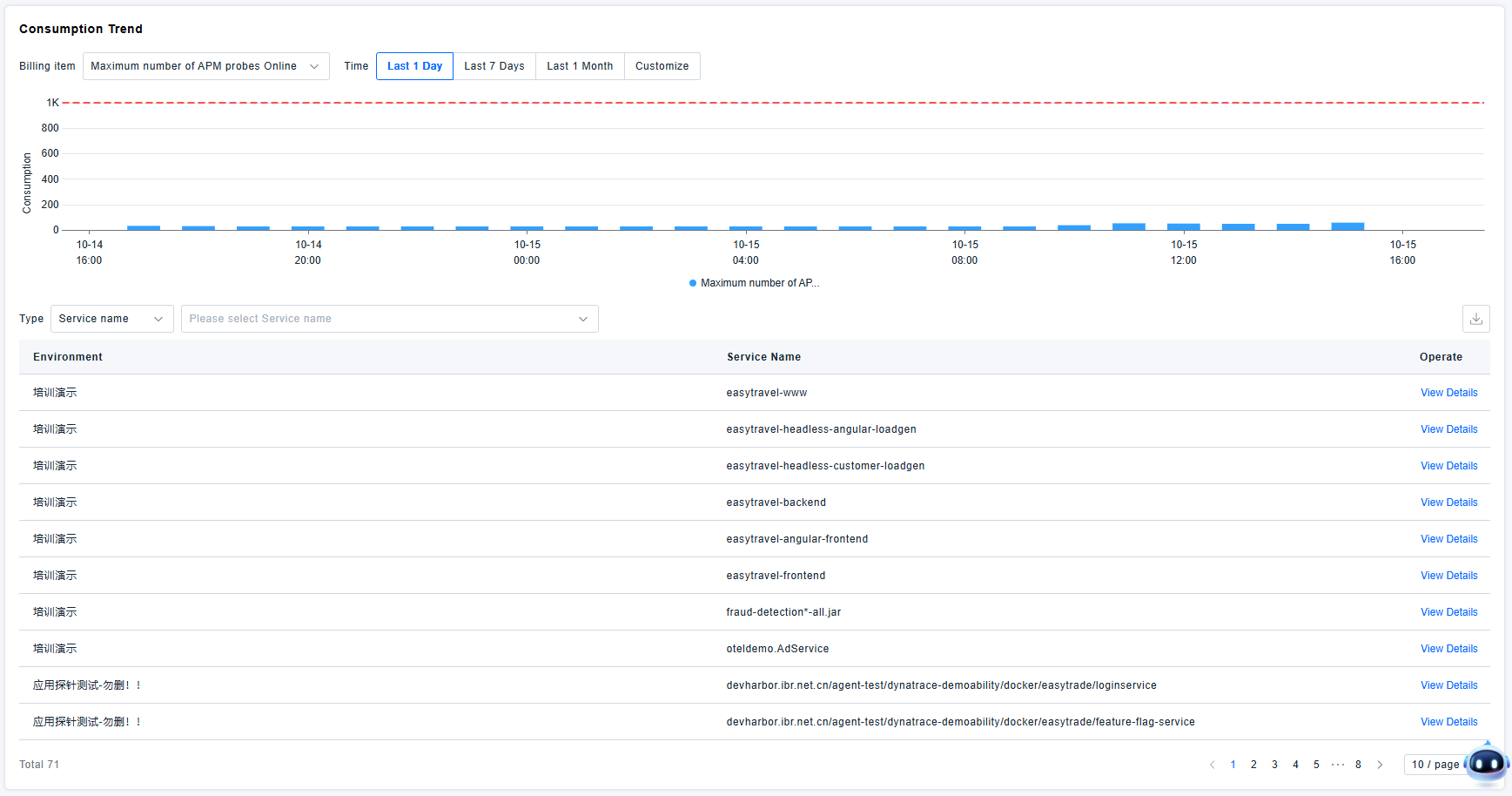
If you are particularly concerned about the usage consumption of a specific resource, you can use the filtering and view details functions in the Billing Statistics list to locate the corresponding instance and analyze its detailed usage consumption within the current period.
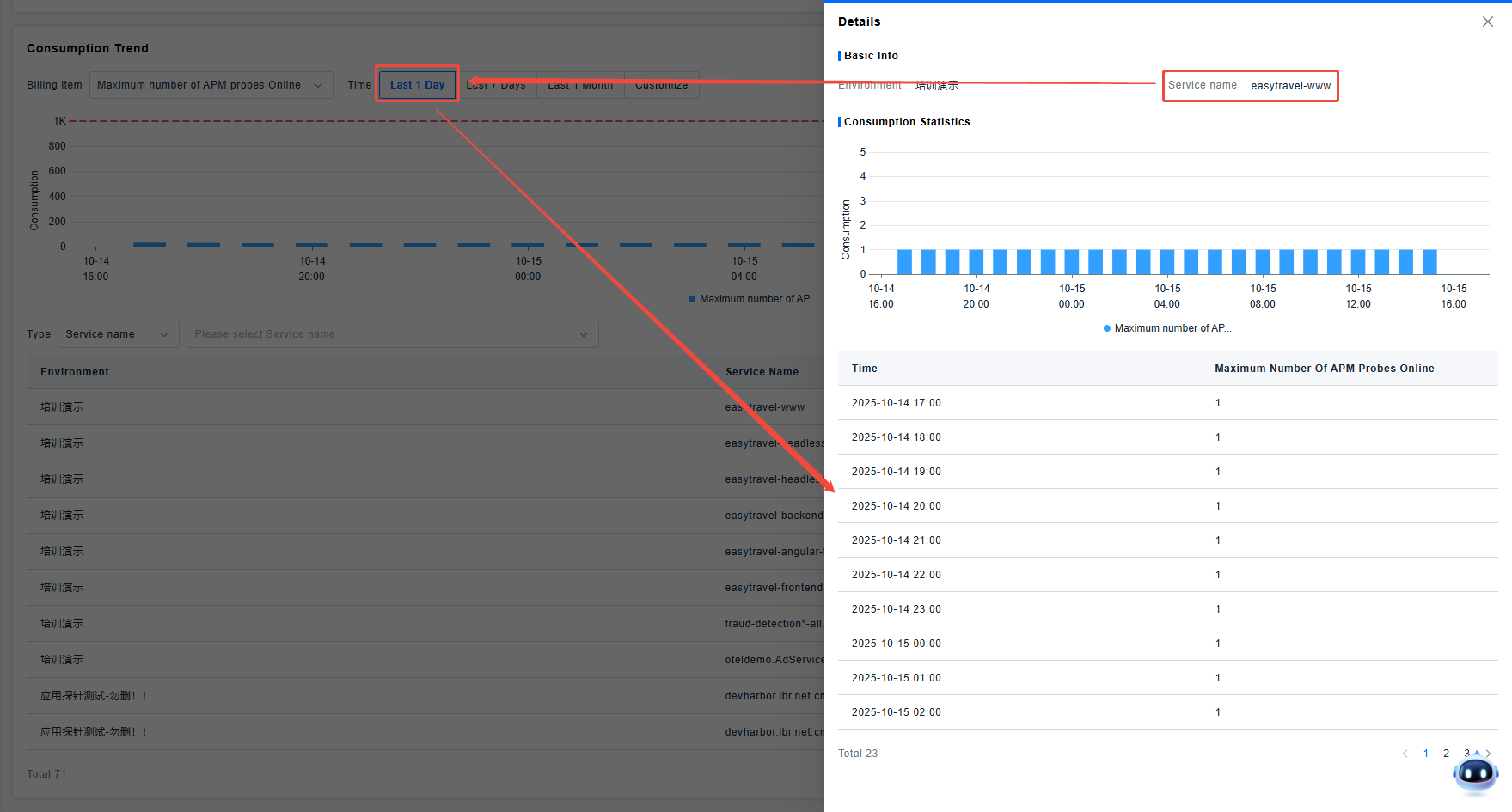
Viewing Usage Consumption for a Specific Environment
If you have performed custom quota allocation by environment for billing items and need to understand the usage consumption within a specific environment, switch the page's environment option to view the consumption of various billing items within that environment.
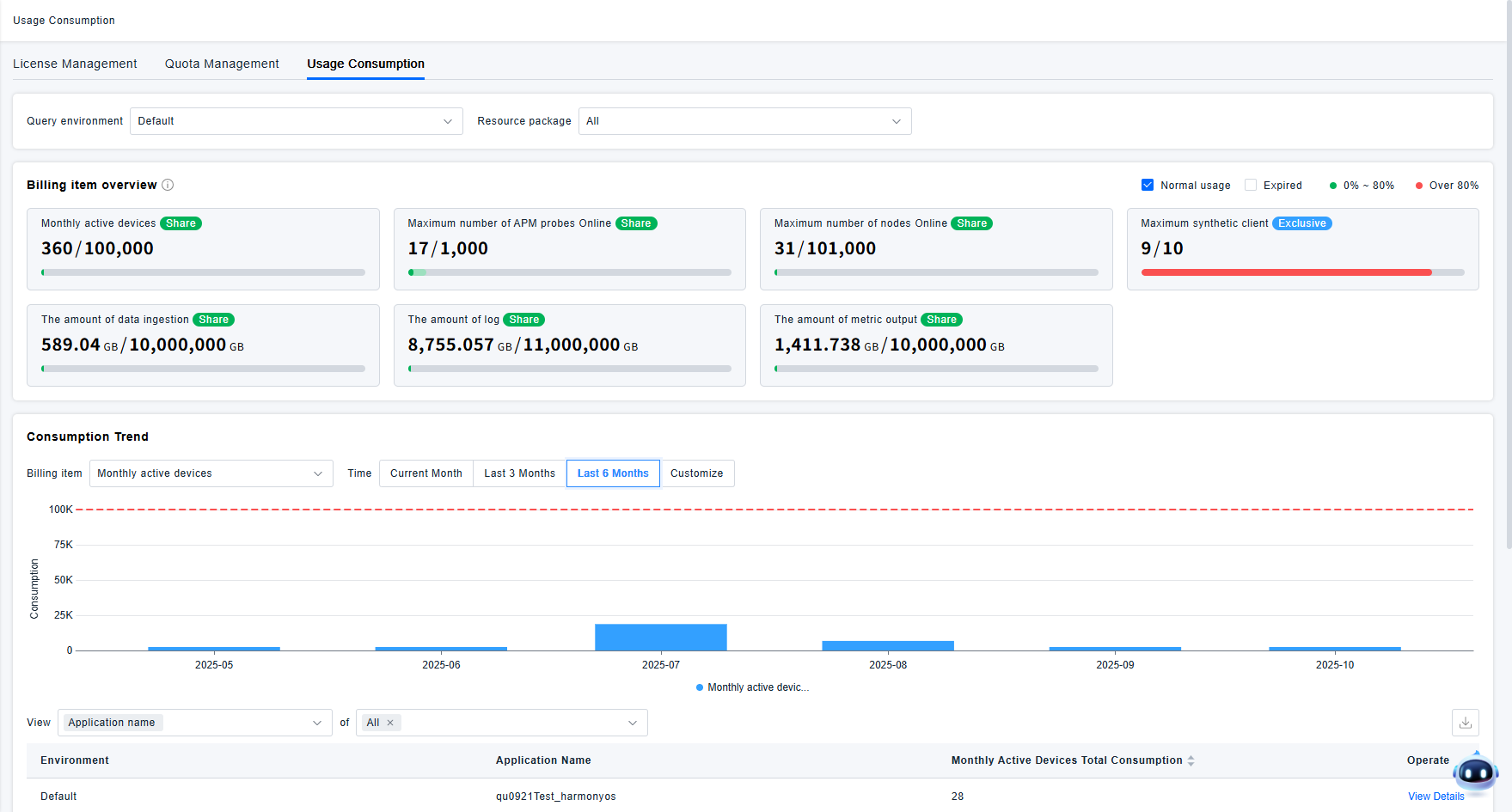
When switching to view billing item information for a single environment, "Shared/Exclusive" labels will appear on the billing item overview cards.
- Shared indicates that the total quantity displayed on this billing item card is shared between the current environment and other environments. Shared quotas typically occur when the user has not customized quota allocation (all environments collectively consume the billing item) or when the user, during custom quota allocation, specified that multiple environments share a portion of the custom-allocated quota.
- Exclusive indicates that the total quota displayed on this billing item card is exclusively used by the current environment. Exclusivity occurs because the user, during custom quota management, specified that only the current environment can use this portion of the custom-allocated quota.