Problem Response Strategy
Prerequisites
- Functional Menu: Access to the Problem Response Policy function menu.
- Operation Permissions: Create, read/write, or read-only permissions for Alert Configuration.
- Data Permissions: Possession of at least one resource domain within an environment.
- Data Prerequisite: Problem Response Policies are configured, and there are problems that trigger the effective conditions.
Overview
- The Problem Response Policy is used to configure notifications for problems. Specifically, it configures how problems generated by convergence policies trigger response actions and generate notifications.
- This policy supports defining the problem scope, notification conditions, notification methods, effective time frames, etc., allowing flexible definition of trigger conditions for various usage scenarios.
Value
- Improves Response Efficiency
Through pre-defined notification rules and automated triggering mechanisms, it ensures problems are accurately pushed to the relevant responsible personnel immediately, significantly reducing the Mean Time to Acknowledge (MTTA) from fault discovery to handling and minimizing delays caused by manual intervention.
- Strengthens Operational Coordination and Control
Supports flexible policy configuration based on dimensions such as problem severity and status, clarifying responsibility boundaries to avoid notification chaos or omissions. Simultaneously, it enhances the consistency and traceability of problem handling through standardized processes.
- Optimizes Resource Allocation and Convergence
Intelligently filters low-priority or duplicate problems, triggering notifications only for those meeting the defined criteria. This effectively reduces problem fatigue, allowing the operations team to focus more on high-priority issues and improving resource utilization efficiency.
Usage Scenarios
- Tiered Handling
Notifies different teams based on problem severity and status (e.g., critical severity to DBAs, warning severity to application groups), achieving precise division of labor.
- Round-the-Clock Automated Response
Utilizes policy combinations for work hours vs. non-work hours and triggers different notification methods based on different problem types, enabling 7x24 unattended automated response.
- Multi-System Management and Control
Establishes differentiated notification policies for different resource systems (e.g., payment/query systems), reducing interference and ensuring high reliability of critical business functions.
Operational Scenario
-
Search
When users need to search for records in the problem response policy list, they can filter results in the search box based on policy name, response action, or enable/disable status.
-
Create
When users need to define alarm notifications, they can click the 【Create】 button to create a new problem response policy.
-
Delete If certain alarm response policies are no longer applicable, users can click the 【Delete】 button in the action column or select multiple policies and click the 【Delete】 button above the list to remove them.
-
Copy When users need to define problem notifications based on an existing policy, they can click the 【Copy】 button to duplicate and modify it.
-
Edit When users need to adjust problem notifications, they can locate the existing policy and click the 【Edit】 button to modify its configuration.
-
Enable/Disable To activate a created problem response policy, click the 【Enable】 button. To deactivate it, click the 【Disable】 button.
-
Export When users need to export problem response policies locally, they can batch-select data and click the 【Export】 button to generate a JSON file for quick processing or reuse.
-
Import If users have locally organized problem response policies in the required format, they can click the 【Import】 button to upload them. Successful imports will display the policies in the list, while failed imports will provide error details for adjustments before retrying.
Get Started
- Log in to Bonree ONE.
- Navigate to Intelligent Alerting > Alert Configuration > Problem Response Policies.
- The system supports querying, creating, editing, copying, enabling, disabling, deleting, importing, and exporting problem response policies.
- The list provides the following fields: Response Policy Name, Response Action, Last Updated Time, Last Updated Account, Enable/Disable Status, and Action Column.
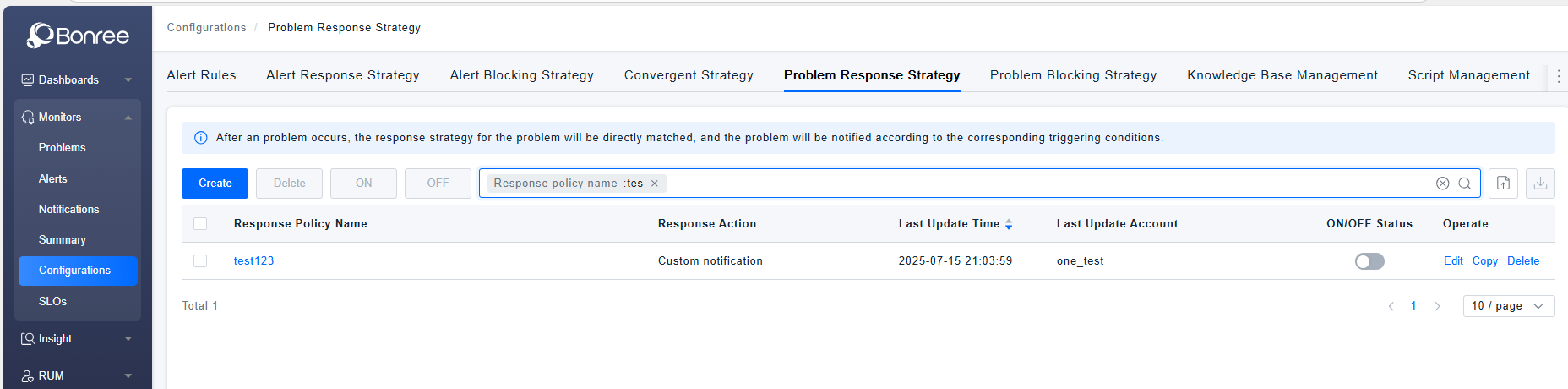
Problem Response Policy Details
-
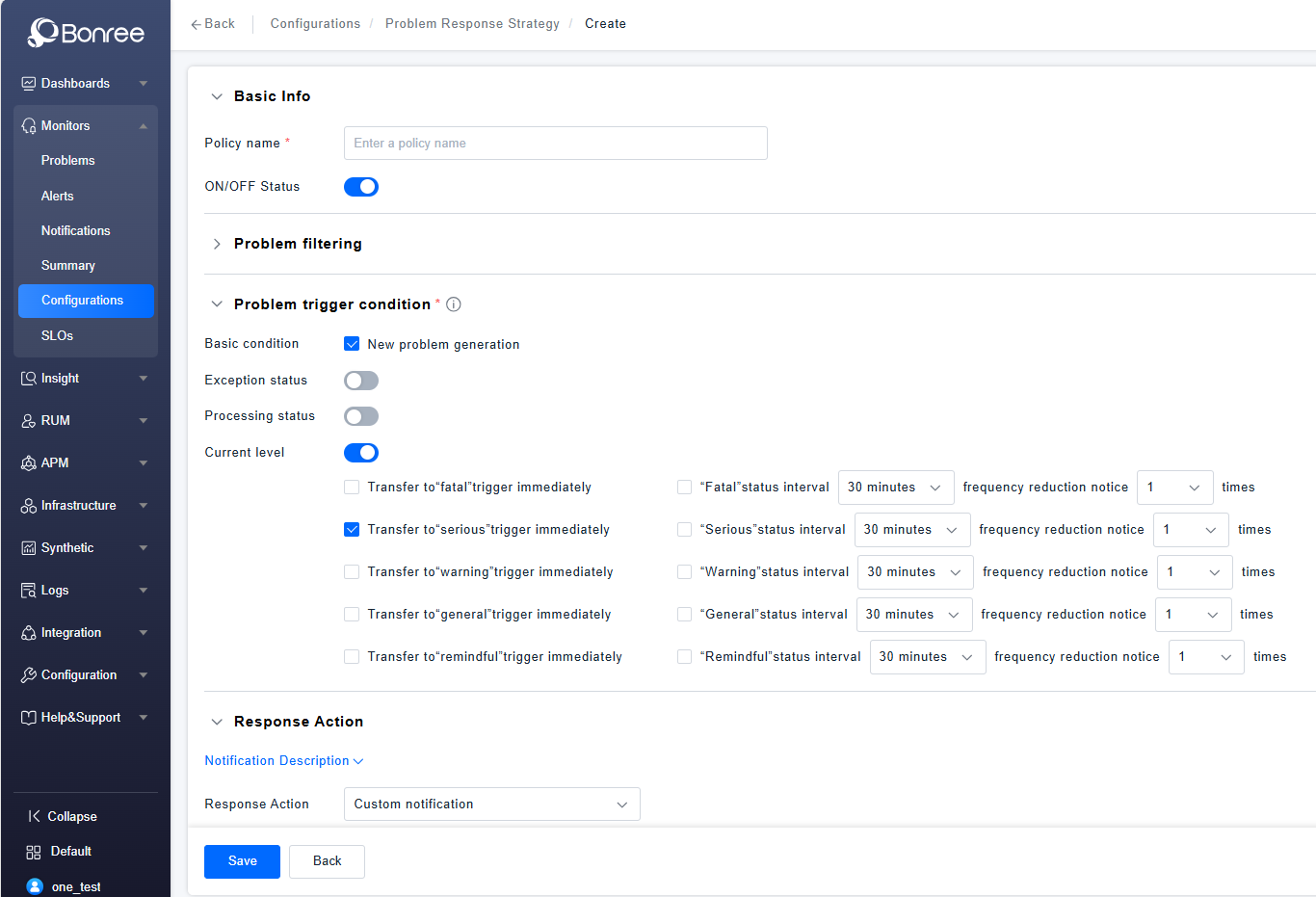
Click Create / Edit / Copy Problem Response Policy to configure the details of an problem response policy.
-
The detailed configuration includes four sections: Basic Information, Problem Filtering, Response Actions, and Notification Timing.
-
Basic Information includes filling in the policy name and an enable/disable toggle (enabled by default).
-
Problem Filtering supports filtering based on problem-related fields and entity attributes. It allows adding multiple filter conditions and defining operators between them.
-
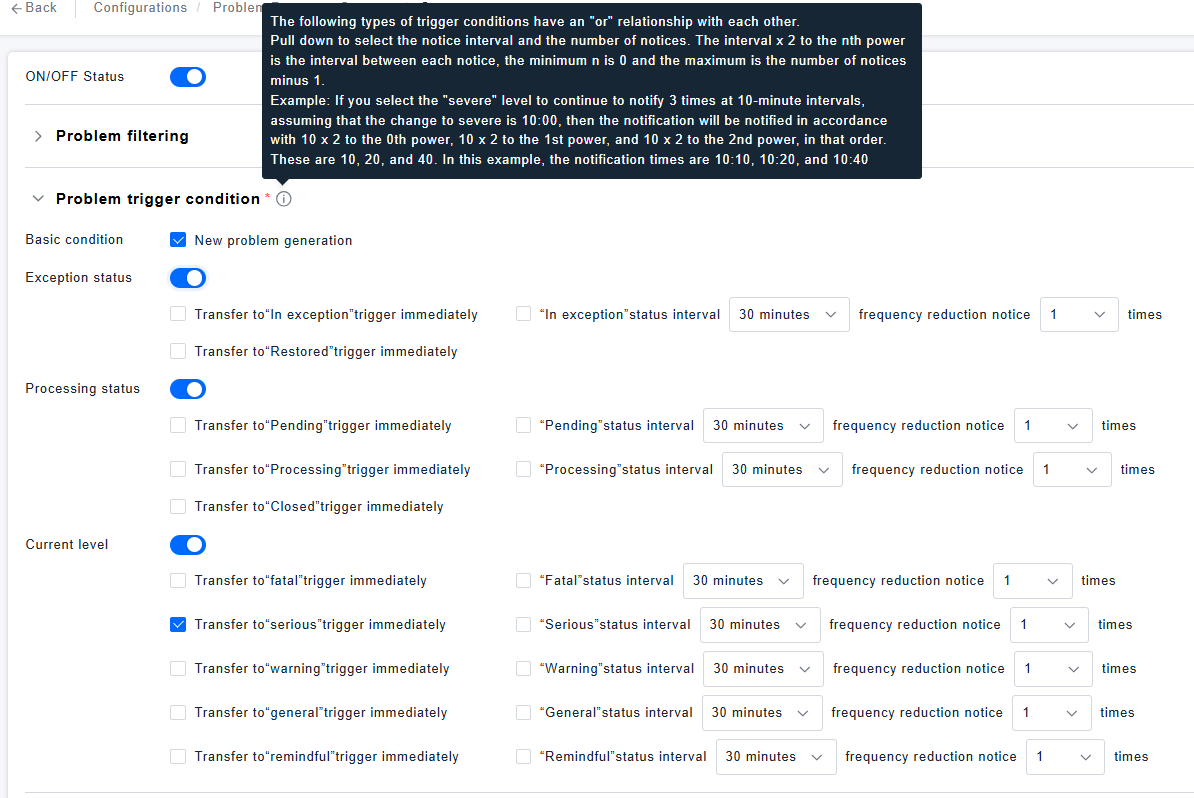
Problem trigger conditions include: new problem generation, abnormal status changes, handling status changes, and current severity level changes. By default, new problem generation is enabled, and escalation to "Critical" severity triggers immediately. Abnormal status changes, handling status changes, and current severity level changes each trigger a notification when the problem status or severity level changes respectively. Debounce notification means sending another notification if the status or severity level remains unchanged for N consecutive minutes.
-
Response Actions
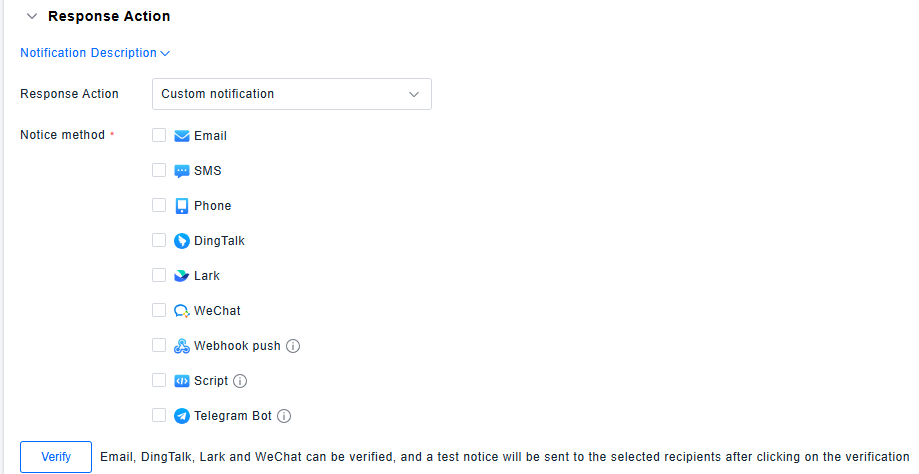
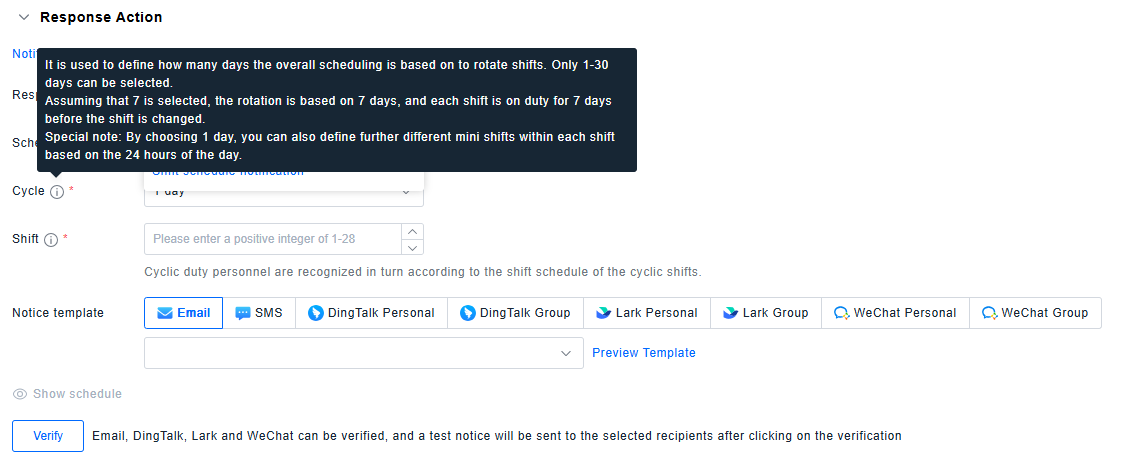
The system supports both Custom Notifications and On-Call Notifications.
- Custom Notification: Allows configuration based on provided notification methods, including selecting recipients, notification templates, etc.
-
On-Call Notification: Refers to rotating notification recipients by shift according to user-defined overall on-call policies.
-
Notification Timing
All Hours: 7×24 uninterrupted coverage.
All Hours Excluding Special Dates: Supports excluding pre-defined special dates (i.e., deducting pre-configured time templates) from the "All Hours" schedule.
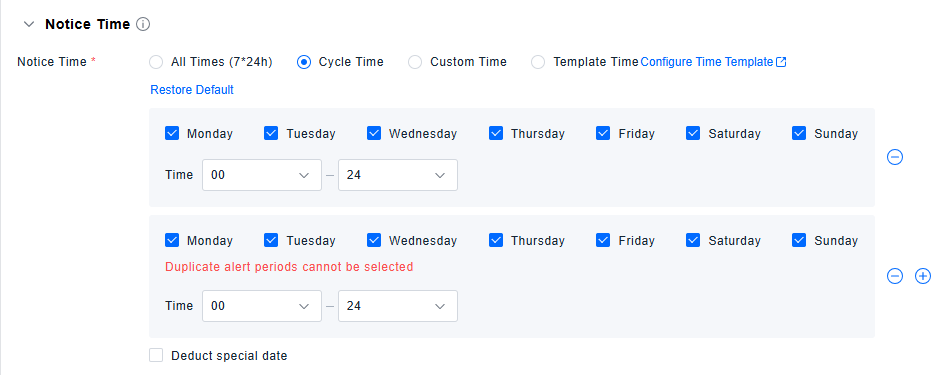
Cyclical Time: Operates on a weekly cycle, allowing selection of specific times for each day of the week. Also supports excluding special dates (i.e., time templates).
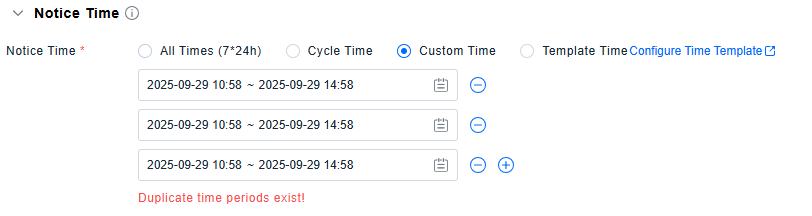
Custom Time: Enables defining one or multiple specific time periods for this policy.
Template Time: Directly uses special dates defined in the Time Template list.