Problem Blocking Strategy
Prerequisites
Functional Menu: Includes the problem blocking policy function menu
Operational Permissions: Includes create, read/write, and read-only permissions for alert configuration
Data Permissions: Has access to at least one resource domain within an environment
Data Prerequisites: The configuration includes alert rules, response strategies, and convergence strategies, with conditions for problem notification triggering to take effect.
Overview
The Problem Suppression Policy is used to configure the blocking of problem notifications. In certain scenarios, problems generated by convergence strategies do not need to trigger notifications.
This policy supports defining the scope and effective time of problem notifications, thereby improving configuration efficiency and consistency.
Value
- Precise Noise Reduction and Resource Optimization Through predefined convergence strategies and suppression rules, the system automatically identifies and silences known, non-urgent, or repeatedly occurring problem notifications. This enables operations teams to focus limited human resources and effort on addressing critical failures that truly impact business operations, thereby avoiding "alert fatigue" and response delays caused by notification overload.
- Improved Configuration Efficiency and Strategy Consistency A unified and intuitive policy configuration interface is provided, supporting batch settings for notification scope and effective timeframes. This eliminates the need to repeatedly apply the same suppression configurations across different convergence rules, ensuring standardization and consistency in the execution of operational strategies across teams and systems.
- Advancing Automation and Intelligence in Operational Processes By embedding operational expertise—such as "when to suppress" and "which problems to suppress"—into executable automated policies, the system reduces the need for manual judgment and intervention. This serves as a critical step in building a closed-loop automated operations (AIOps) framework, transitioning from a "reactive response" approach to a "proactive prevention" paradigm.
Use Cases
- Silencing Non-Critical Problems After Convergence Convergence strategies aggregate multiple raw alerts into a higher-level "problem." For problems among these that have been identified as having minor business impact and requiring no immediate action, their notifications can be suppressed to avoid interference.
- Batch Operation Activity Windows During periodic operational activities such as data backups or large-scale batch processing tasks, the system may experience expected performance fluctuations or brief unavailability. In such cases, relevant notifications can be temporarily suppressed.
- Derived Failures Caused by Dependency Problems When third-party APIs or underlying platforms fail, a large number of derived problems may be triggered within the system. At this point, notifications for all derived problems should be quickly suppressed, allowing teams to focus on addressing the root cause or waiting for the dependency to recover.
Operational Scenario
-
Search
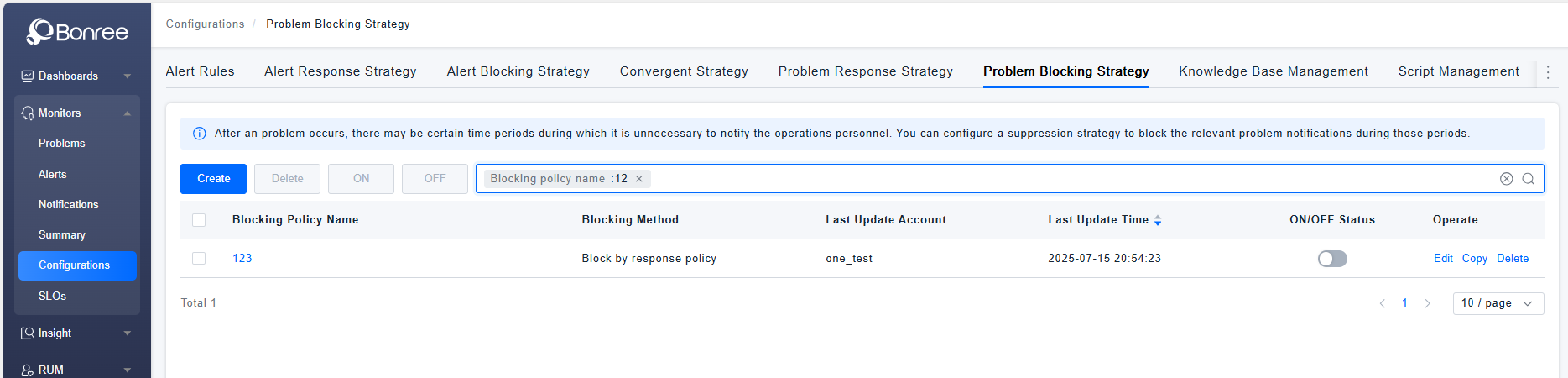
When users need to search for records in the problem suppression policy list, they can filter based on the policy name, suppression method, and enable/disable status in the search box.
-
Create
When users need to define an problem notification suppression policy, they can click the 【Create】 button to create a new one.
-
Delete If certain problem blocking policies are no longer applicable, users can click the 【Delete】 button in the action column or select multiple policies and click the 【Delete】 button above the list to remove them.
-
Copy When a user needs to create an problem suppression policy and can modify it based on an existing one, they can click the 【Copy】 button to duplicate an problem suppression policy.
-
Edit When users need to adjust an problem suppression policy, they can locate the created policy and click the 【Edit】 button to modify it.
-
Enable/Disable To activate a created problem blocking policy, click the 【Enable】 button. To deactivate it, click the 【Disable】 button.
Get Started
- Log in to Bonree ONE.
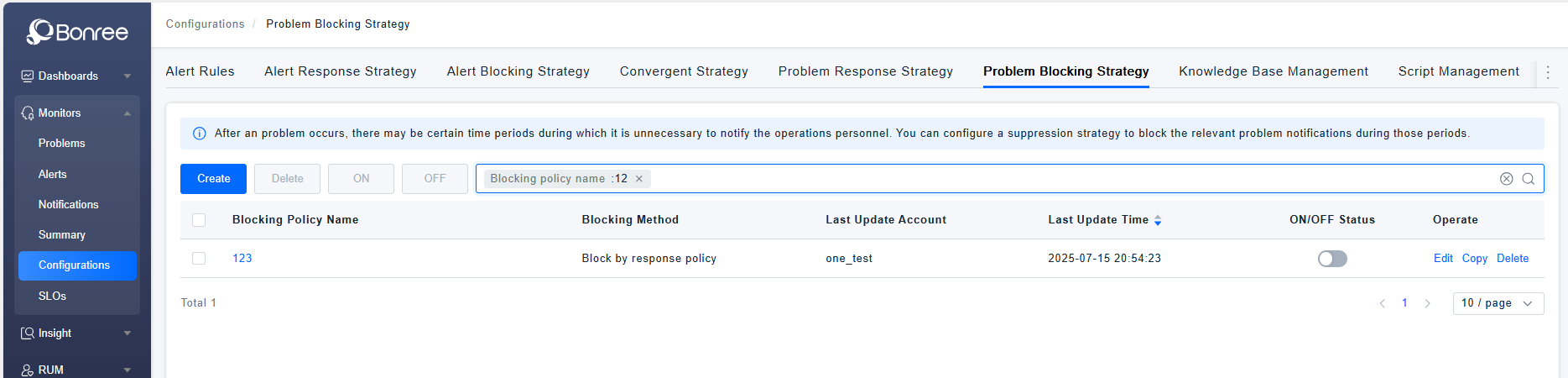
- Navigate to Intelligent Alerting > Problem Configuration > Problem Blocking Policies.
- The system supports querying, creating, editing, copying, enabling, disabling, deleting problem blocking policies.
- The list provides the following fields: Blocking Policy Name, Blocking Method, Last Updated Time, Last Updated Account, Enable/Disable Status, and Action Column.
Problem Blocking Policy Details
-
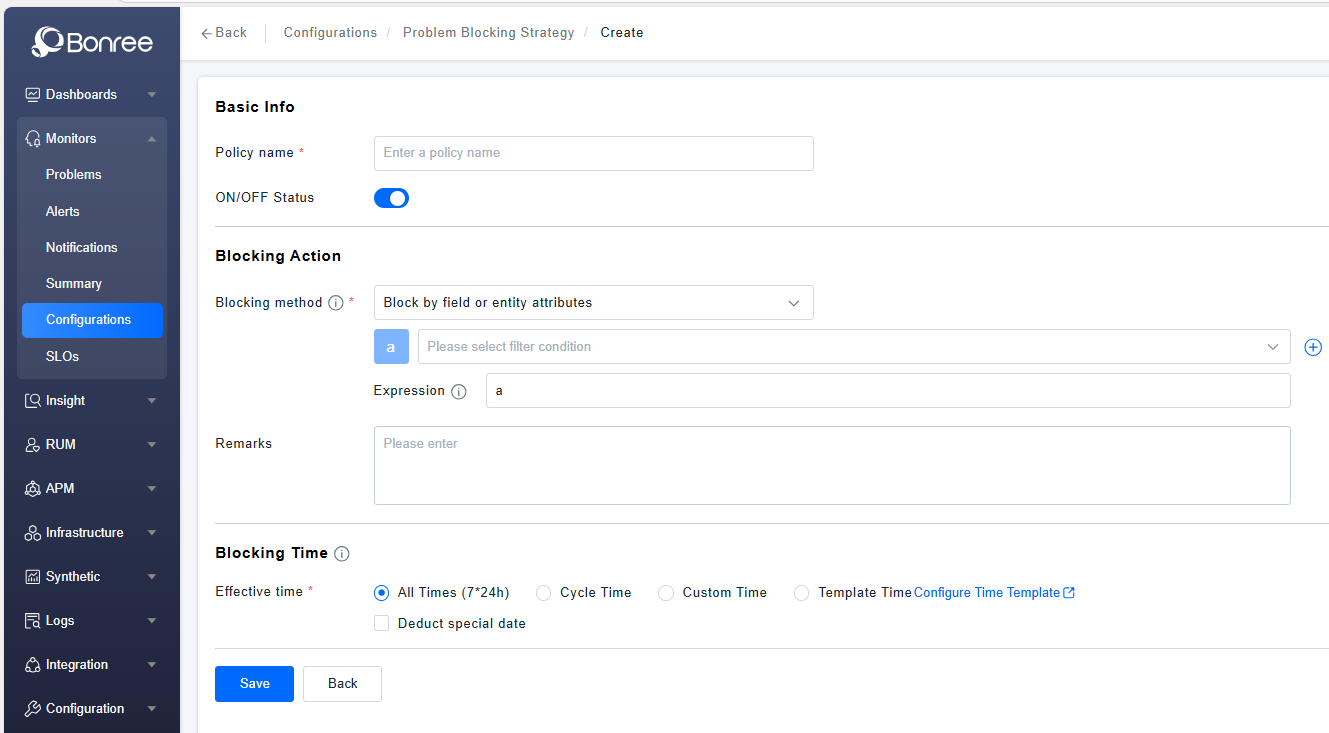
Click Create / Edit / Copy Problem Blocking Policy to configure the details of an problem blocking policy.
-
The detailed configuration includes Basic Information, Suppression Action, and Suppression Time.
-
Basic Information includes filling in the policy name and an enable/disable toggle (enabled by default).
-
The blocking method supports blocking based on problem-related fields and entity attributes, allowing for the addition of multiple filter conditions and the definition of operators between these conditions. It also supports blocking according to Problem Response Strategies, and users can click to preview the strategy details. The remarks field is optional and can be used to describe the definition of this strategy.
-
Blocking Timing
All Hours: 7×24 uninterrupted coverage.
All Hours Excluding Special Dates: Supports excluding pre-defined special dates (i.e., deducting pre-configured time templates) from the "All Hours" schedule.
Cyclical Time: Operates on a weekly cycle, allowing selection of specific times for each day of the week. Also supports excluding special dates (i.e., time templates).
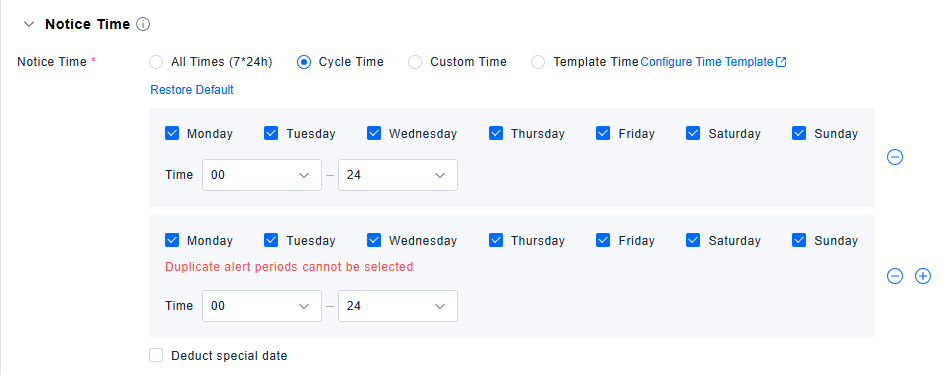
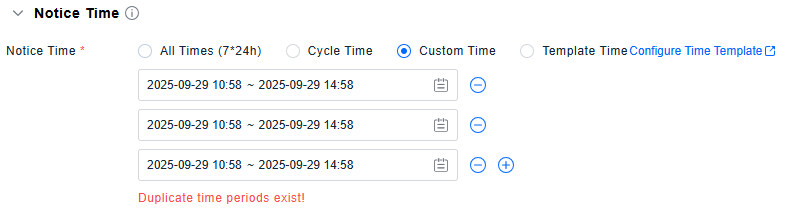
Custom Time: Enables defining one or multiple specific time periods for this policy.
Template Time: Directly uses special dates defined in the Time Template list.