Install SmartAgent on Windows as Administrator
Overview
This document explains how to install SmartAgent on Windows.
Do not place the installer in the C:\Windows\System32 directory for installation. Otherwise, the error "Error launching installer" will occur.
Preparation
-
Before installing the Windows version of SmartAgent, make sure the following conditions are met:
- System Requirements
- Check System Build Number
- 6.0.6001 ~ 6.1.7600
- Administrator privileges are required
- Automatic agent injection is supported on Windows 7 SP1 / Server 2008 R2 (build number: 6.1.7601) and later
- Windows 7 SP1 / Server 2008 R2 requires patch KB3033929
- For versions earlier than this, agents must be configured manually
- Technology Support Matrix
- Host Resource Requirements
C:\Windows\System32> wmic os get version /value
Version=6.1.7601
For systems with build numbers 6.0.6001 ~ 6.1.7600, an older driver must be used for automatic injection.
See Legacy Windows Driver Installation Guide.
Installation and Upgrade
-
Log in to the
Bonree ONEplatform. Go to Configuration > Agent Installation, and select Host Mode as the deployment method.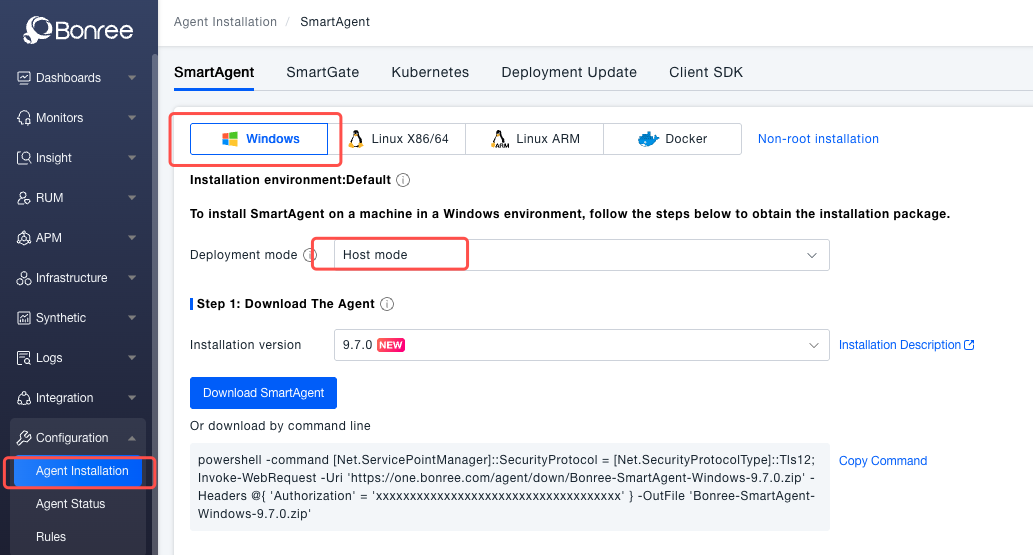
-
Download the latest
SmartAgent-Windowsinstallation package for your CPU architecture:powershell -command [Net.ServicePointManager]::SecurityProtocol = [Net.SecurityProtocolType]::Tls12; Invoke-WebRequest -Uri 'https://one.bonree.com/agent/down/Bonree-SmartAgent-Windows-<version>.zip' -Headers @{ 'Authorization' = '<token>' } -OutFile 'Bonree-SmartAgent-Windows-<version>.zip' -
Extract the package.
-
Run the installation command and configure parameters as needed (detailed installation parameters):
Bonree-SmartAgent.exe -a "<accountGUID>" -u "https://oneupload.bonree.com/APM" --set-env-id "default"
Verify Installation
-
Check logs to confirm communication with the platform:
C:\Program Files (x86)\bonree\apm\logs\machine\machine.log -
Verify driver status:
- Open Computer → Device Manager
- Locate smartagentmnt and expand to see Bonree SmartAgent Device driver
- Running: The driver is working properly and can automatically inject the APM agent
- Error state: The driver is unavailable and cannot inject agents automatically
- To disable, right-click the driver and select Disable Device
-
Restart the applications you want to monitor.
Service Management
-
Via Start Menu:
- Go to Start Menu → Bonree SmartAgent, and use the corresponding menu options.
-
Via Service Manager:
- Open Services or the Services tab in Task Manager
- Find Bonree SmartAgent service, then right-click to start/stop/restart
-
Via Scripts:
# Start
C:\Program Files (x86)\bonree\apm\startService.bat
# Stop
C:\Program Files (x86)\bonree\apm\stopService.bat
# Restart
C:\Program Files (x86)\bonree\apm\restartService.bat
Uninstallation
C:\Program Files (x86)\bonree\apm\uninst.exe
- .NET Agent Enable/Disable
- For non-IIS or dotnet command–launched .NET applications, agents are not automatically injected.
- To enable, explicitly configure process deep monitoring rules in the platform.