Create and Configure Business Traces
The goal of a business trace is not to reproduce every technical dependency. Model the nodes, relationships, and health signals that affect a critical business outcome so the path is both monitorable and actionable.
Prerequisites
- You have defined the business scope and critical path.
- The required entities and metrics are available through an Agent or Data Integration.
- You have permission to edit Business Observability.
If you have not created a business trace before, complete Create the business trace in the implementation steps first.
Create a business trace
- Go to Insight → Business OB → Business Trace.
- Click Create Business Trace.
- Enter a recognizable business name and save it.
- Continue adding and configuring nodes on the orchestration page.
Build the business topology
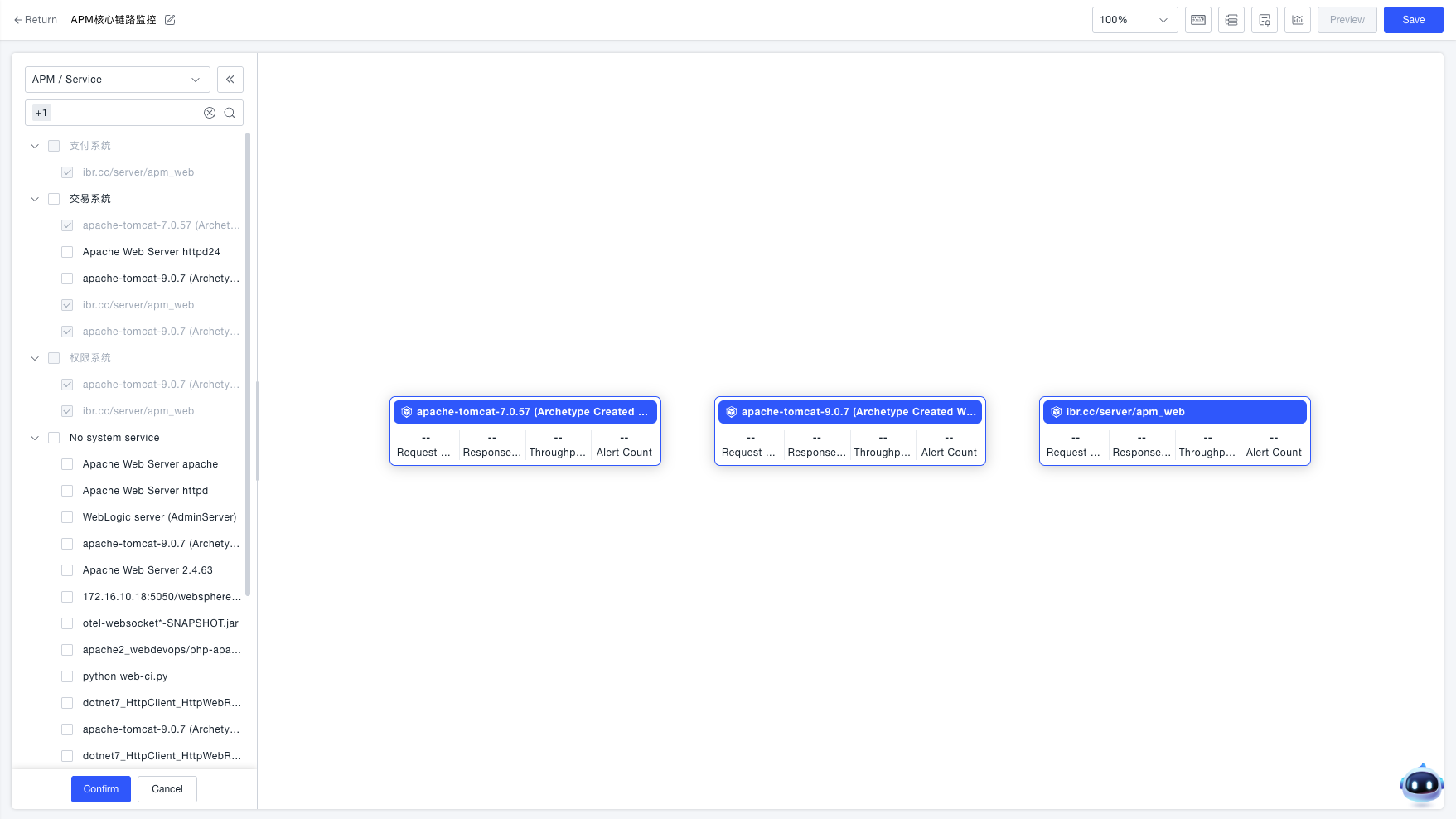
Add nodes
Select entities from the left panel and add them to the canvas.
| Entity type | Typical use |
|---|---|
| System, service, and interface | Represent core business systems and their calls. |
| Technical component | Represent infrastructure dependencies such as databases and middleware. |
| Application component | Represent database calls, message queues, remote services, or key methods. |
| Third-party entity | Represent external or unmanaged dependencies. |
Connect upstream and downstream nodes
Drag from the connector on an upstream node to the downstream node. The edge direction should match the actual direction of business requests.
Define interfaces
By default, an edge aggregates all calls between its upstream and downstream nodes. To monitor only selected interfaces:
- Hover over the edge.
- Click Define Interface.
- Add the interfaces to include and save the change.
Set the entry node
Set the point where business requests enter the topology as the entry node. Core metrics for the entry node are calculated from its first-level downstream edges. Core metrics for other nodes are calculated from their upstream edges. An incorrect entry node changes the metric scope.
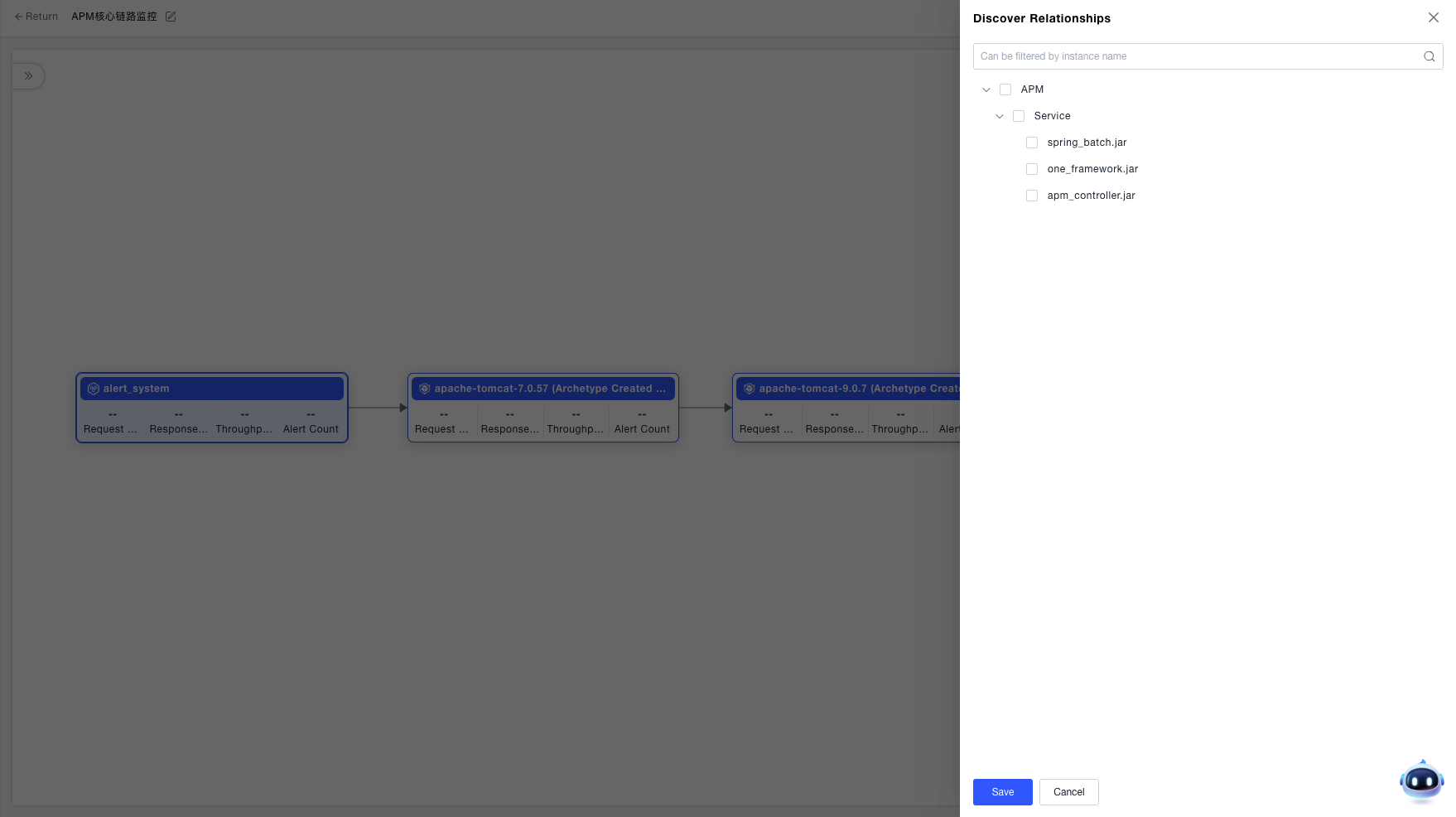
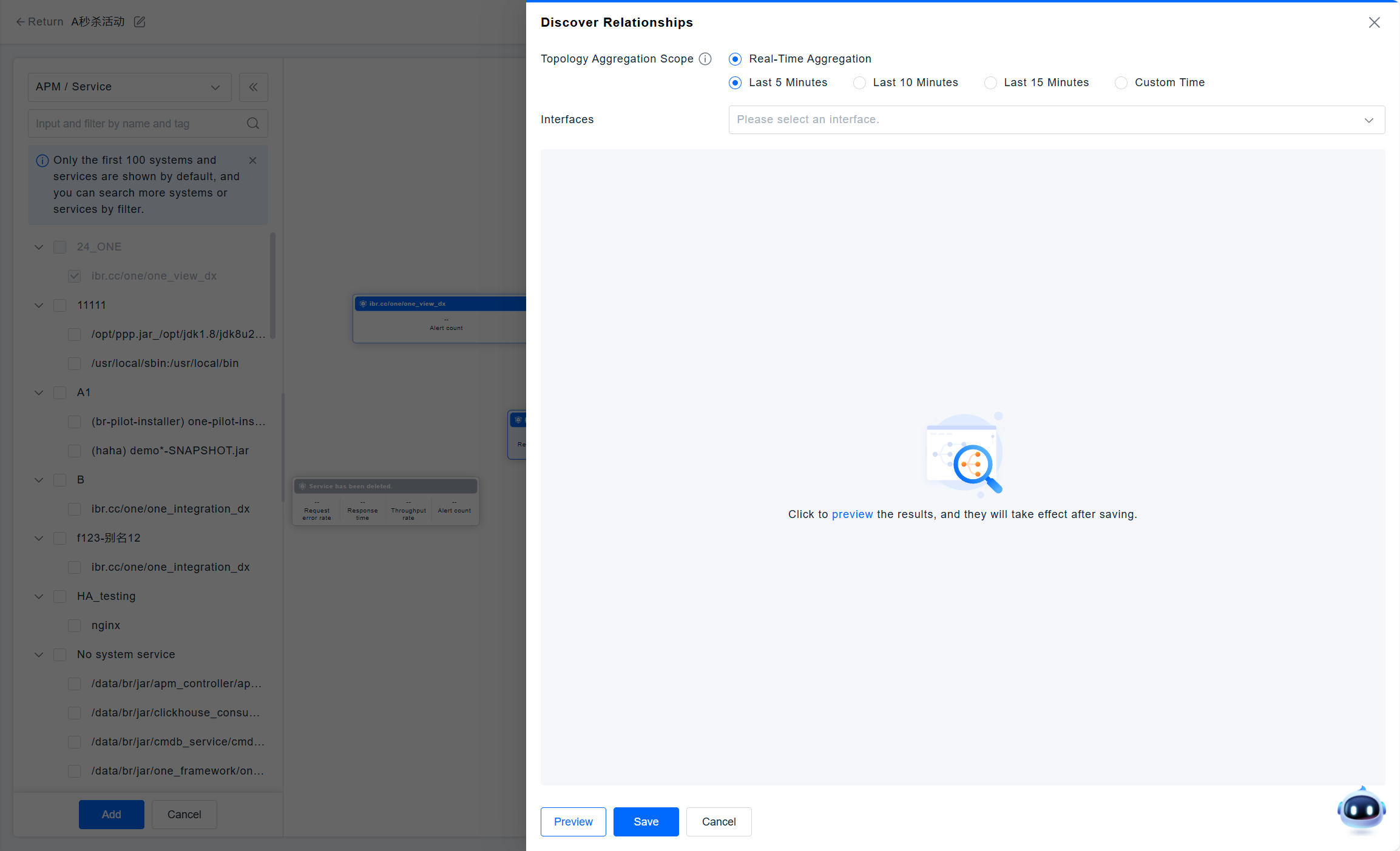
Discover existing relationships
When observable call relationships already exist, add related services and edges automatically:
- Edit the target node and click Discover Relationships.
- Select a time range.
- Select one or more interfaces if needed.
- Save the discovered relationships.
Reuse a similar node
Edit a node and click Clone to create an independent copy. Connect the cloned node to its actual upstream and downstream nodes manually.
Configure health signals
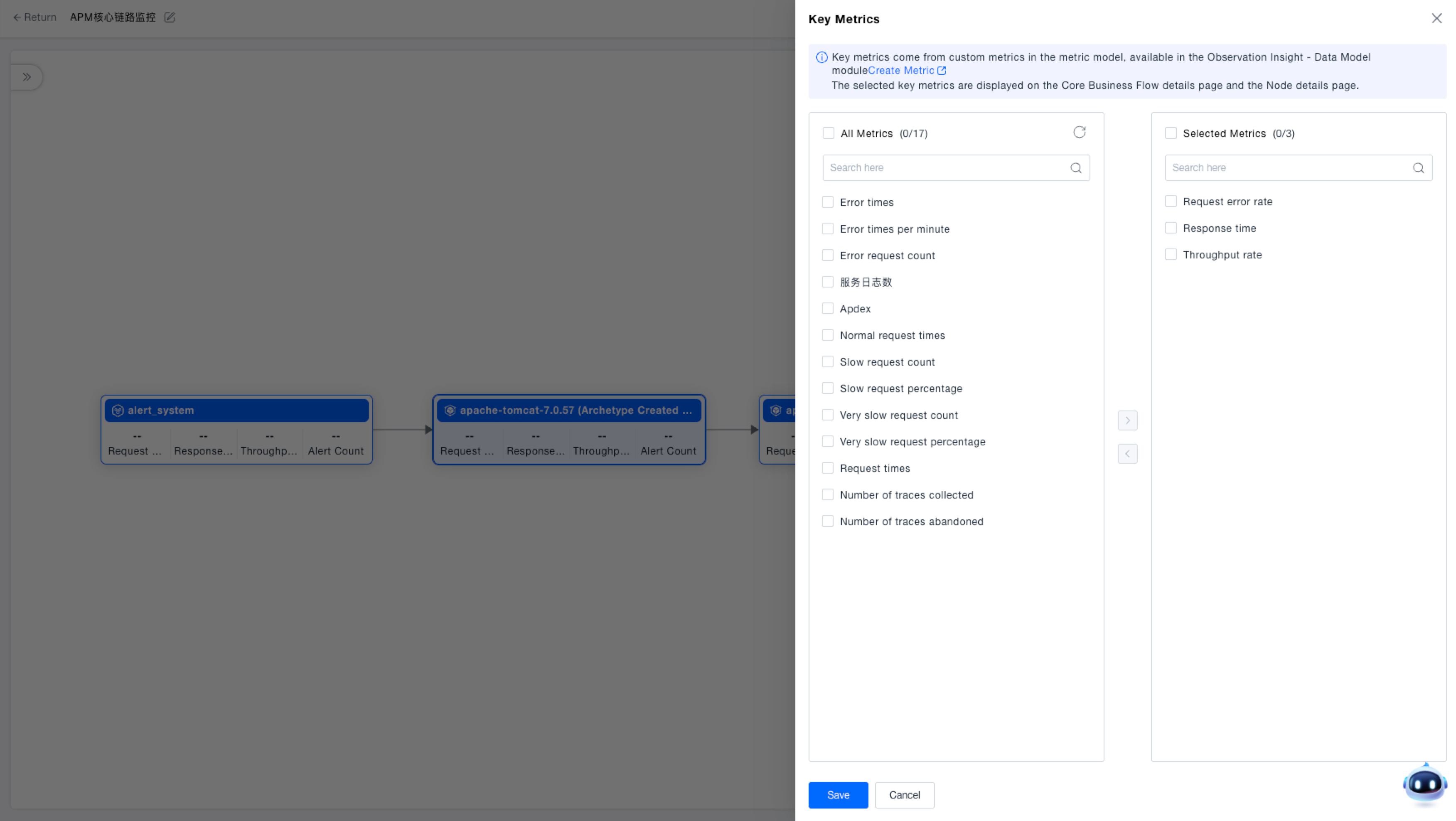
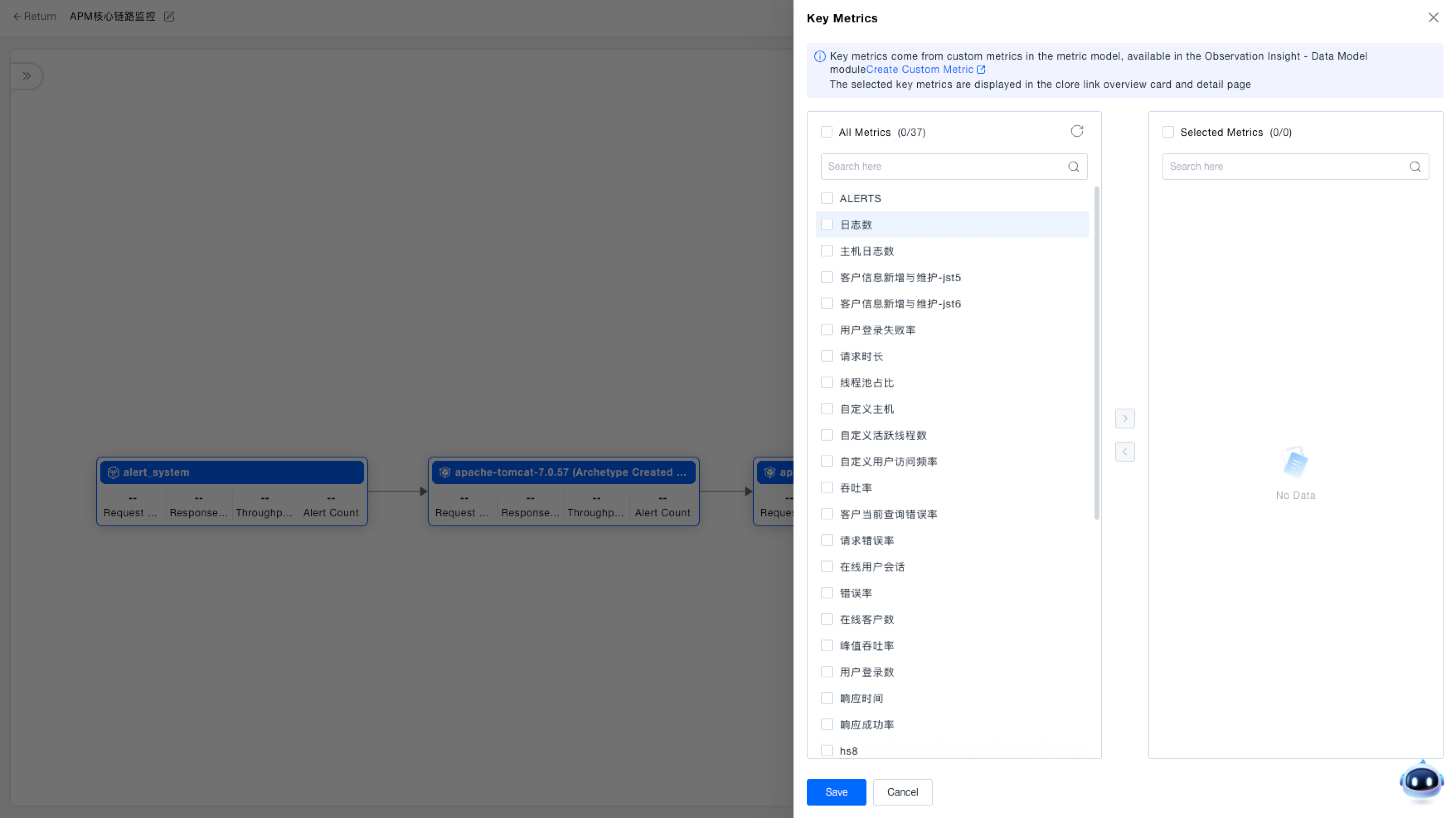
Configure node key metrics
- Edit the target node and open Key Metrics.
- Select a metric or define one with an expression.
- Save the configuration and verify that the node card displays the metric.
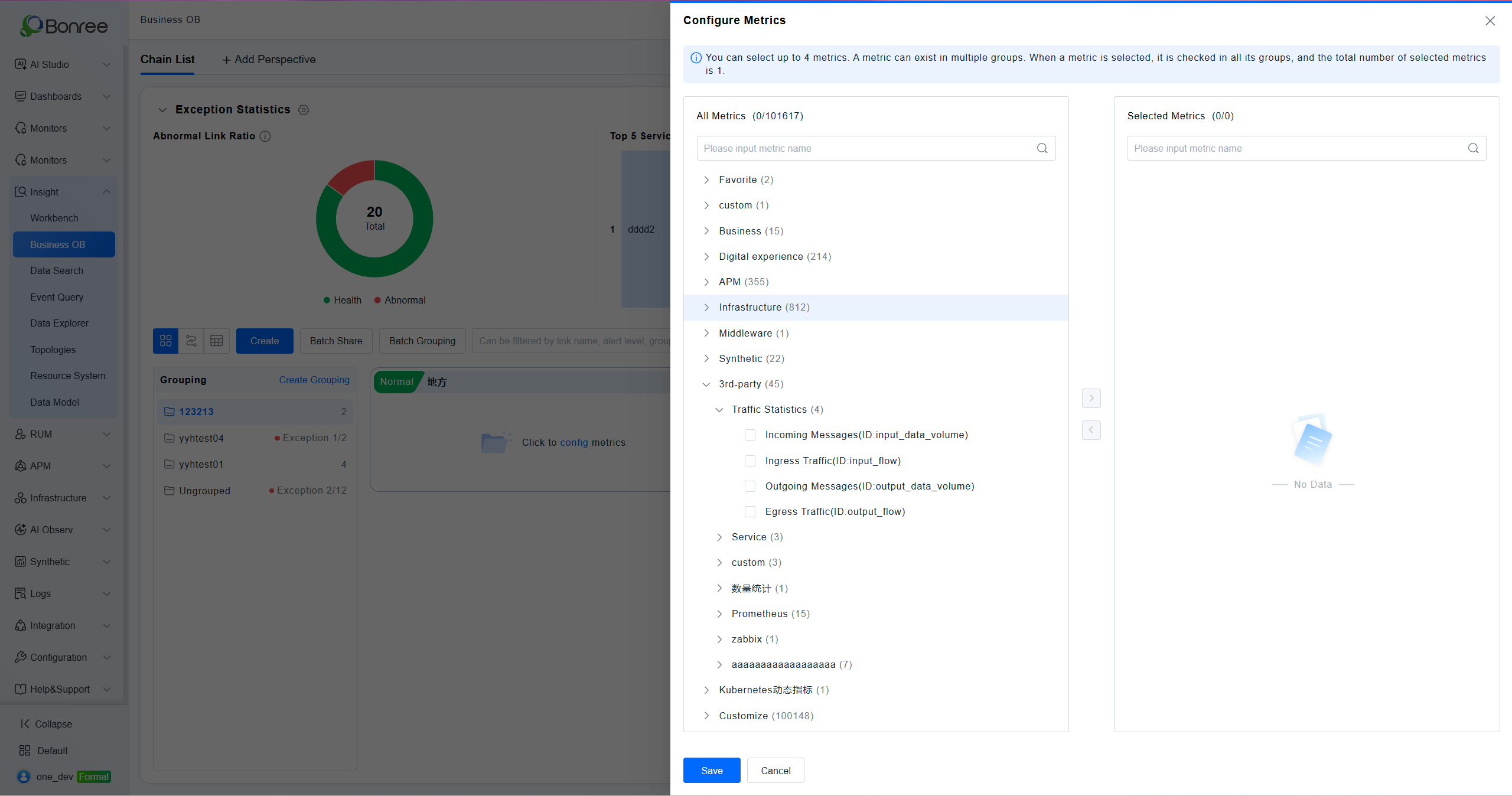
Configure business-trace key metrics
Select metrics that represent the outcome of the entire business trace. After you save them, the metrics appear on the business health dashboard and trace details page.
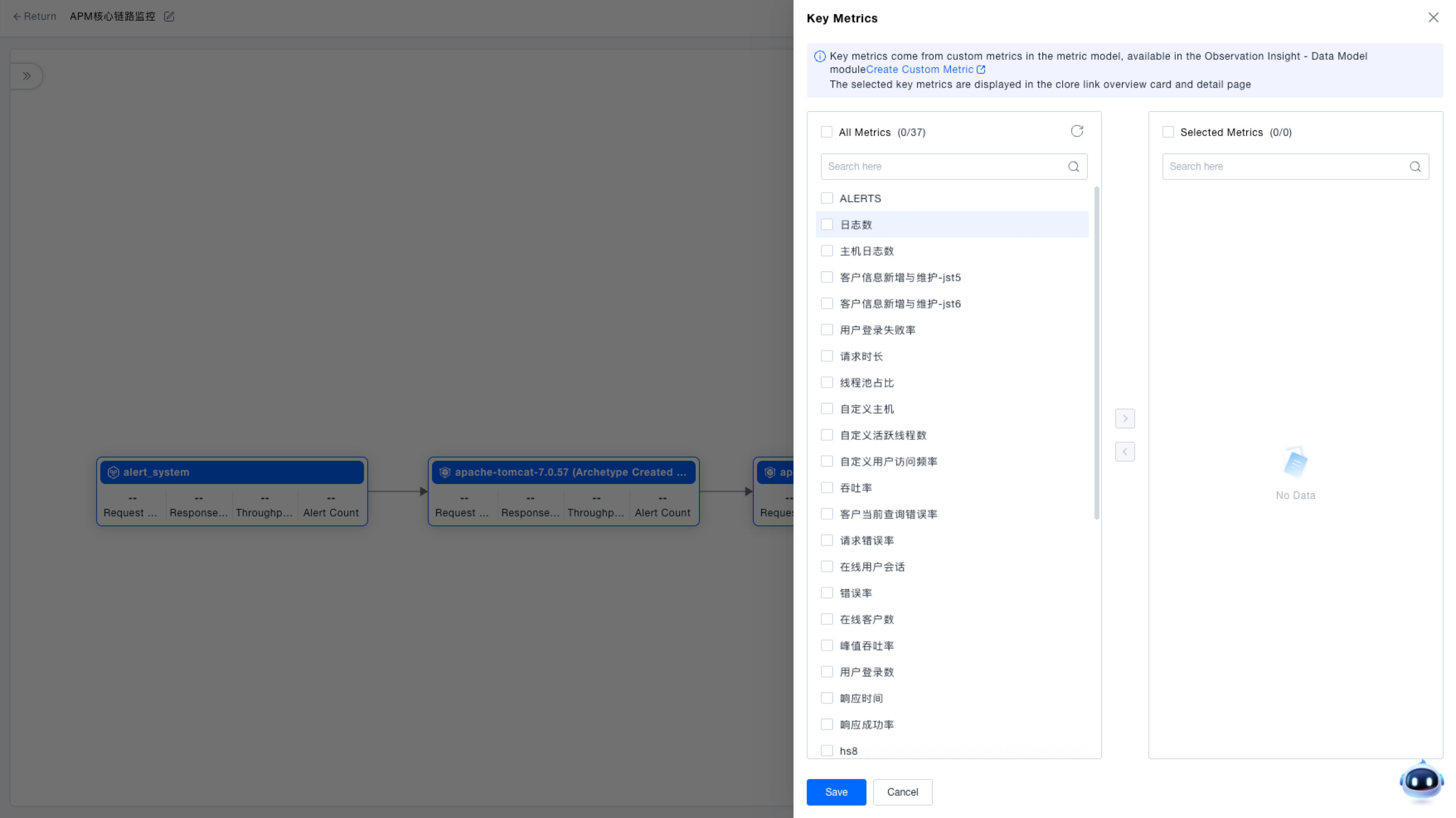
Associate alert rules
Associate alert rules with the business trace when required. After a rule triggers, the health dashboard shows the alert count and provides access to the alert list.
Organize the view
Use card groups
New business traces are assigned to Ungrouped by default. Create groups by business domain, team, or on-call scope to filter and compare related traces.
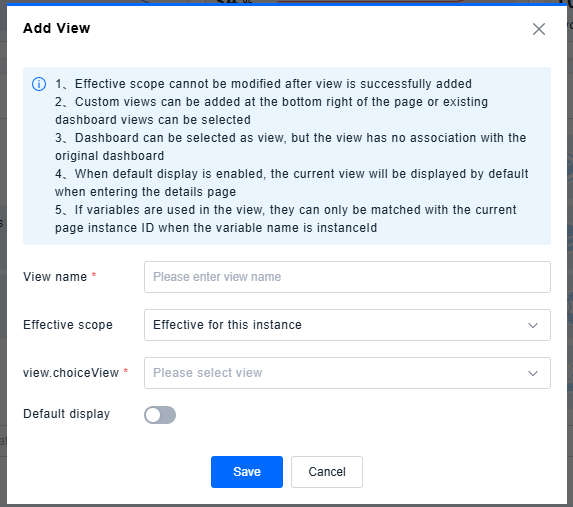
Add custom views
You can add an existing dashboard or custom view to a business trace. The effective scope cannot be changed after the view is added:
- This instance
- Partial instances
- All instances
The default display priority is This instance > Partial instances > All instances. For views at the same priority, the most recently added view wins.
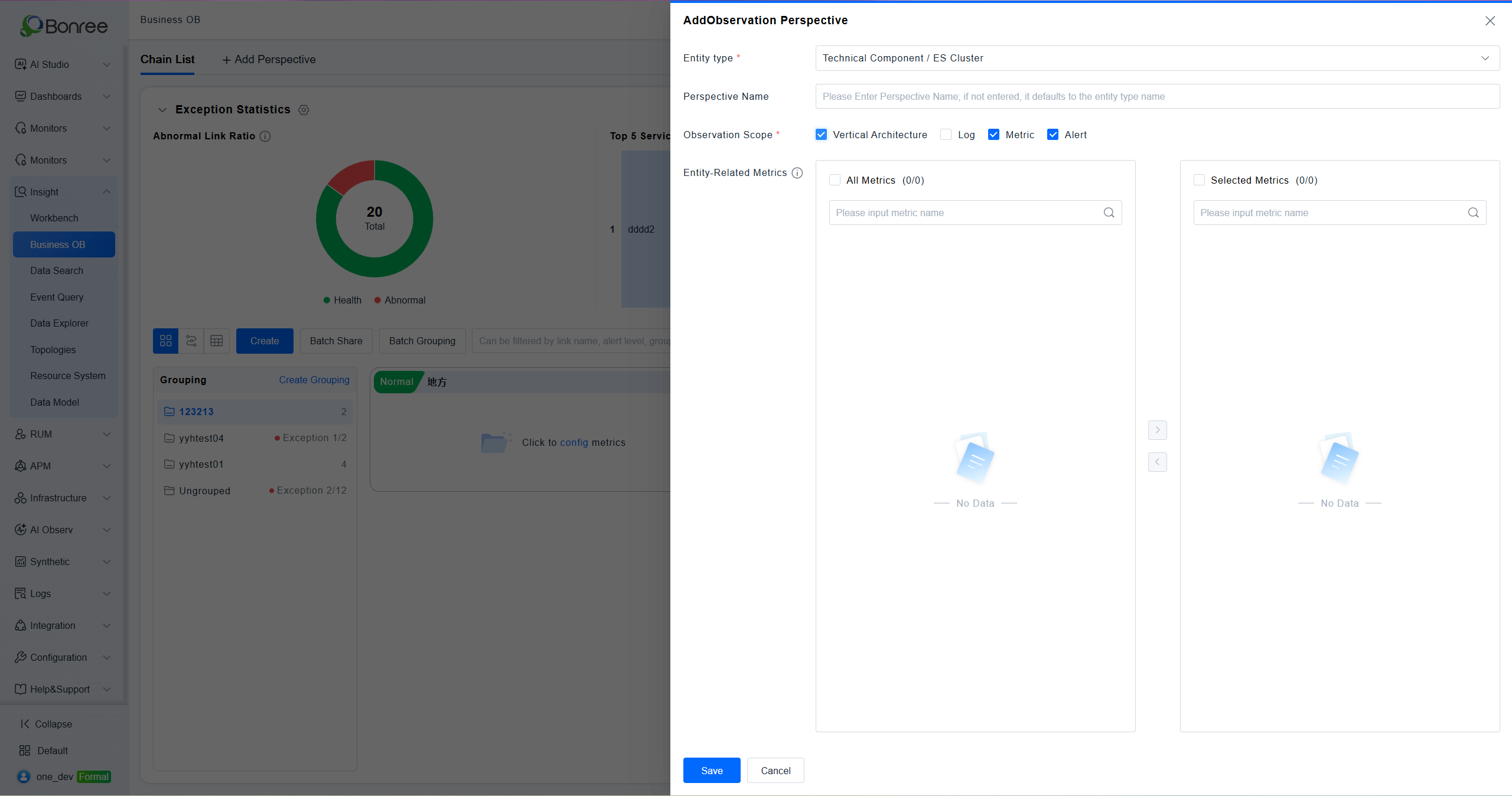
Configure vertical architecture
For technical components and third-party entities, add vertical architecture relationships so users can continue from the business node to related hosts, processes, and service instances.
Validate the configuration
Save the trace, return to the Business Trace page, and confirm that:
- The name and group are correct.
- Nodes and edges match the actual business direction.
- The entry node and interface scope are correct.
- Key metrics have data and alert rules are effective.
- Node details open the expected metrics, logs, or traces.
Troubleshooting
| Symptom | Recommendation |
|---|---|
| Relationship discovery returns no results | Expand the time range and verify that the node had calls during that period. |
| A key metric is empty | Check the metric or expression, data ingestion, and time range. |
| Trace metrics use the wrong scope | Check the entry node, edge direction, and interface definitions. |
| The wrong custom view is displayed | Check the effective scope and the order in which the views were added. |
Next steps
- For routine monitoring or incident response, see Monitor and Investigate Business Traces.