Business Trace Investigation Practice
Use the Business Trace page to identify flows that need attention during routine monitoring. When an anomaly appears, follow the same business path to locate affected nodes, correlate observability data, and verify recovery.
Prerequisites
- The target business trace exists and continues to receive data.
- Critical nodes have key metrics. Alert rules are associated when alert-based status is required.
- You can view the relevant metrics, alerts, logs, and traces.
1. Find and filter anomalies
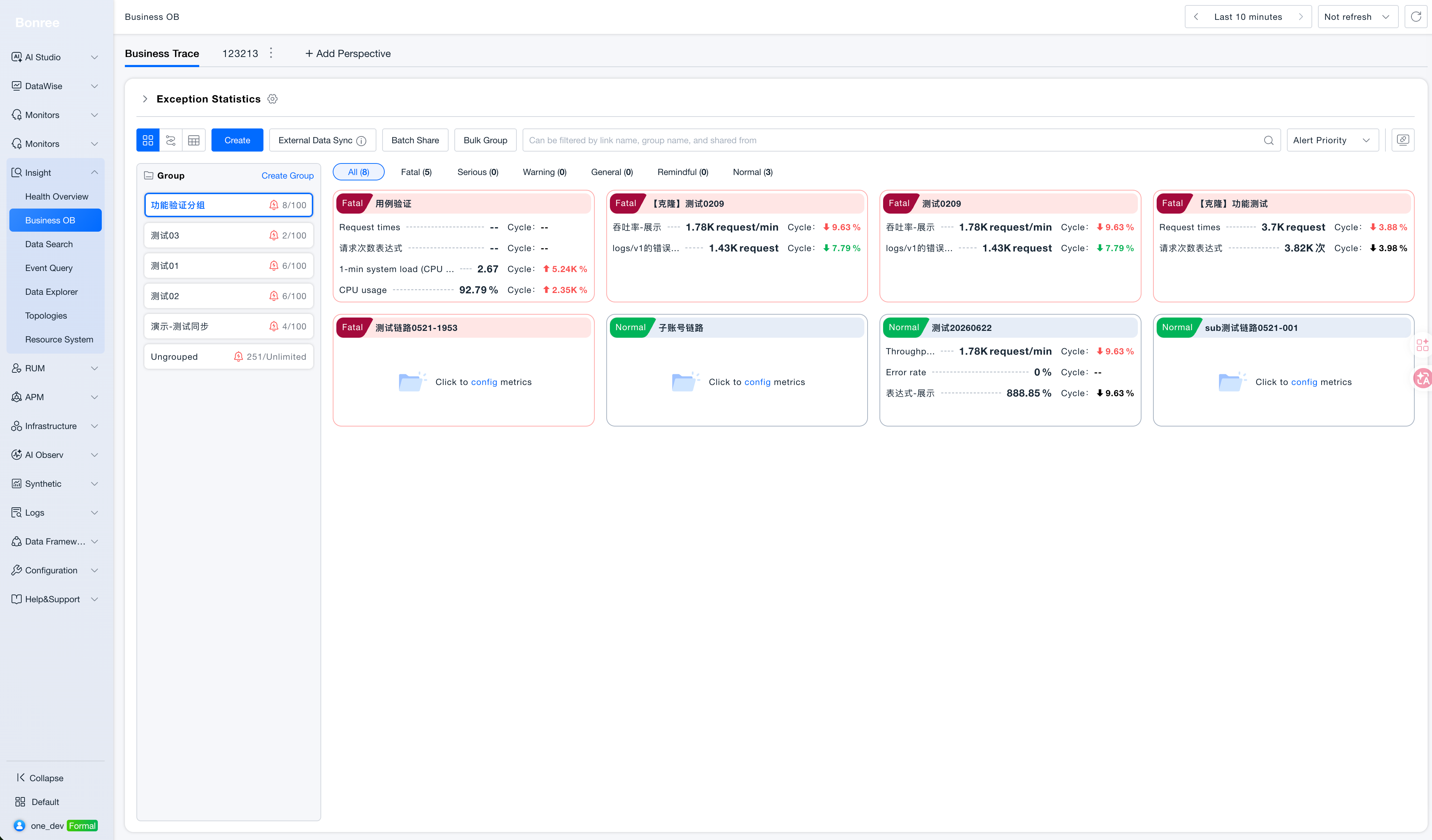
Go to Insight → Business OB → Business Trace:
- Filter by status to focus on red anomalous cards or green normal cards.
- Search by trace name, group name, or sharing source.
- Switch to a card group when you need to compare traces in the same business domain.
Use the card information to decide whether a trace needs attention:
| Card information | How to interpret it |
|---|---|
| Health state | Fatal, Severe, Warning, General, or Reminder indicate different anomaly levels. Normal indicates no current anomalous state. |
| Key metrics | Review request volume, throughput, error rate, CPU, and period-over-period changes. |
| Alert count | When the count increases, open the trace to identify the affected node or resource. |
| Missing data | A card without metrics does not prove that the business is healthy. Check metric configuration and ingestion. |
When you find an anomaly, determine:
- Which business trace became red.
- When error rate, response time, throughput, or another key metric started to change.
- Whether multiple related business traces are anomalous.
- Whether the current alert severity and count continue to increase.
2. Locate the anomalous node
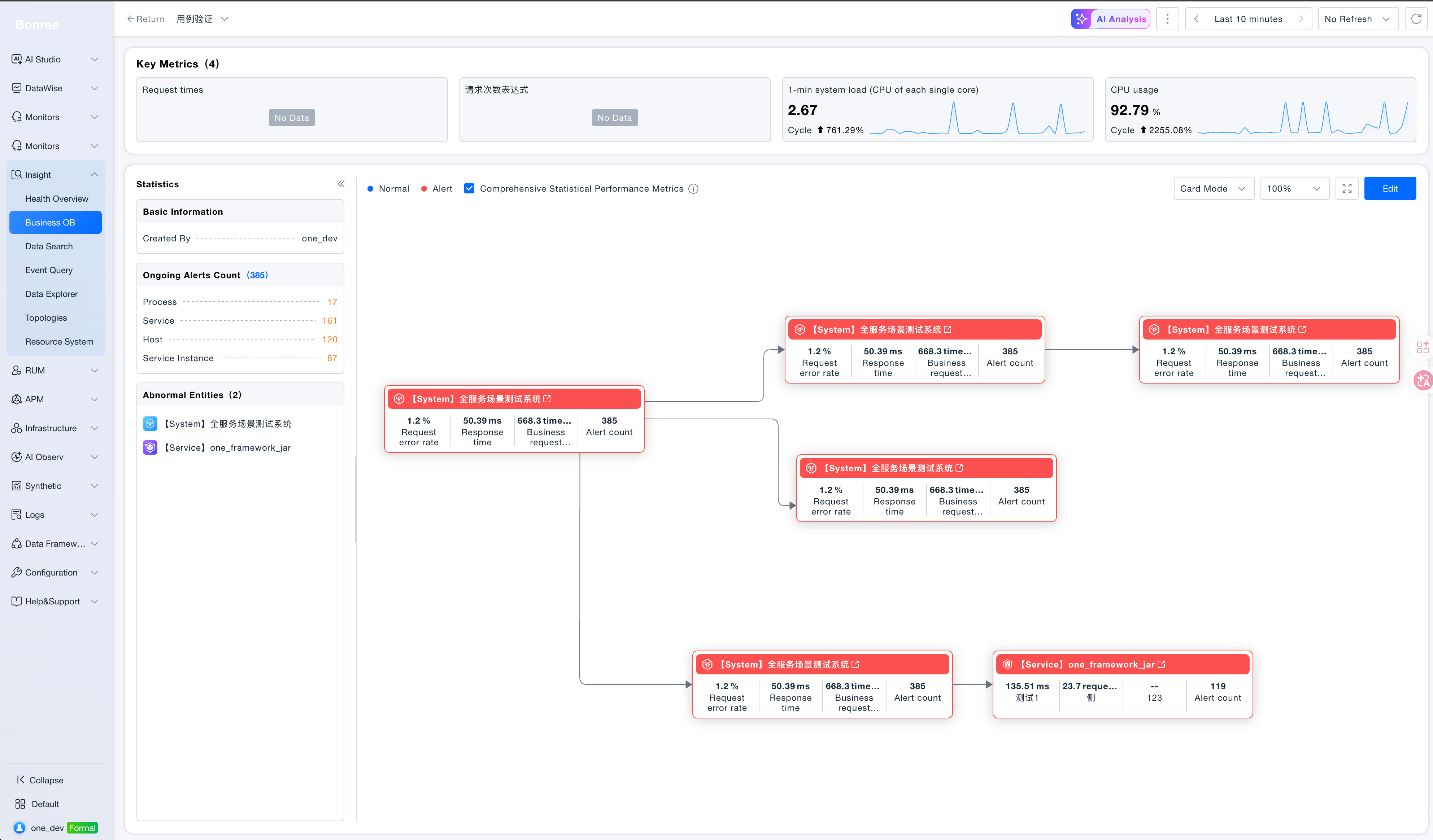
Open the target trace and review red nodes and their upstream and downstream relationships. Start with the anomalous node closest to the business entry point, then follow dependencies to determine whether the issue propagated downstream.
3. Inspect the node and related resources
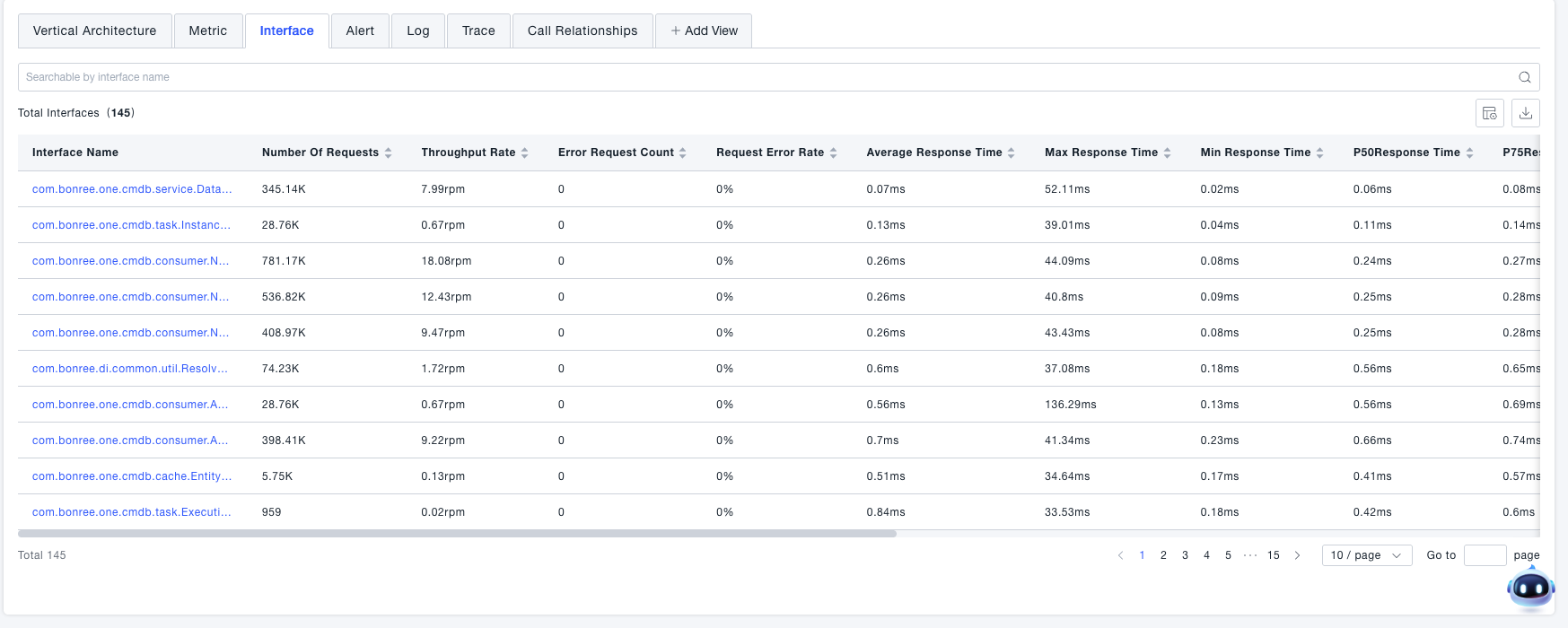
Open the anomalous node and review ongoing alerts, anomalous entities, and vertical architecture. For a service node, continue to its hosts, processes, and service instances to look for resource saturation, process anomalies, or instance failures.
4. Correlate observability data
Choose the drill-down entry point that matches the symptom:
| Symptom | Start with | Goal |
|---|---|---|
| Increased latency | Metrics, interfaces, traces | Find the interface, service, or request with increased duration. |
| Increased error rate | Alerts, logs, traces | Confirm the error type, exception, and failed requests. |
| Throughput change | Metrics, call relationships | Understand traffic changes and upstream or downstream impact. |
| Resource alert | Vertical architecture, metrics, logs | Locate the affected host, process, or service instance. |
| One anomalous node | Call relationships, adjacent nodes | Determine whether the problem is local or propagated from a dependency. |
Do not conclude from a single signal. Use alerts to establish timing and severity, metrics to verify the trend, and logs or traces to confirm the specific cause.
5. Verify recovery
After the fix, continue observing the same business trace and confirm that:
- Ongoing alerts close or stop increasing.
- The anomalous node returns to a normal state.
- Key metrics return to their expected range or trend.
- Related upstream and downstream nodes remain healthy.
Troubleshooting
| Symptom | Recommendation |
|---|---|
| Only a trace-level metric is anomalous | Review the business-trace key metric and alert rule, then drill down through the entity associated with that metric. |
| A node has no logs or traces | Verify ingestion and confirm that the entity, environment, and time range match. |
| Several nodes turn red at once | Start from the business entry point and common dependencies. Compare first-alert times to infer the propagation direction. |
| The trace remains anomalous after the fix | Confirm alert recovery and continued ingestion, then allow the current aggregation period to refresh. |
| Search does not return a trace | Clear status and group filters, and verify whether another user shared the trace. |