mPaaS
SDK Integration Guide
Cocoapods Integration
-
Add the following to your project's
Podfile:pod 'BonreeSDK' -
Execute
pod installin the directory where yourPodfileis located
Manual Integration
-
Unzip
BonreeSDK_TDEM_iOS.tar.gz. After extraction, you will see two directories:XCFrameworkDynamicandXCFrameworkStatic. TheXCFrameworkDynamicdirectory contains dynamic libraries, and theXCFrameworkStaticdirectory contains static libraries. Choose one for integration based on your requirements. -
Add
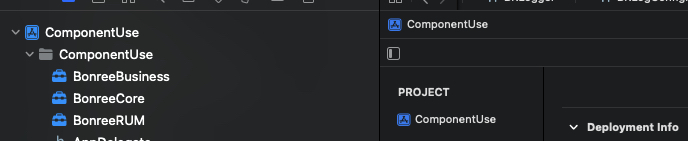
BonreeCore.xcframework,BonreeBusiness.xcframework, andBonreeRUM.xcframeworkto your project, as shown in the figure:
If
BonreeCore.xcframeworkandBonreeBusiness.xcframeworkhave already been integrated, there is no need to add them again.
-
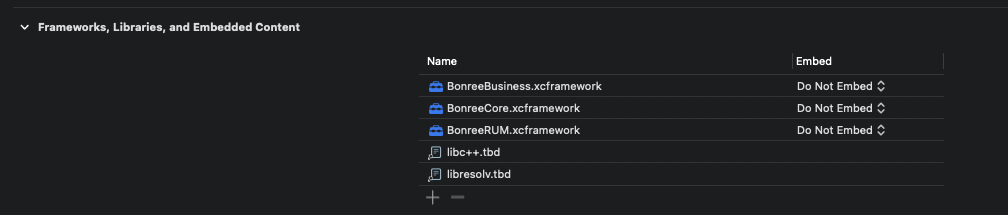
In Build Phases -> Link Binary With Libraries, add
BonreeCore.xcframework,BonreeBusiness.xcframework, andBonreeRUM.xcframework. -
Add the following dependency libraries:
- libresolv.tbd (must be included)
- libc++.tbd (must be included)
- WebKit.framework (required if the project supports versions before iOS 8)
-
Modify the Embed option: If integrating static libraries, select
Do Not Embed. If integrating dynamic libraries, selectEmbed & Sign.
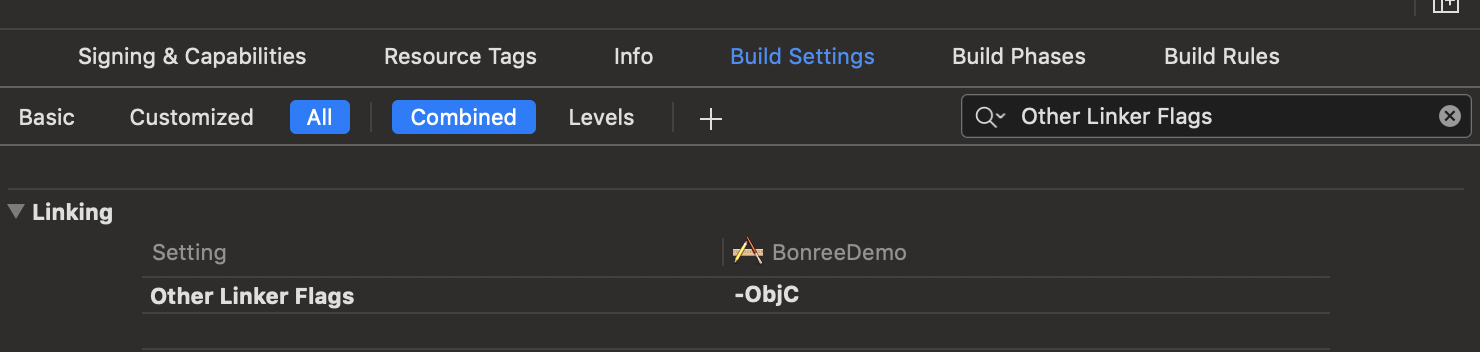
- In Build Settings, search for Other Linker Flags and add the compilation flag -ObjC, as shown in the figure:
SDK Setup
<#Config Address#> and <#AppID#> can be obtained from the platform. For the method to obtain them, please refer to How to Query AppID and Config Address?. If you have any questions, please contact technical support.
To start BonreeSDK in the mPaaS framework, you need to implement the - application:beforeDidFinishLaunchingWithOptions: method in the DTFrameworkInterface category and call the start method within it.
- Import the header file:
#import <BonreeRUM/BonreeRUM.h>
- Call the start method:
- (void)application:(UIApplication *)application beforeDidFinishLaunchingWithOptions:(NSDictionary *)launchOptions {

    [BRSAgent setConfigAddress:@"<#Config Address#>"];
    [BRSAgent startWithAppID:@"<#AppID#>"];
}
After running, if the console outputs BonreeSDK config succeeded, it indicates successful integration. As shown below:
2020-12-03 16:17:21.391 [BonreeSDK] [CONFIG] BonreeSDK Config Succeeded.
Mobile Gateway Feature Support
1. Network Data Support
Call the + useMpaas: method with YES before the + startWithAppID: method. Example:
- (void)application:(UIApplication *)application beforeDidFinishLaunchingWithOptions:(NSDictionary *)launchOptions {
    [BRSAgent useMpaas:YES];

    [BRSAgent setConfigAddress:@"<#Config Address#>"];
    [BRSAgent startWithAppID:@"<#AppID#>"];
}
After enabling the mPaaS switch, network data will determine whether the network request is correct based on the value of the result-status field in the HTTP response header, and report related information such as error codes to the platform for display.
Note: This feature only supports requests initiated by native code.
2. Mobile Gateway Business Field Capture
Call the + setCustomBusinessHeaders: method before the + startWithAppID: method and pass Operation-Type (use the actual request header value) as a string array. Example:
- (void)application:(UIApplication *)application beforeDidFinishLaunchingWithOptions:(NSDictionary *)launchOptions {
    [BRSAgent useMpaas:YES];

    [BRSAgent setCustomBusinessHeaders:@[@"Operation-Type"]];

    [BRSAgent setConfigAddress:@"<#Config Address#>"];
    [BRSAgent startWithAppID:@"<#AppID#>"];
}
After passing the business header fields, the value corresponding to the passed field in the network request header will be appended to the URL in query format, allowing you to distinguish network request data for different businesses on the platform.
Log Integration Guide
Cocoapods Integration
-
Add the following to your project's
Podfile:pod 'BonreeLog' -
Execute
pod installin the directory where yourPodfileis located
Manual Integration
-
Unzip
BonreeSDK_TDEM_iOS.tar.gz. After extraction, you will see two directories:XCFrameworkDynamicandXCFrameworkStatic. TheXCFrameworkDynamicdirectory contains dynamic libraries, and theXCFrameworkStaticdirectory contains static libraries. Choose one for integration based on your requirements. -
Add
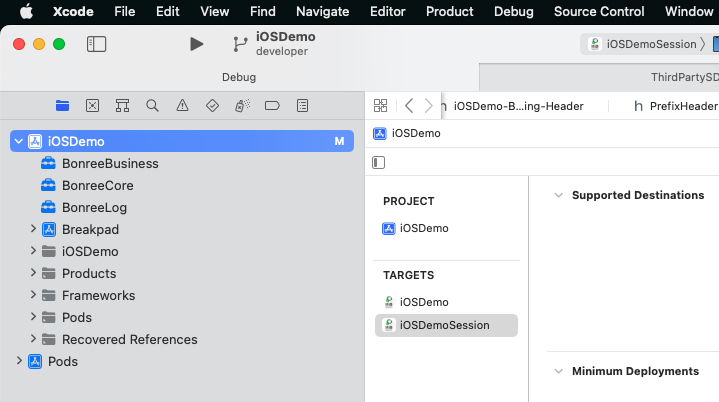
BonreeCore.xcframework,BonreeBusiness.xcframework, andBonreeLog.xcframeworkto your project, as shown in the figure:
-
In Build Phases -> Link Binary With Libraries, add
BonreeCore.xcframework,BonreeBusiness.xcframework, andBonreeLog.xcframework. -
Modify the Embed option: If integrating static libraries, select
Do Not Embed. If integrating dynamic libraries, selectEmbed & Sign.

- In Build Settings, search for Other Linker Flags and add the compilation flag -ObjC, as shown in the figure:
Log Setup
AppID and LogConfig Address can be obtained from the platform or by contacting technical support.
To start BonreeLog in the mPaaS framework, you need to implement the - application:beforeDidFinishLaunchingWithOptions: method in the DTFrameworkInterface category. In this method, set the Config address and customize the configuration to start the log Agent:
Objective-C
- Import the header file:
#import <BonreeLog/BonreeLog.h>
- Set the log remote configuration address:
[BRLogAgent setConfigAddress:@"<#LogConfig Address#>"];
- After setting the remote configuration address, enable the log probe:
// Create custom configuration
BRLogConfiguration *config = [[BRLogConfiguration alloc] init];
config.isTrackingData = YES; // Whether to report data
config.appID = @"<#AppID#>"; // Application appID, can be viewed on the platform

[BRLogAgent startWithConfiguration:config];
For detailed parameter descriptions of the
BRLogConfigurationclass, please refer to the log API documentation.
Example:
- (void)application:(UIApplication *)application beforeDidFinishLaunchingWithOptions:(NSDictionary *)launchOptions {

    [BRLogAgent setConfigAddress:@"<#LogConfig Address#>"];

    // Create custom configuration
    BRLogConfiguration *config = [[BRLogConfiguration alloc] init];
    config.isTrackingData = YES;
    config.appID = @"<#AppID#>"; // Application appID, can be viewed on the platform

    [BRLogAgent startWithConfiguration:config];
}
Swift
- Import the header file:
import BonreeLog
- Set the log remote configuration address:
BRLogAgent.setConfigAddress("<#LogConfig Address#>")
- After setting the remote configuration address, enable the log probe:
// Create custom configuration
let config = BRLogConfiguration()
config.isTrackingData = true // Whether to report log data
config.appID = "<#AppID#>" // Application appID, can be viewed on the platform

BRLogAgent.start(with: config)
For detailed parameter descriptions of the
BRLogConfigurationclass, please refer to the log API documentation.
Example:
func application(_ application: UIApplication, beforeDidFinishLaunchingWithOptions launchOptions: [UIApplication.LaunchOptionsKey : Any]?) {

    BRLogAgent.setConfigAddress("<#LogConfig Address#>")

    // Create custom configuration
    let config = BRLogConfiguration()
    config.isTrackingData = true
    config.appID = "<#AppID#>" // Application appID, can be viewed on the platform

    BRLogAgent.start(with: config)
}
After running, if the console outputs BRLogAgent config succeeded, it indicates successful integration. As shown below:
2023-04-12 19:48:21.391 [BRLogAgent] [CONFIG] Config Succeeded.
Log Usage
- Use the BRLogger class for log output, allowing custom Logger objects to handle different business scenarios.

### Objective-C

* Import the header file:

```objc
#import <BonreeLog/BonreeLog.h>
- Customize the configuration class
BRLoggerBuilderto generate personalized log objects:
// Custom logger configuration
BRLoggerBuilder *builder = [[BRLoggerBuilder alloc] init];
builder.levelThreshold = BRLogLevelDebug; // Log level threshold
builder.loggerName = @"Home Logger"; // Custom logger name
builder.printConsole = YES; // Whether to print to console
builder.prefix = @"[Bonree]"; // Log message prefix
For detailed parameter descriptions of the
BRLoggerBuilderclass, please refer to the log API documentation.
- Create a
BRLoggerobject using the above configuration and call the log output methods:
// Create logger with configuration
BRLogger *logger = [BRLogger loggerWithBuilder:builder];

// Log output
[logger debug:@"Debug log"];
[logger error:@"Error log"];
BRLoggersupports multiple log level outputs. For detailed descriptions, please refer to the log API documentation.
Example:
- (void)viewDidLoad {
    [super viewDidLoad];

    // Custom logger configuration
    BRLoggerBuilder *builder = [[BRLoggerBuilder alloc] init];
    builder.levelThreshold = BRLogLevelDebug; // Log level threshold
    builder.loggerName = @"Home Logger"; // Custom logger name
    builder.printConsole = YES; // Whether to print to console
    builder.prefix = @"[Bonree]"; // Log message prefix

    // Create logger with configuration
    BRLogger *logger = [BRLogger loggerWithBuilder:builder];

    // Log output
    [logger debug:@"Debug log"];
    [logger error:@"Error log"];
}
Swift
- Import the header file:
import BonreeLog
- Customize the configuration class
BRLoggerBuilderto generate personalized log objects:
// Custom logger configuration
let builder = BRLoggerBuilder()
builder.levelThreshold = .debug // Log level threshold
builder.loggerName = "Home Logger" // Custom logger name
builder.printConsole = true // Whether to print to console
builder.prefix = "[Bonree]" // Log message prefix
For detailed parameter descriptions of the
BRLoggerBuilderclass, please refer to the log API documentation.
- Create a
BRLoggerobject using the above configuration and call the log output methods:
// Create logger with configuration
let logger = BRLogger(builder: builder)

// Log output
logger.debug("Debug log")
logger.error("Error log")
BRLoggersupports multiple log level outputs. For detailed descriptions, please refer to the log API documentation.
Example:
override func viewDidLoad() {
    super.viewDidLoad()

    // Custom logger configuration
    let builder = BRLoggerBuilder()
    builder.levelThreshold = .debug // Log level threshold
    builder.loggerName = "Home Logger" // Custom logger name
    builder.printConsole = true // Whether to print to console
    builder.prefix = "[Bonree]" // Log message prefix

    // Create logger with configuration
    let logger = BRLogger(builder: builder)
    // Log output
    logger.debug("Debug log")
    logger.error("Error log")
}
Note: We recommend configuring data collection rules on the platform under Installation & Deployment / Rule Configuration / Data Collection / Terminal Application immediately after completing SDK integration, to avoid discrepancies between platform data and your expectations.