Managing Permissions in Bulk with User Groups
To enhance the efficiency of administrators in managing user permissions within complex organizations, the platform supports administrators in managing user permissions in bulk through User Groups. This section explains the usage of related functionalities.
Specifying Permissions for User Groups
Creating and Managing IAM Groups has already detailed the creation and usage of User Groups. You can refer to that document and divide User Groups based on the characteristics of your organization. If you have clear expectations about the permissions a User Group should possess, you can directly specify these permissions during the User Group creation process. Adding permissions to a User Group is similar to adding permissions for a user: you need to specify the corresponding Role, Environment, and Resource Domain (Environment and Resource Domain determine the scope of authorized data, while the Role determines which functionalities can be used and what operations can be performed on the authorized data).
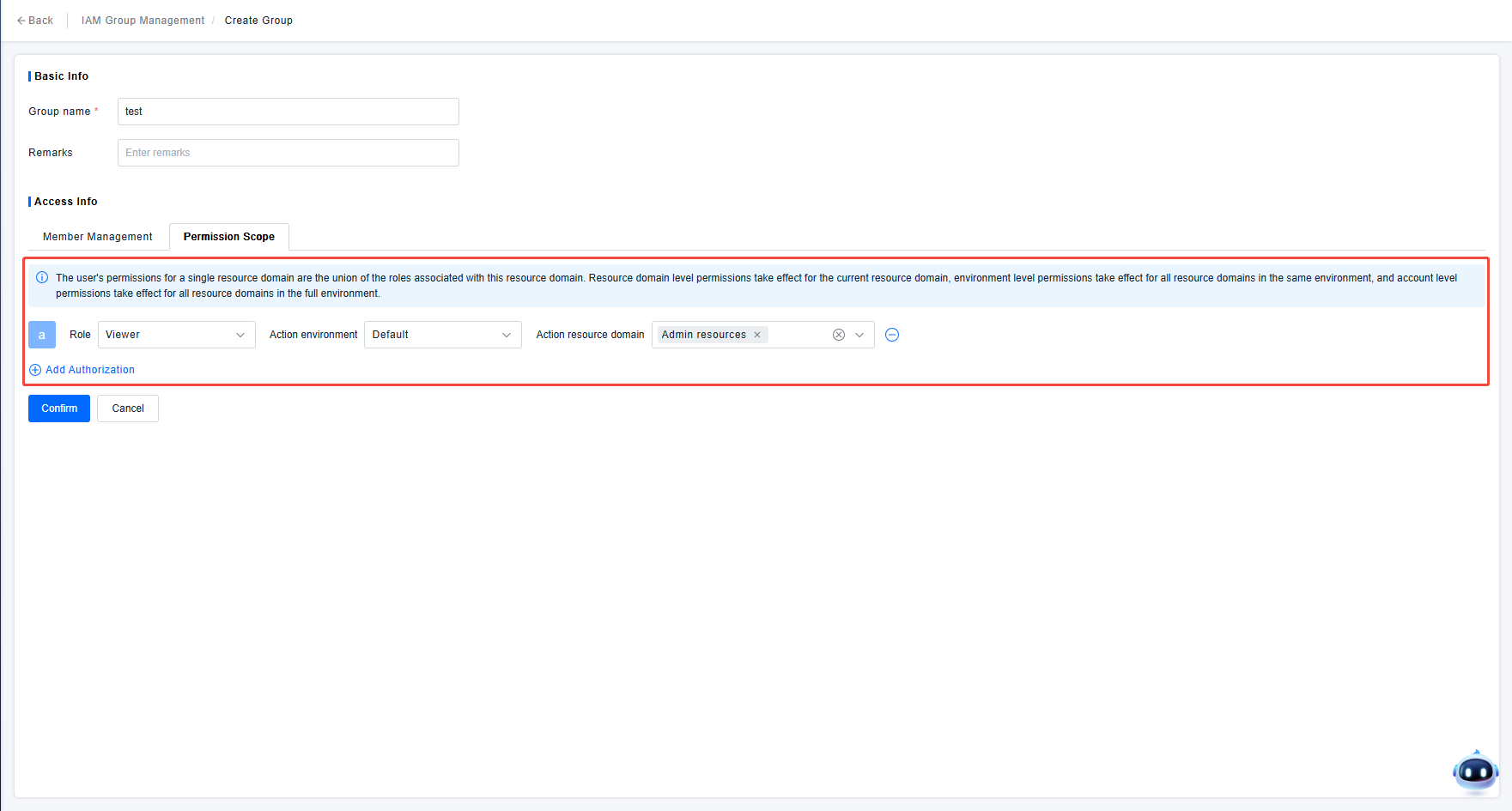
After setting the User Group permissions, users need to be added to the corresponding User Groups according to the actual permission control expectations and saved. Subsequently, users under the User Group will automatically inherit the group's permissions when accessing the ONE platform.
User Group Permission Management
Adjusting Users in User Groups
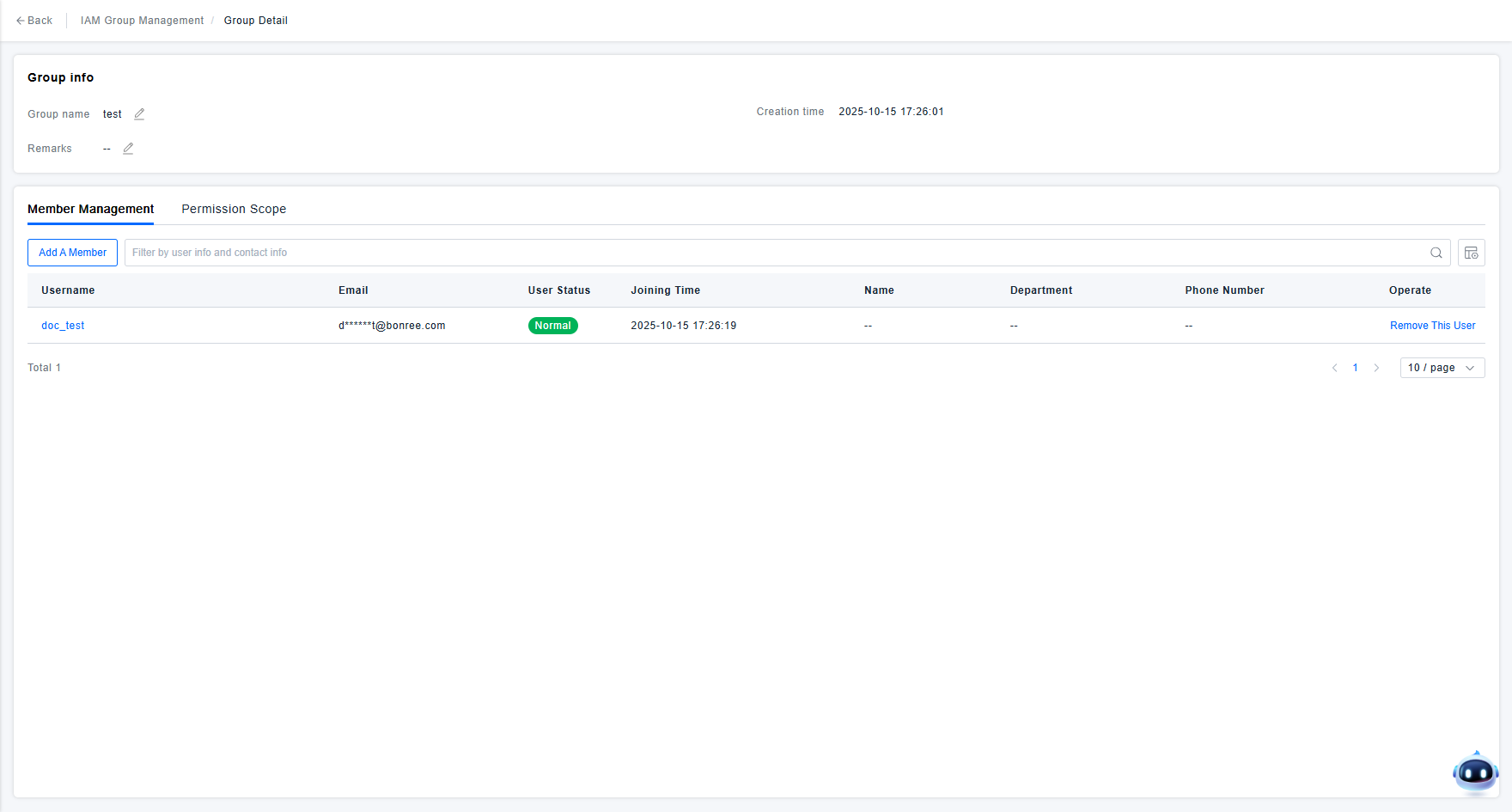
Since user permissions are inherited from the User Group when managing permissions via User Groups, administrators only need to add users to the appropriate User Groups using the "Add Members" function in the User Group details or list. If user permission changes are due to changes in personnel affiliation within the organization, administrators can update user permissions by removing the user from the old User Group and adding them to the new User Group.
User details display the details of the permission policies the user possesses, including permissions inherited from User Groups. To confirm the specific permissions of a user, please check the user details.
Adjusting the Permission Scope of User Groups
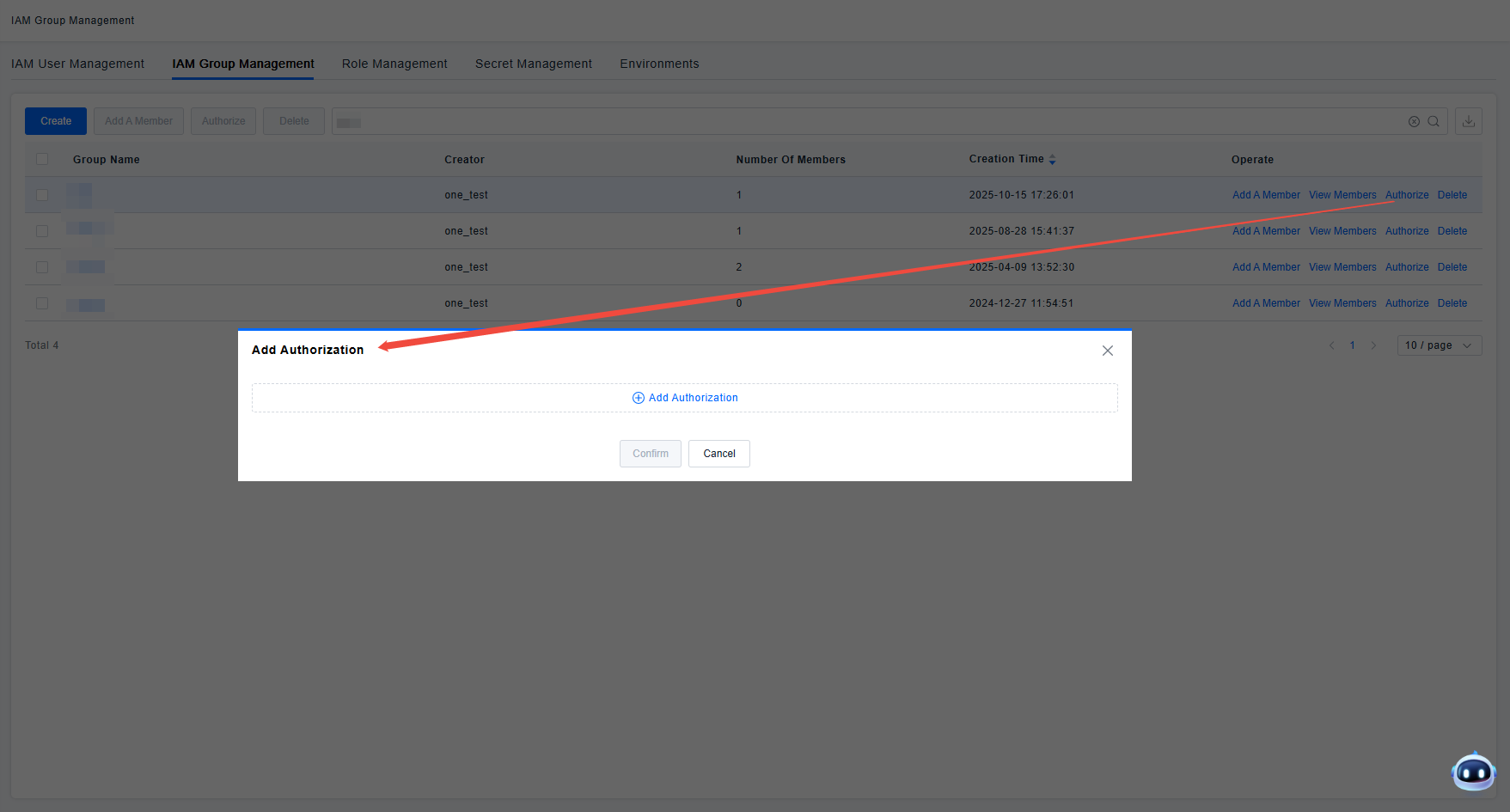
If adjustments in responsibilities, business, etc., within the organization require corresponding updates to user permissions, you can adjust the permission policies of the User Group using the "Add Authorization" function in the User Group list or the permission policy management function on the User Group details page. This ensures that users under the User Group, as well as users joining this group in the future, have the correct functional and data permissions.