Recipient Group Management
For recipients who frequently need to receive the same notifications simultaneously, users can create a recipient group to manage them collectively. Selecting the group directly during notification setup effectively reduces repetitive manual selection of individual recipients.
Getting Started
Recipient Group List
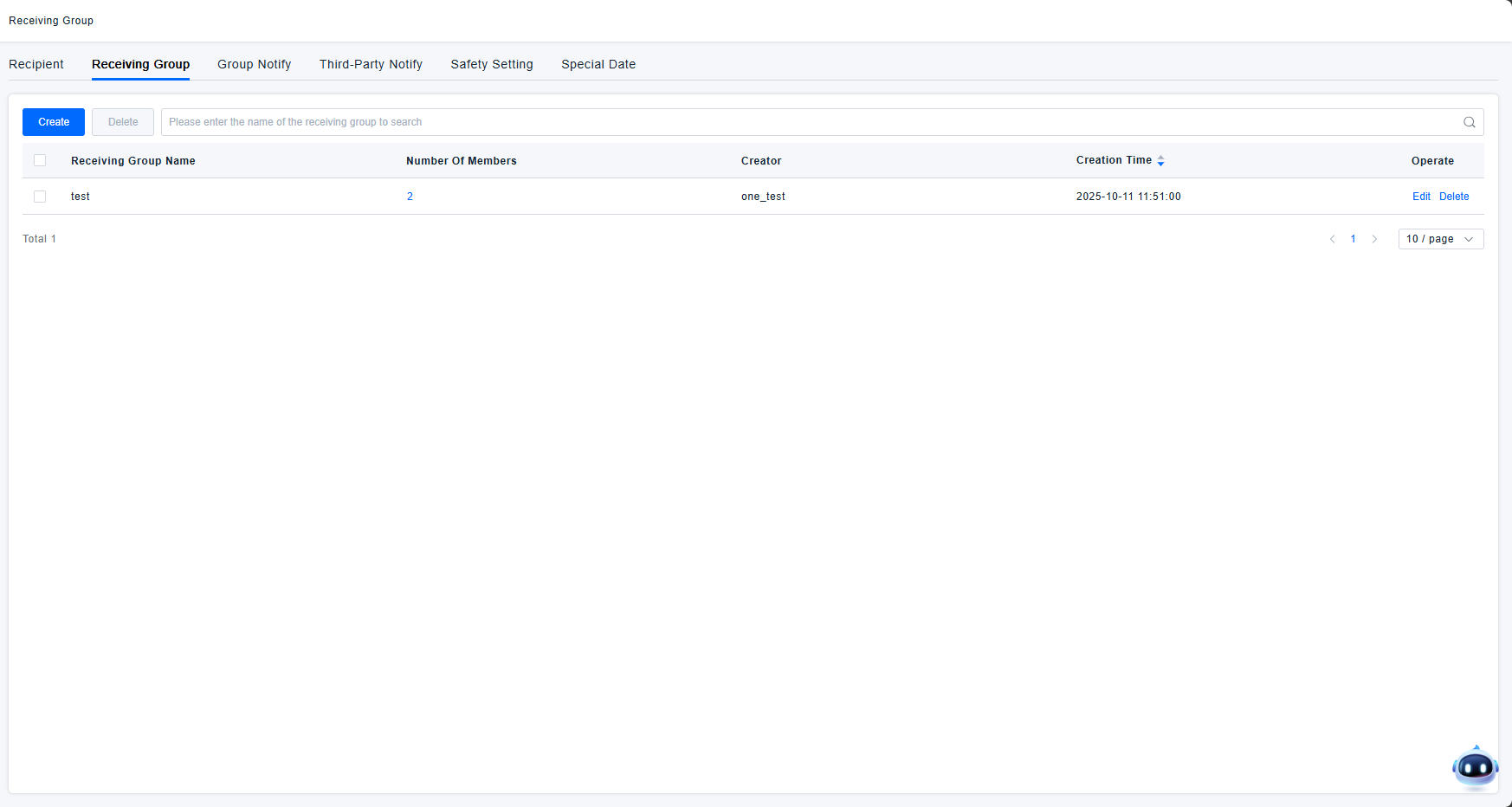
The Recipient Group list displays all group information, including:
- Group Name: Used to distinguish between different groups; can be customized.
- Member Count: The number of members within each group. Clicking this number opens a pop-up to view all recipient names in the group.
- Creator: The user who created the group. Groups created by sub-accounts are also visible to the primary account.
- Creation Time: The timestamp when the group was created.
- Actions: Edit and delete options are available for each group.
- The group list can be searched by group name.
Creating a Recipient Group
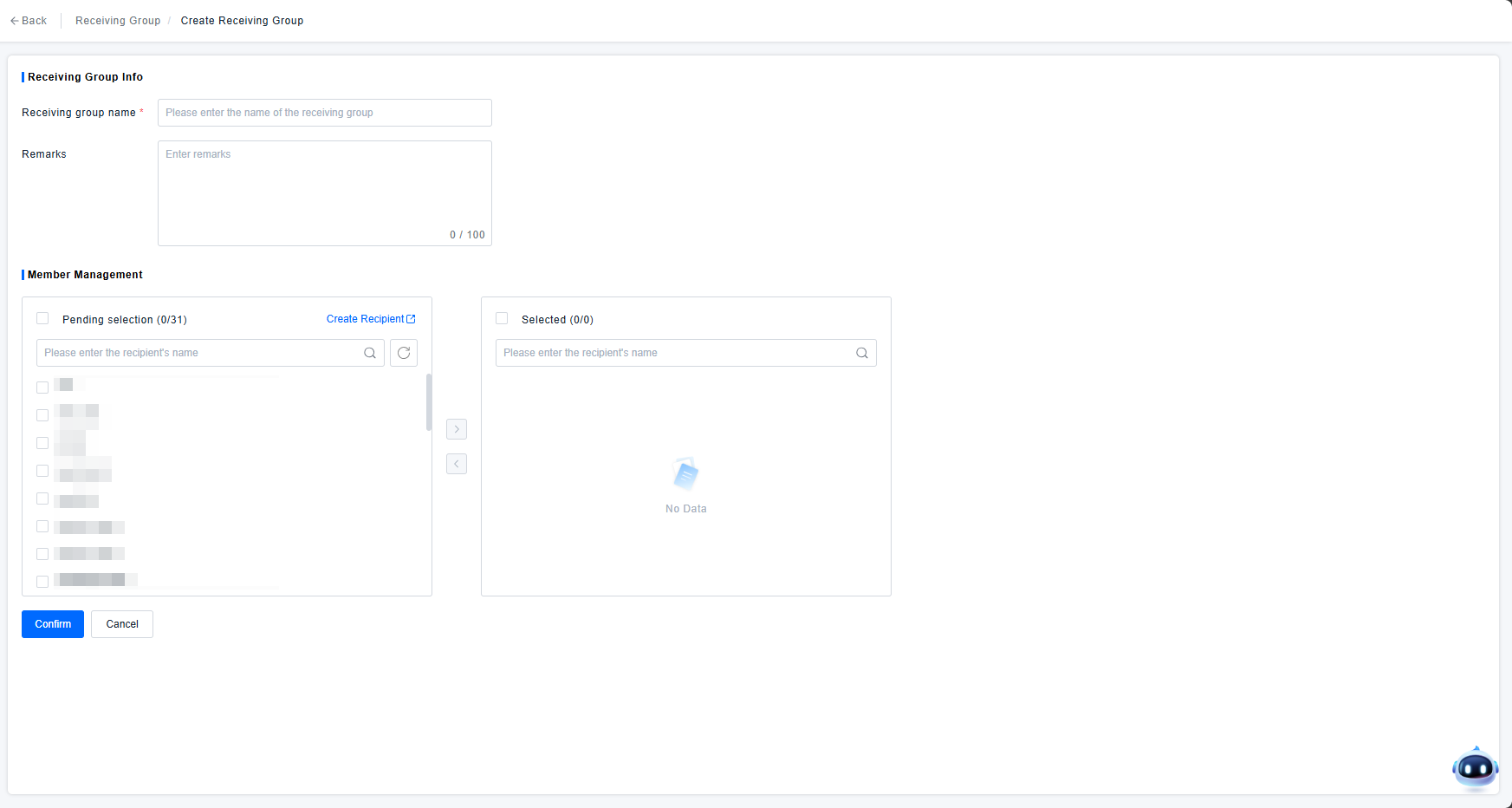
Creating a recipient group involves the following information:
- (Required) Group Name: A custom name for the group.
- Description: An optional custom description for the group.
- Member Management: Select members from all available recipients to add to the group.
Group Notification
Similar to individual recipients, you can select a Recipient Group for messaging in both Alert Response Policies and Automatic Report Rule Configuration. Please refer to Recipient Management