Special Date Configuration
By default, the platform determines query start and end times based on calendar days. However, users across different industries may require specialized date querying capabilities. For instance, the securities industry focuses on data fluctuations within trading days. To address such scenarios, we support special date configuration, allowing users to define custom date sets and select corresponding options within time components for data analysis within specific timeframes.
Use Case Scenarios
- Securities Industry: Monitoring metrics across trading days and performing data comparisons between different trading sessions.
- Transportation Industry: Analyzing data patterns during peak periods such as holidays, summer/winter breaks, and festival seasons.
Getting Started
Special Date Setup
Users can configure special dates via: System Administration → Settings Center → Special Date Configuration
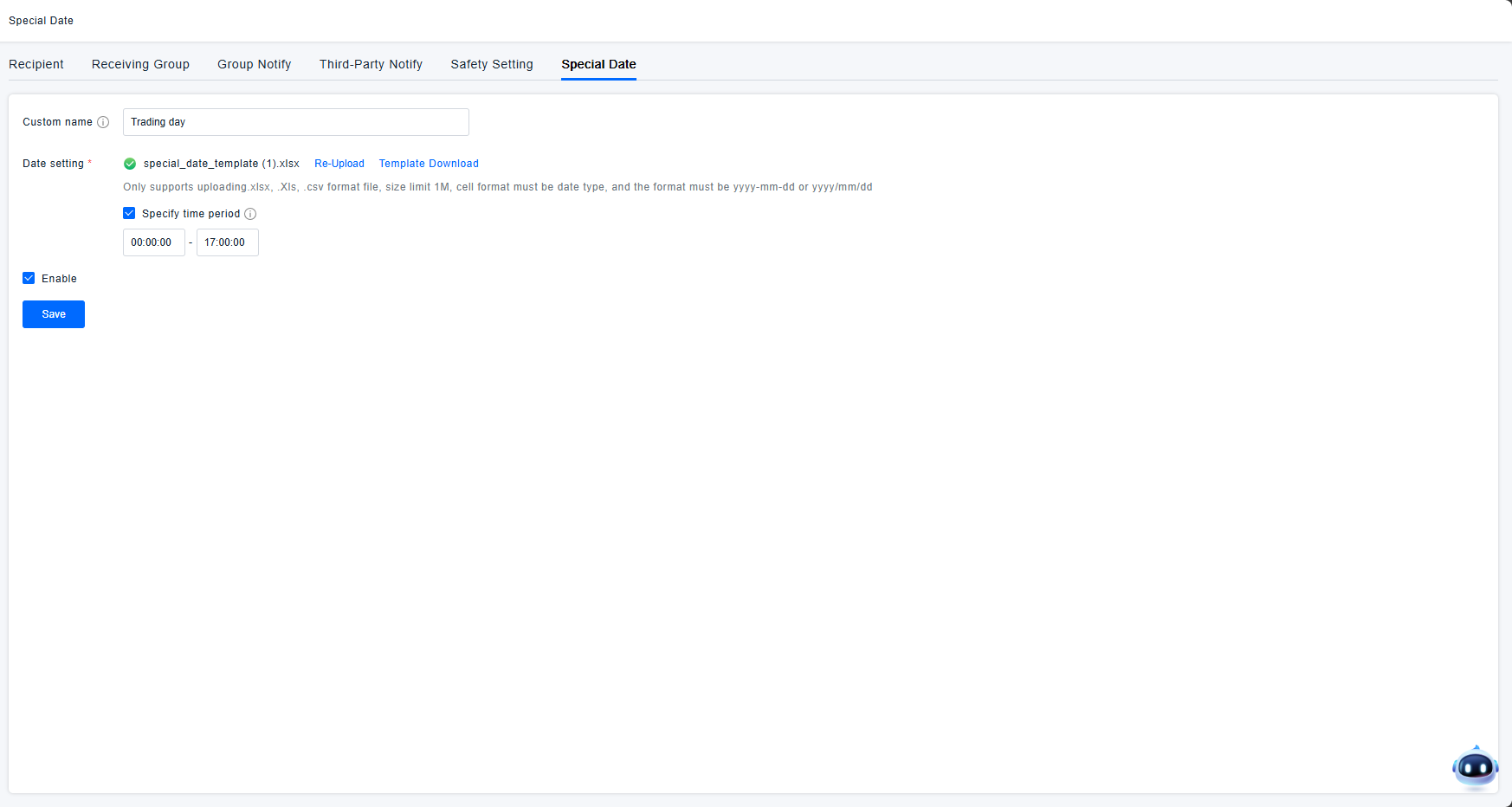
- Custom Name: Define unique identifiers for date sets (e.g., Trading Days, Workdays, Holidays). These names will appear as options in relevant platform modules.
- Date Configuration: Upload special date files in .xlsx, .xls, or .csv formats. Ensure:
- Date cells are formatted as date type
- Date formats follow yyyy-mm-dd or yyyy/mm/dd
- Use provided templates for easy modification and re-upload
- Date Range Specification: Define specific time periods for querying when using special dates
- Enable: Activate configurations to make special date options visible platform-wide
Using Special Dates
Time Component
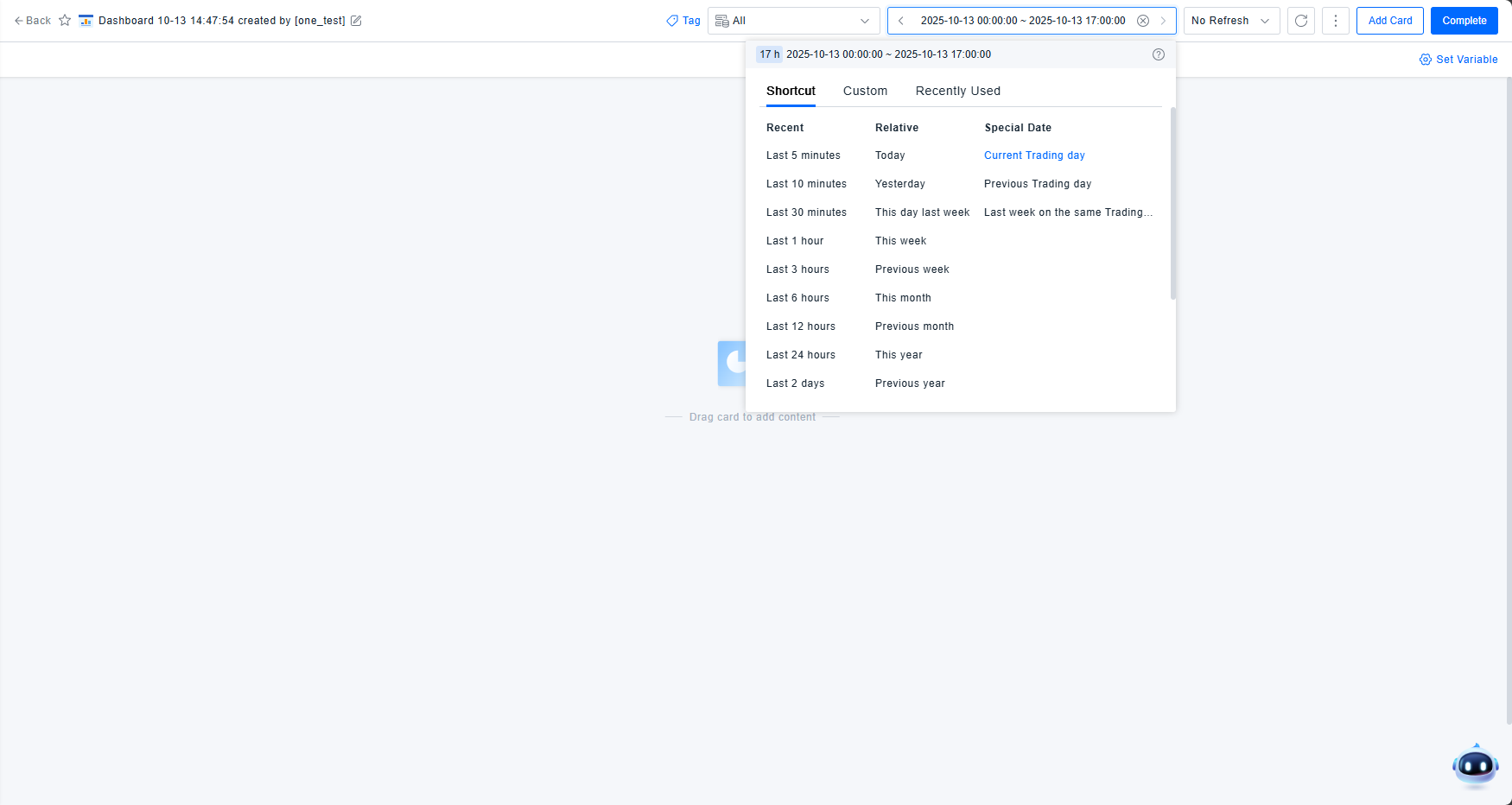
Once enabled, the time component displays a "Special Dates" category with three options (where "XXX" represents your custom date set name):
- Current XXX: Queries data for the current period. Option disables if today isn't a defined special date.
- Previous XXX: Queries data from the immediately preceding special date.
- Same XXX Last Week: Queries data from the equivalent day in the previous week. Option disables if the corresponding day wasn't a special date.
Selection triggers queries based on calculated start/end times following the above logic.
Dashboard Analytics
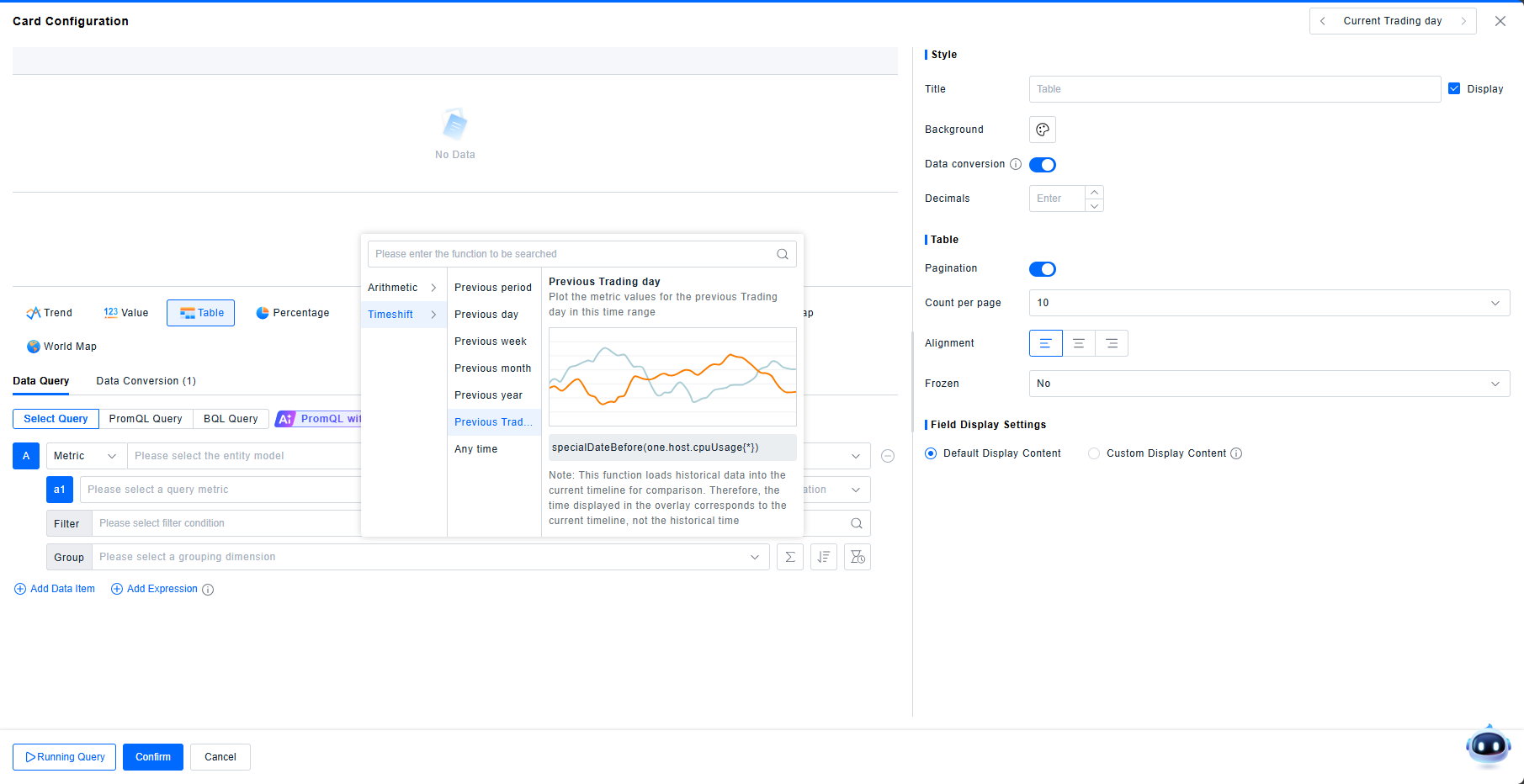
Deep Analysis → Time Shift → Previous XXX (where "XXX" is your custom date set):
- Shifts the current timeframe backward in 24-hour increments until reaching a defined special date
- Only activates for data with time spans ≤24 hours within the same day
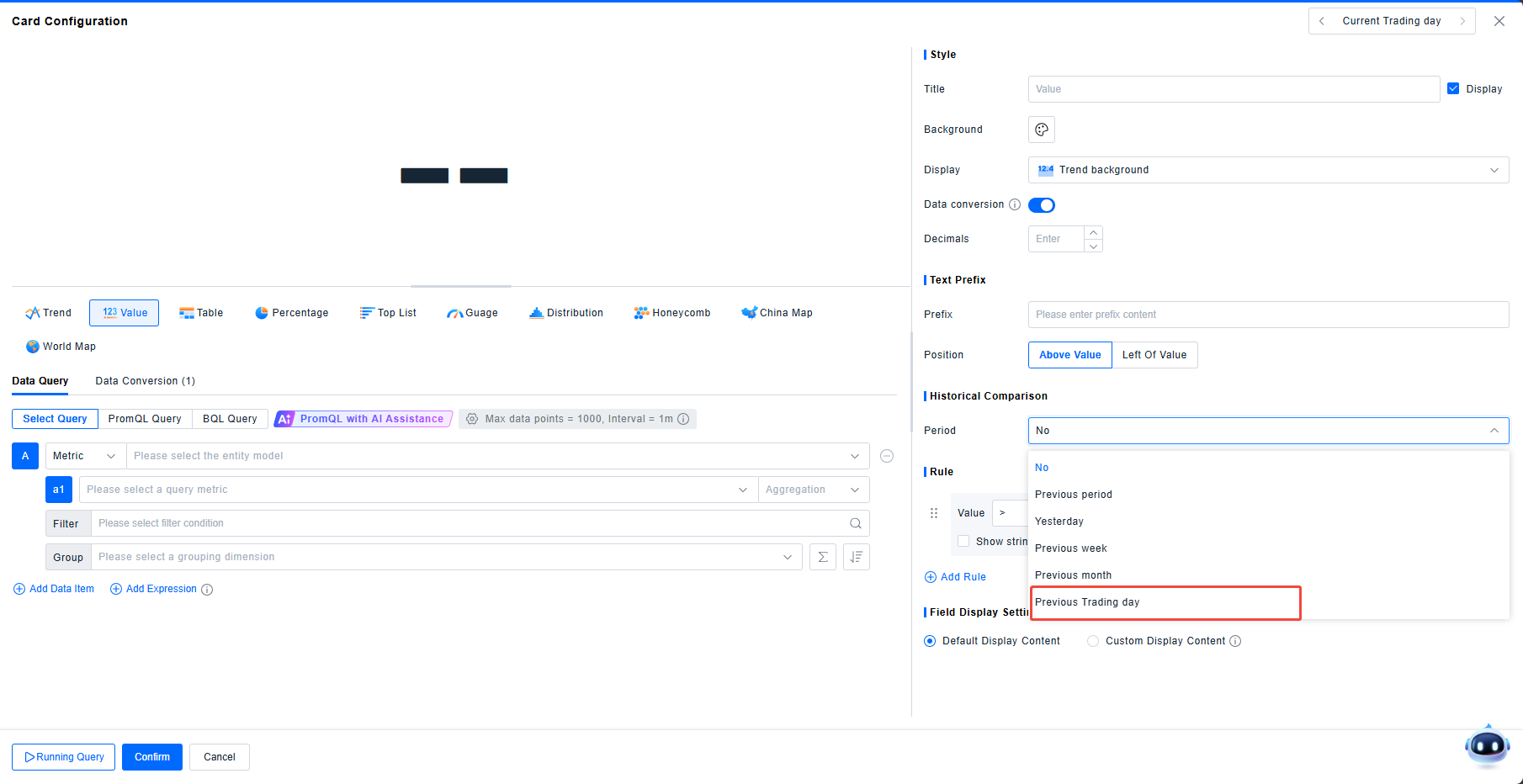
Value/Scorecard Historical Comparison → Previous XXX:
- Calculates data changes between current timeframe and the nearest previous special date
- Applies to data with time spans ≤24 hours within the same day
Data Exploration
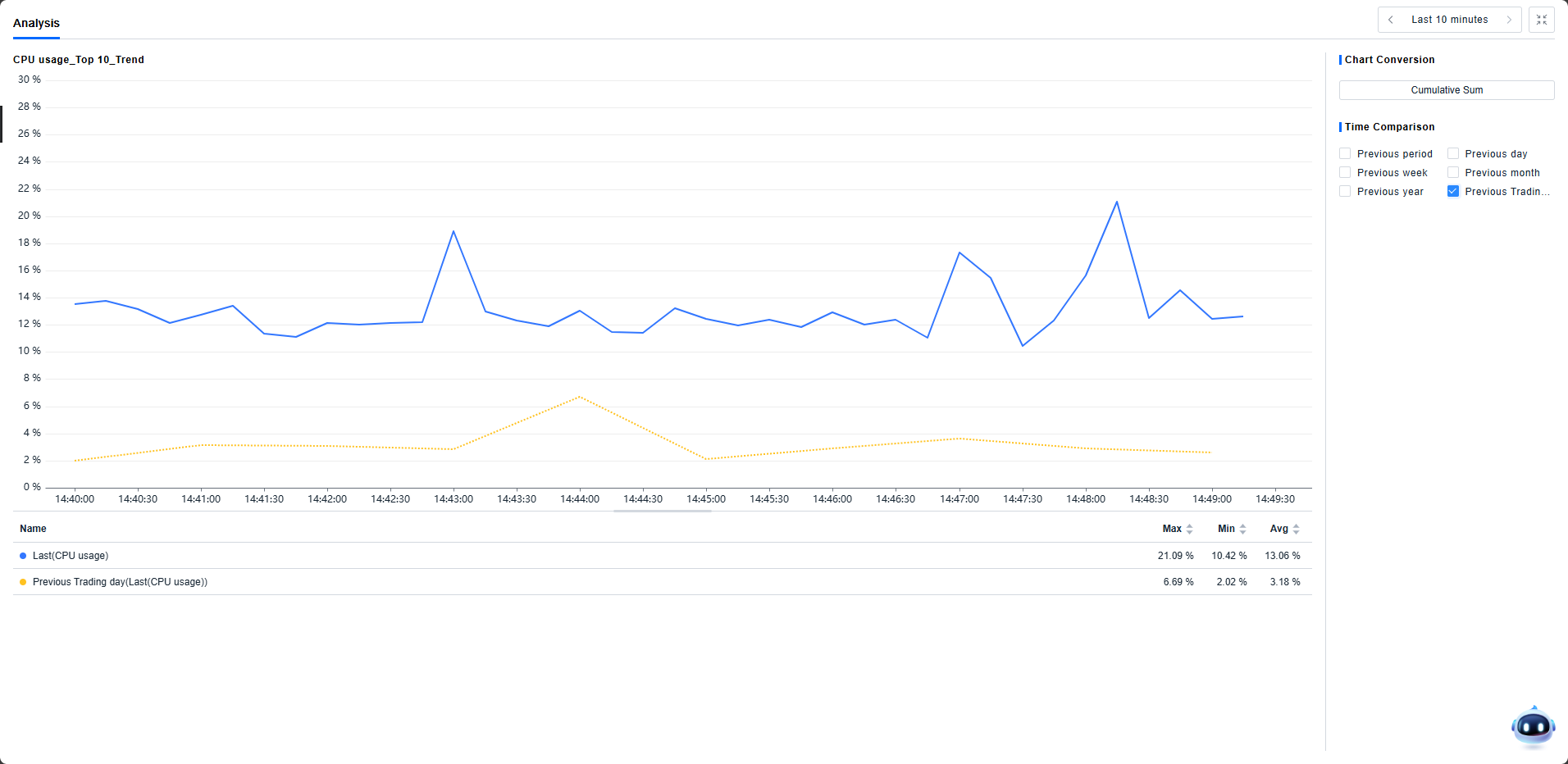
Data Exploration → Drill-down Analysis → Time Comparison → Previous XXX:
- Displays comparative trend data by shifting current timeframe to the nearest previous special date
- Available for data with time spans ≤24 hours within the same day