Safety Setting
The Safety Setting feature provides comprehensive account security protection across multiple dimensions including page watermarks, multiple login restrictions, password rules, inactive user freeze, and user privacy data masking. These capabilities effectively prevent security risks such as account theft and information leakage while balancing information security with privacy protection, creating a secure and reliable user environment.
Prerequisites
Users only need a platform account and valid login credentials to configure safety settings.
Usage Scenarios
Page Watermark: Suitable for scenarios requiring copyright protection or content traceability, such as displaying important internal documents or accessing sensitive information pages. The username + timestamp watermark clearly identifies content ownership and access time for tracking purposes.
Multiple Login Restrictions: Used when enterprises or individuals need to ensure account exclusivity by preventing simultaneous logins from different locations. Particularly relevant for core business system accounts to avoid operational conflicts or information leaks from multiple concurrent sessions.
Password Rules: Applied in high-security scenarios involving financial operations or critical data management. Complex password rules increase cracking difficulty and enhance account security.
Inactive User Freeze: Manages long-term inactive accounts to prevent misuse, such as accounts of departed employees or dormant personal accounts. Timely freezing reduces security risks.
User Privacy Data Masking: Used when displaying private information (e.g., phone numbers, email addresses) while protecting privacy. Ensures sensitive data appears masked in employee lists or customer management systems to prevent leakage.
Getting Started
After logging into the ONE platform, locate the account option in the bottom navigation bar. Click to enter Settings Center → Safety Setting page to access the safety configuration interface.
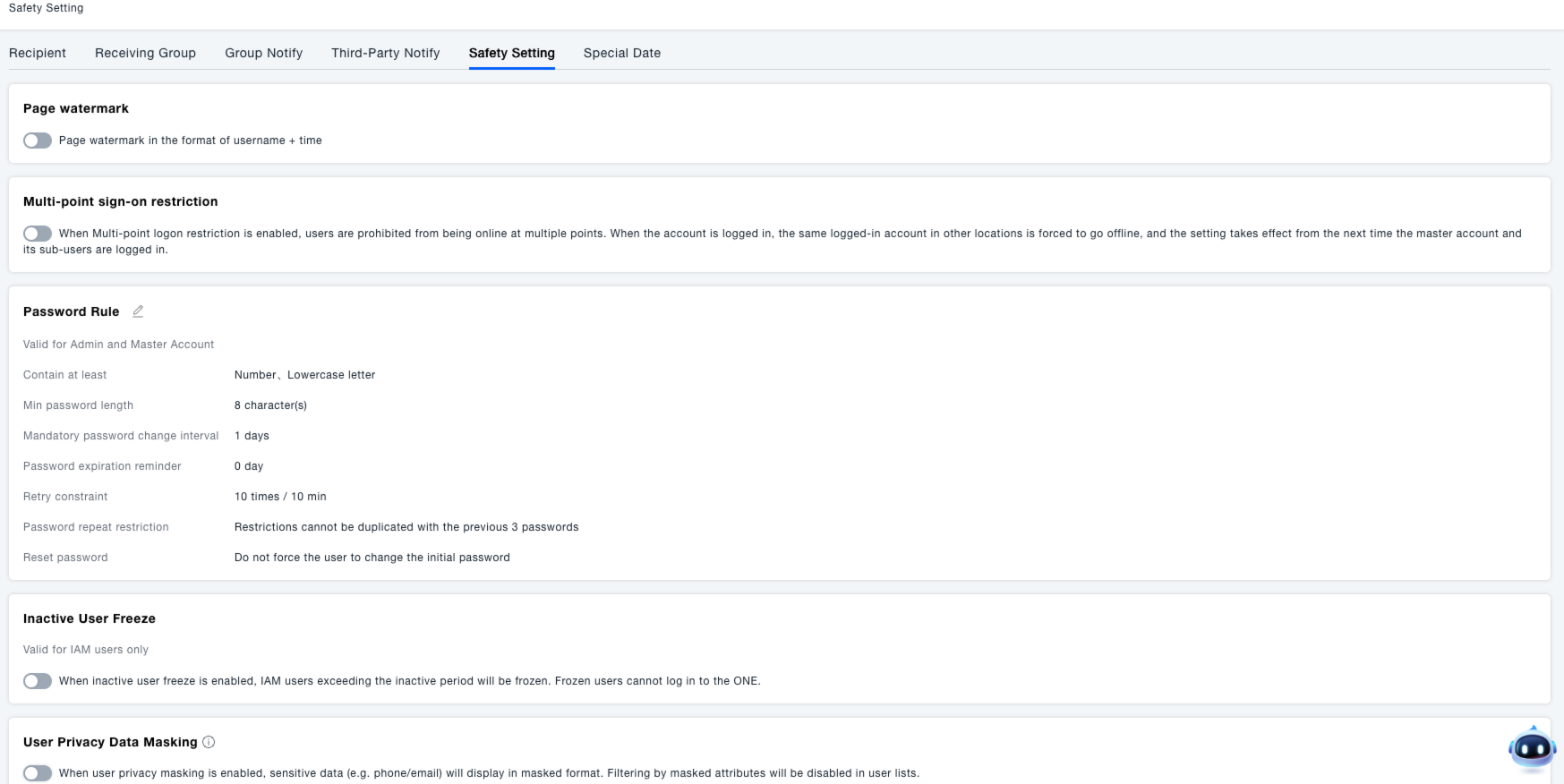
Page Watermark
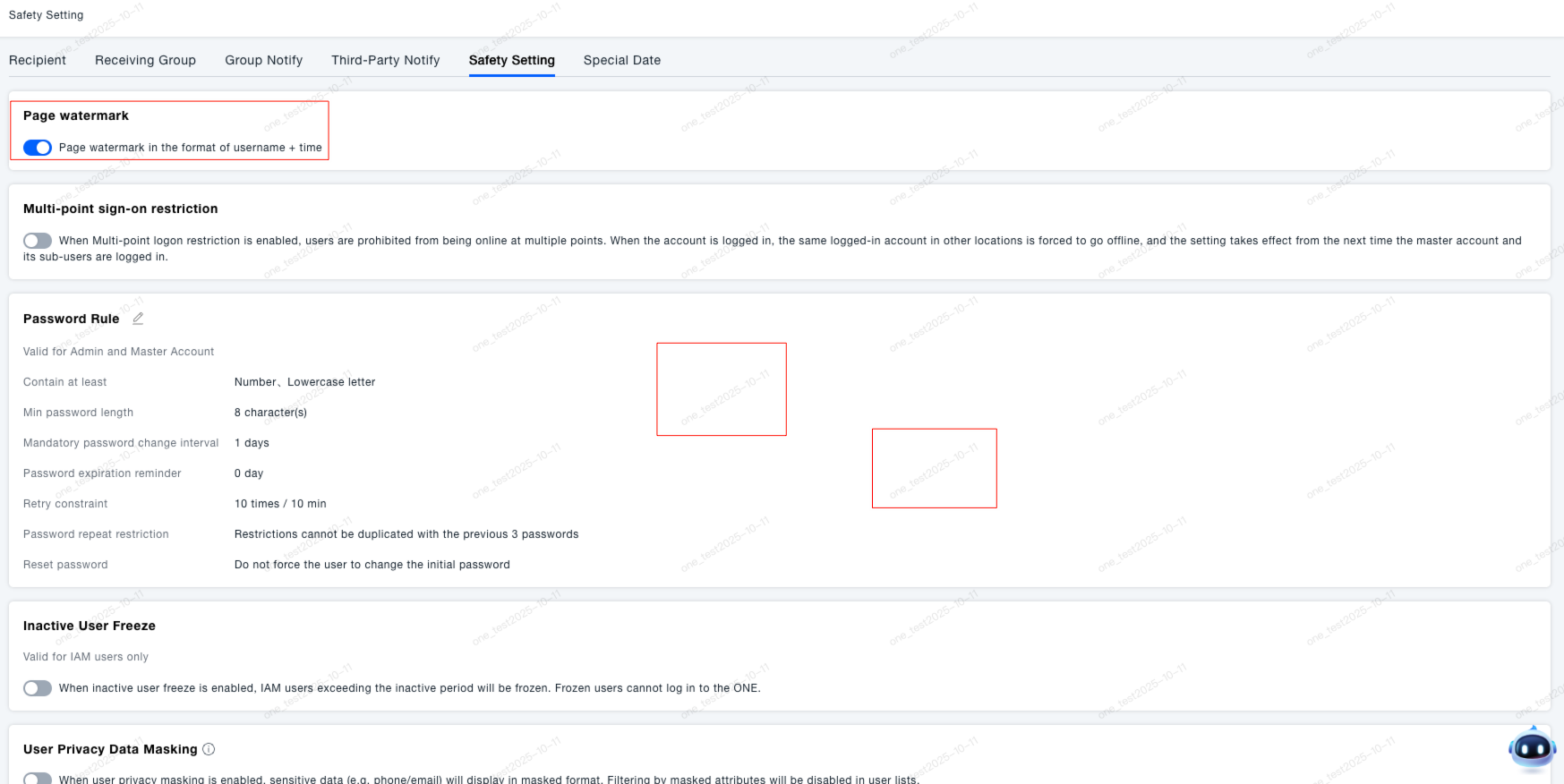
Description: When enabled, displays a "username + timestamp" format watermark on pages for content traceability and copyright protection.
Procedure: On the Safety Setting interface, locate the "Page watermark" module and click the toggle switch on the left (blue indicates enabled). The watermark appears immediately upon activation.
Multi-point Sign-on Restriction
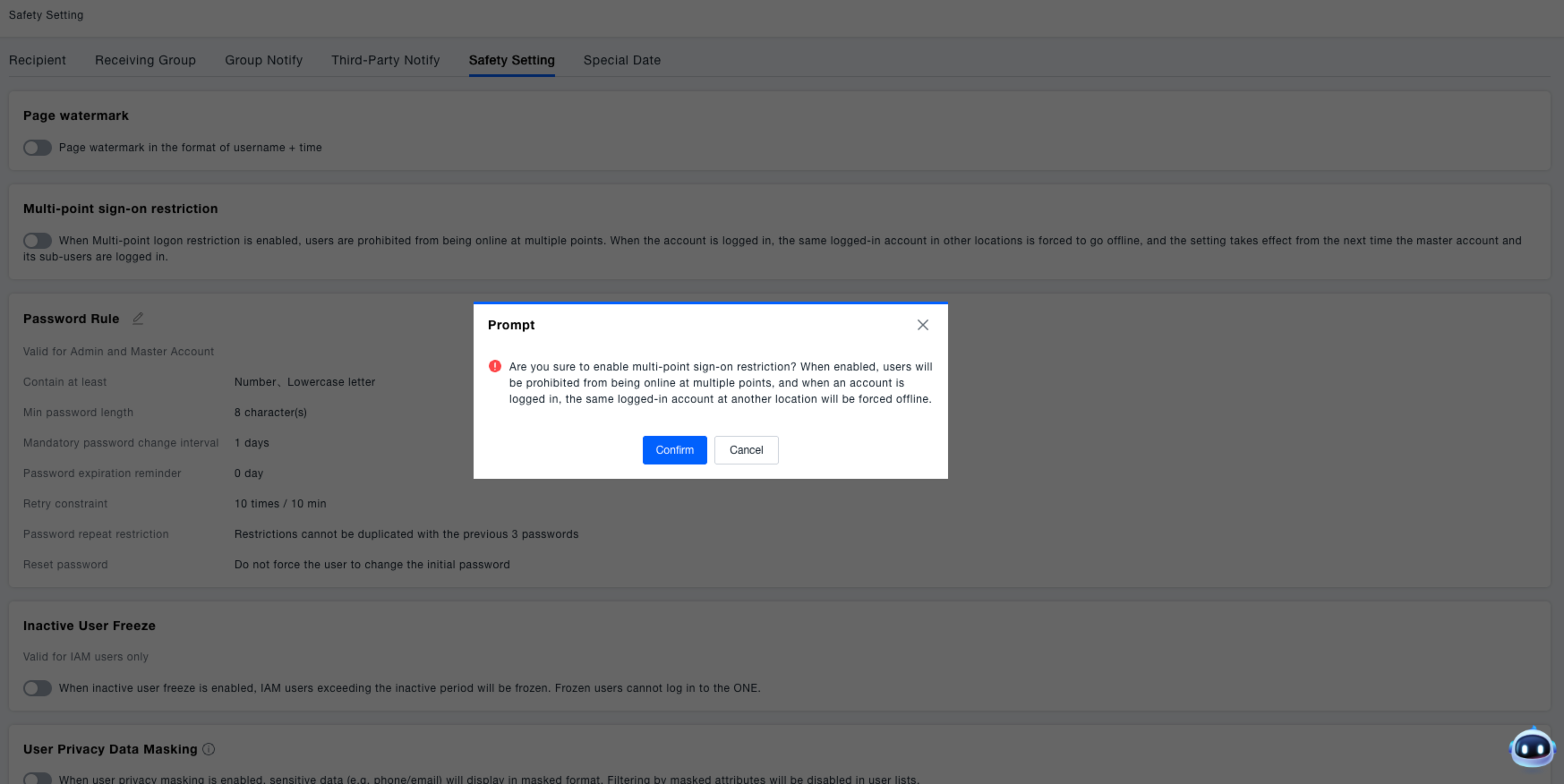
Description: Prevents multiple concurrent sessions for a single account. When the same account logs in from another location, existing sessions are forcibly terminated to maintain login exclusivity.
Procedure:
- Locate the "Multi-point sign-on restriction" module in Safety Setting
- Click the toggle switch to trigger confirmation prompt: "Confirm enabling multiple login restrictions? This will prevent concurrent sessions and force logout existing logins from other locations"
- Click "Confirm" to activate (settings apply at next login for master account and sub-users), or "Cancel" to abort


Password Rule
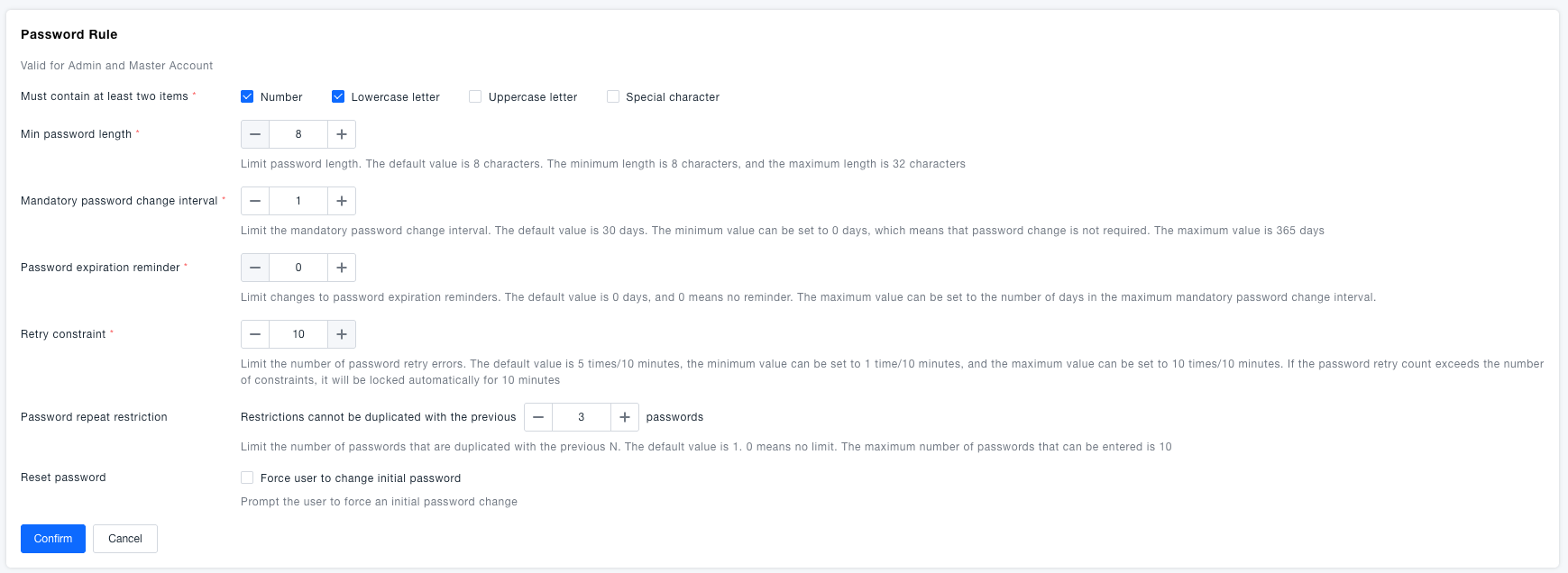
Description: Configures multi-dimensional password rules for Admin and Master Accounts, including composition requirements, length, change cycles, etc. to enhance password security.
Procedure:
- Find the "Password Rule" module and click the edit icon (top-left)
- Contain at least: Select ≥2 options from Numbers, Lowercase/Uppercase letters, Special characters
- Min password length: Use +/- buttons to set length (8-32 characters, default: 8)
- Mandatory password change interval: Set forced change cycle (0-365 days, 0=disabled)
- Password expiration reminder: Configure advance notice days (0-max change interval, 0=no reminder)
- Retry constraint: Set allowed failed attempts (1-10/10 minutes, exceeding locks for 10min)
- Password repeat restriction: Set historical password exclusion (0-10 previous passwords, 0=no restriction)
- Reset password: Check "Force user to change initial password" if required
- Click "OK" to save or "Cancel" to discard changes

Inactive User Freeze
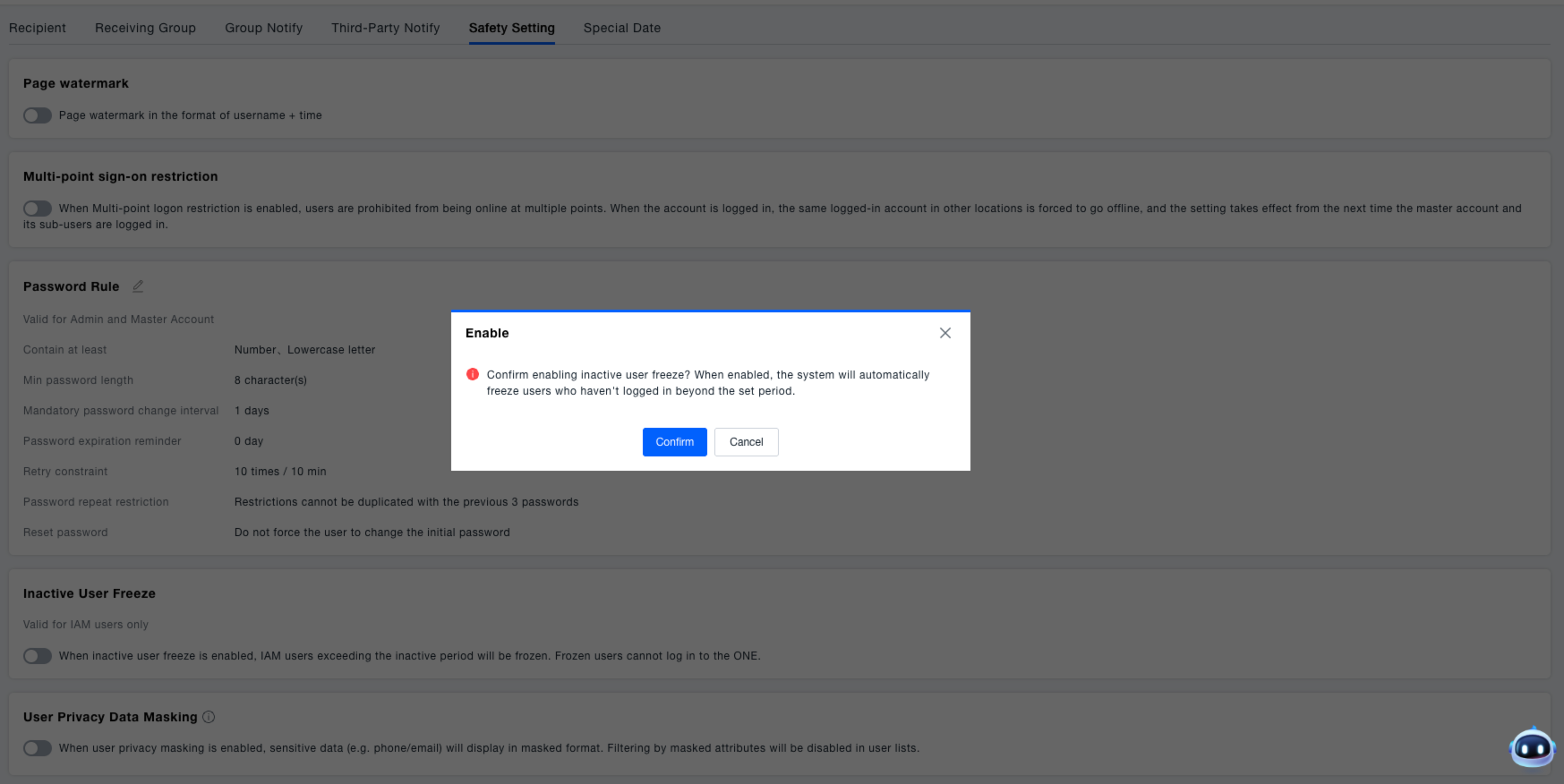
Description: Applies only to IAM users. When enabled, IAM users exceeding the inactive period are frozen and cannot log into ONE platform, helping manage long-term inactive accounts.
Procedure:
- Locate "Inactive User Freeze" module and toggle the switch
- Confirm prompt: "Confirm enabling inactive user freeze? The system will automatically freeze users exceeding the set period"
- Click "OK" to enable or "Cancel" to abort
- After enabling, click edit icon next to "Inactivity period" to set threshold (e.g., 100 days), saved automatically


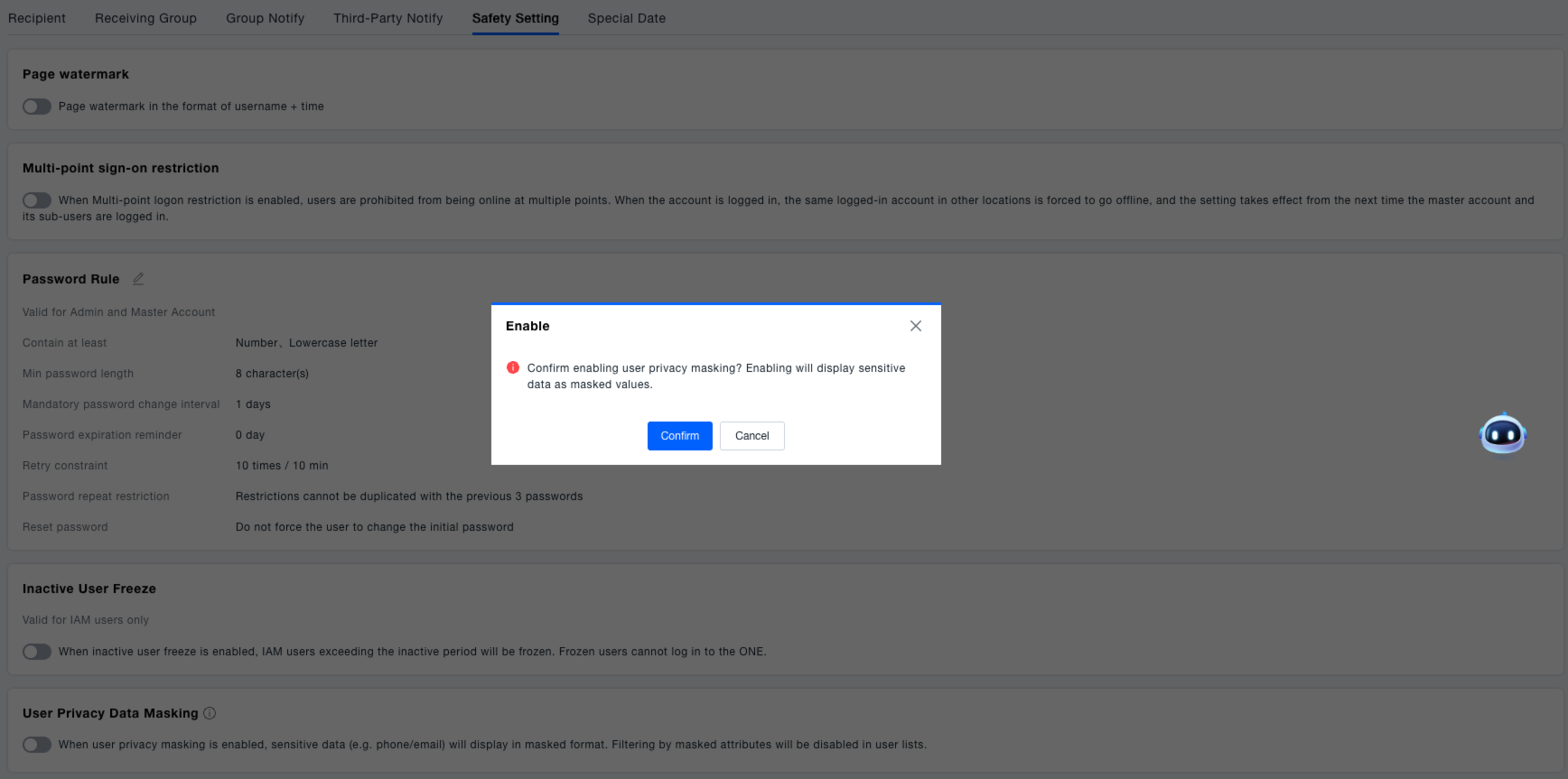
User Privacy Data Masking
Description: When enabled, displays private user information (phone/email) in masked format. Configurable masking attributes and display methods available.
Procedure:
- Find "User Privacy Data Masking" module and toggle the switch
- Confirm prompt: "Confirm enabling user privacy masking? Pages will display private information in obfuscated format"
- Click "OK" to enable or "Cancel" to abort
- After enabling, click edit icon next to "Masking Configuration"
- Attributes subject to masking: Check required attributes (e.g., Mobile number, Email)
- Display of masked attributes: Select either "Masked for all users" or "Plain text for Primary Account Holder, Masked for other users"
- Click "OK" to save configuration or "Cancel" to discard