Grafana Management
After deployment is complete, you will see the "External Dashboards" module under the "Data Reports" navigation in the platform. This module corresponds to the dashboard module of your deployed Grafana instance. Once embedded into the ONE platform, all query permissions will align with the platform's permissions.
Permission Overview
Account Permissions
After integrating with the Grafana platform, account permissions from the ONE platform will be synchronized to Grafana. Users are grouped by their primary account. The system filters all user groups and user-group relationships under the primary account and iterates through the primary account's users.
- Organization Synchronization: Checks if the primary account's organization exists in Grafana. If not, it creates it.
- Primary Account Synchronization: Checks if the primary account user exists in Grafana. If not, it creates the user and grants the Organization Admin role.
- Sub-user Synchronization: Iterates through the list of sub-users under the primary account. Checks if each sub-user exists in Grafana. If not, it creates the user and grants the Organization Editor role.
- User Group Synchronization: Iterates through the list of sub-user groups under the primary account. Checks if each user group (Team) exists in Grafana. If not, it creates the team and grants the Organization Editor role.
- Real-time Updates: When operations on users, user groups, and user-group relationships are performed in the Access Control page, it asynchronously triggers the synchronization of Grafana organizations, users, teams, and team membership. This process updates the team membership relationships.
Functional Permissions
- Permissions within dashboards are managed at both the folder level and the individual dashboard level, controlled via roles, users, and teams, granting Admin, Edit, or View permissions.
- Folder Permissions: Enter a folder, click the folder actions menu, and select "Manage Permissions."
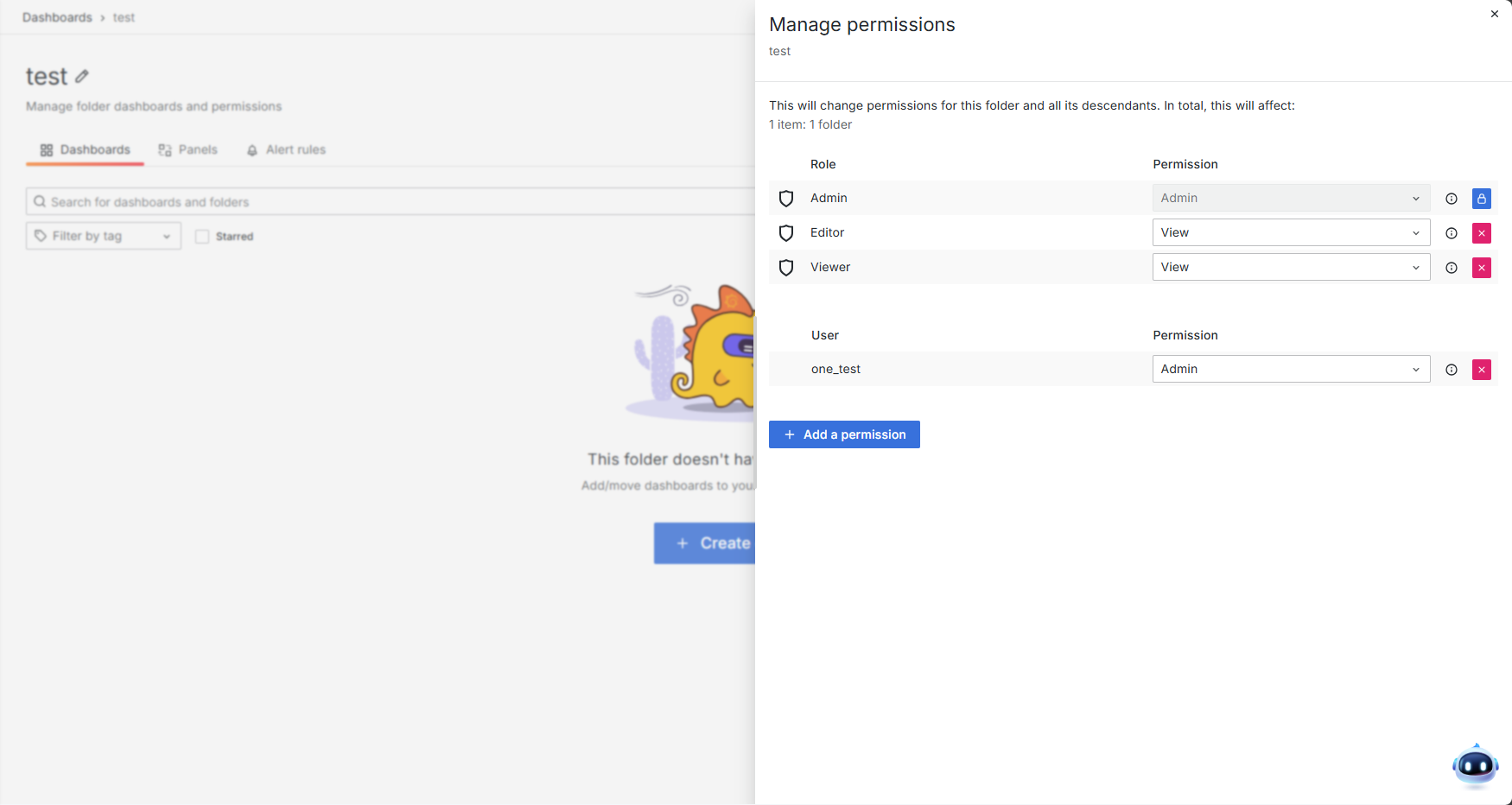
- Folder permissions take precedence over individual dashboard permissions. Permissions set on a folder are inherited by all dashboards within it.
- Dashboard Permissions: Enter the dashboard editing mode, click "Settings," and switch to the "Permissions" tab to set permissions.
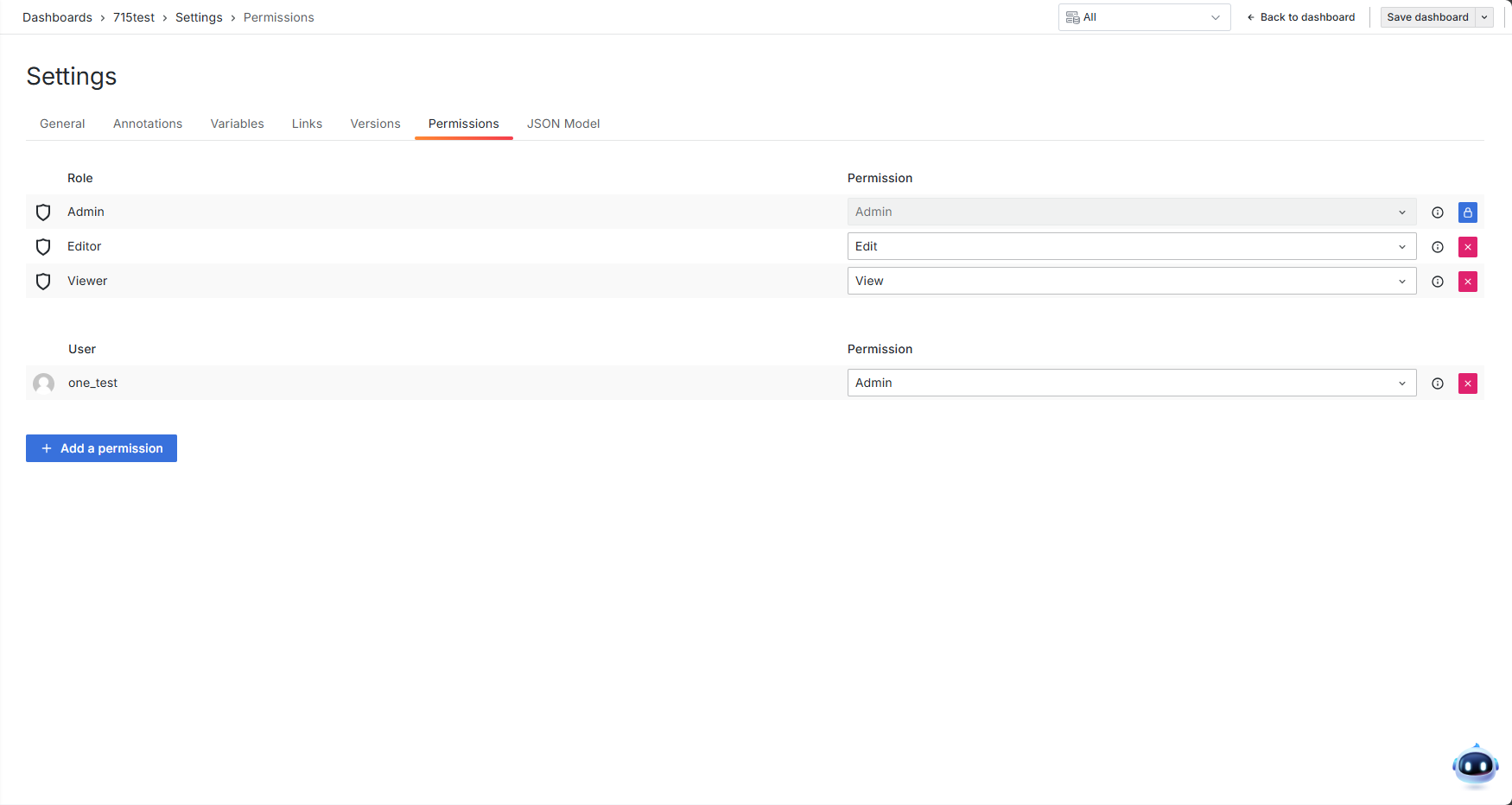
- Dashboard permissions combine inherited permissions from the parent folder with any specific permissions configured directly on the dashboard.
- Role Permissions Explanation:
- Each user created during synchronization is assigned an Org Role: Admin, Editor, or Viewer. When a role permission is assigned to a folder or dashboard, all users with that Org Role gain the corresponding Admin, Edit, or View access for that resource.
- If roles are not used for a specific dashboard or folder, you can manually add individual users or teams and assign them specific Admin, Edit, or View permissions.
Data Permissions
- Data visibility within a dashboard is controlled by the platform's Resource Scopes. Switching between different resource scopes will display data results corresponding to the selected scope's range.