Dashboard Interaction
Most dashboards contain multiple configured widgets, and there is often a correlation between their data. Isolated dashboard widgets are not conducive to user analysis. Therefore, the dashboard provides interactive capabilities that support interactions within a single widget, between different widgets, and between the dashboard and other modules. This facilitates rapid, in-depth analysis when users discover anomalous data.
Scenario Description
- Drill-Down from Global Anomalies: When a global metric anomaly occurs at a specific time, users can drill down by dimension to examine changes in the same metric across different dimensions, thereby identifying the problematic entity.
- Cross-Widget Data Correlation: Selecting a specific data series in one widget can trigger linked queries in other widgets under the same conditions, achieving a global filtering effect.
- Navigation for Holistic Analysis: Widgets visualize data. Using jump capabilities linked to other platform modules enables rapid correlation analysis and problem troubleshooting.
Get Started
Default Interactions
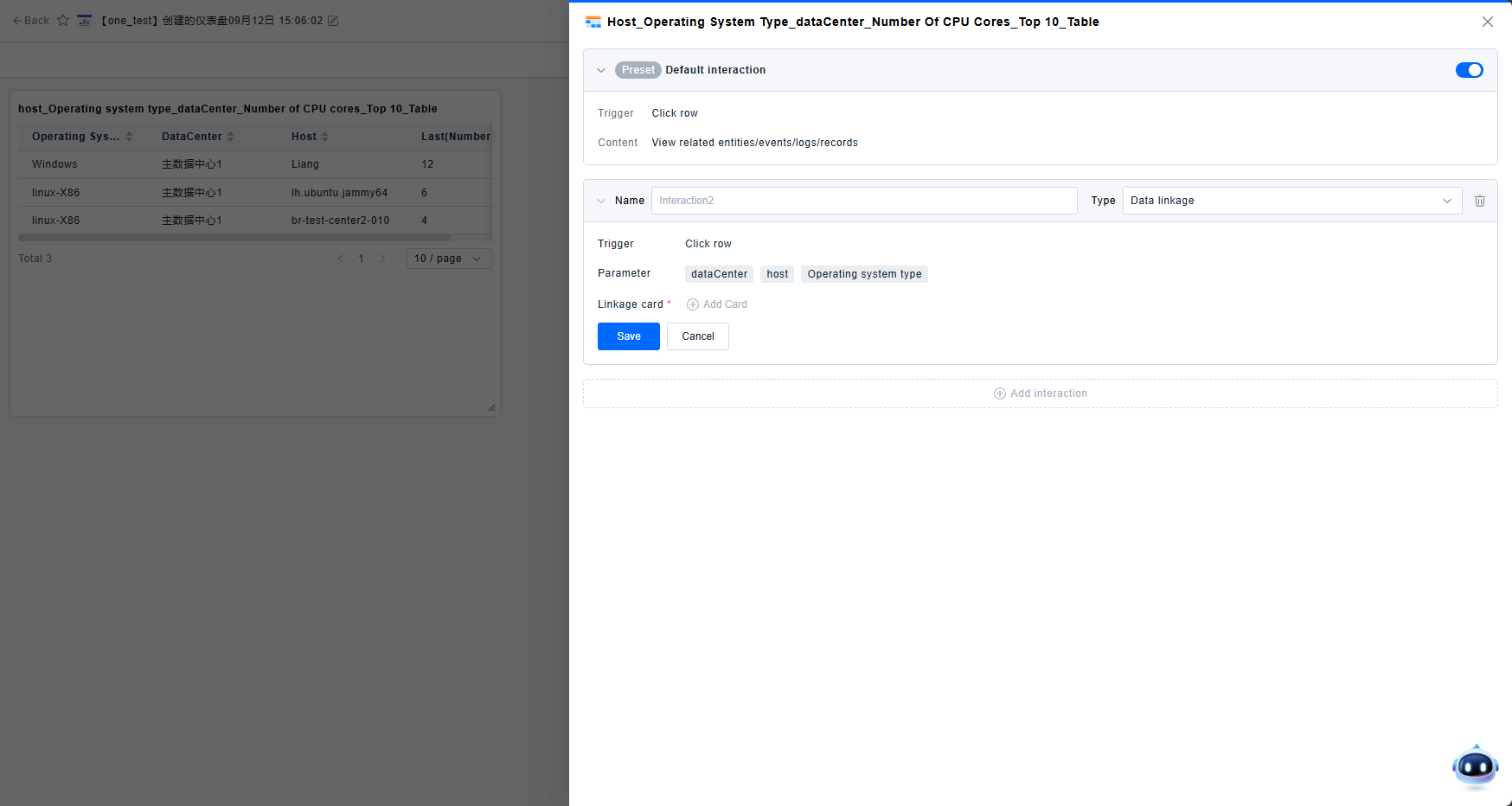
Chart widgets offer four default interactions available without configuration. However, their usage depends on the data configuration—appropriate dimensions must be exposed via grouping to trigger them. These can be disabled via a toggle switch if not needed.

- View Related Entities: When a chart is grouped by instance ID, this action directly navigates to the details page of the selected instance.
- View Related Events: When a chart is grouped by instance ID, this action directly navigates to the details page of the selected instance and automatically switches to the Events tab.
- View Related Logs: When a chart is grouped by instance ID, this action directly navigates to the details page of the selected instance and automatically switches to the Logs tab.
- View Related Records: When a chart is grouped by specific dimensions, this action carries the filter conditions to the Retrieval Center, navigating to the corresponding record type.
Custom Interactions
Beyond default interactions, users can configure three other types: Data Correlation, Dimension Drill-Down, and Navigation. Only one instance of each interaction type can be configured per widget.
1. Data Correlation (Cross-Widget Filtering)
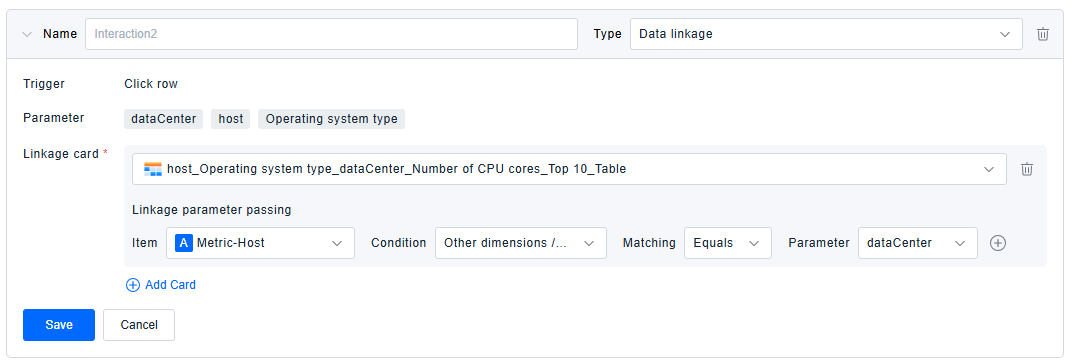
- Trigger Method: Varies by widget type, typically triggered by clicking a data point or series.
- Correlation Parameters: Only dimensions exposed through grouping can be selected and passed as parameters during interaction.
- Target Widgets: Configuring passed parameters is mandatory for correlating widgets. After selecting target widgets, dimensions must be manually mapped between source and target widgets for the correlation to work correctly. Correlation is only successful for fields with identical meanings. A single widget can correlate with multiple others.
2. Dimension Drill-Down
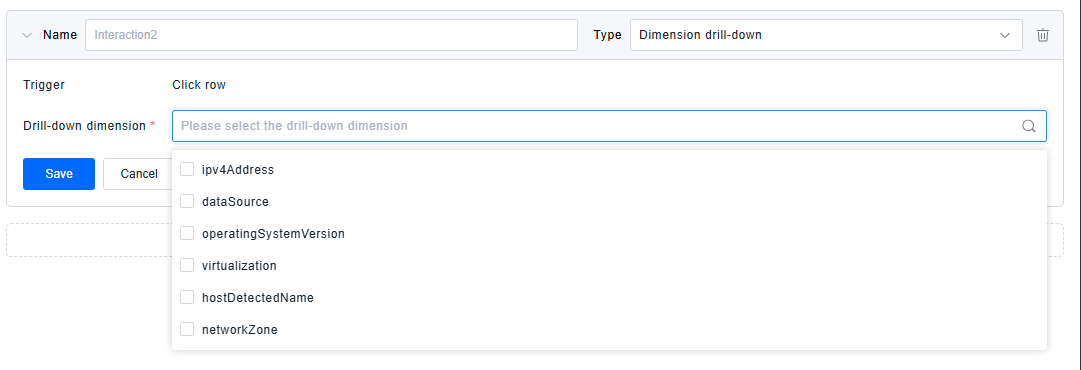
- The available options for drill-down dimensions are all groupable dimensions not currently selected in the widget's configuration. Configuring dimension drill-down enables deeper analysis based on the current query results.
3. Navigation (Jump)
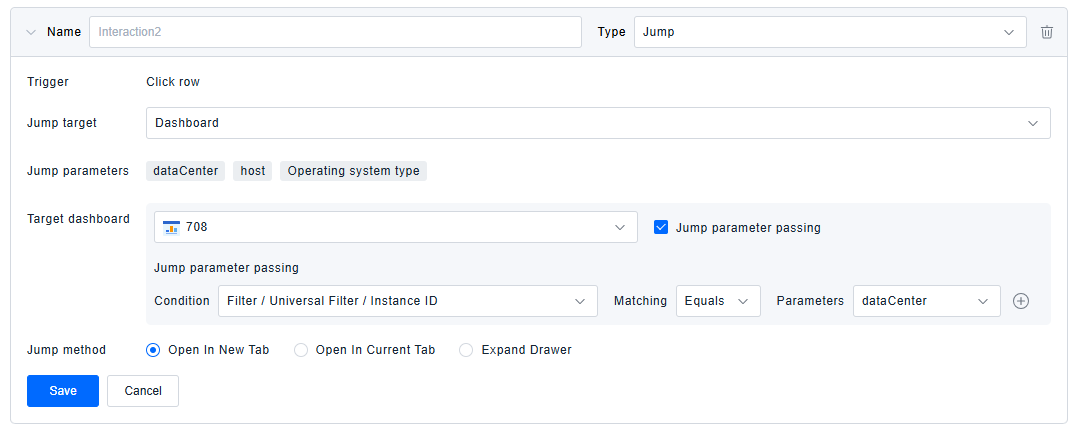
- Jump Target: After selecting data, users can navigate to other platform modules (e.g., other Dashboards, Data Explorer/Cube) or any external URL.
- Jump Parameters: Similar to correlation parameters, only dimensions exposed through grouping can be selected and passed as parameters during the jump.
- Target Dashboard/Cube: Jumping to another Dashboard or Cube is similar. After selecting the target, jump parameters can be passed. However, the target Dashboard/Cube must contain filters or variables to receive these parameters. Please refer to Dashboard Configuration and Dashboard Variables for details on filters and variables.
- Target Page (URL): Enter the URL of the target page. If the URL contains parameter placeholders whose values can be substituted with values from the jump parameter fields, parameter passing can be achieved when jumping to external pages.
- Jump Method: Includes opening in a new browser tab, redirecting the current page, or opening in a drawer panel. Users can choose the method according to their needs.