Create Synthetic Task
Synthetic tasks utilize globally distributed simulation request nodes to capture the global performance of hosts, processes, and interfaces in real-time. Covering different network layers including ICMP PING, TCP, HTTP, gRPC, and WebSocket, they trigger precise alerts when performance degradation, response timeouts, unexpected status codes, or other issues occur, enabling full-chain control from "passive discovery" to "active warning" before problems escalate.
Getting Started
- Under the Configuration/Settings/Data Collection/Synthetic Task menu, you can view the synthetic task list. The interface supports creating tasks, as well as cloning, editing, and deleting operations. Click the task name to view the task details page, click the monitoring object to access the Synthetic Task/Monitoring Object details page, and click the instance to view the instance details page.
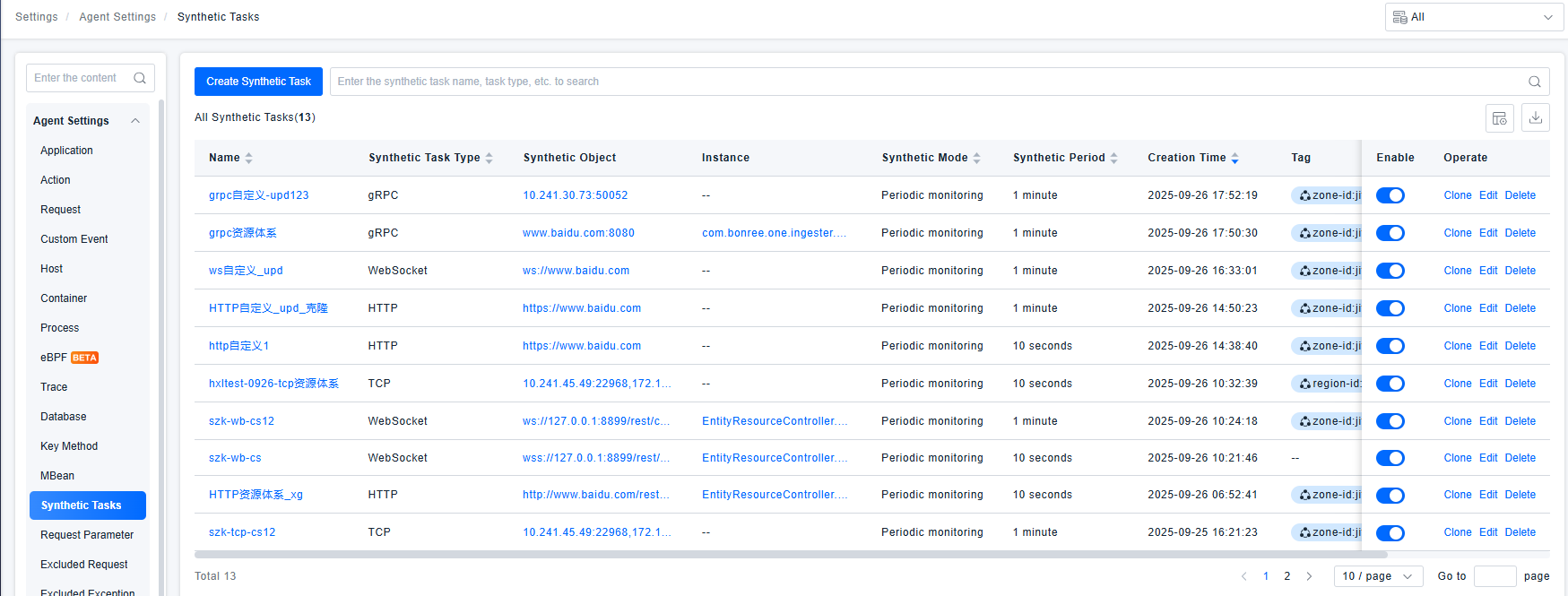
- Click the "Create Task" button to enter the task creation page
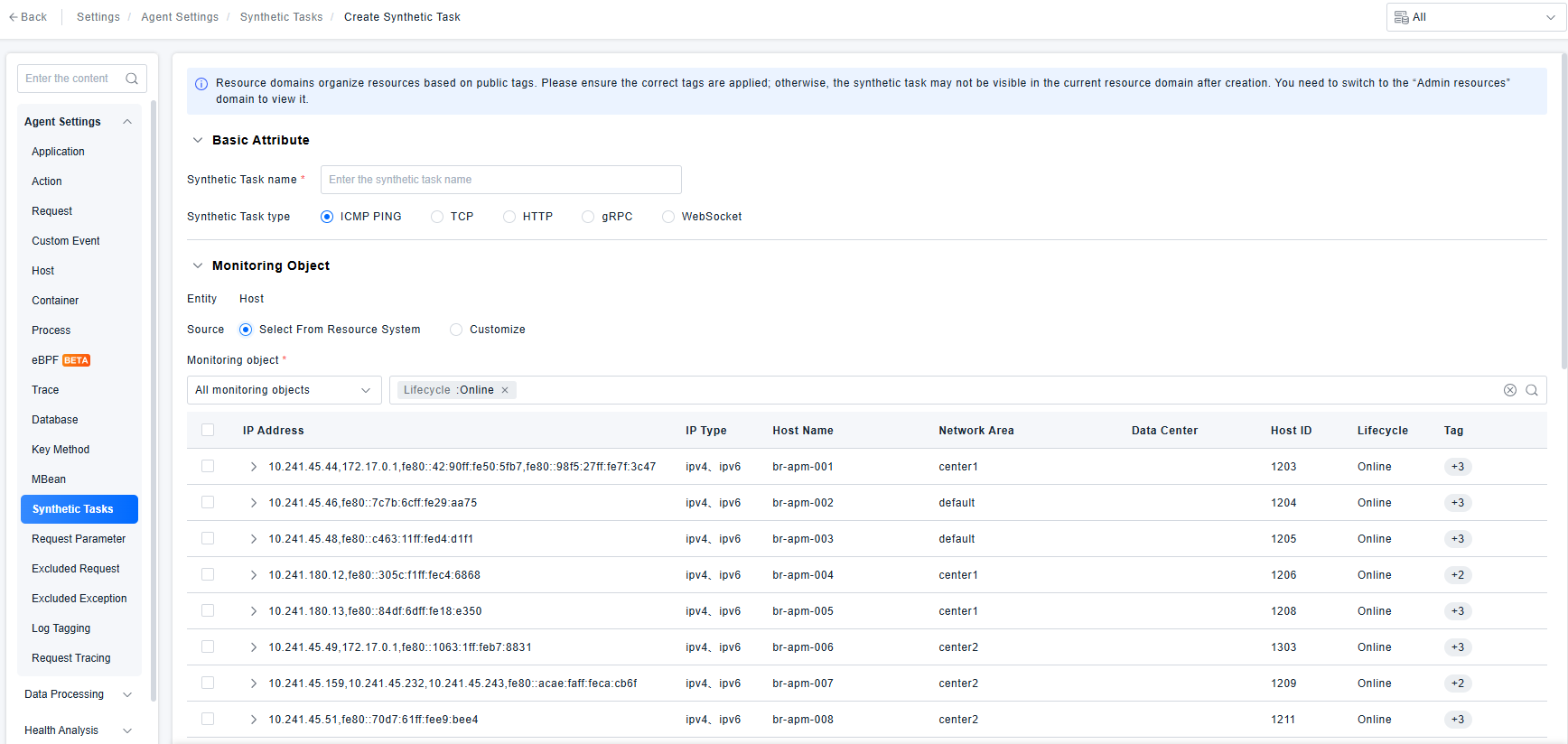
Task Name: Synthetic task name, must be unique
Task Type: Single selection, supports ICMP PING, TCP, HTTP, gRPC, WebSocket
Monitoring Object: Supports selection from the resource system or custom definition. When selecting from the resource system:
- ICMP PING: Host - If a host has multiple IPs, they will be displayed hierarchically. The parent level shows host information, and each child level displays a separate row for each IP of the host, allowing monitoring of specific IPs.
- TCP: Process - If a process has multiple listening configurations, they will be displayed hierarchically. The parent level shows process information, and each child level displays a separate row for each listening configuration, allowing monitoring of specific listening information.
- HTTP, gRPC, WebSocket: Interface, Remote interface
- In the interface list, the [Request URL] column shows the [request url] attribute value of the interface in the resource system. After selection, you can manually supplement the protocol type and request address. The request address enumeration values are IP:Port combinations parsed from the process listening information of all service instances belonging to the interface's service. The request address can also be manually entered.
- In the remote interface list, the [Request Address] column shows the [call url] attribute value of the remote service instance to which the remote interface belongs in the resource system, and the [Request URL] column shows the [identification name] attribute value of the remote interface in the resource system. These can be manually corrected after selection.
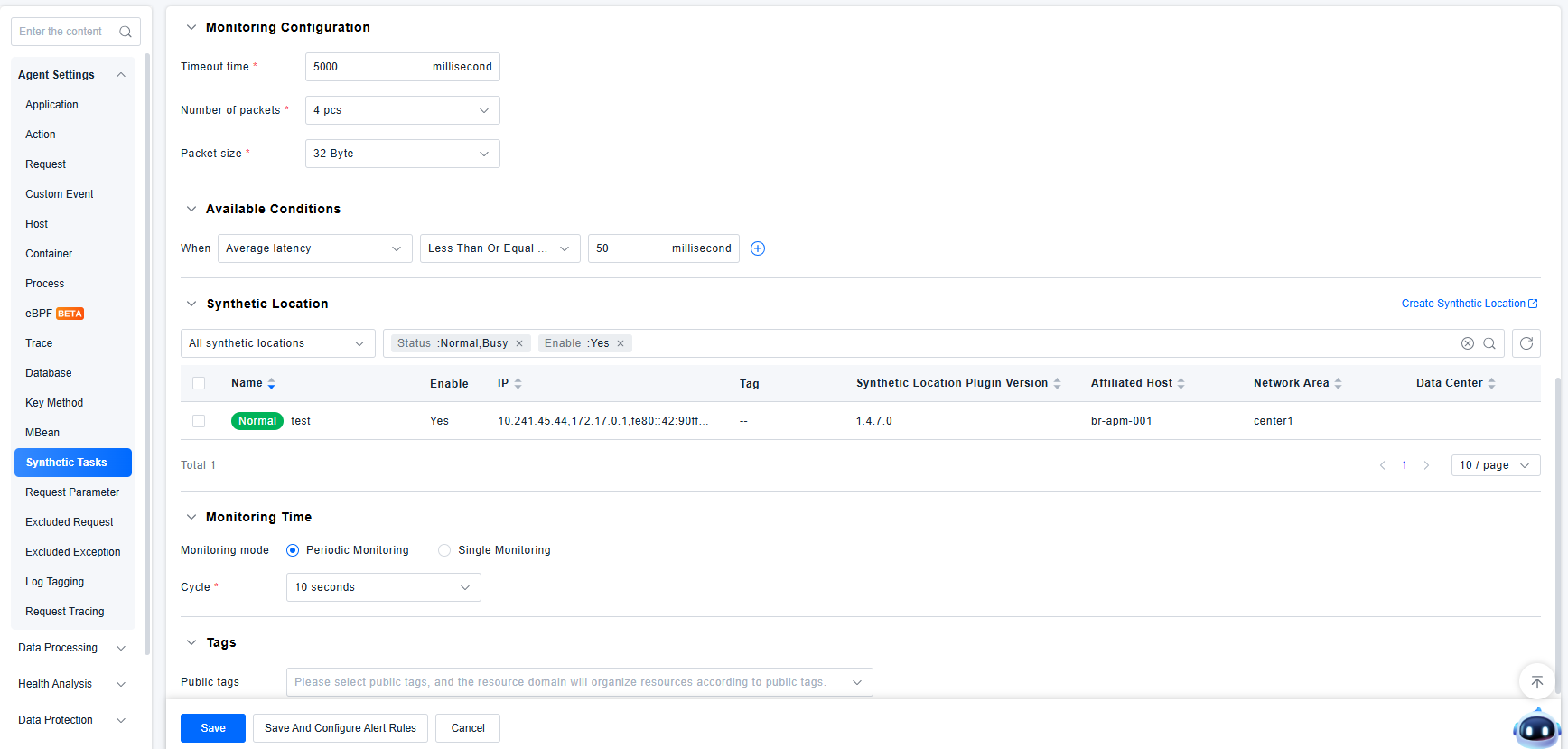
Monitoring Configuration: Parameters supported by each task type:
- ICMP PING: Timeout, Packet count, Packet size
- TCP: Timeout
- HTTP: HTTP version, Request method, Timeout, Ignore certificate errors, Set request headers, Set request body, Set custom hosts
- gRPC: Timeout, Service definition, Proto File, Enable TLS, Set metadata
- WebSocket: Timeout, Set request headers, Set request message, Set custom hosts
Available Conditions: Each task type supports selecting the following parameters in available conditions for value judgment:
- ICMP PING: Average round-trip time, Maximum round-trip time, Minimum round-trip time, Packet loss rate
- TCP: Total duration, TCP duration, Connection status
- HTTP: Status code, Total duration (including DNS), Total duration (excluding DNS), Response headers, Response information
- gRPC: Total duration (including DNS), Total duration (excluding DNS), Response information, Response metadata
- WebSocket: Total duration (including DNS), Total duration (excluding DNS), Response headers, Response message
Synthetic Location: You can select one or multiple synthetic locations
Monitoring Time: Supports periodic monitoring and one-time monitoring. Periodic monitoring allows setting the interval
- For HTTP and WebSocket task types, you can configure OAuth 2.0 authentication information to probe interfaces that require OAuth 2.0 authentication
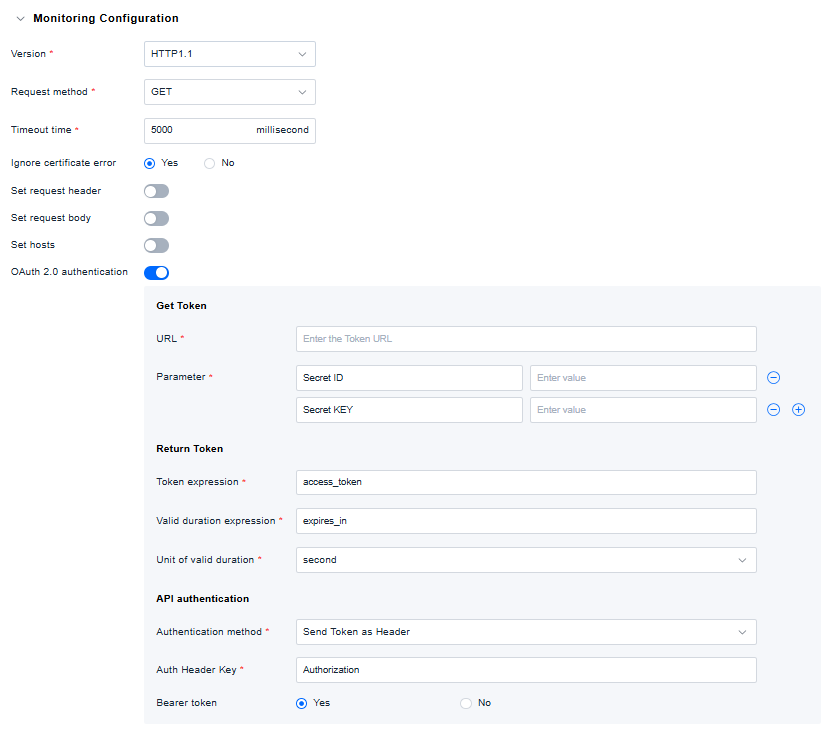
- Click "Save and Configure Alert Rules" to jump to: Intelligent Alerting/Alert Configuration/Alert Rules/New Alert Rule page, with the detection type set to Synthetic, and pre-filled with the current task name (for complete intelligent alerting capabilities, refer to Intelligent Alerting).