Create Synthetic Location
Synthetic locations are crucial components in building a global Digital Experience monitoring network. Through distributed deployment of synthetic locations, they accurately capture digital service performance across different geographical regions and network environments, providing an objective benchmark for global performance evaluation and user experience optimization.
As the "digital touchpoints" for active monitoring, synthetic locations overcome the limitations of Real User Monitoring (RUM), enabling proactive detection of service availability and performance characteristics before user access, achieving the transition from "reactive response" to "proactive prevention".
Getting Started
Install SmartGate Version ≥3.5.0
| SmartGate Version | Synthetic Location Plugin Version Included | Synthetic Location Capability Updates |
|---|---|---|
| [3.0.0,3.1.0) | 1.0.0.0 | Added ICMP PING, TCP, HTTP, WebSocket detection capabilities |
| [3.1.0,3.2.0) | 1.1.0.0 | 1. Retry twice after failed result reporting 2. Optimized interaction between synthetic locations and SmartGate 3. Optimized License control logic for synthetic locations |
| [3.2.0,3.2.3) | 1.2.0.0 | Only display SmartGates with synthetic monitoring capabilities when creating synthetic locations |
| [3.2.3,3.3.0) | 1.3.0.0 | Added support for detecting: gRPC interfaces |
| [3.3.0,3.5.0) | 1.4.1.0 | Added support for detecting: HTTP, WebSocket interfaces requiring OAuth 2.0 authentication |
| [3.5.0,3.6.0) | 1.4.7.0 | Launch synthetic location processes by calling SmartGate interfaces, supporting smooth upgrade of historical SmartGate versions to version 3.5.0 |
| ≥3.6.0 | 1.5.0.0 | Synthetic location capability optimization: supports smooth upgrade from synthetic location version 1.4.7.0 to 1.5.0.0. |
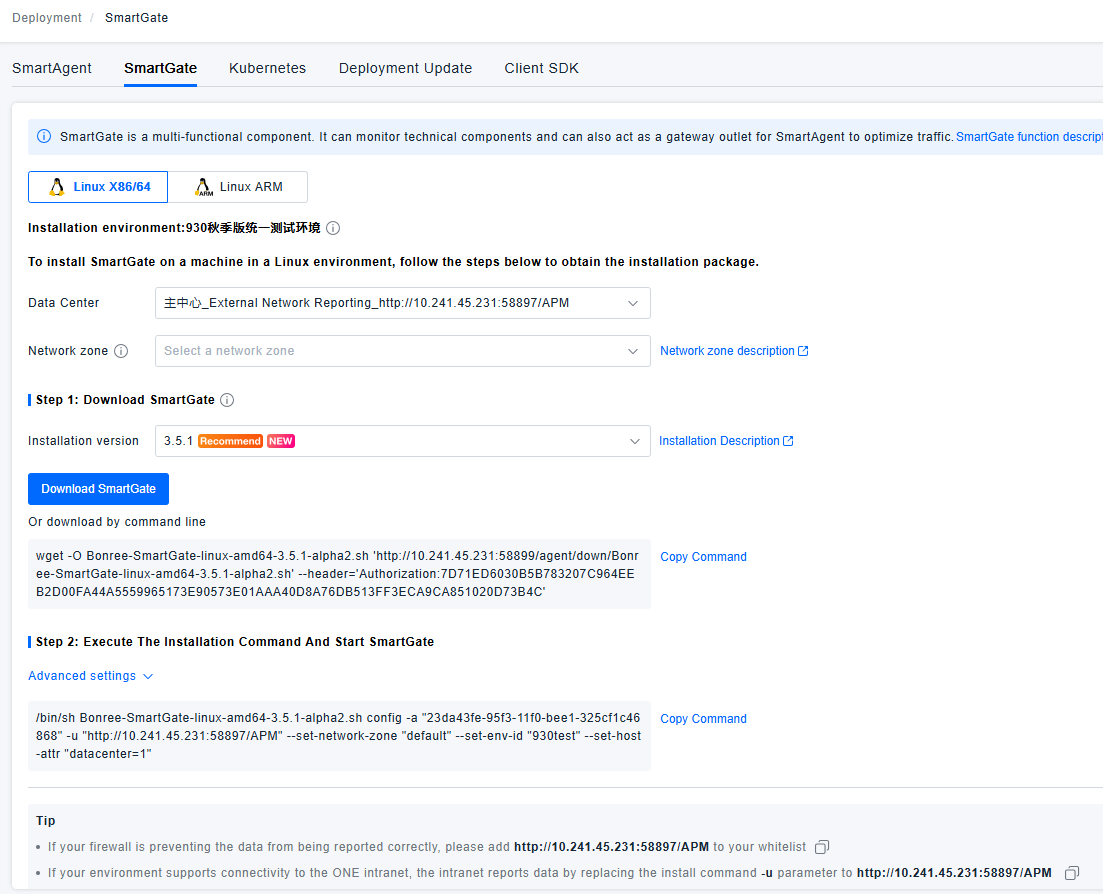
Navigate to Configuration/Deployment menu, switch to the SmartGate tab, select a SmartGate that includes the synthetic location plugin, download it, execute the installation command, and start the SmartGate.
Important Notes:
If upgrading SmartGate from version [3.0,3.3) to version [3.3,3.5), manual configuration modification is required. Steps are as follows:
- Log in to the host where the synthetic location is deployed
- Edit the configuration file
File path: /opt/bonree/smartgate/plugin/conf/local.tasks.yaml
Modification: Change the value of the server_addr parameter from ws://ip:port/v1/clients to http://ip:port
Note: Change the protocol from ws to http, and remove /v1/clients

Synthetic Location Management
Under the Configuration/Deployment Status menu, switch to the Synthetic Locations tab to view current synthetic locations.
image-20251009142221141
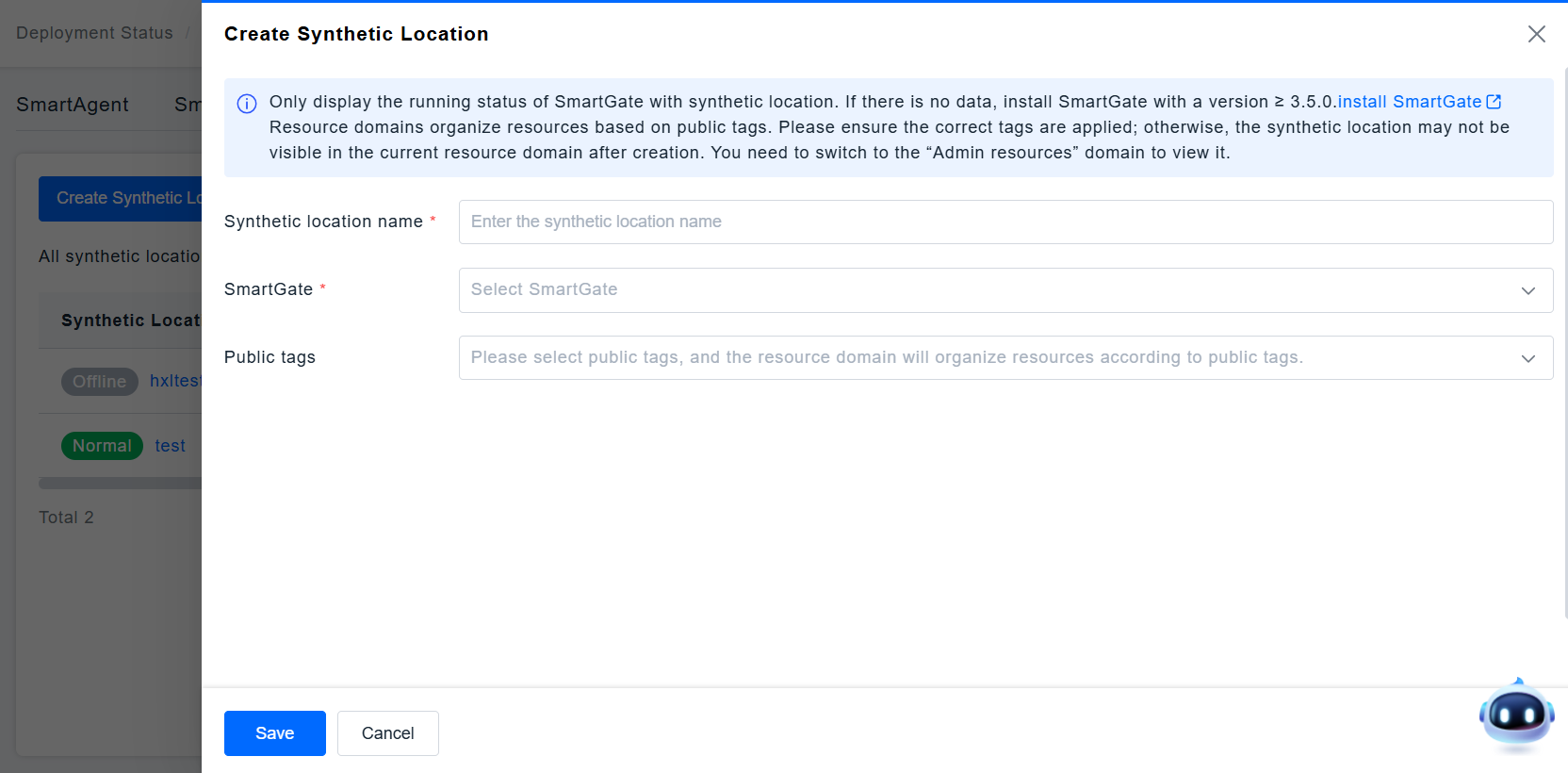
Click the "Create Synthetic Location" button, fill in the synthetic location name, and select a SmartGate.
- Requires a License for the maximum number of startable synthetic locations, and the maximum usage limit has not been reached.
- Only display the running status and SmartGate version ≥ 3.6.0 for SmartGate with synthetic location.
- Resource domains organize resources based on shared tags. Ensure correct tags are applied. Otherwise, the synthetic location might not be visible in the current resource domain after creation. Switch to the 'Admin resources' domain to view it.
Click on the synthetic location name to enter the details page. You can add tags here, such as "Location: Beijing", to facilitate subsequent analysis of monitoring tasks based on the synthetic location's shared tags. Personal tags are only used for filtering and display purposes.