RePlugin Integration
SDK Integration
Local
1. Prepare Bonree SDK Environment
Unzip BonreeSDK_TDEM_Android.v${VERSION_NAME}.zip and store it locally (e.g., E:);Copy the contents of the jniLibs directory to overwrite the jniLibs directory in your packaging module level that stores .so dynamic libraries (if there is no jniLibs directory in your project, please create one);
Copy the repo folder to the root directory of all Projects, at the same level as the module directory;
Copy com.bonree.sdk.jar to the libs directory at the module level;
Note: On Mac, it is best to place the unzipped folder path under /Users/xxxx/. Placing it in a system directory may cause unexpected issues due to permissions.
2. Configure Gradle
Open the build.gradle files in the root directory of both the host project and plugin project:
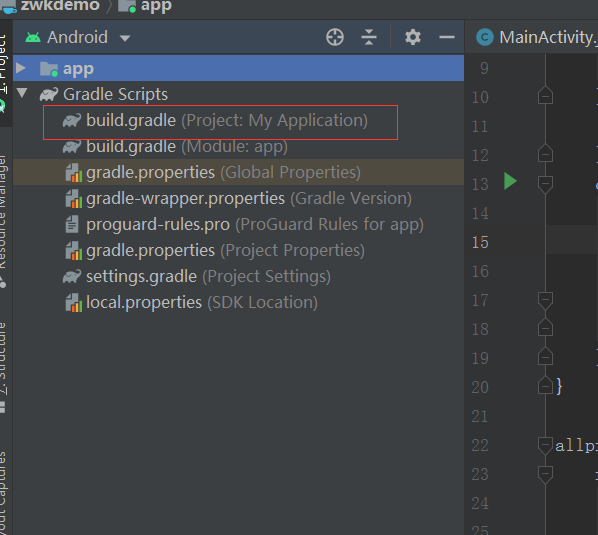
Add the following three configuration scripts (highlighted in red boxes) to the build.gradle files, and click the Sync Now button:
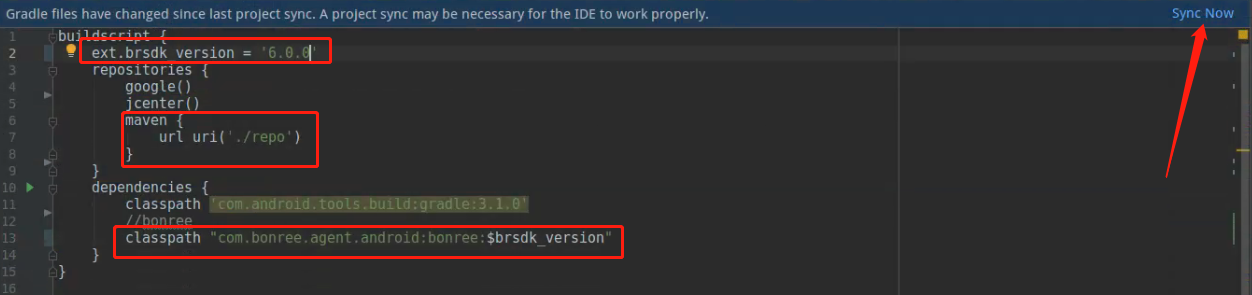
ext.brsdk_version = '6.0.0' // The value of ext.brsdk_version is the SDK version number, usually found at the end of the downloaded zip file name or in the Download Center.
maven { url uri('./repo') }
classpath "com.bonree.agent.android:bonree:$brsdk_version"
Open the build.gradle files in all module-level directories:
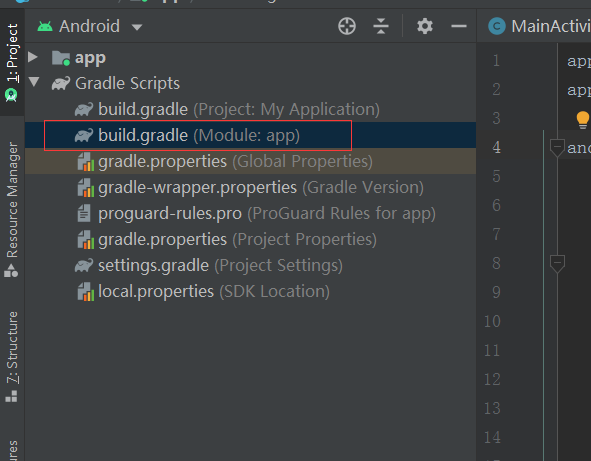
Add the following code in the dependencies block:
Host Project:
implementation files('libs/com.bonree.sdk.jar')
Plugin Project:
compileOnly files('libs/com.bonree.sdk.jar')
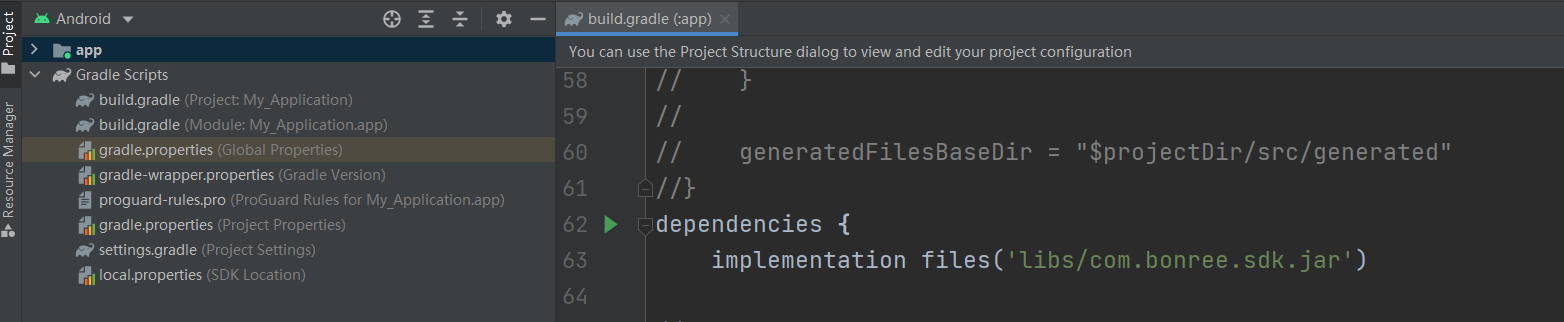
Apply the Bonree plugin at the top of the file:
apply plugin: 'bonree'
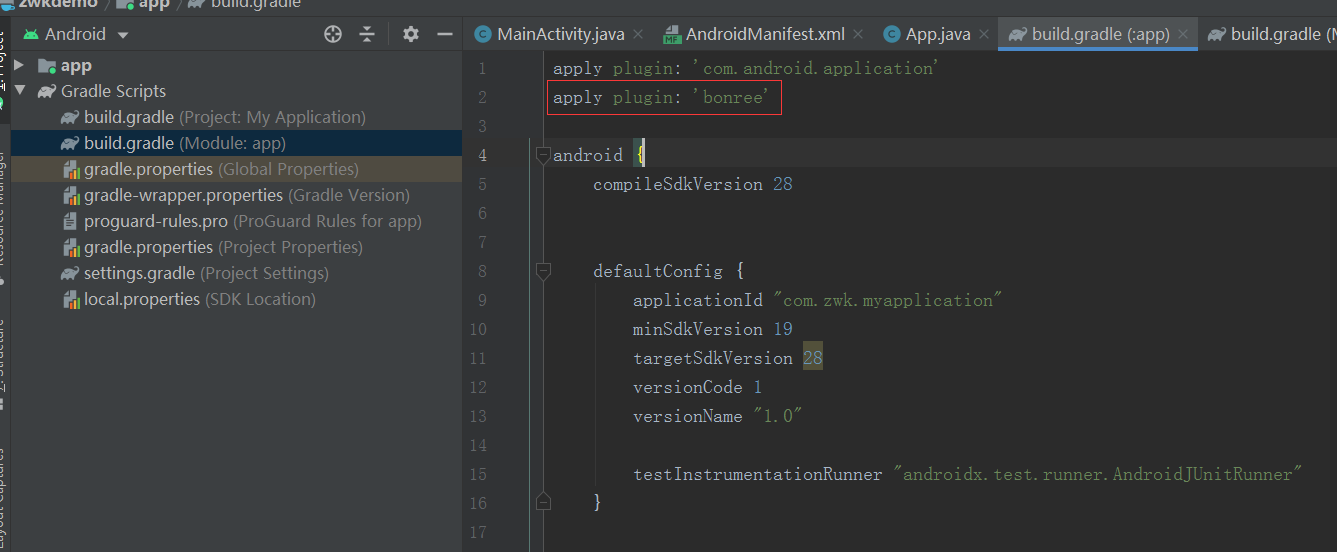
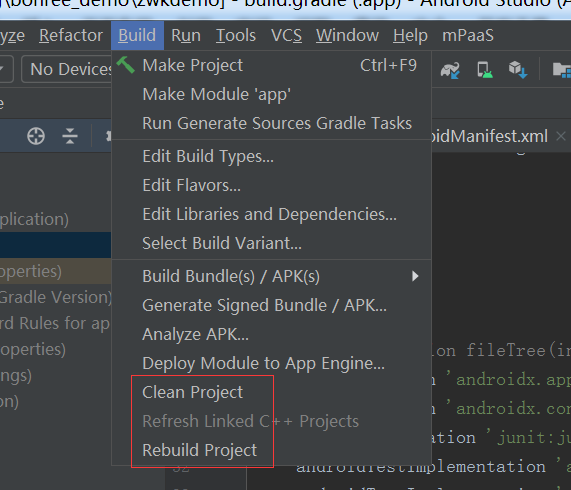
3. Rebuild & Clean Project
Rebuild & Clean the project to ensure the Bonree configuration takes effect.
Remote
1. Configure Gradle
Open the build.gradle files in the root directory of both the host project and plugin project:
Add the following three configuration scripts (highlighted in red boxes) to the build.gradle files, and click the Sync Now button:
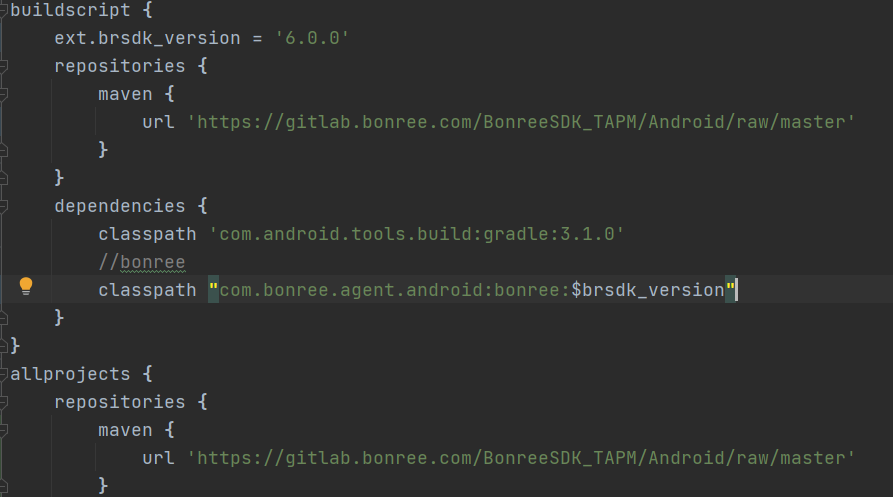
ext.brsdk_version = '8.0.0'
// The value of ext.brsdk_version is the SDK version number. Specific version numbers can be found in the Download Center.
maven {
  url 'https://gitlab.bonree.com/BonreeSDK_TAPM/Android/raw/master'
}
classpath "com.bonree.agent.android:bonree:$brsdk_version"
Open the build.gradle files in all module-level directories:
Add the following code in the dependencies block:
Host Project:
implementation "com.bonree.agent.android:agent-lib:$brsdk_version"
Plugin Project:
compileOnly "com.bonree.agent.android:agent-lib:$brsdk_version"

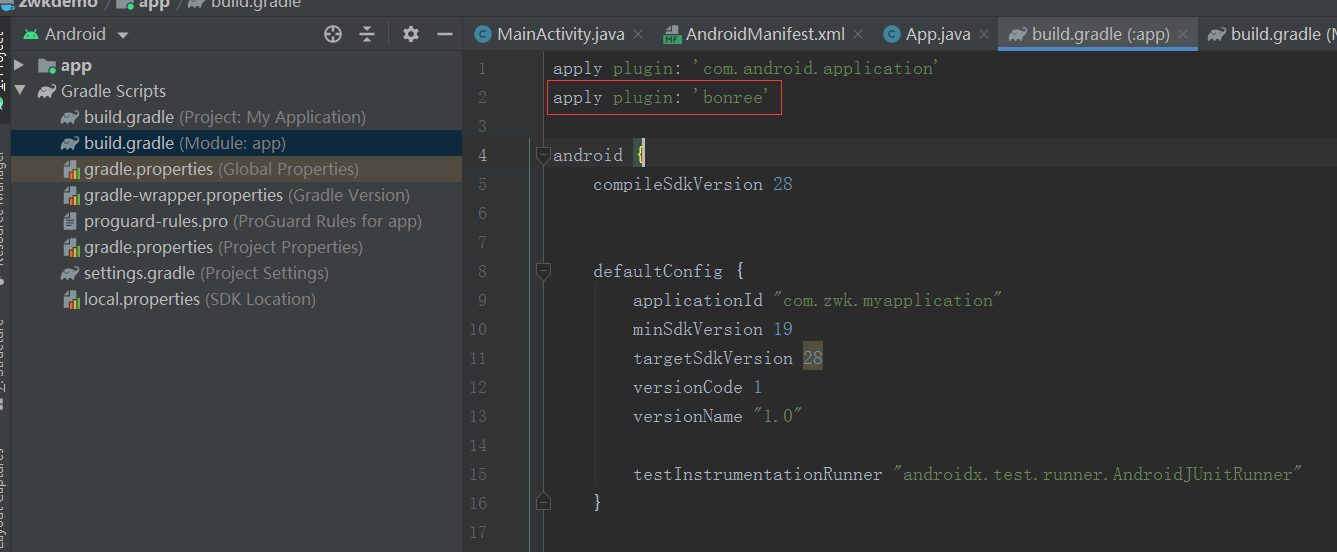
Apply the Bonree plugin at the top of the file:
apply plugin: 'bonree'
2. Rebuild & Clean Project
Rebuild & Clean the project to ensure the Bonree configuration takes effect.
SDK Setup
1. Configure Permission Information
Check the application's AndroidManifest.xml configuration file and make sure the following permissions are included whenever possible:
// For details, see the permissions section in the Privacy Policy.
// Required permissions:
<uses-permission android:name="android.permission.INTERNET" />
<uses-permission android:name="android.permission.ACCESS_NETWORK_STATE" />
// Optional permissions:
<uses-permission android:name="android.permission.BLUETOOTH" />
<uses-permission android:name="android.permission.ACCESS_FINE_LOCATION" />
<uses-permission android:name="android.permission.READ_PHONE_STATE" />
2. Configure Obfuscation Settings
If your application uses ProGuard obfuscation, add the following configuration:
#ProGuard configurations for Bonree-Agent
-keep class com.bonree.**{*;}
-keep class bonree.**{*;}
-keep class okhttp3.** { *; }
-keep class okio.**{*;}

-dontwarn com.bonree.**
-dontwarn bonree.**
-dontwarn okhttp3.**
-dontwarn okio.**
#End Bonree-Agent
If your ProGuard configuration file does not include the -dontoptimize configuration, be sure to add the following:
-optimizations !code/simplification/*,!field/*,!class/merging/*,!method/propagation/*,!class/unboxing/enum,!code/allocation/variable
3. Initialize SDK
<#Config Address#> and <#AppID#> can be obtained from the platform. For the method to obtain them, please refer to How to Query AppID and Config Address?. If you have any questions, please contact technical support.
Add the following code in the onCreate function of your custom Application:
Java:
Bonree.withAppID("<#AppID#>")
    .withConfigAddress("<#Config Address#>")
    .start(getApplicationContext());
Kotlin:
Bonree.withAppID("<#AppID#>")
    .withConfigAddress("<#Config Address#>")
    .start(getApplicationContext());
Example usage:
public class App extends Application {

    @Override
    public void onCreate() {
        super.onCreate();
        Bonree.withAppID("<#AppID#>")
                .withConfigAddress("<#Config Address#>")
                .start(getApplicationContext());
    }
}
4. WebView Data Collection
Collecting WebView data requires support from WebViewClient and WebChromeClient components.
Scenario 1: If your business code doesn't require custom clients, no additional calls to setWebViewClient or setWebChromeClient are needed.
Scenario 2: If your business requires setting clients, please avoid using the following code patterns:
Java:
Incorrect structure override that affects normal WebView data collection!
Incorrect examples:
webview.setWebViewClient(new WebViewClient());
or
webview.setWebChromeClient(new WebChromeClient());

Correct structure overrides that won't affect WebView data collection:
Correct examples:
webView.setWebChromeClient(new WebChromeClient(){});
webView.setWebViewClient(new WebViewClient(){});
or
CustomWebClient customWebClient = new CustomWebClient();
// CustomWebClient extends WebViewClient
webView.setWebViewClient(customWebClient);
or
webView.setWebViewClient(new WebViewClient(){
    @Override
    public void onPageStarted(WebView view, String url, Bitmap favicon) {
        super.onPageStarted(view, url, favicon);
        //do something...
    }
});
Kotlin:
Incorrect structure override that affects normal WebView data collection!
Incorrect examples:
webView!!.webViewClient = WebViewClient()
or
webView!!.webChromeClient = WebChromeClient()

Correct structure overrides that won't affect WebView data collection:
Correct examples:
webView!!.webChromeClient = object : WebChromeClient() {}
webView!!.webViewClient = object : WebViewClient() {}
or
// CustomWebClient extends WebViewClient
val customWebClient = CustomWebClient()
webView!!.webViewClient = customWebClient
or
webView!!.webViewClient = object : WebViewClient() {
    override fun onPageStarted(view: WebView, url: String, favicon: Bitmap) {
        super.onPageStarted(view, url, favicon)
        //do something...
    }
}
5. Integration Verification
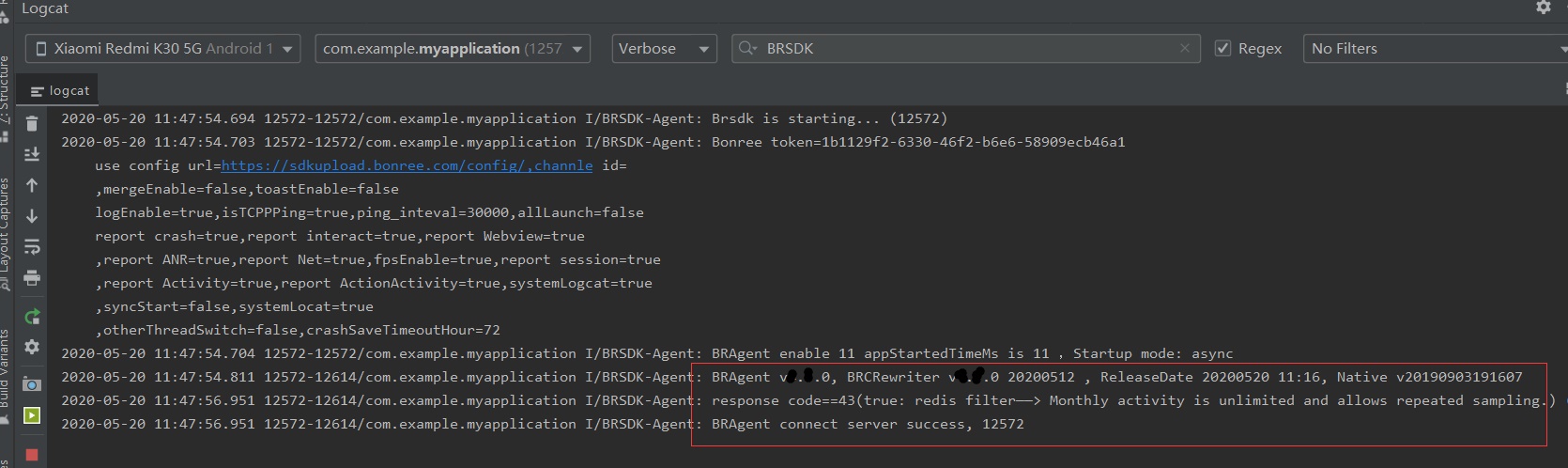
Start the integrated APK and check the logcat logs. Search for the keyword "brsdk" (or filter by the BRSDK-Agent tag). The following logs indicate successful integration and data collection has started:
Brsdk is starting (Note: BRAgent integration successful)
BRAgent enable (Note: BRAgent startup successful)
BRAgent connect server success (Note: BRAgent data configuration successful)
BRAgent v*** (Note: *** represents the BRAgent version corresponding to the current zip file name)
Log Integration
Local Integration
1. Prepare Bonree SDK Environment
Copy the downloaded log SDK file com.bonree.log.jar to the libs directory at the module level of your project (the screenshot example uses a Demo project as an example). As shown in the figure:

2. Sync Gradle
Open the build.gradle file in the module-level directory, add the following code in the dependencies block, and click the Sync Now button.
implementation files('libs/com.bonree.log.jar')

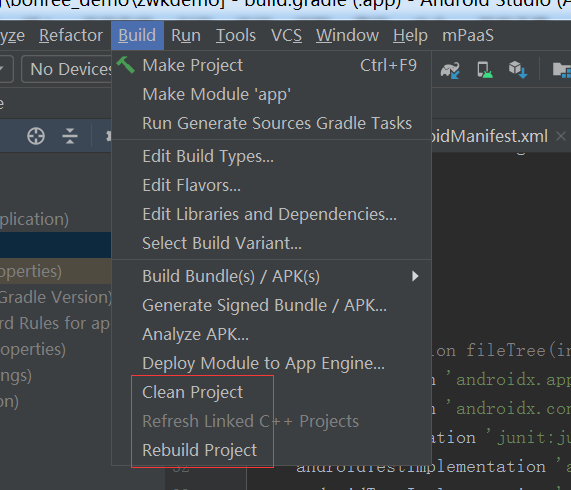
3. Rebuild & Clean the Project
Rebuild & Clean the project to ensure the Bonree configuration takes effect.
4. Configure Permission Information
Check the application's AndroidManifest.xml configuration file to ensure the following permissions are included:
<uses-permission android:name="android.permission.INTERNET" />
<uses-permission android:name="android.permission.WRITE_EXTERNAL_STORAGE" />
<uses-permission android:name="android.permission.READ_EXTERNAL_STORAGE" />
5. Configure Obfuscation Settings
# ProGuard configurations for Bonree-Log
-keep class com.bonree.** { *; }
-keep class bonree.** { *; }
-dontwarn com.bonree.**
-dontwarn bonree.**
# End Bonree-Log
Remote Dependency
1. Integration Version
Check the Download Center for the latest version number of Bonree Log SDK to determine the version you want to integrate.
2. Sync Gradle
Open the build.gradle file in the module-level directory, add the following code in the dependencies block, and click the Sync Now button.
implementation 'com.bonree.log:log:1.0.0'
3. Rebuild & Clean Project
Rebuild & Clean the project to ensure the Bonree configuration takes effect.
Note: We recommend configuring data collection rules on the platform under Installation & Deployment / Rule Configuration / Data Collection / Terminal Application immediately after completing SDK integration, to avoid discrepancies between platform data and your expectations.