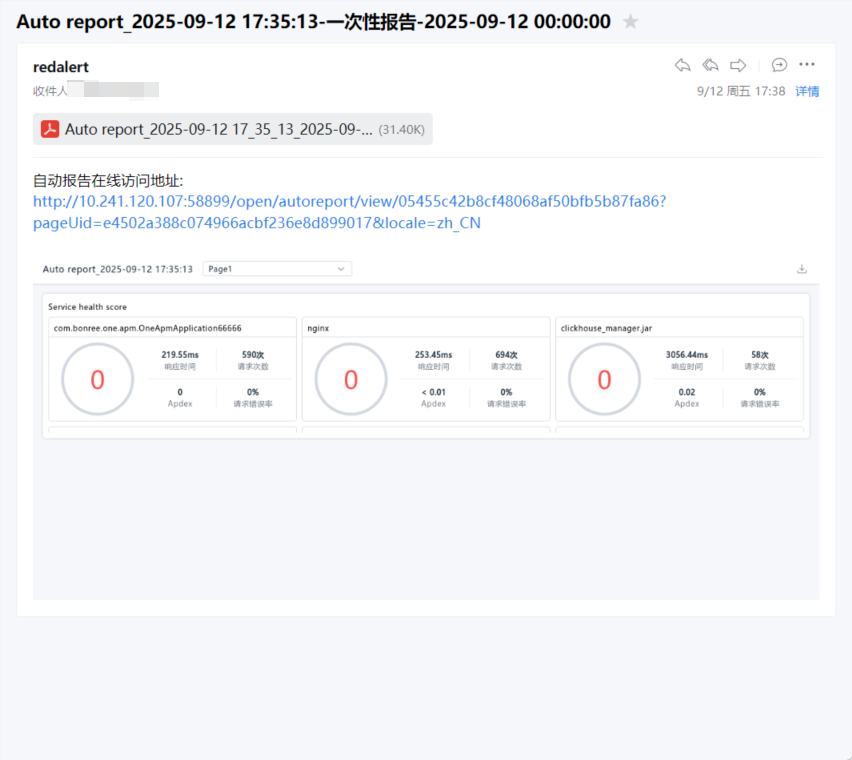
Automated Reports List
The Automated Reports module enables the creation of various report templates. These templates can be configured with rules to automatically send report content via email to platform users on a scheduled basis (daily, weekly, monthly), ensuring timely information delivery and streamlining team analysis and review processes.
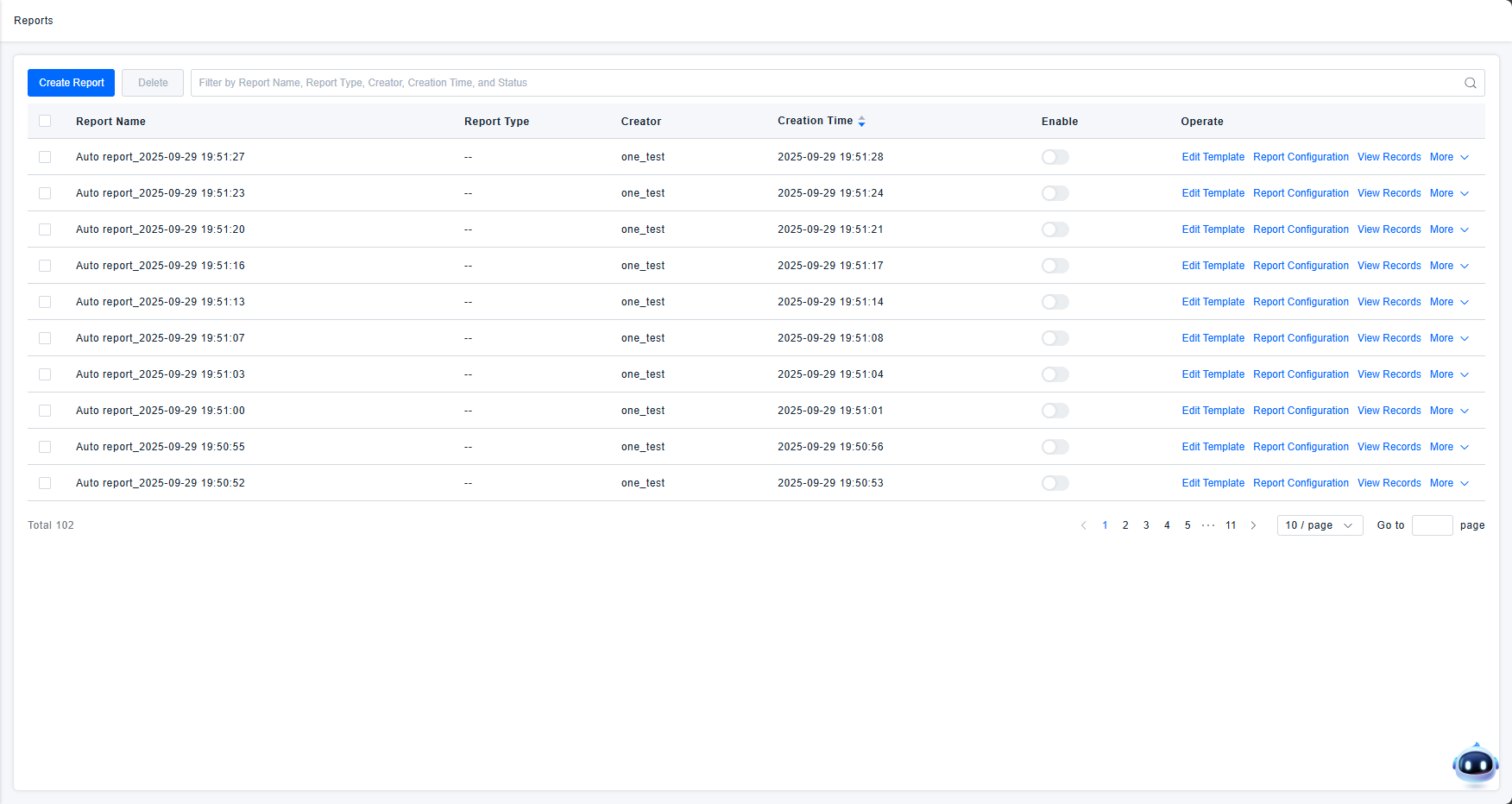
Scenario Description
- For Operations Teams: Operations personnel need to frequently monitor core data. Delivering daily or weekly reports that compile key statistics helps quickly identify business anomalies, improves troubleshooting efficiency, and eliminates the need for manual daily dashboard checks.
- For Management Teams: Managers require periodic insights into overall business performance. One-time reports, monthly reports, or quarterly reports provide a consolidated view of data over specific periods, aiding in strategic decision-making for future business direction.
Feature Description
Create/Edit Templates
To prevent users from receiving multiple separate reports, a single automated report template can incorporate multiple pages. Each page is configured with independent content, which is then combined into a multi-page report for notification delivery.
Automated Reports utilize dashboard components for content creation. Component configuration can be referenced via Dashboard Configuration. Besides configuring templates manually using these components, you can also directly use existing dashboards as templates, eliminating repetitive configuration work.
Report Configuration
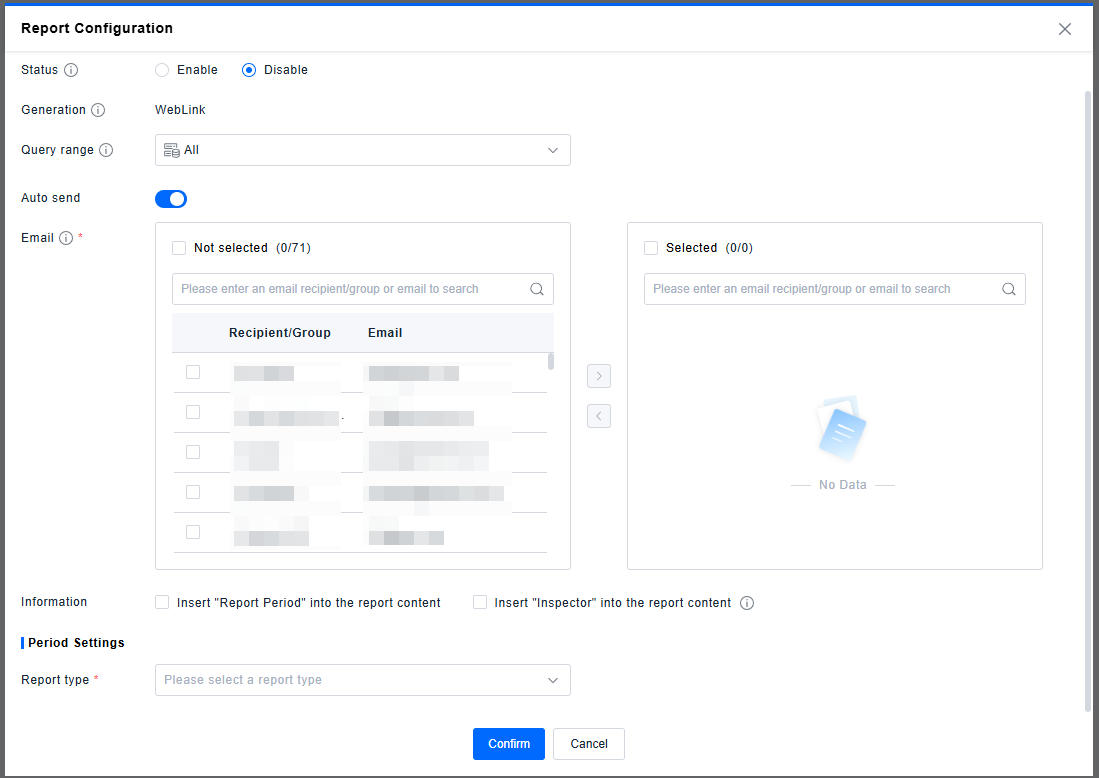
After configuring the report content, notification settings must be defined. Generated reports will be sent to selected email addresses based on the configured schedule.
- Report Status: Sets the initial state of the report configuration. Saving a one-time report with status Enabled will trigger immediate sending. The status can be modified later from the list at any time.
- Generation: All reports are sent via email containing a Weblink. On x86 systems, a PDF version of the report is additionally attached to the email.
- Query Range: Control the query scope for report content by selecting a resource domain. By default, it aligns with the current resource domain of the platform.
- Auto-Send: This switch must be enabled to select recipients and send reports.
- (Required) Email Recipients/Groups: Recipients/Groups and their corresponding email addresses must be configured in "Settings Center / Recipient Management". Only selected email addresses will receive the report.
- Information Configuration: Options to include "Report Period" and "Inspector" information in the report.
- (Required) Report Type: Choose to send either a one-time report or a recurring periodic report:
- One-Time Report: Set the data time range for the report; defaults to the current day's data. Enabling and saving triggers immediate sending. To generate again later, re-enable and save the configuration.
- Periodic Report: Sends reports on a scheduled basis. Configure the recurrence rule:
- Frequency: Supports Daily, Weekly, Monthly, and Quarterly intervals.
- Generation Time: Select a specific time between 00:00 - 23:59 to generate and send the report.
- Business Day: (Applies only to Daily frequency) Select specific days of the week (Monday - Sunday) for data aggregation.
- Data Time Range: (Applies only to Daily frequency) Select a specific time window within a day (00:00:00 - 23:59:59) to query data for the report content.
Note: Distinguish between Generation Time and Data Time.
-
Generation Time is the moment a report is calculated and sent within each cycle. For example, choosing a Quarterly frequency means reports for the previous quarter are generated at the specified time on the first day of the new quarter (e.g., Jan 1, Apr 1).
-
Business Day and Data Time Range are specific configurations for Daily reports, providing precise control over the data query scope.
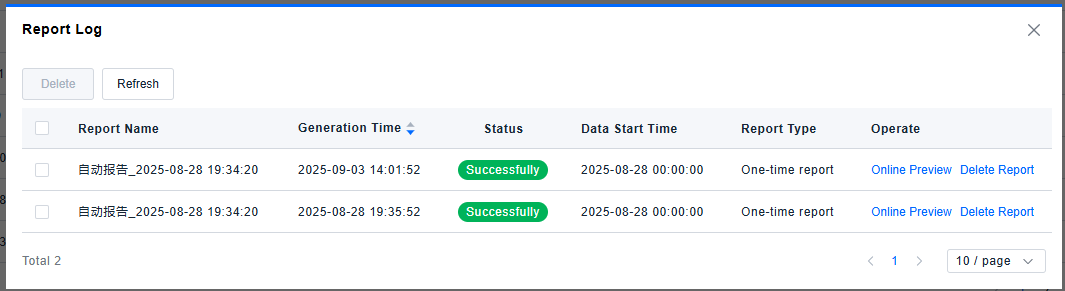
View History
The report generation log is displayed in reverse chronological order by default. You can preview or delete any generated report directly from this list.
Clone/Delete
- Clone: Creates a copy of an existing template, including all its report configurations.
- Delete: Removes the current report template.
Notification Result
Generated reports are sent via email to the specified users or groups. The email contains:
- A weblink for online access to the automated report.
- A preview image of the report content.
- (x86 systems only) A PDF attachment of the report.
- (ARM systems) PDF attachment generation is not supported. However, reports can be accessed without login via the provided weblink and can be exported to PDF from the browser.