uni-app Plugin Integration Guide
This plugin is suitable for UniApp projects in HBuilder (uni-app x projects are not currently supported). It is used by packaging project resources into AndroidStudio or Xcode projects via the uni mini-program SDK or offline packaging.
Integration Steps
- Integrate into the uni-app project
- Integrate as a local plugin in HBuilder
- Integrate into the Android/iOS project
1. Uni-app Project Integration
-
Import JS files
Add the files
BRPageMixin.jsandBRWatchRouter.jsto your uni-app project, placing them at the same level asmain.js. -
Modify the
App.vuefileStep 1: Import the route monitoring file
Step 2: Mixin the route monitoring object
Step 3: Add error collection code
<script>
    // Step 1: Import the route monitoring file
    import BRWatchRouter from "./BRWatchRouter.js"; // Import route monitoring
    export default {
        mixins: [BRWatchRouter], // Step 2: Add mixin
        onLaunch: function() {
            console.log('App Launch')
        },
        onShow: function() {
            console.log('App Show')
        },
        onHide: function() {
            console.log('App Hide')
        },
        onError: function(error) {
            BRWatchRouter.methods.errorFn(error) // Step 3: Collect error information
        }
    }
</script> -
Add the
BRPageMixin.jsfile to the project entry pageThe
BRPageMixin.jsfile is also mixed into the page via mixin to compensate for the situation where the route instance is not yet ready when the first page renders and route information cannot be collected.// Page vue file, e.g., index.vue
<template>
<view class="uni-container">···</view>
</template>
<script>
import BRPageMixin from '../../BRPageMixin.js';
export default {
mixins:[BRPageMixin],
data() {}
}
</script>
2. Plugin Integration in HBuilder
-
Copy the Uni plugin package to the
nativepluginsdirectory. If thenativepluginsdirectory does not exist, create it in the project root directory.
-
Open
manifest.jsonin your project, select [Android/iOS Native Plugin Configuration], click [Select Local Plugin], choose the [BonreeUniAppNativePlugin] from the plugin list, and click OK.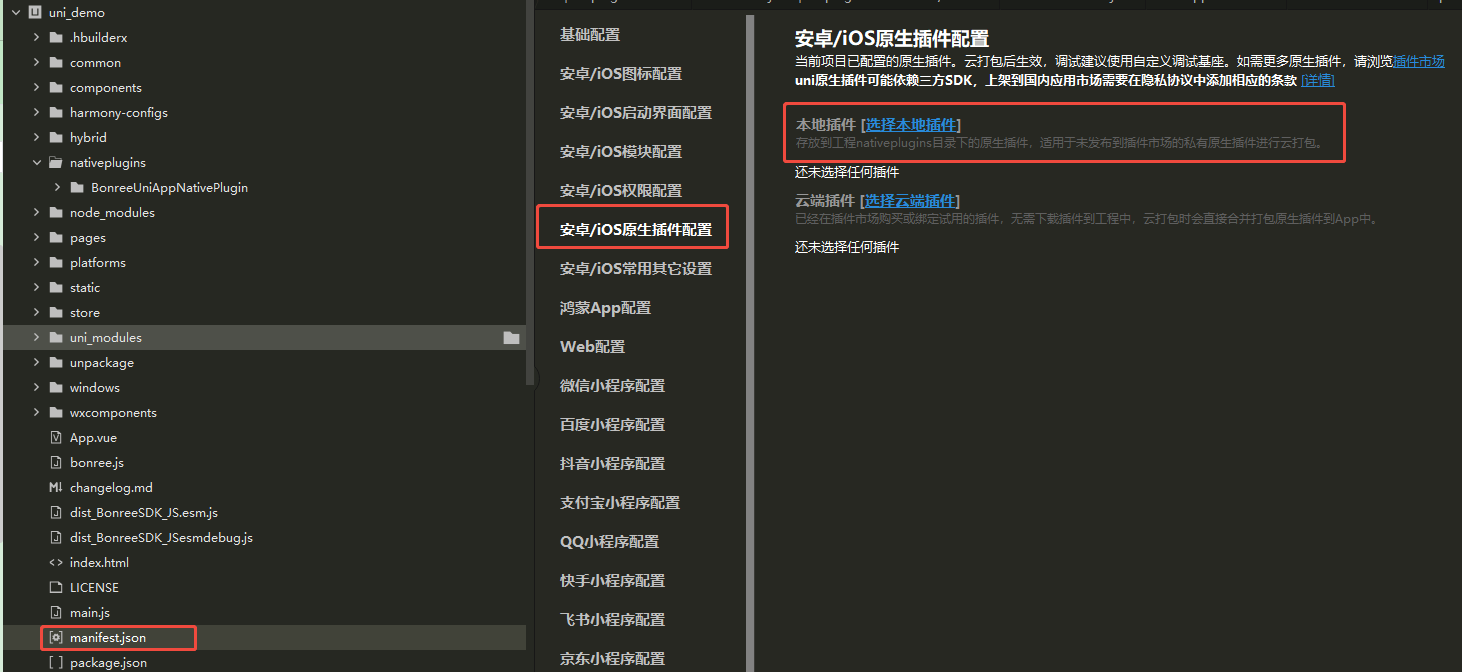
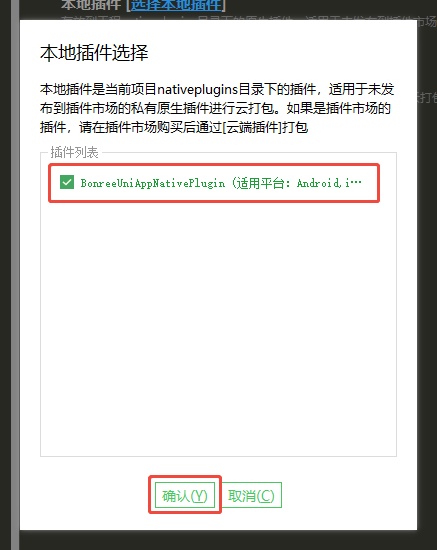
Note: After adding a local plugin, you need to submit a cloud build (creating a custom base also counts as a cloud build) for the plugin to take effect.
Refer to the official uni-app documentation: uni-app Native Plugin Local Configuration, Custom Base
3. Integration into Android/iOS Projects
Integration into Android Project
Choose the appropriate integration method below based on how your project integrates Uniapp.
1. Uni Mini-Program SDK Integration Method
1.1 First, integrate the SDK into AndroidStudio.
Refer to the integration and setup sections in the Help Center: Android-Native.
1.2 Import the module in the project's Application class.
try {
    UniSDKEngine.registerModule("BonreeUniAppNativePlugin", BonreeUniPlugin.class);
} catch (UniException e) {
    e.printStackTrace();
}
2. App Offline Packaging
2.1 First, integrate the SDK into AndroidStudio.
Refer to the integration and setup sections in the Help Center: Android-Native.
2.2 Register the module.
Add the following in assets/dcloud_uniplugins.json:
{
  "plugins": [
     {
       "type": "module",
       "name": "BonreeUniAppNativePlugin",
       "class": "com.bonree.sdk.agent.engine.external.BonreeUniPlugin"
     }
  ]
}
Integration into iOS Project
After extracting the downloaded plugin, you will find four xcframework files in the iOS directory of the BonreeUniAppNativePlugin plugin folder: BonreeRUM.xcframework, BonreeCore.xcframework, BonreeBusiness.xcframework, and BonreeUniAppNativePlugin.xcframework. We will use these four xcframeworks.
1. Uni Mini-Program SDK Integration Method
1.1 Integrate the above four xcframeworks into your host application's project. For specific steps, refer to the manual integration and setup sections in the iOS Integration Document.
1.2 Open the host application project and register BonreeUniAppNativePlugin at app launch as follows:
-
Import the header file
#import <BonreeUniAppNativePlugin/BonreeUniAppNativePlugin.h> -
Registration
Objective-C
[BonreeUniAppNativePlugin registerModule];Swift
BonreeUniAppNativePlugin.registerModule()
2. App Offline Packaging
2.1 Integrate the above four xcframeworks into the iOS offline packaging project. For specific integration steps, refer to the manual integration and setup sections in the iOS Integration Document.
2.2 Open the offline packaging project and add the following content under the dcloud_uniplugins node in the Info.plist file:
<dict>
    <key>hooksClass</key>
    <string></string>
    <key>plugins</key>
    <array>
        <dict>
            <key>class</key>
            <string>BonreeUniAppNativePlugin</string>
            <key>name</key>
            <string>BonreeUniAppNativePlugin</string>
            <key>type</key>
            <string>module</string>
        </dict>
    </array>
</dict>
Note: We recommend configuring data collection rules on the platform under Installation & Deployment / Rule Configuration / Data Collection / Terminal Application immediately after completing SDK integration, to avoid discrepancies between platform data and your expectations.