Understanding Tags
The ONE platform provides comprehensive and robust tagging capabilities. Users can add tags to various data, including entities, metrics, and dashboards, as needed. These tags can be used for data retrieval, permission management, and other scenarios.
Key Concept Explanations
Tag: To ensure the universality of tag usage across various scenarios, the ONE platform defines a tag as a "key:value" key-value pair, using the key to represent the dimension type and the value to represent the dimension value.
Shared Tags/My Tags: The platform categorizes tags into two types, Shared Tags and My Tags, based on usage scenarios, providing different permission control methods. Shared Tags represent public tags that need to be understood by all data users, used for public scenarios like permission control. My Tags represent tags for personal use only; these tags are meaningless to other data users besides the creator and are used for grouping, filtering, and other user scenarios.
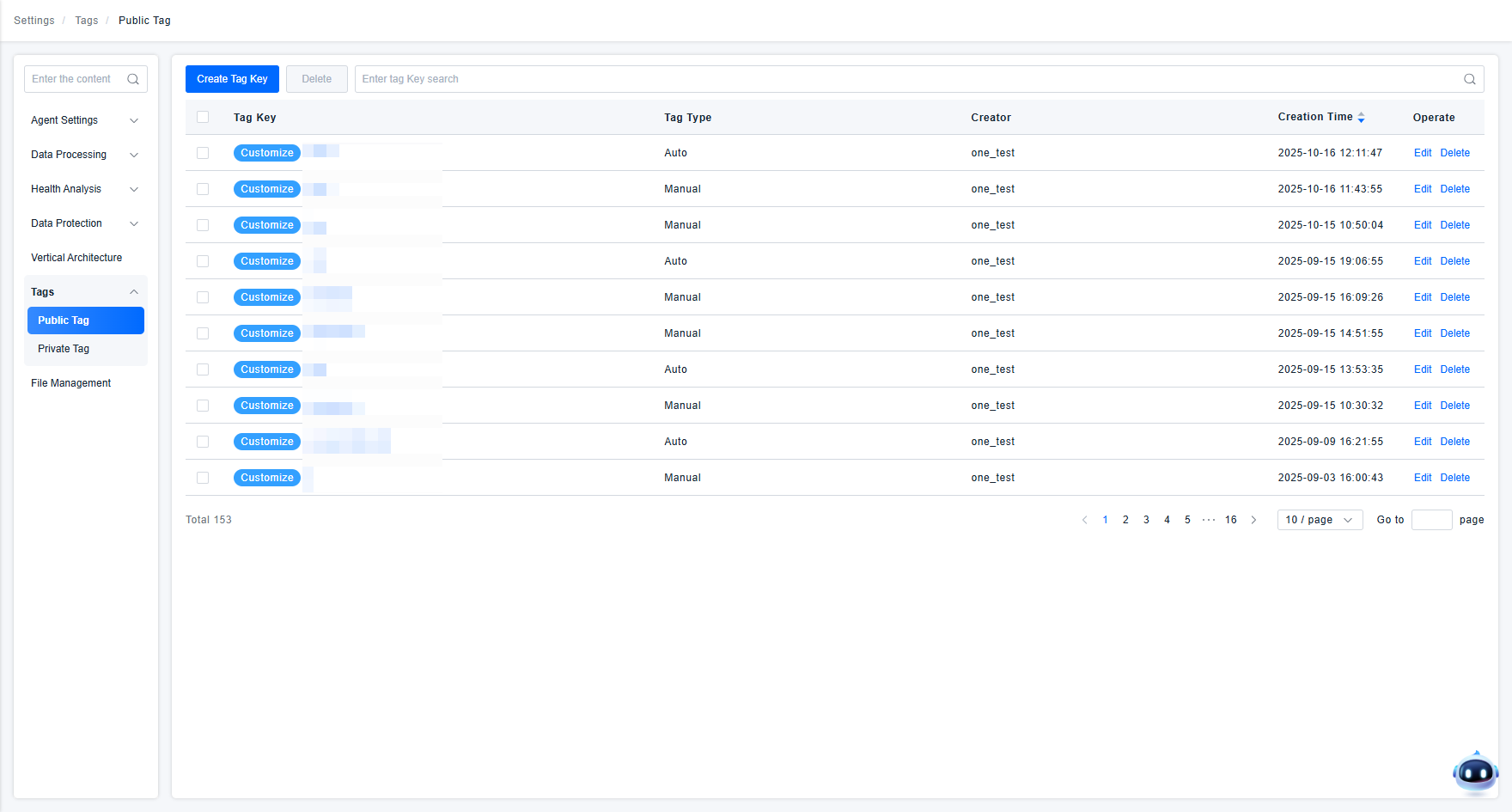
Although Shared Tags and My Tags are tag types for different usage scenarios, there is no difference in their concept and functional usage. Therefore, subsequent documentation will primarily use Shared Tags for screenshot examples in function usage demonstrations.
Basic Usage of Platform Tag Management Functions
The Tag Management page is the key embodiment of the platform's tagging capabilities. On this page, users can perform operations such as tag key management, manual tag management, automatic tag rule management, and batch operations on entity tags.
Tag Key Management
The ONE platform defines tags as identifiers composed of a complete key:value structure. To define a tag, users must first define the key's content and usage.
Creating a Tag Key
Users can create the keys they need using the page's "Create Tag Key" function.
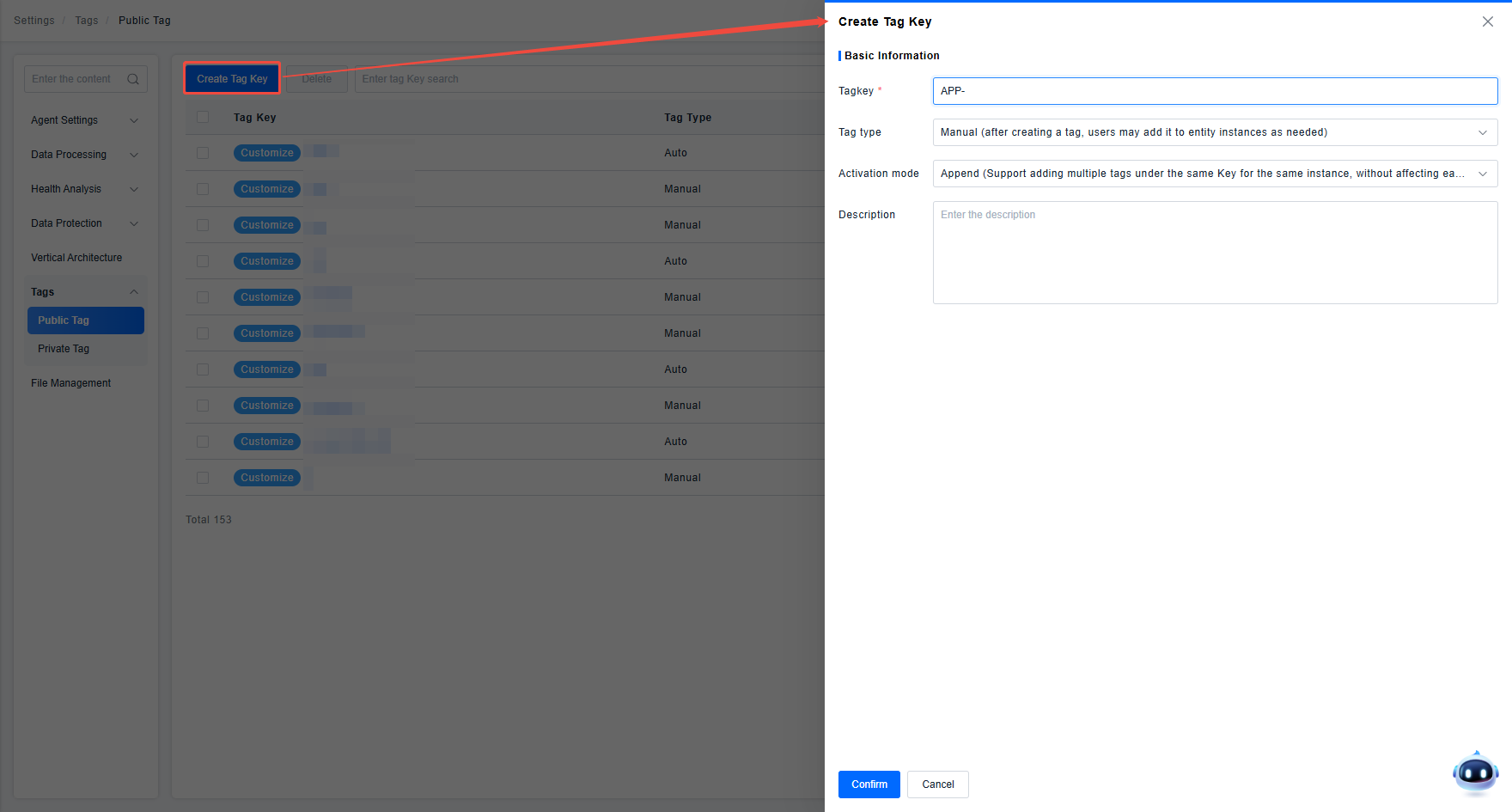
Usage Notes:
1.Tag keys are composed of "Chinese characters, uppercase/lowercase letters, numbers, -, _" with a maximum length of 100.
2.Tag types are divided into Manual/Automatic. Currently, it is required to be defined per key; tags under one key cannot mix manual and automatic types.
- Manual: Requires users to manually create the tag's value and assign this tag to specific entity instances based on the value.
- Automatic: Users cannot directly define the value or the association between the value and entity instances. Rules need to be defined, and the system will automatically generate values and their associations with entity instances according to the rules.
"My Tags" currently do not support the automatic tag function. Users can only create manual tags under "My Tags".
3.Tag Application Method primarily addresses the issue of how to automatically clean up invalid tags. Considering that some tags require deleting old ones when new ones appear, the application method is divided into "Append/Overwrite" two types. (The tag application method is triggered when actually tagging an entity).
- Overwrite: New tags under the same key overwrite old tags.
- Append: Old tags are retained when adding new tags under the same key.
Based on tag usage experience, it is recommended that users choose Append for manual types and Overwrite for automatic types.
4.Special Application Method considers that platform tags are transmitted according to entity relationships, and the 1-1 or 1-N relationships between entities may change during transmission. Therefore, users are supported to specify the tag's application method per entity. If some entities require an application method different from others, this function can be used to specify it.
The Special Application Method is optional. If it exists, users can select multiple entities at once to use the special application method.
5.Tag Key Description is used to record the user's explanatory content regarding the current key. It is recommended to use the key's purpose and usage method as the description content.
Managing Tag Keys
The Tag Key list displays all keys created by the current user. Users can manage these keys through the list, including: editing the key, deleting the key, and managing tags under the key.
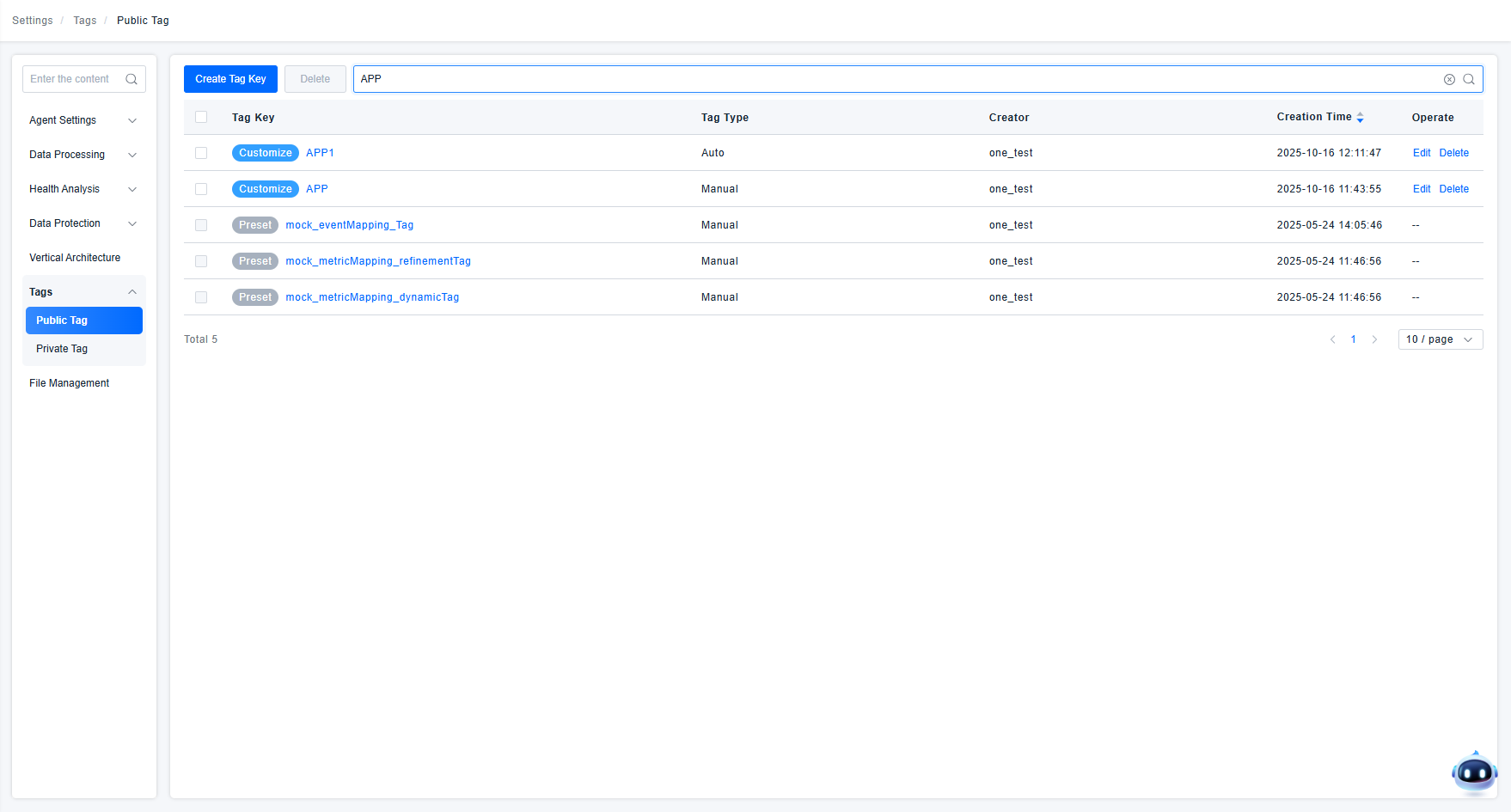
Other items to note during Tag Key Management:
1.Shared Tags display all keys created in the environment. My Tags display keys created by the user in the environment.
2.Since tags will be widely used as data characteristics within the platform, tags are categorized into Predefined/Custom based on their creation method, facilitating tag management within the platform.
- Predefined refers to tags created outside the ONE platform's tag management system (e.g., backend predefined, probe collection definitions, ETL data flow configuration definitions, etc.). Because predefined tags are not created within the tag management system, the page does not directly provide functions to edit or delete predefined tags. If users need to operate on predefined tags, they can intervene through the source function of the predefined tag (e.g., predefined tags created by ETL can be operated from the ETL configuration page).
- Custom refers to tags created by users through the ONE platform's tag management system (e.g., Tag Management page, tag plugin). Because data writers like probes and ETL write tags into the underlying data, the tags they define are all considered Shared Tags. In principle, only Shared Tags can have Predefined Tags, and My Tags are all Custom Tags.
Editing a Tag Key
Users can edit created tag keys using the list's edit function.
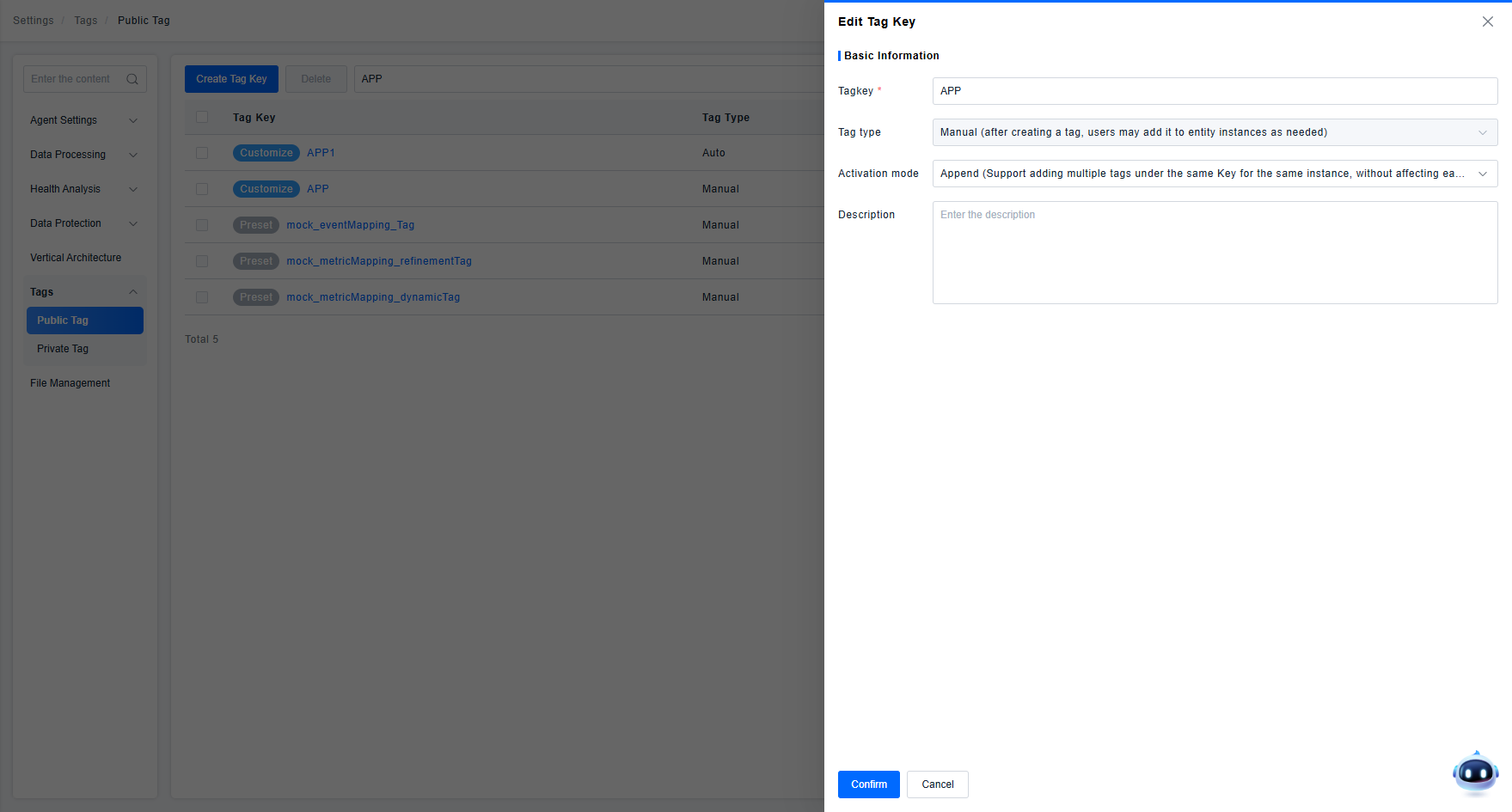
Usage Instructions:
- Custom Tags: If the user has already defined rules or tag values, adjusting the "Tag Type" is not allowed; all other content can be edited and adjusted.
- Predefined Tags: Predefined tags only allow users to view the tag content; editing/deleting is not permitted.
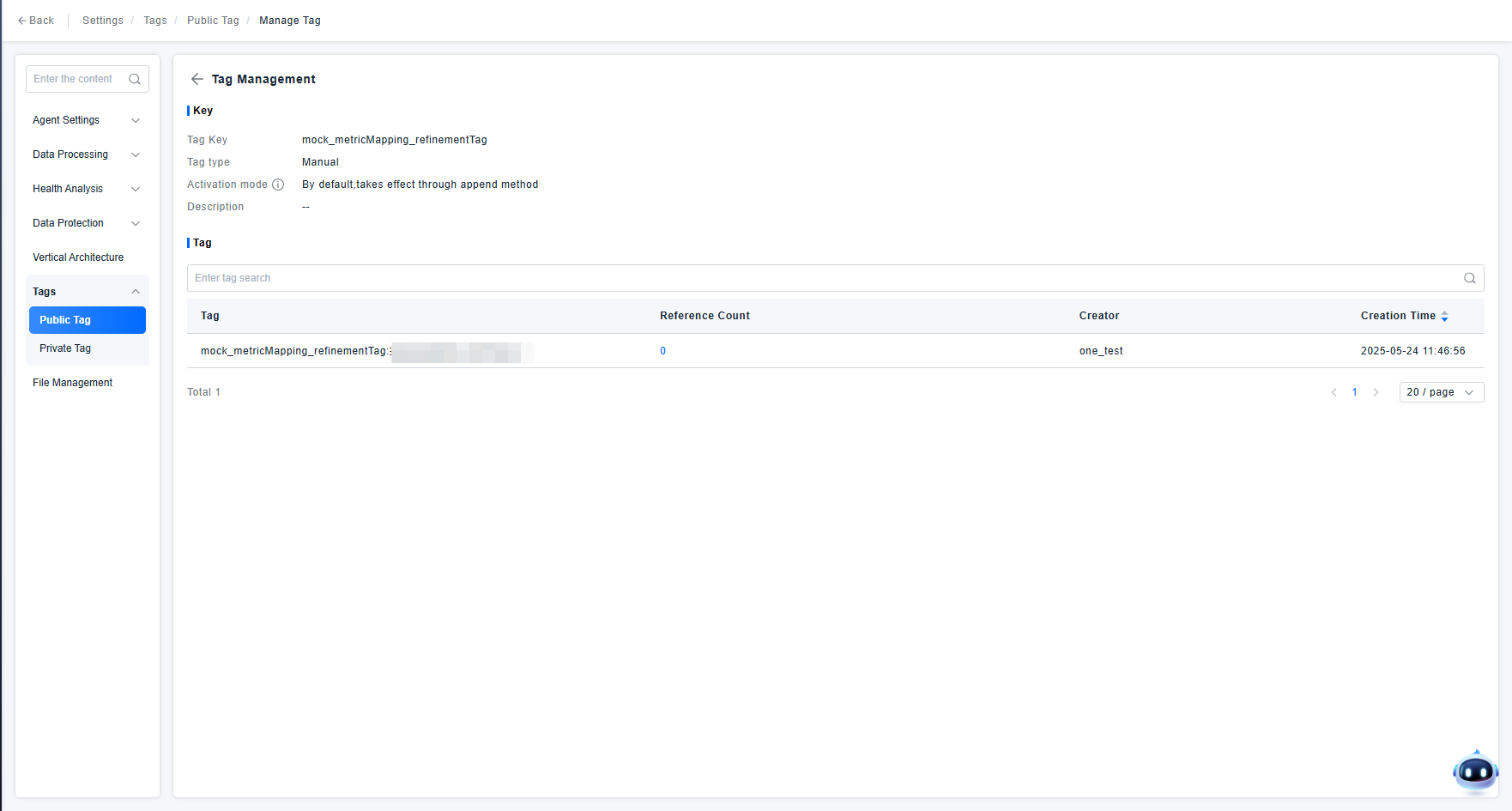
From the current scenarios of ETL, probes, and backend predefined tags, the predefined tag type should all be manual. The details management page for a predefined tag is shown in the figure below, only displaying the tag and its reference situation, and does not support user modifications.
Deleting a Tag Key
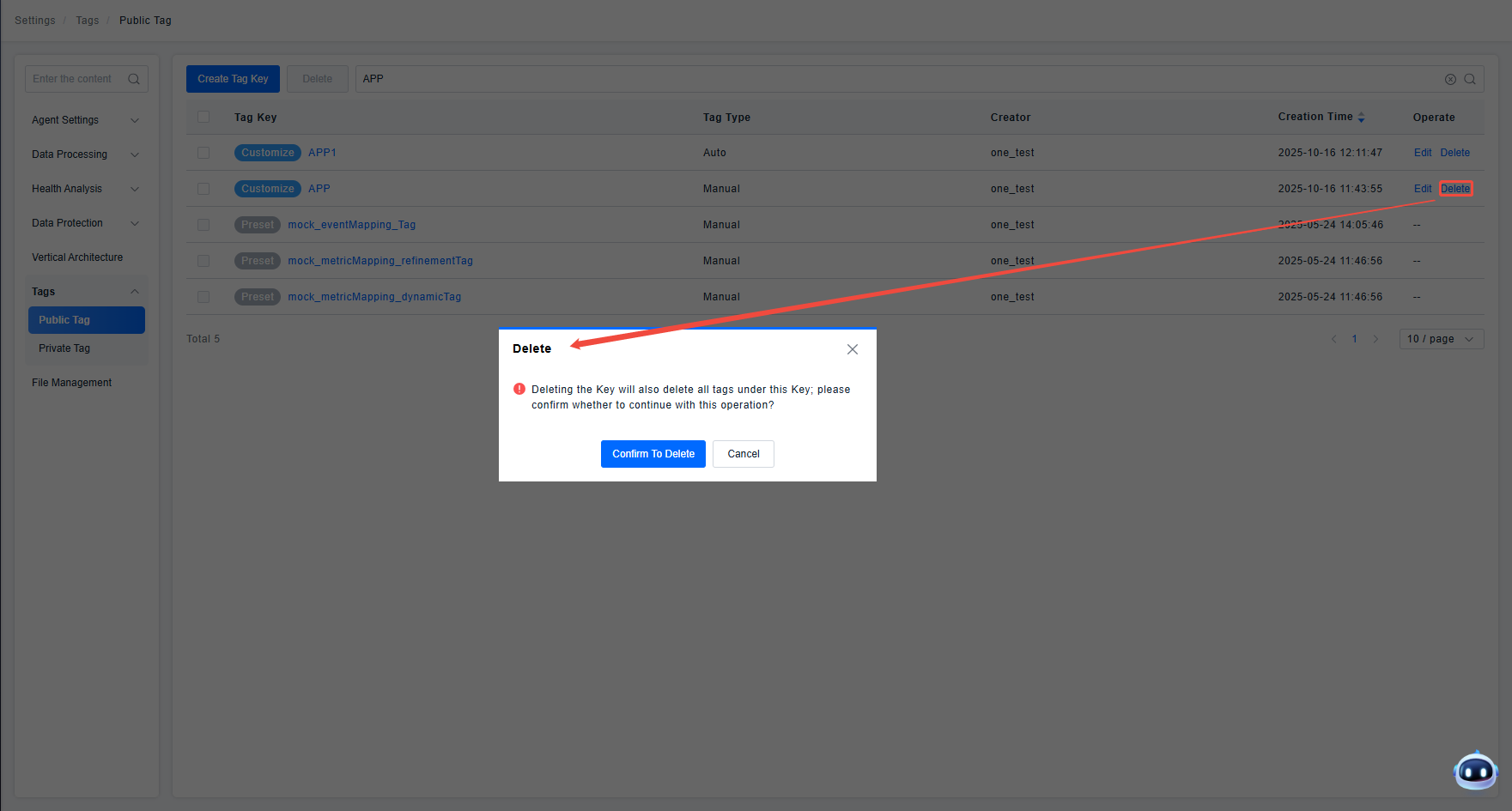
If the user confirms that a created key and all tags under it are no longer in use, the user can delete the key using the list function. Deleting the key will simultaneously delete all created tags under the key.
Manual Tag Usage and Management
Because predefined tags do not support user operations from the Tag Management page, the content of this chapter only applies to Custom Tags.
Tag Details
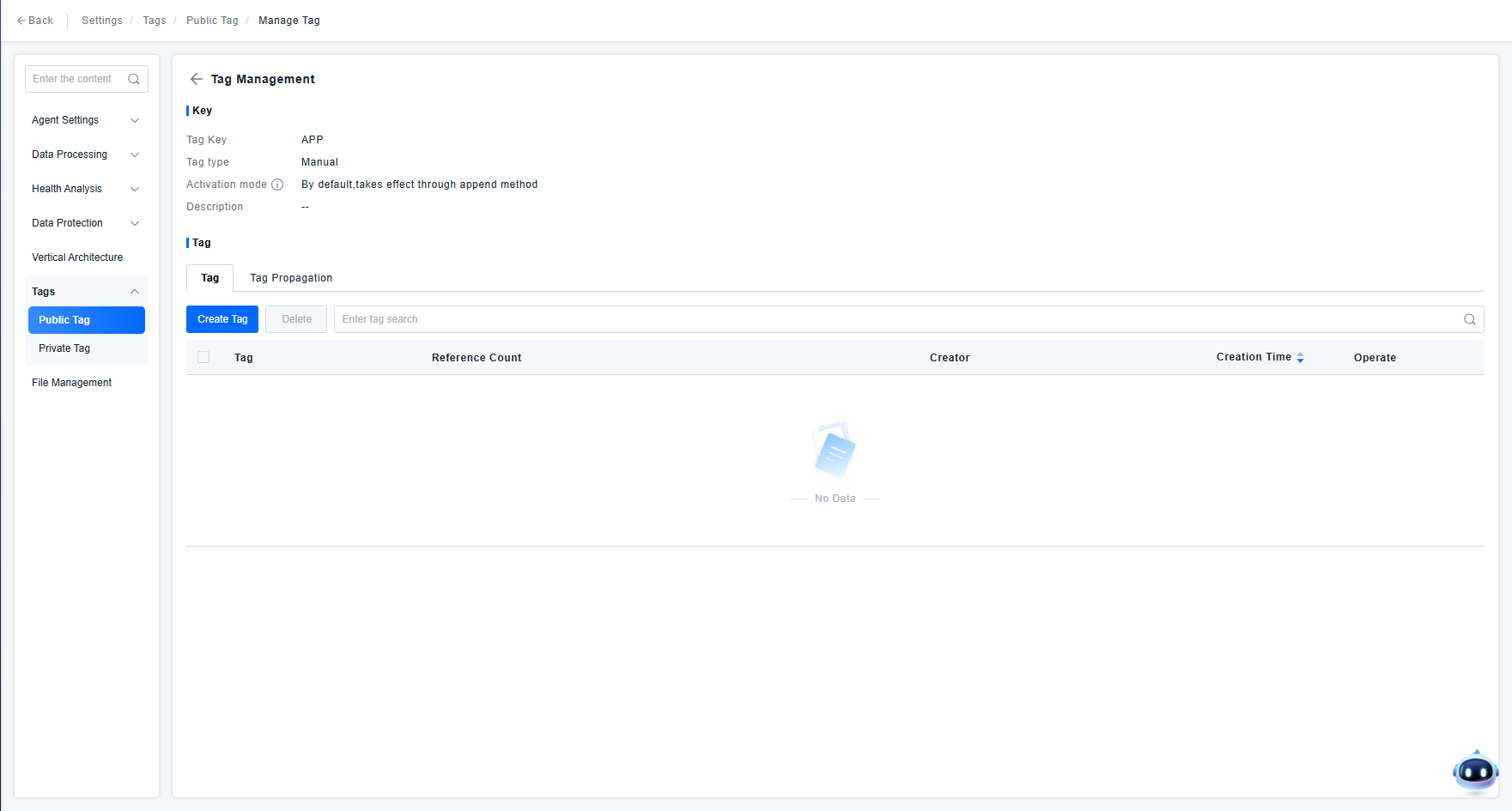
After creating a key of "Manual" type on the Tag Management page, users can click on the key to go to the "Manual Tag Management Page" for that key to manage the tags under this key, including: creating new tags, viewing the reference situation of the tag by entity instances, modifying/deleting tags, etc.
Creating a Tag
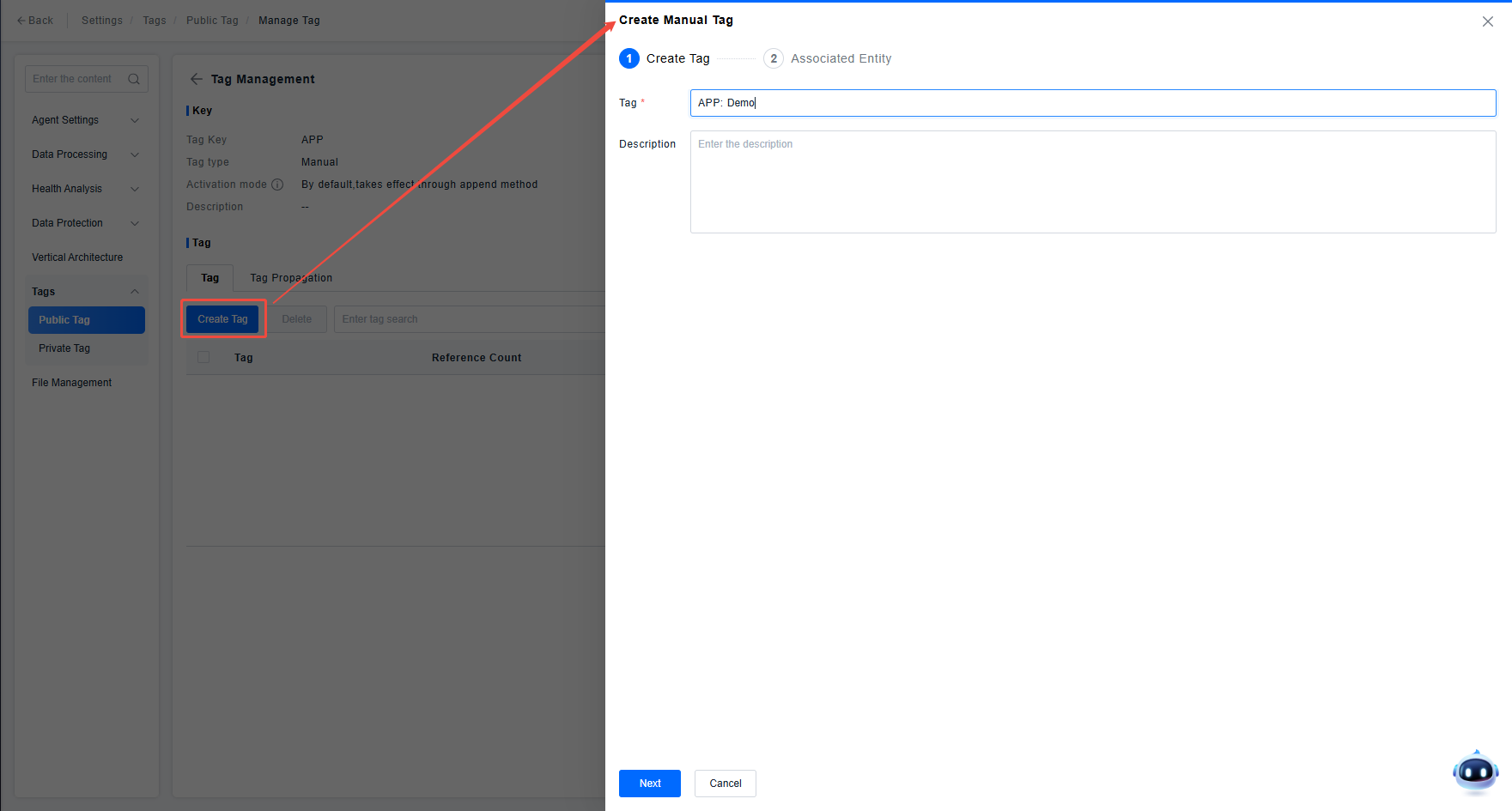
Creating a new manual tag is divided into two steps: "Create Tag" and "Associate Entity". Creating the tag defines the tag's value content and description. Associating the entity is a quick operation added considering user operation continuity, allowing users to simultaneously specify which entity instances this tag should be added to during the tag creation process. If the user does not need to associate entities, they can skip this step directly.
1.Create Tag
Usage Instructions:
- The tag input box is pre-filled with "key:" by the platform. The user inputs the value to form the complete key:value content of the tag. The tag value is composed of "Chinese characters, uppercase/lowercase letters, numbers, -, _" with a maximum length of 100.
2.Associate Entity
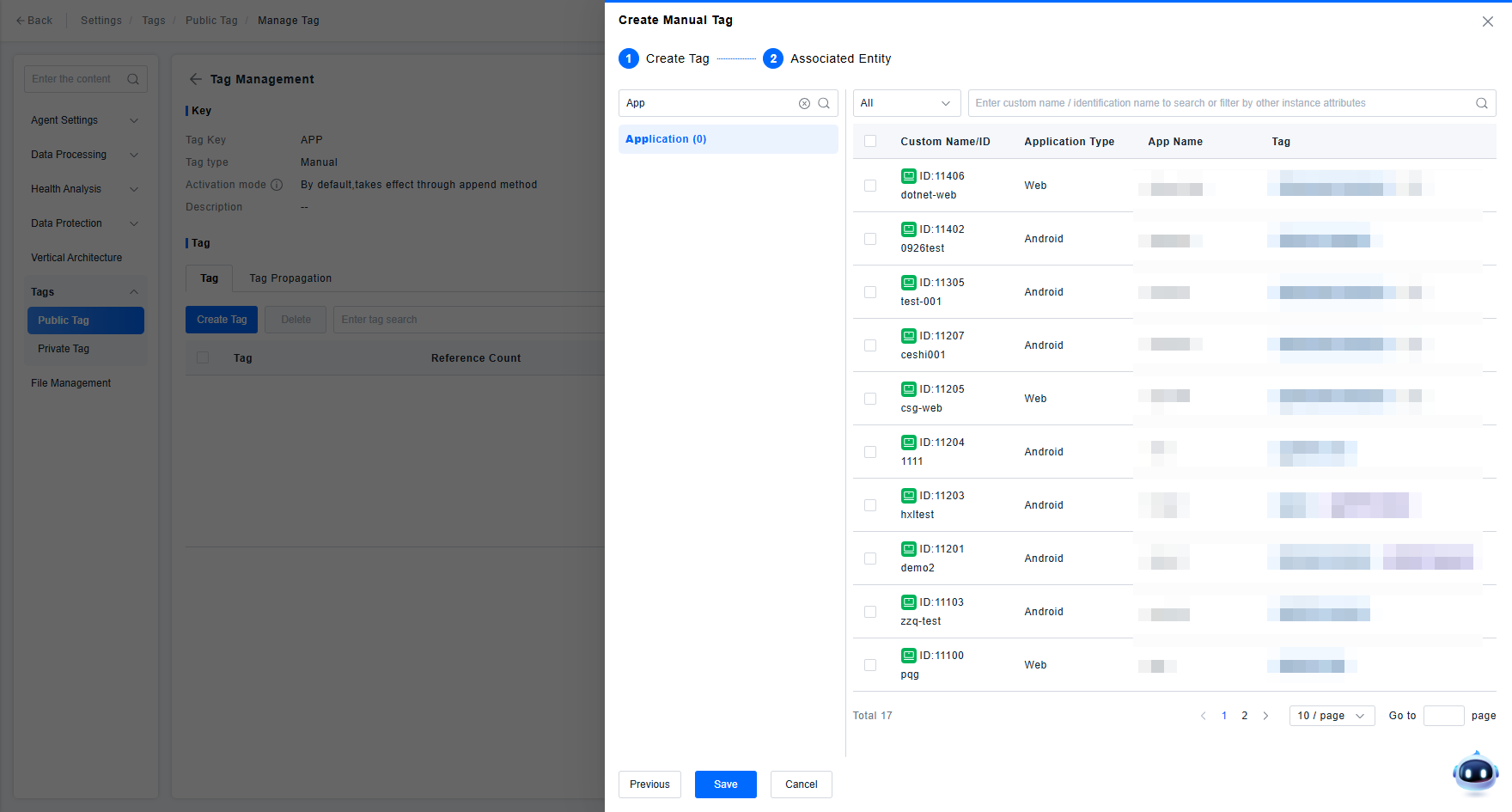
Usage Instructions:
- The left side of the Associate Entity page displays all entities supported for adding tags on the platform and the number of selected instances under this entity.
- The entities displayed here are consistent with the entities selected for use in the Entity Model Management function. If a certain entity registered by the user is not displayed in this function's options, the user can go to the Data Model page to check if the configuration of the Model System Management function meets expectations.
- Because the platform has over 100 predefined entities, it is recommended that users directly use the search function to find the needed entity by entity name.
- The right side of the Associate Entity page displays the list of instances registered in the CMDB for the entity selected on the left. Users can check instances in the list to indicate adding the tag to these instances.
- The instance list here uses the same data as the Resource System list. If users wish to modify the displayed attributes of the list, they can go to the Resource System page to modify the custom header configuration of the corresponding instance list.
- For entities with extremely high cardinality, the current page only supports users adding tags to instances marked as key.
Tag Management
1.Tag List: Users can understand all created tags under the current key and their basic information through the list.
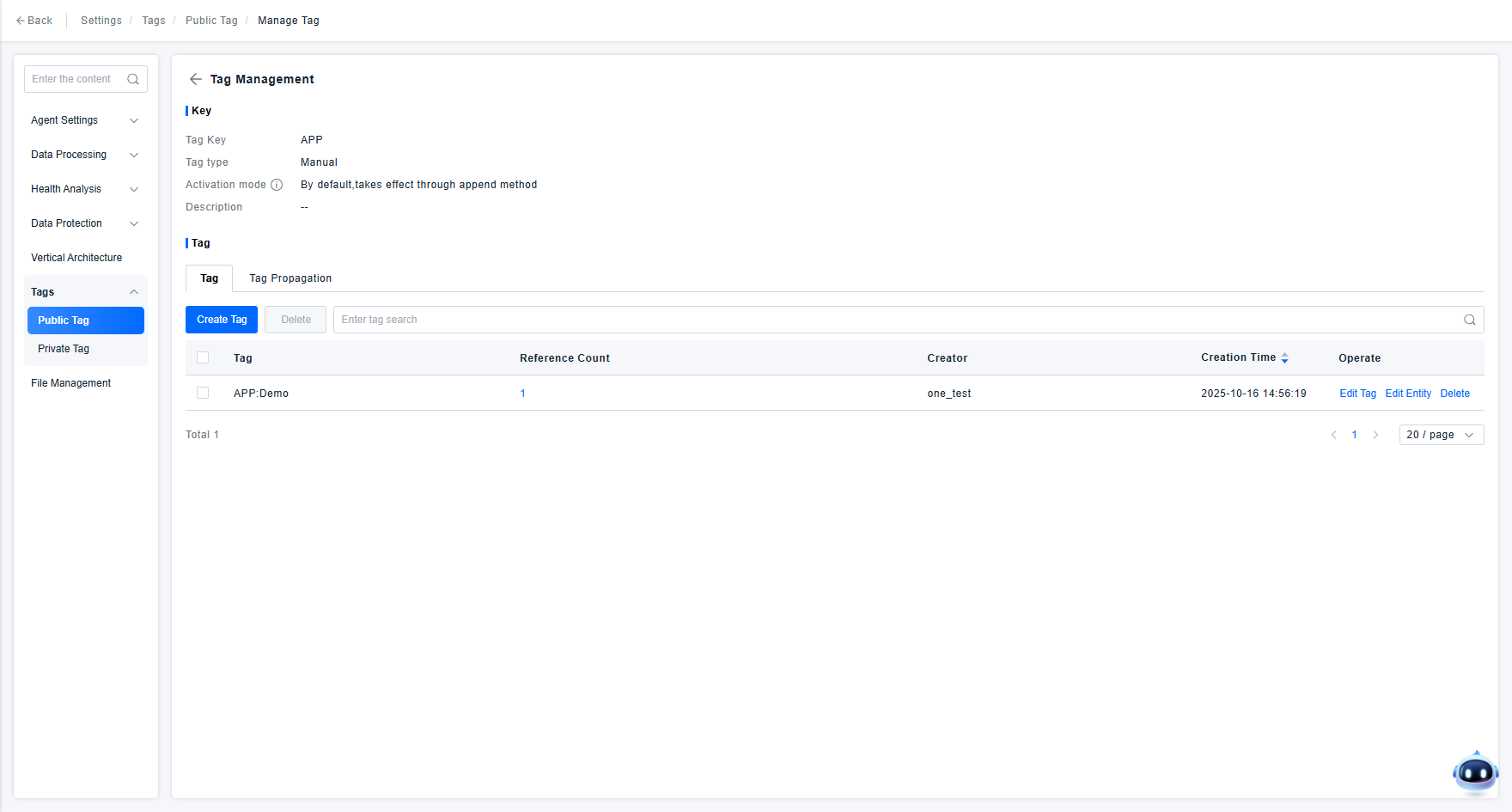
Usage Instructions:
- The tag list search supports users inputting any part of the tag (key : value) for fuzzy matching.
2.Viewing Tag References: Users can click the reference count in the tag list to view which entity instances reference this tag.
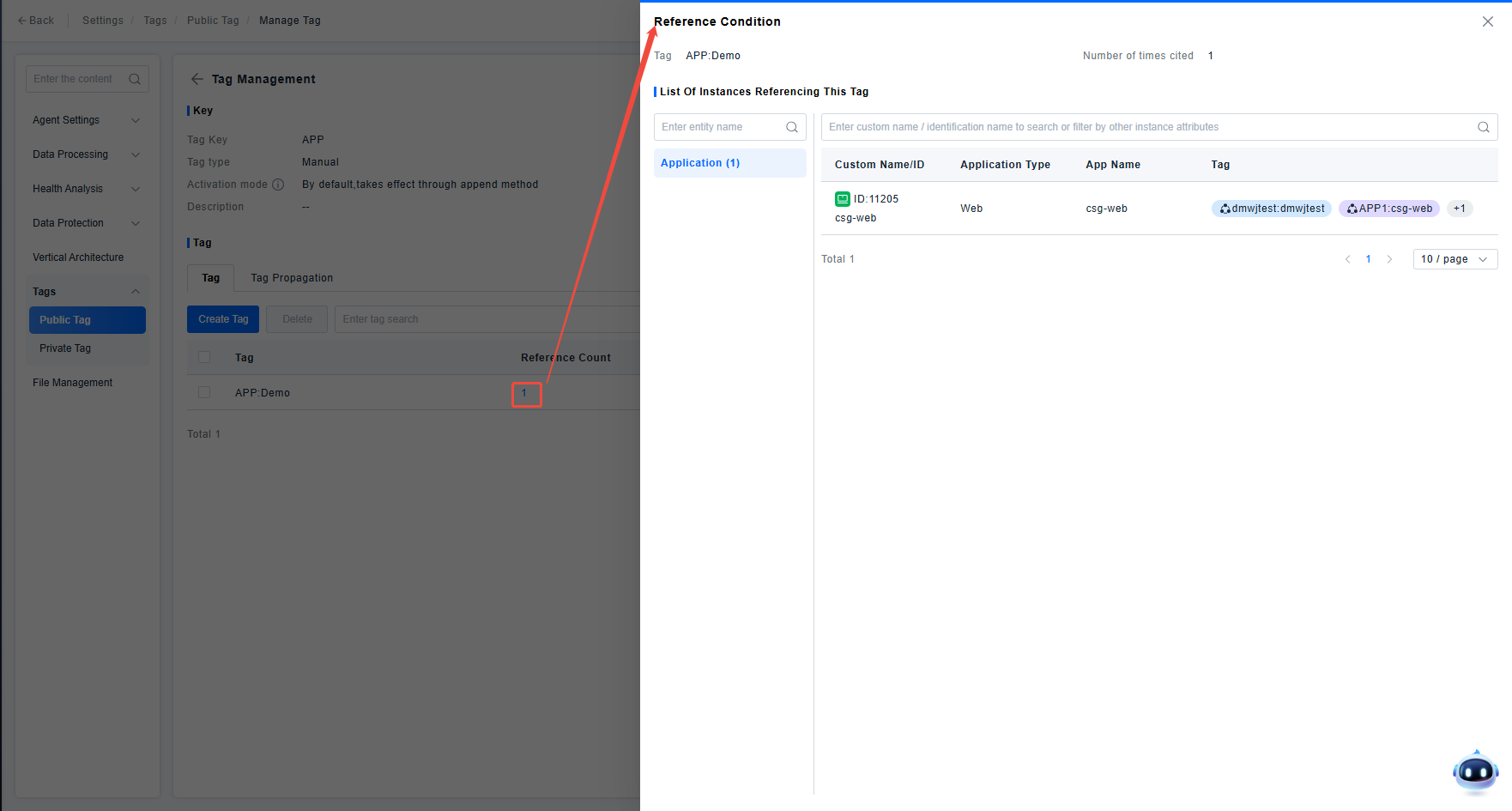
Usage Instructions:
- The "Reference Count" in the list only displays the statistical value of instance references to the current tag; it does not consider other data referencing this tag.
- The list of instances referencing the tag is similar to the Associate Entity page during tag creation. The left side displays the entities involved in the referencing instances, and the right side displays the actual list of referencing instances.
3.Editing a Tag: If the user is unsatisfied with the tag value or description content, they can modify the tag value and description content using the list's edit function.
4.Deleting a Tag: If the user confirms that a certain tag is no longer in use, they can delete it using the list's delete function.
Impact of Tag Deletion:
- When a user deletes a tag, the system will automatically remove the reference relationship between this tag and entity instances.
- Because historical time-series data cannot be modified, deleting a tag does not affect the tag content historically written for metrics, events, and other time-series data.
5.Editing Entities: Users can batch add tags to or remove tags from entity instances through "Edit Entities". The page operation is basically the same as the Associate Entity page during tag creation. Checking and saving adds the tag to the instance; unchecking and saving removes the tag from the instance.
Automatic Tag Usage and Management
Tag Details
After creating a tag key of Automatic type, the user needs to click the key in the key list to go to the "Tag Management" page to create automatic tag rules. The platform can automatically add tags to entity instances according to the rules created by the user.
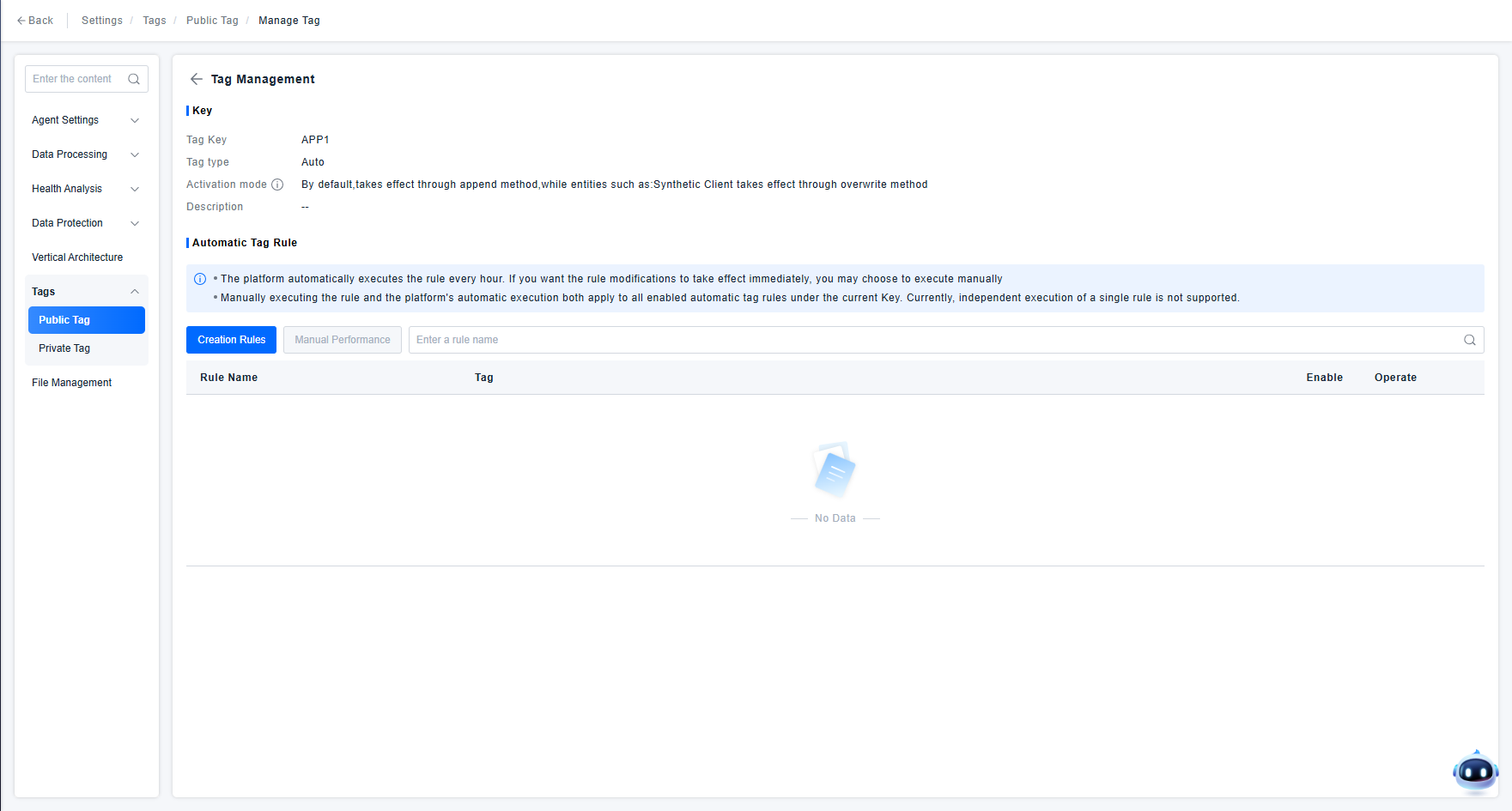
Creating Automatic Tag Rules
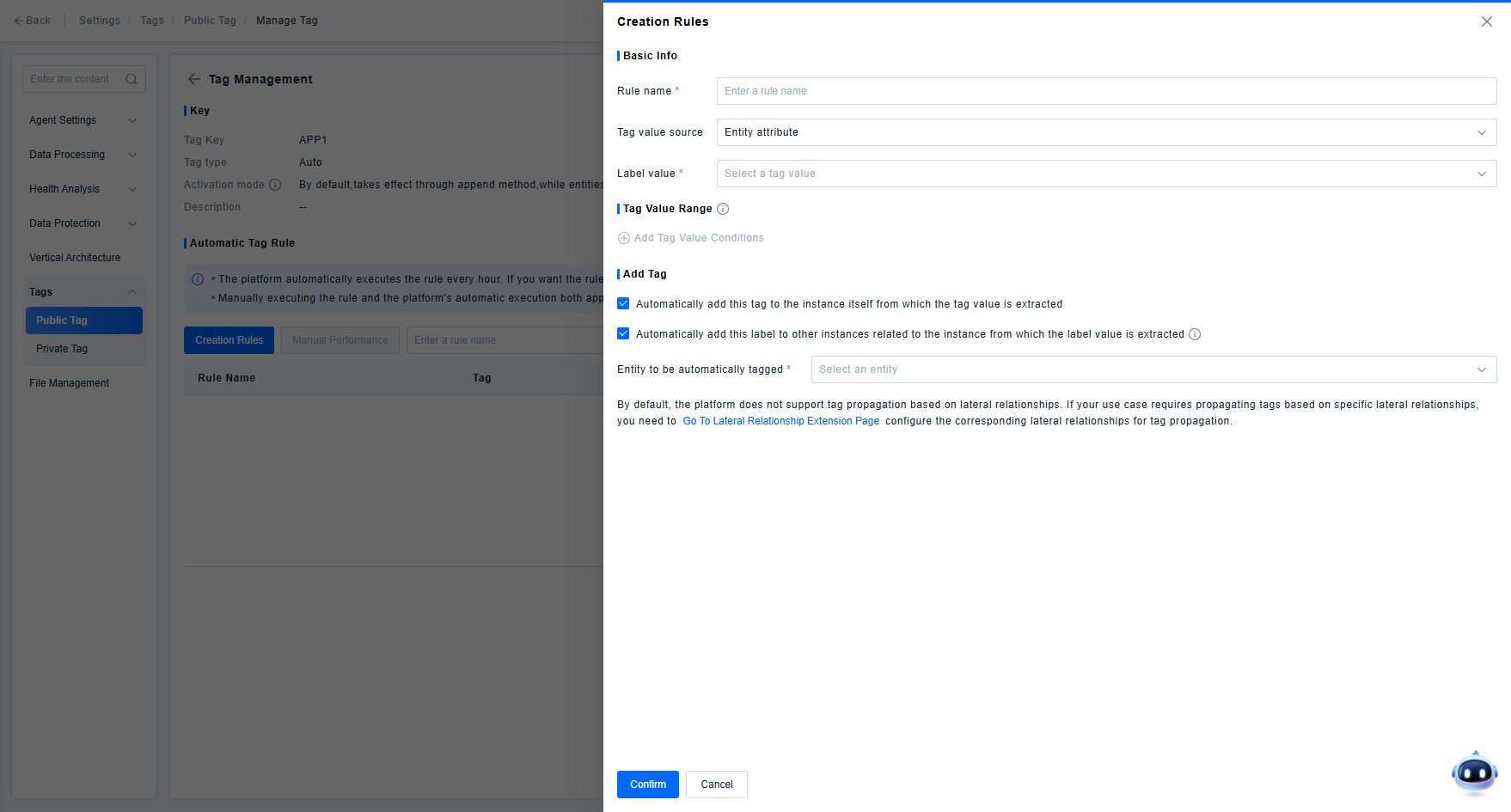
Usage Instructions:
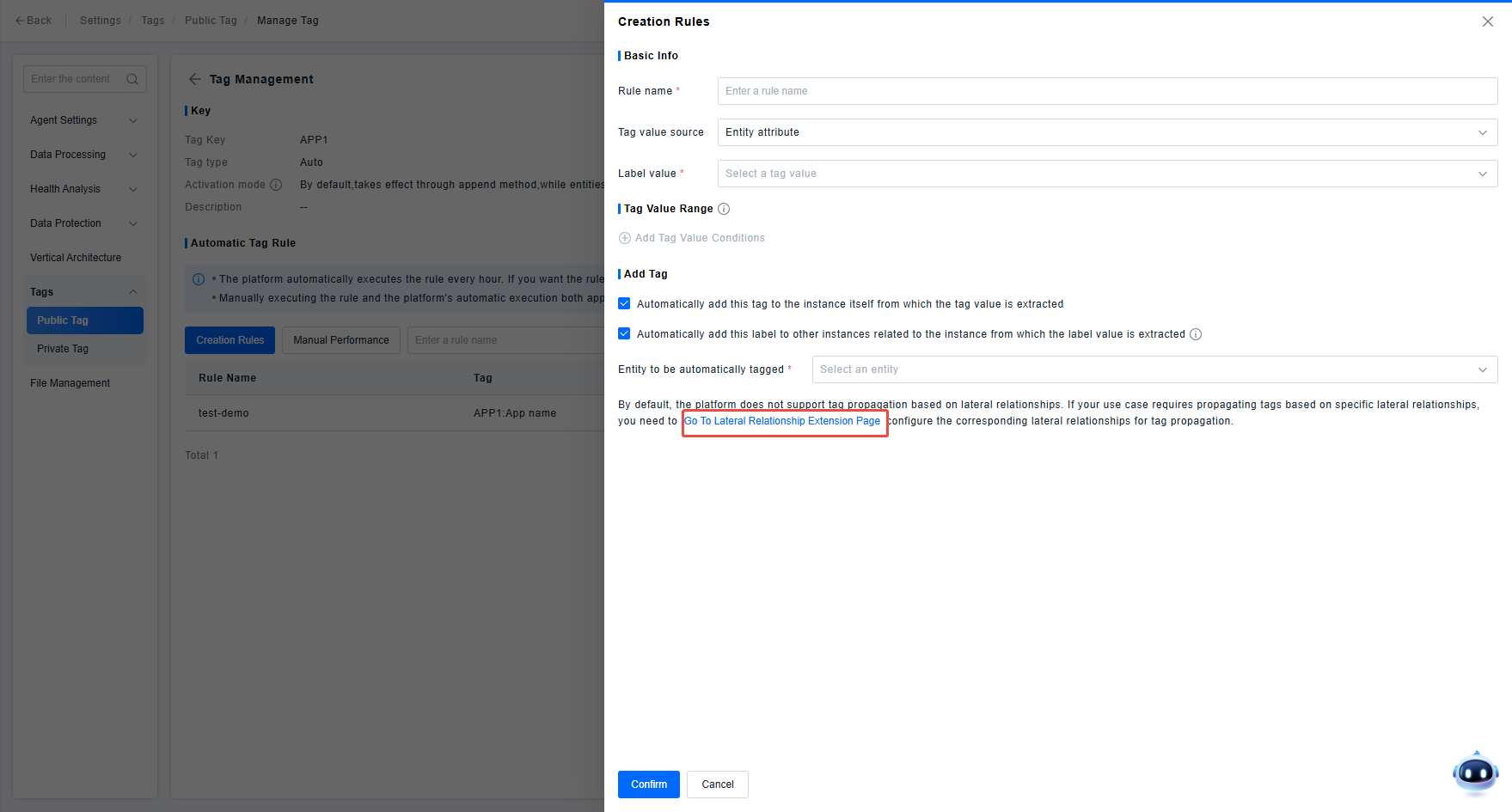
- Tag Value Source describes how the specific tag value operated by the system during automatic tagging is determined. Currently, Fixed Value and Entity Attribute are supported.
- Fixed Value: The value is a fixed string. When the system determines that an instance meets the conditions for automatic tagging, it adds this fixed key:value to the corresponding instance.
- Entity Attribute: The value comes from the instance's attribute value. The system automatically extracts the instance's attribute value and adds it as a tag to instances that meet the conditions.
Configuring Rules for Automatically Adding Fixed Value Tags
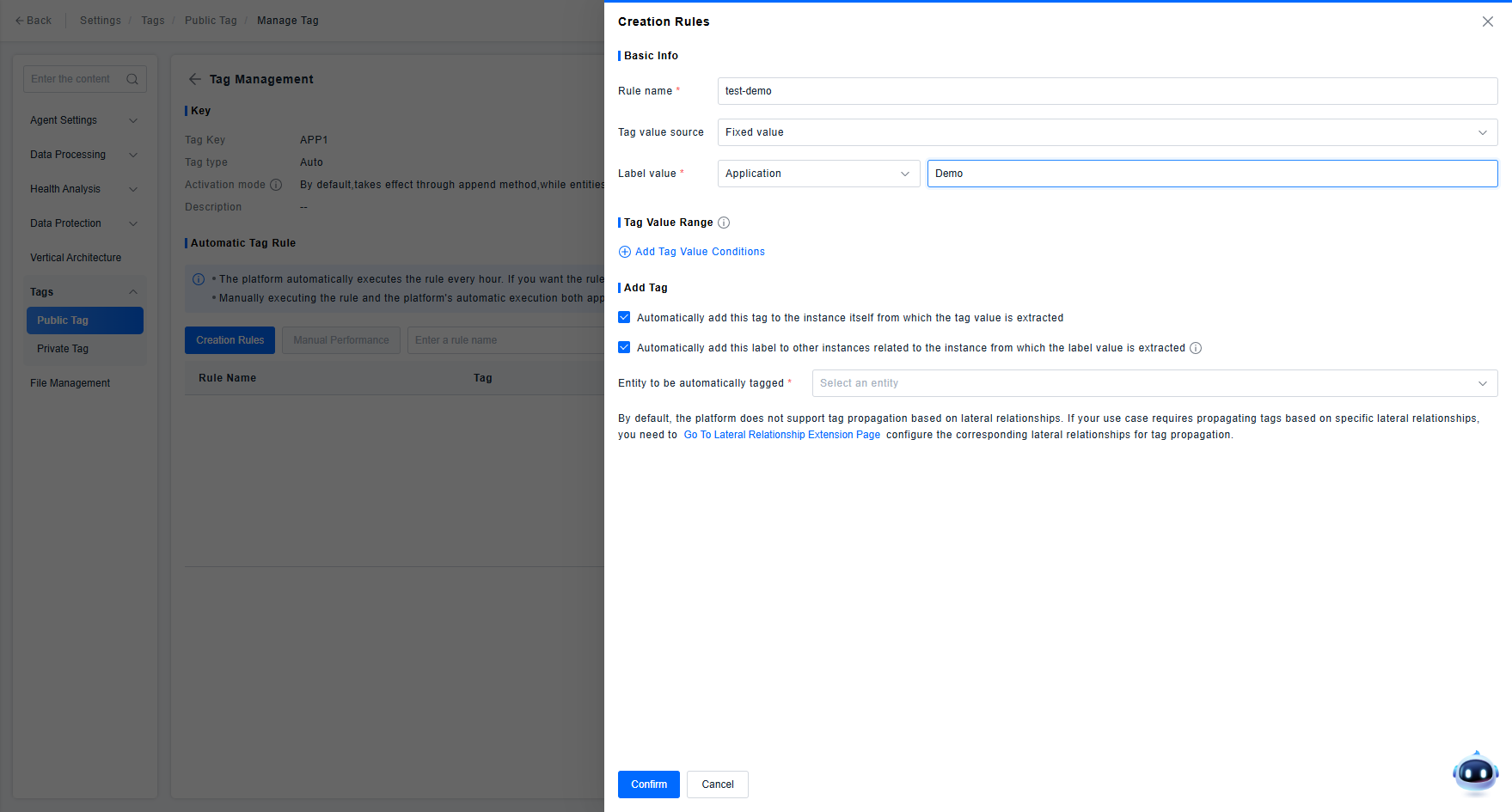
Configuration Instructions:
- Tag Value: The user needs to define an entity and the fixed content to be used as the tag value in the Tag Value section.
- The entity selected here is mainly to correspond with the Value Range and Tag Propagation functions below. If the fixed value tag does not need to be propagated according to relationships, select the entity to be tagged. If the fixed value tag needs to be propagated, select the entity where propagation starts.
- The validation specification for the input value here is consistent with that for manual tag values.
- Tag Value Range: Users can add conditions to clarify which entity instances need the defined fixed value tag added automatically.
- By default, there are no range conditions, meaning the tag is added to all instances of the entity.
- Users can click to add range conditions. A maximum of 10 range conditions are allowed under one rule.
- Range Condition Composition: When adding a range condition, users can select any attribute of the entity except "Account ID/Environment ID/Creation Time/Modification Time/Lifecycle/Data Source/Source Details" as the filter condition.
- Add Tag: In this section, users define which entity instances the tag should be automatically added to.
- Meaning of checkboxes:
- Automatically add this tag to the instance itself that extracts the tag value: Used to clarify whether the entity that is the source of the tag value should have this tag added.
- Automatically add this tag to other entity instances related to the instance that extracts the tag value based on dependency relationships: Used to clarify whether the tag value should be propagated according to relationships and to which entity instances it should be propagated.
- Because the Add Tag section defines the system's actual tag operation behavior, at least one tag addition method must be selected in a rule; both are selected by default.
- If propagating tags based on dependency relationships is checked, then at least one target entity for propagation must be selected.
- The dropdown options for propagation entities include all entities reachable by relationship from this entity, including itself (e.g., System contains Subsystem).
- Meaning of checkboxes:
Configuring Rules for Automatically Adding Tags Sourced from Entity Attributes
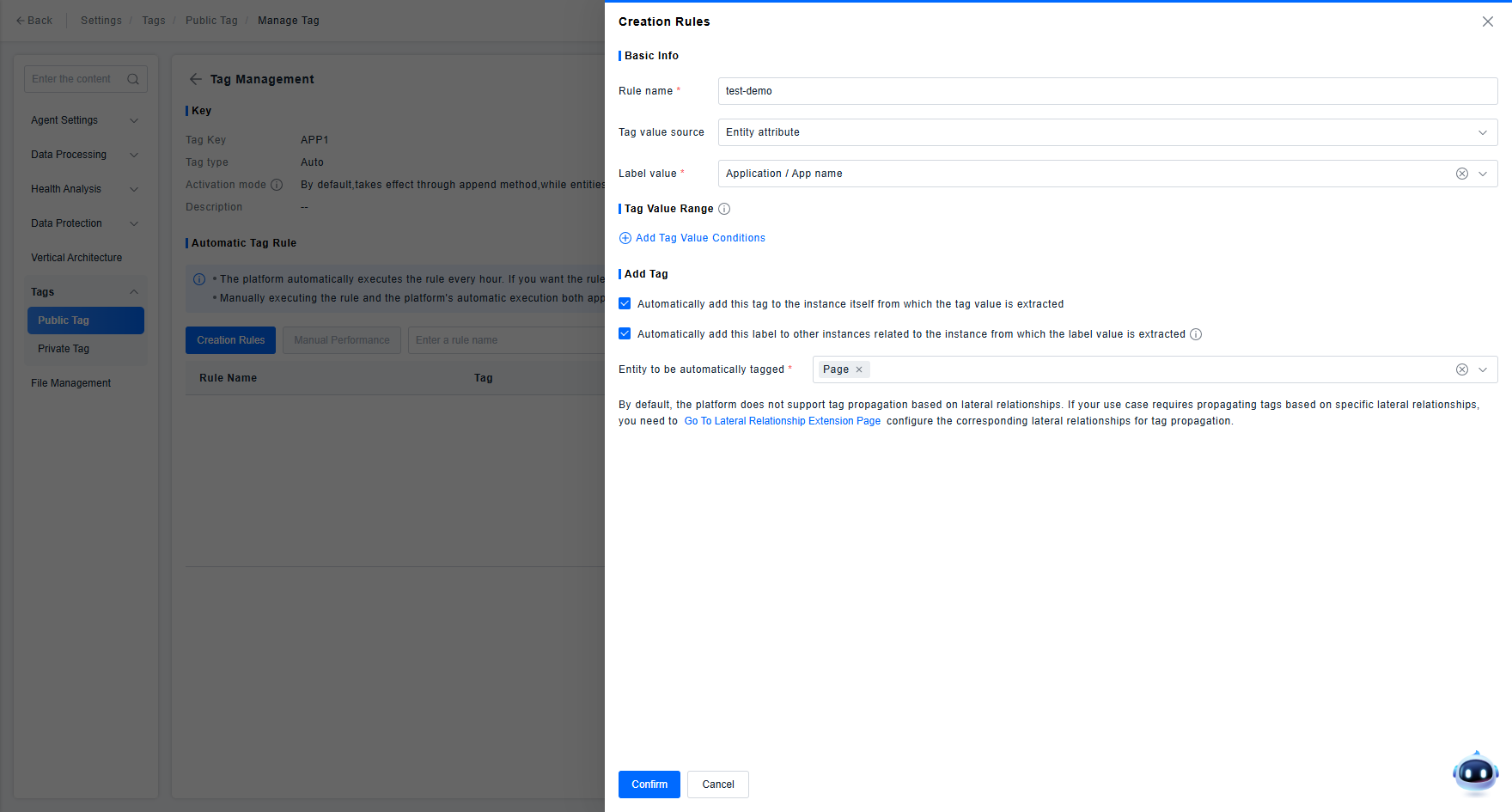
Configuration Instructions:
- Tag Value: Cascade select the entity that is the source of the tag value and the entity attribute that is the source of the tag. For such rules, the platform will use the entity attribute value as the tag value and automatically add the tag to instances according to the rule.
- Tag Value Range: Users can add conditions to clarify which entity instances need to have their corresponding attribute values extracted for use as tags. The functionality usage and limitations are consistent with the description in the fixed value tag rule configuration section.
- Add Tag: In this section, users define to which entities the extracted attribute value should be added as a tag. The functionality usage and limitations are consistent with the description in the fixed value tag rule configuration section.
Because tag values extracted from entity attributes may exceed the length limit, the platform will automatically truncate tag values that exceed the limit.
Automatic Tag Rule Management
1.Rule Execution: Rules created by users take effect only after execution. Users can enable automatic execution to have the rule execute periodically. If users wish to see the execution effect of the rule immediately, they can manually trigger rule execution using the "Execute Now" function in the list. After triggering, the system will perform tag operations on existing platform data according to the rule.

2.Viewing Tags: After the rule is executed, the platform will generate tags according to the rule and add them to eligible entity instances. Users can click "View Tags" in the list to understand which tags the rule generated and which entity instances these tags were applied to.
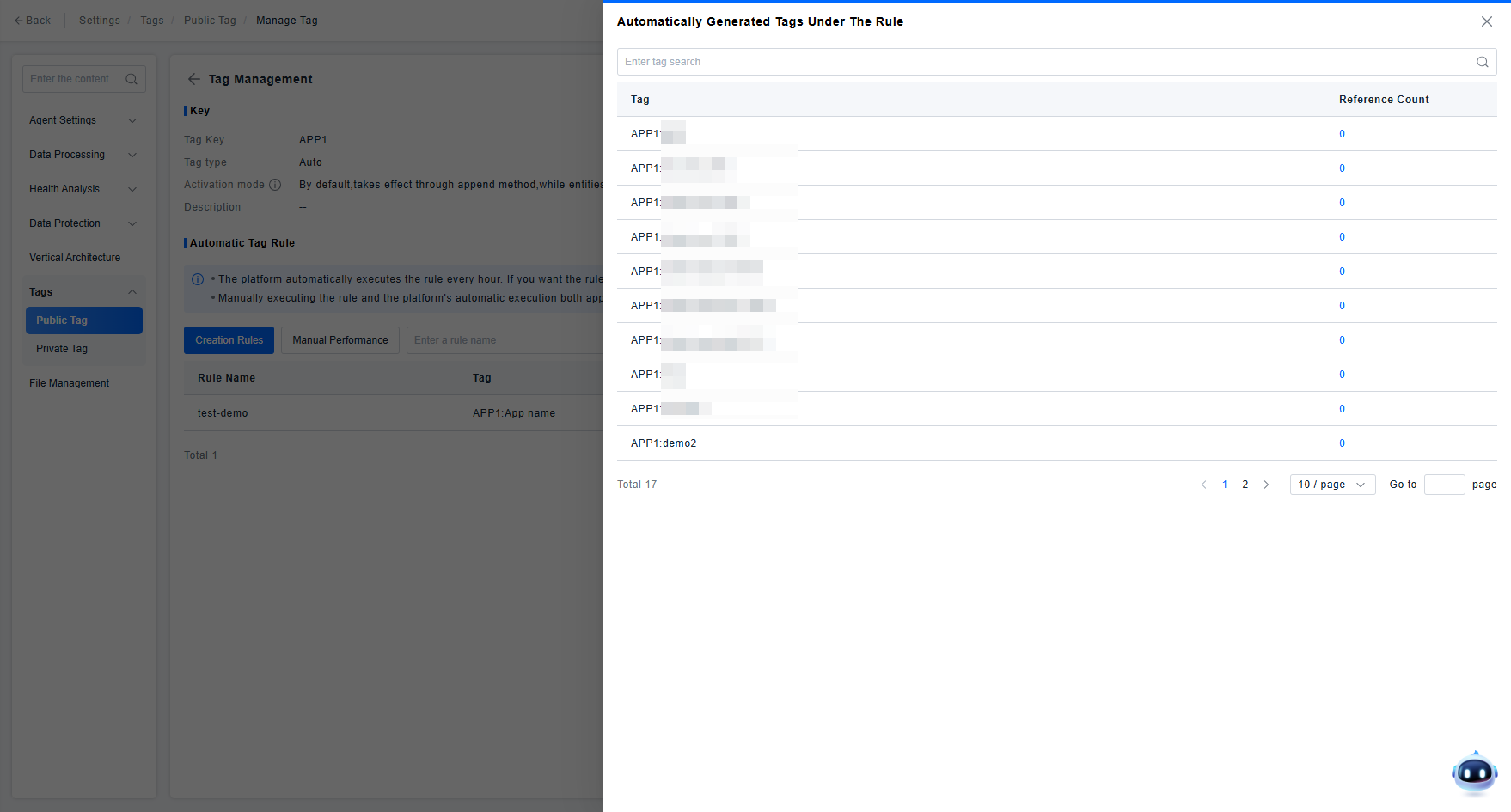
3.Editing/Deleting Rules
- When editing a rule, users can adjust other configuration content of the tag as needed, except for the "Tag Value Source". After adjustment, save and execute to make the adjusted rule effective.
- Deleting a rule will simultaneously delete the tags created by this rule.
Horizontal Relationship Extension
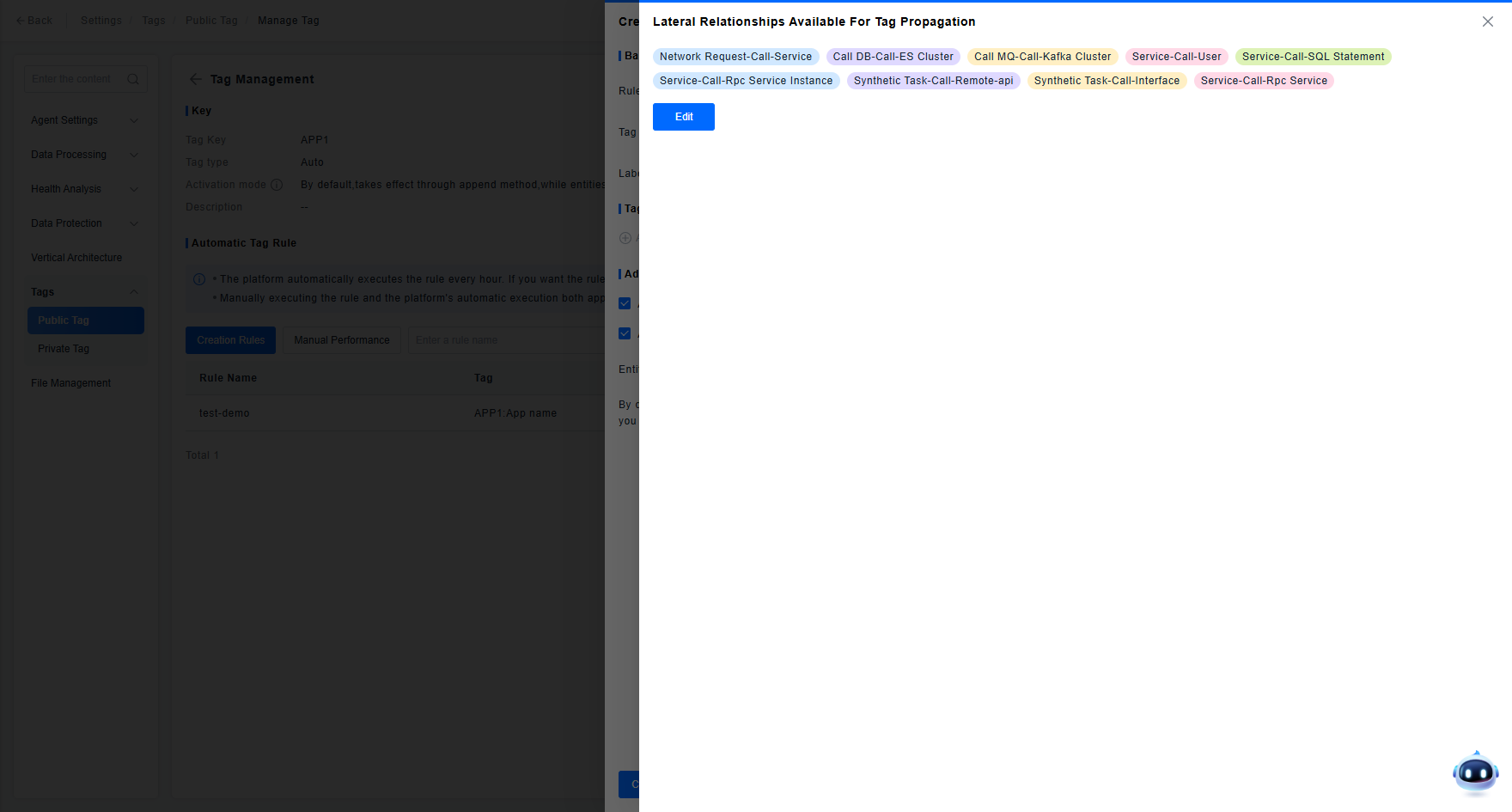
Platform automatic tags can be propagated according to relationships between entity models. Due to the complexity of call relationships and the vast amount of data, the platform by default only supports tag propagation based on two types of relationships between instances: "Contains" and "Runs On". If users must require tag propagation based on a specific call relationship, they can go to the "Horizontal Relationship Extension" page from the automatic tag propagation or manual tag propagation rule configuration page to select the call relationship they need for tag propagation. After selection, the entity model corresponding to the user-specified call relationship can be selected on the tag propagation rule configuration page.
Manual Tag Propagation
Based on customer feedback for the scenario "when tagging a certain type of resource, hope that its related other resources can also automatically get this tag", the platform has also extended the automatic propagation function for manual tags. Users can configure rules based on the Tag Key, specifying that when a tag under this Key is added to a certain type of resource, it automatically triggers propagation to its related other resources.
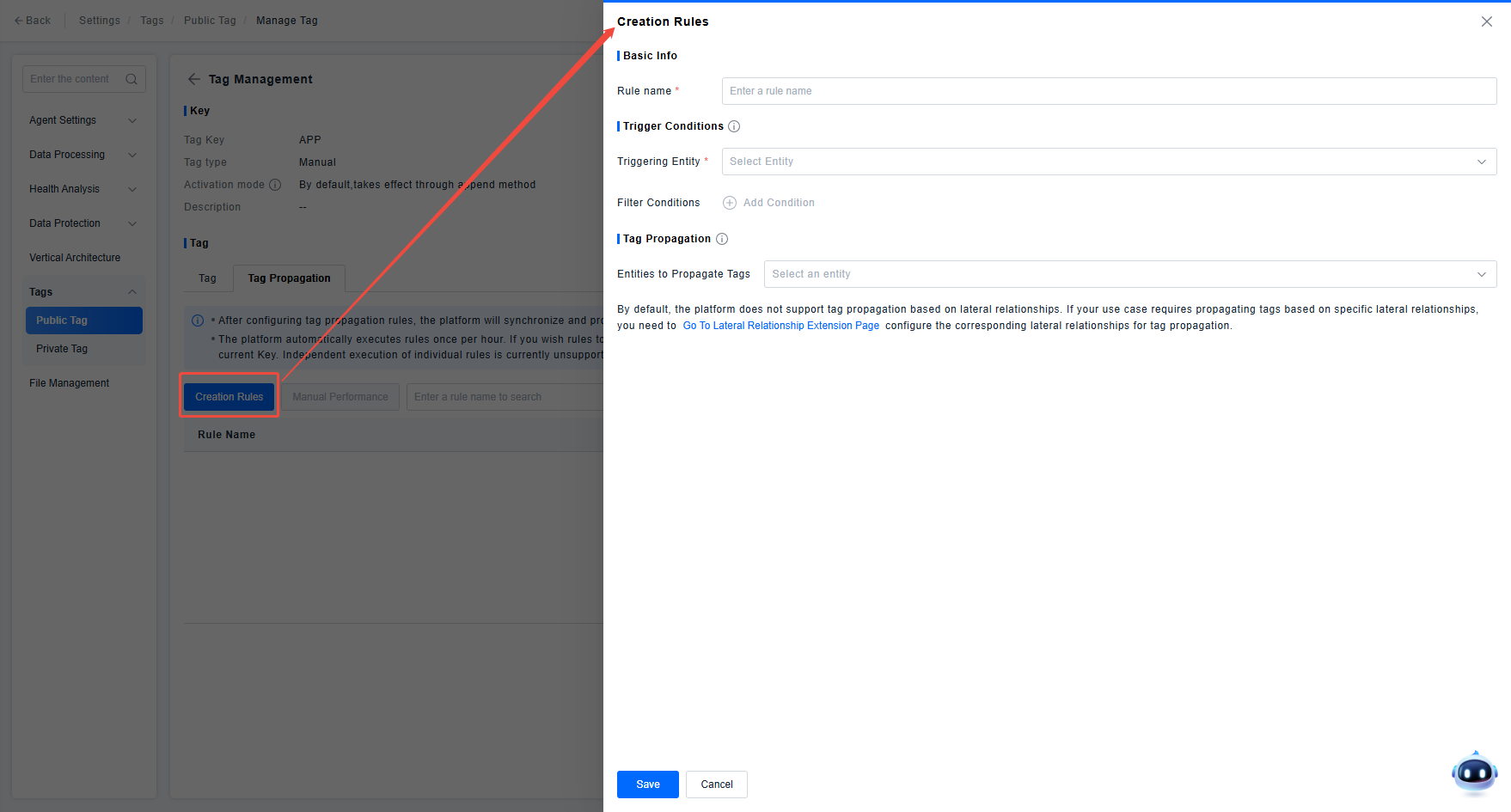
The concepts involved in the manual tag propagation rule configuration are basically consistent with the automatic tag propagation rules. If you encounter problems during use, you can refer to the automatic tag configuration method demonstrated earlier.
Platform Universal Tag Plugin
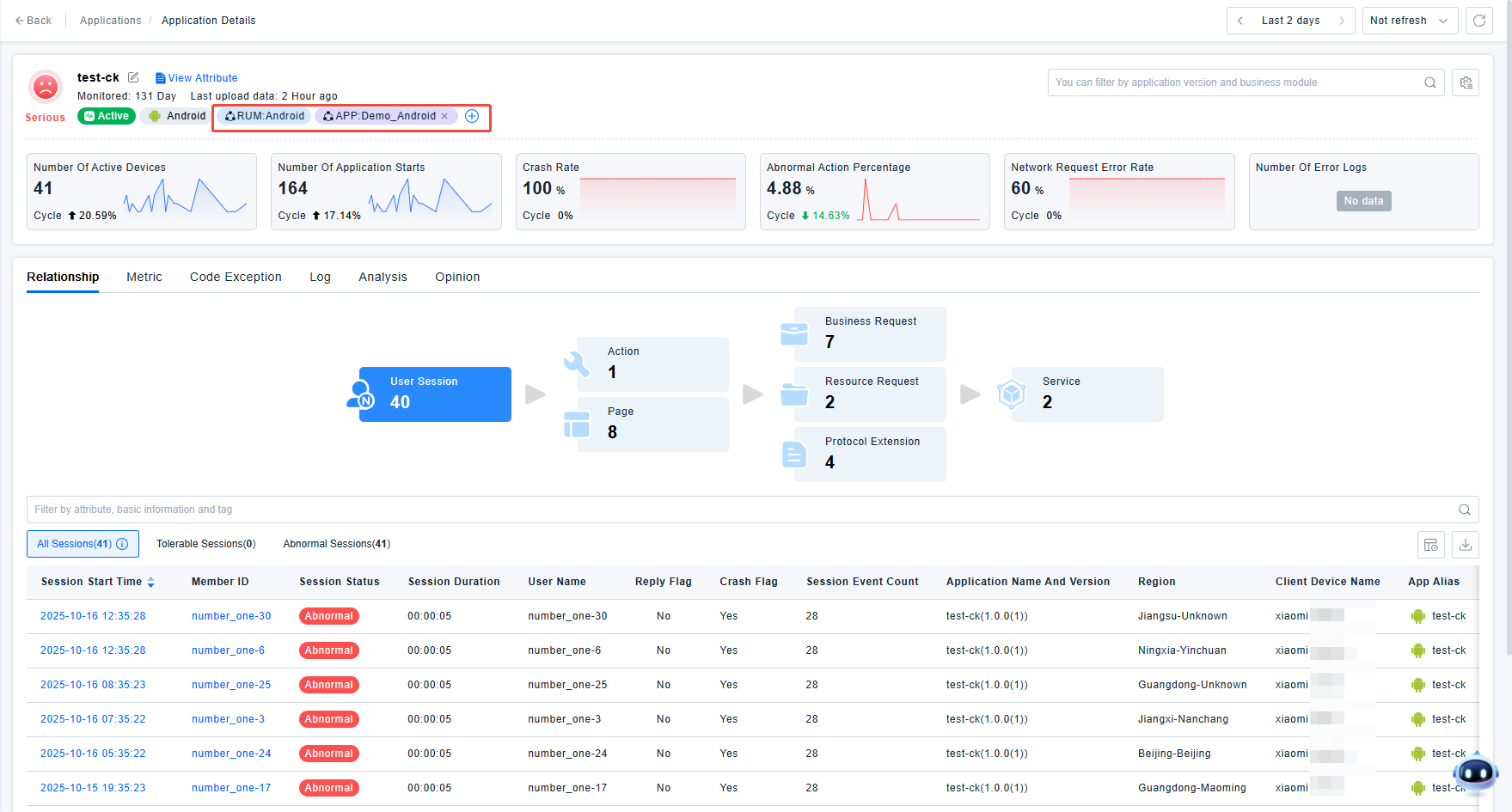
To enhance the user experience, the indicator system provides a universal tag plugin for use by other business parties. Users can use the tag plugin referenced on the page to understand the tag reference situation of specific data instances and can perform operations on the tag references of this instance, including removing the association between a certain tag and the instance and applying a certain custom tag to the instance.
Usage Instructions:
- The universal tag plugin displays the predefined tags and custom tags (including automatic and manual tags) already added to the instance data.
- Predefined tags and automatic tags are only displayed; deleting reference relationships through the plugin is not supported. Users need to go to the ETL integration page and automatic rule management page if they need to operate on them.
- Operations on manual tags (including both Shared and My types) are related to the user's data permissions. For example, lacking read/write permissions for a host instance prevents operation on the shared tags of that host instance.
Adding Tags to Data Instances via the Tag Plugin
Click the "Add Tag" icon in the plugin to add tags to the data instance. Users can select an already created tag or directly input a new tag in the text box. The platform will create the corresponding tag and add the newly created tag to the current resource after the user confirms the operation.
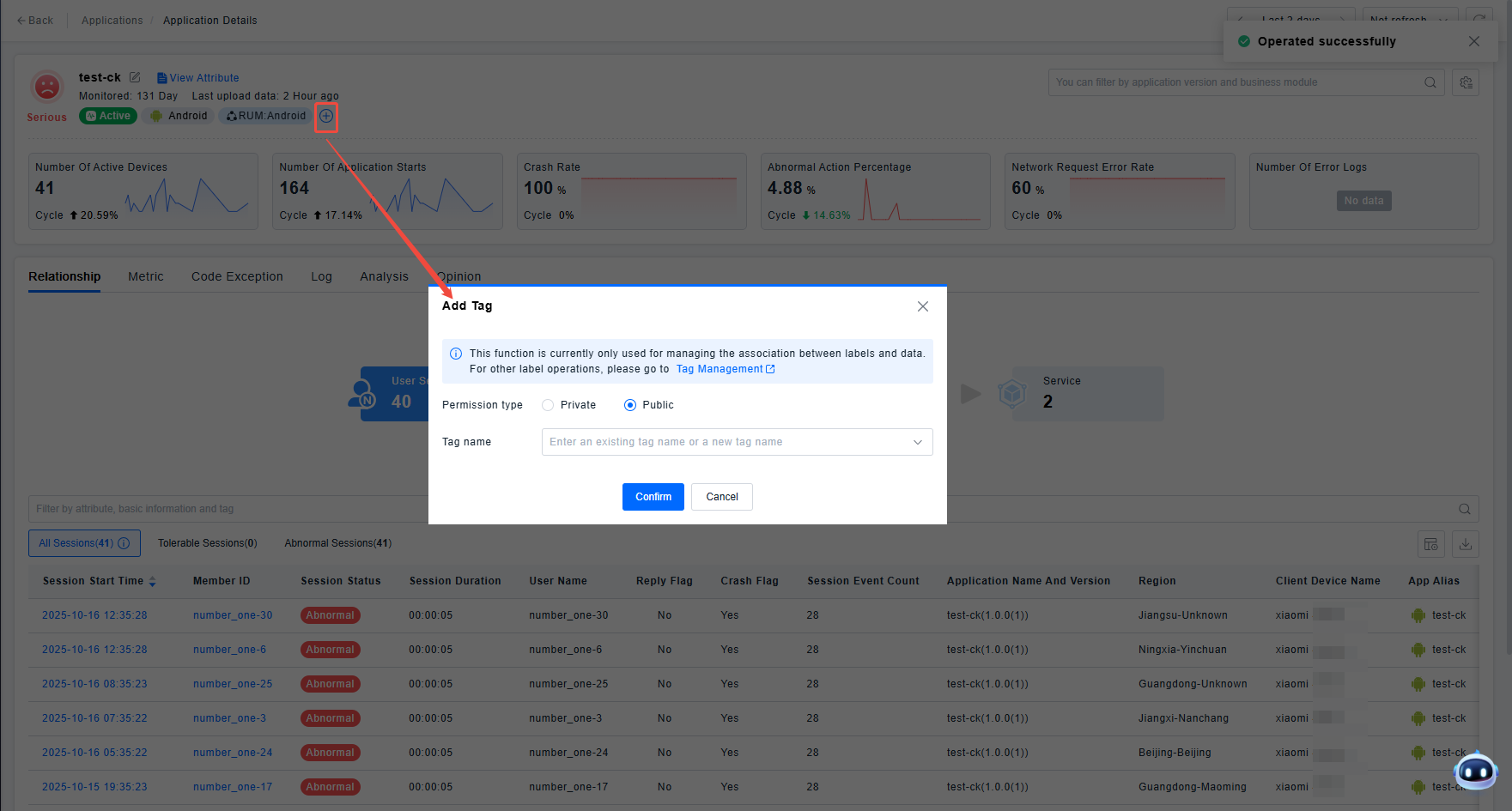
Usage Instructions:
- Users can only operate on tags of the Manual type through the plugin; automatic tags are not displayed in the dropdown options.
- When users create a new tag through the plugin, the platform will generate the tag according to the following specifications:
- If the key of the Manual type corresponding to the new tag already exists, add the value created by the user under this key.
- If the key of the Manual type corresponding to the new tag does not exist, automatically create a key of the Manual type and add the value created by the user under this key.
- The update strategy for the automatically created Manual type key defaults to Append.
- If the key corresponding to the new tag is an already created Automatic type key, an exception will be prompted.
Removing Tag References from Instances via the Tag Plugin
Users can click the delete icon in the plugin and confirm to remove the instance's reference to this tag.
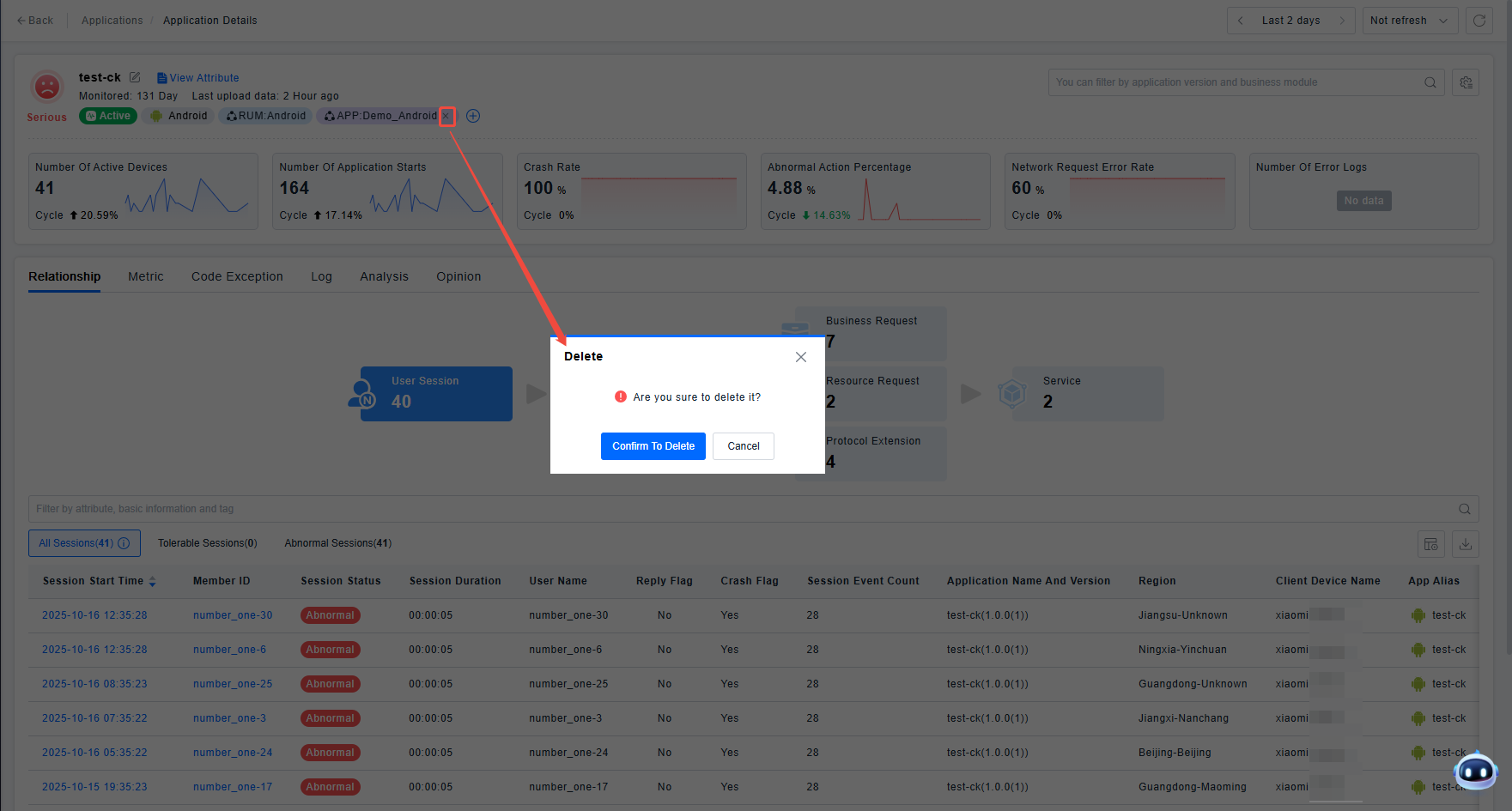
This function only removes the association between the tag and the data instance; it does not delete the tag. To delete a tag, you need to go to the Tag Management page.