SmartGate
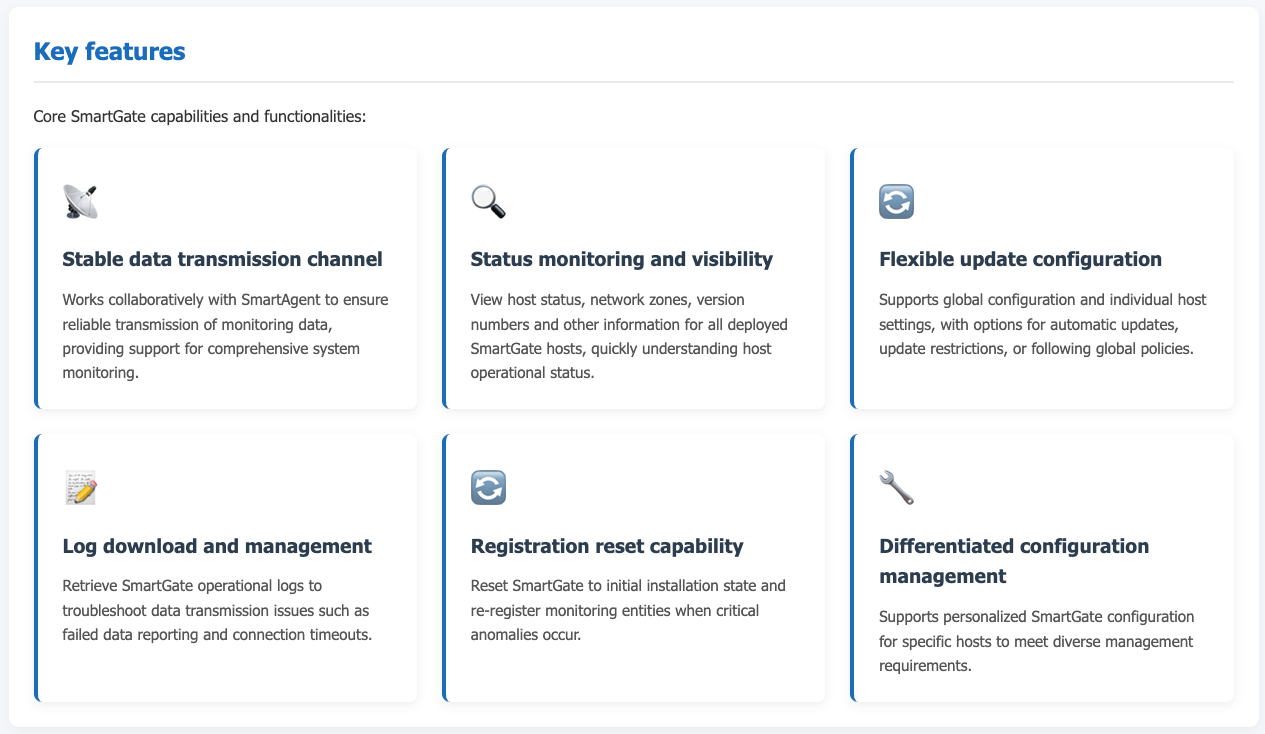
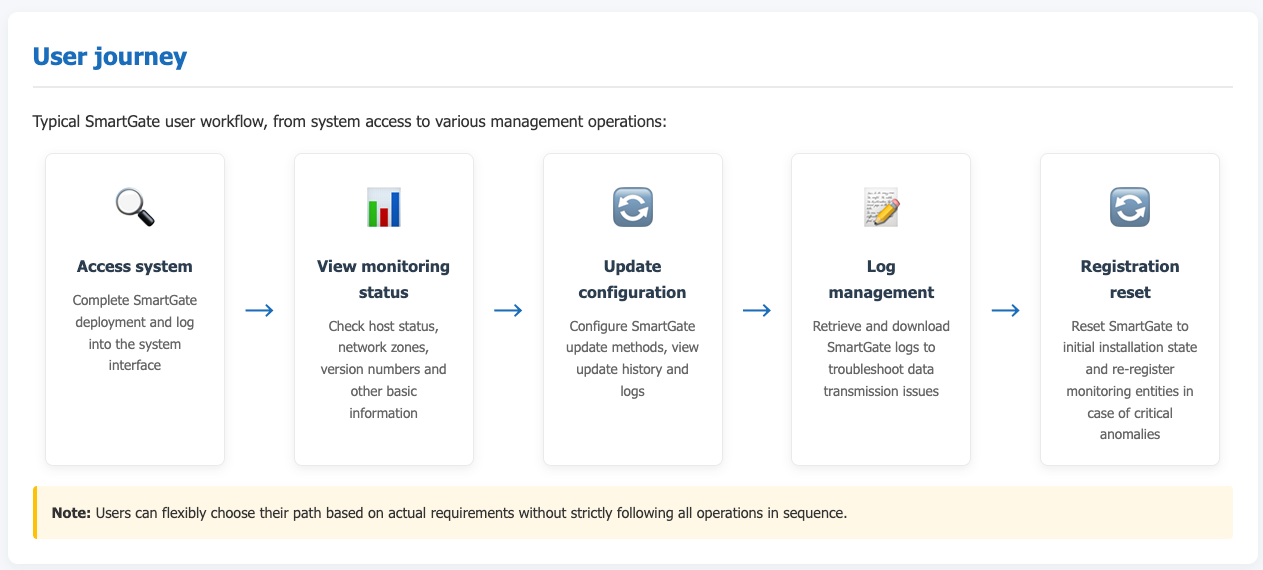
SmartGate is a tool designed to ensure the stability of system data transmission and monitoring channels. It works in conjunction with SmartAgent, providing administrators and operators with capabilities to view the status of data transmission components, manage version updates, and more. This ensures reliable transmission of monitoring data, supporting comprehensive system monitoring and management.
Prerequisites
The SmartGate deployment is complete and integrated correctly with components like SmartAgent. You must have access to the system interface where SmartGate is deployed and possess the appropriate operational permissions.
Use Cases
SmartGate is suitable for scenarios requiring guaranteed stability of monitoring data transmission channels. This includes environments such as enterprise data centers and server clusters, where it enables status monitoring and version management of data transmission components. It ensures reliable monitoring data transmission, providing foundational support for comprehensive system monitoring.
Getting Started
Navigate to Deployment Configuration → Deployment Status → SmartGate from the system navigation bar to open the SmartGate management interface.
Viewing Monitoring Status
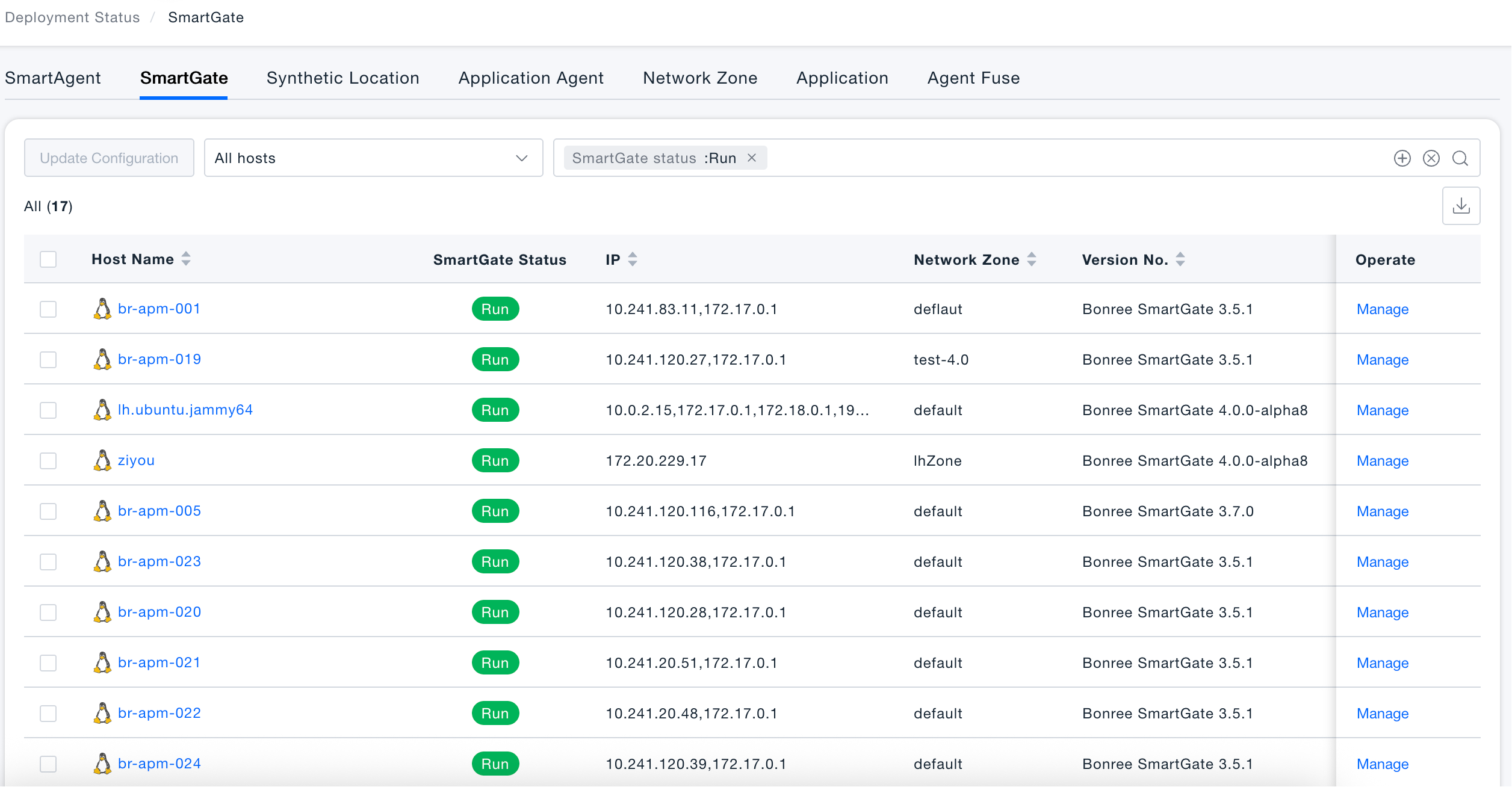
Within the SmartGate interface, administrators can view status information for all monitored hosts, including hostname, IP address, network zone, version number, etc. Status indicators (like a green "Running" label) allow for quick assessment of whether a host is operating normally.
Viewing Hosts: Upon entering the SmartGate interface, the All Running Hosts list is displayed by default. This provides administrators with a quick overview of the overall distribution and basic status of hosts with SmartGate deployed, forming the basis for subsequent monitoring and management tasks.
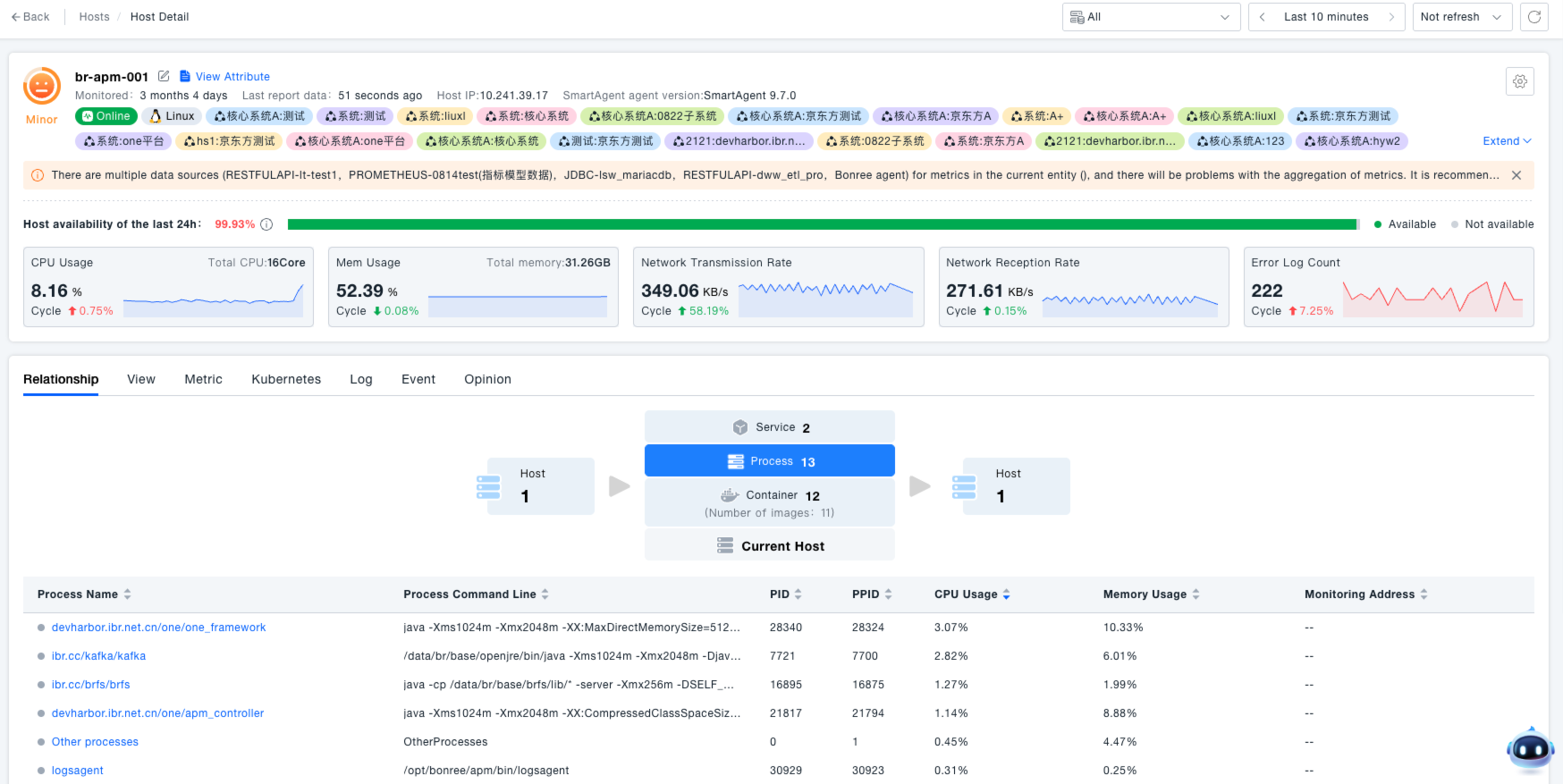
Viewing Host Details: If SmartAgent is installed on a host, clicking the Host Name navigates to the details page. Here, you can view detailed configuration, operational status, and other information for SmartGate on that specific host, aiding administrators in understanding its precise operational context.
Batch Operation
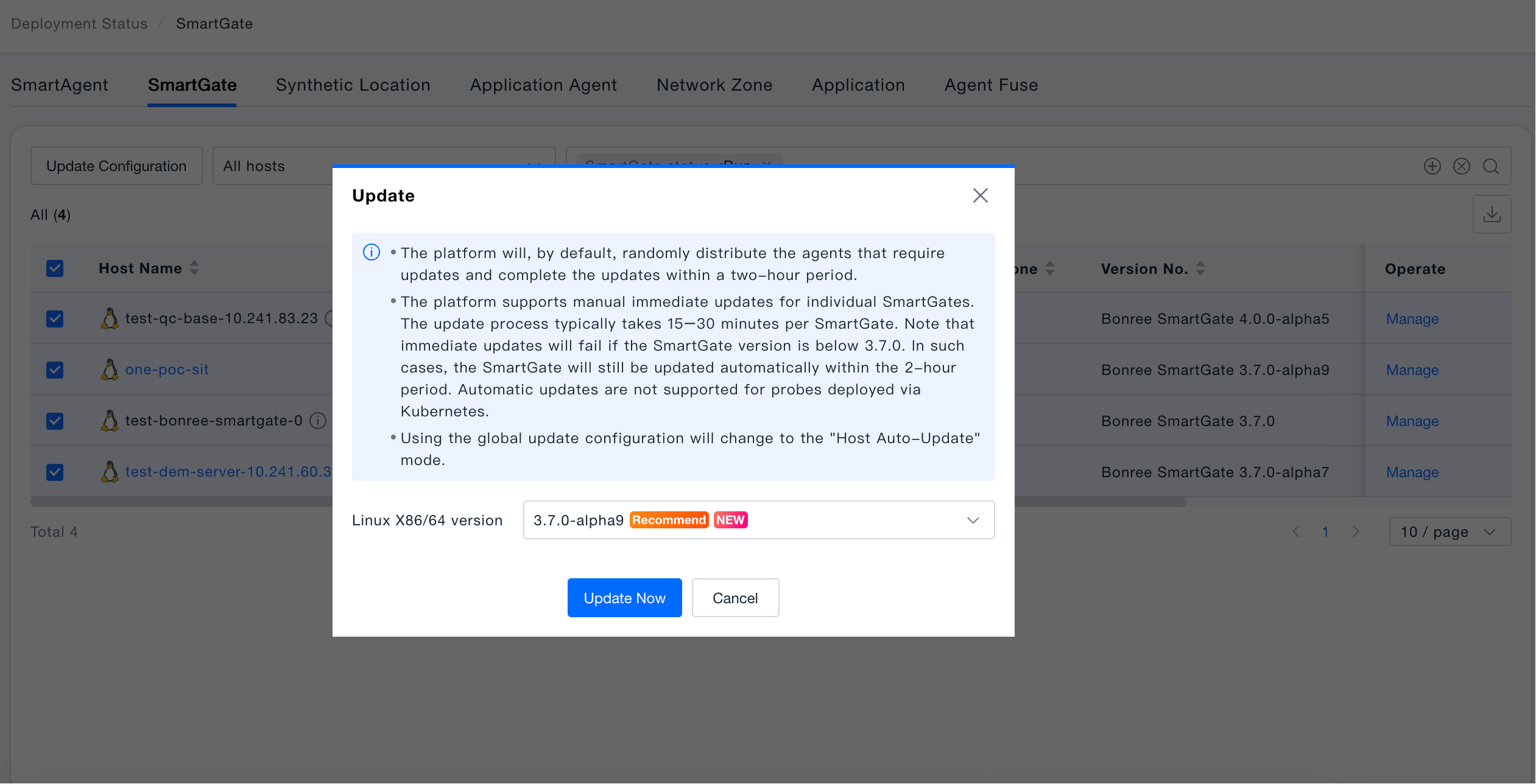
The top of the SmartGate host list provides Update Configuration batch operation capability. You can select one or multiple hosts and then execute operations to help administrators uniformly manage version upgrades for gateway probes.
Update Configuration: Performs version upgrades on SmartGate probes running on selected hosts, supporting batch updating of multiple hosts' gateway probes to the specified version, ensuring consistent versions and aligned capabilities across all nodes.
- Update Strategy: By default, the platform randomly distributes the probes to be updated and completes the update in batches within 2 hours, avoiding concentrated upgrades that could impact the gateway forwarding chain.
- Immediate Update: Supports manually triggering immediate update (only applicable for SmartGate versions ≥ 3.7.0), expected to take 15-30 minutes; if the version does not meet the requirements, it will automatically fall back to batch update within 2 hours.
- Version Selection: The popup provides a list of available versions with "Recommended" and "NEW" labels; the platform's recommended version is selected by default, and administrators can also manually switch to other available versions.
- Automatic update via Kubernetes deployment is not currently supported.
- Hosts that have selected "Use global update configuration" will switch to "Host automatic update" mode after execution.
- To avoid conflicts between manual and automatic updates, please go to "Installation Configuration → Deployment Update" and turn off the SmartAgent automatic update switch before executing manual update configuration.
Updating SmartGate Configuration
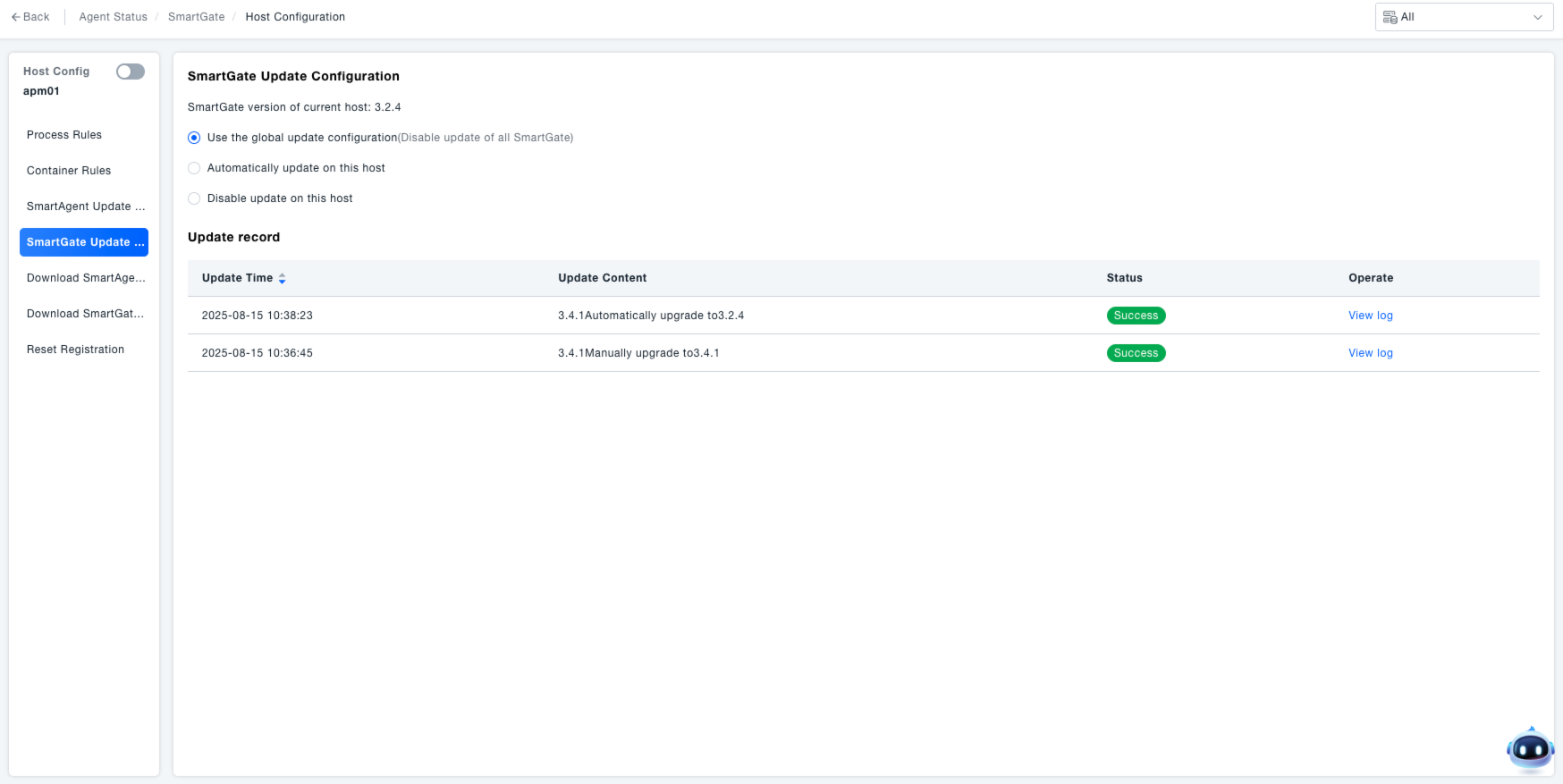
This feature is used when differential configuration for SmartGate on a specific host is needed, independent of global settings, catering to personalized management requirements. In the "Actions" column of the host list, administrators can click "Manage" to access the SmartGate configuration interface for that host, allowing for personalized settings such as configuration updates.
Access the "SmartGate Configuration Manage" interface within the host configuration to manage version updates for SmartGate on this host, ensuring the stability of the data transmission channel.
Selecting Update Method:
- Select "Use global update configuration (Disable updates for all SmartGates)" to have the host adhere to the global SmartGate update settings.
- Select "Automatically update on this host" and choose the target version (e.g., 3.5.0) from the dropdown menu to automatically update SmartGate on this host to the specified version.
- Select "Disable update on this host" to prevent automatic updates for SmartGate on this host.
Viewing Update Records:
- In the "Update Records" section, review information such as update time, update content, and status.
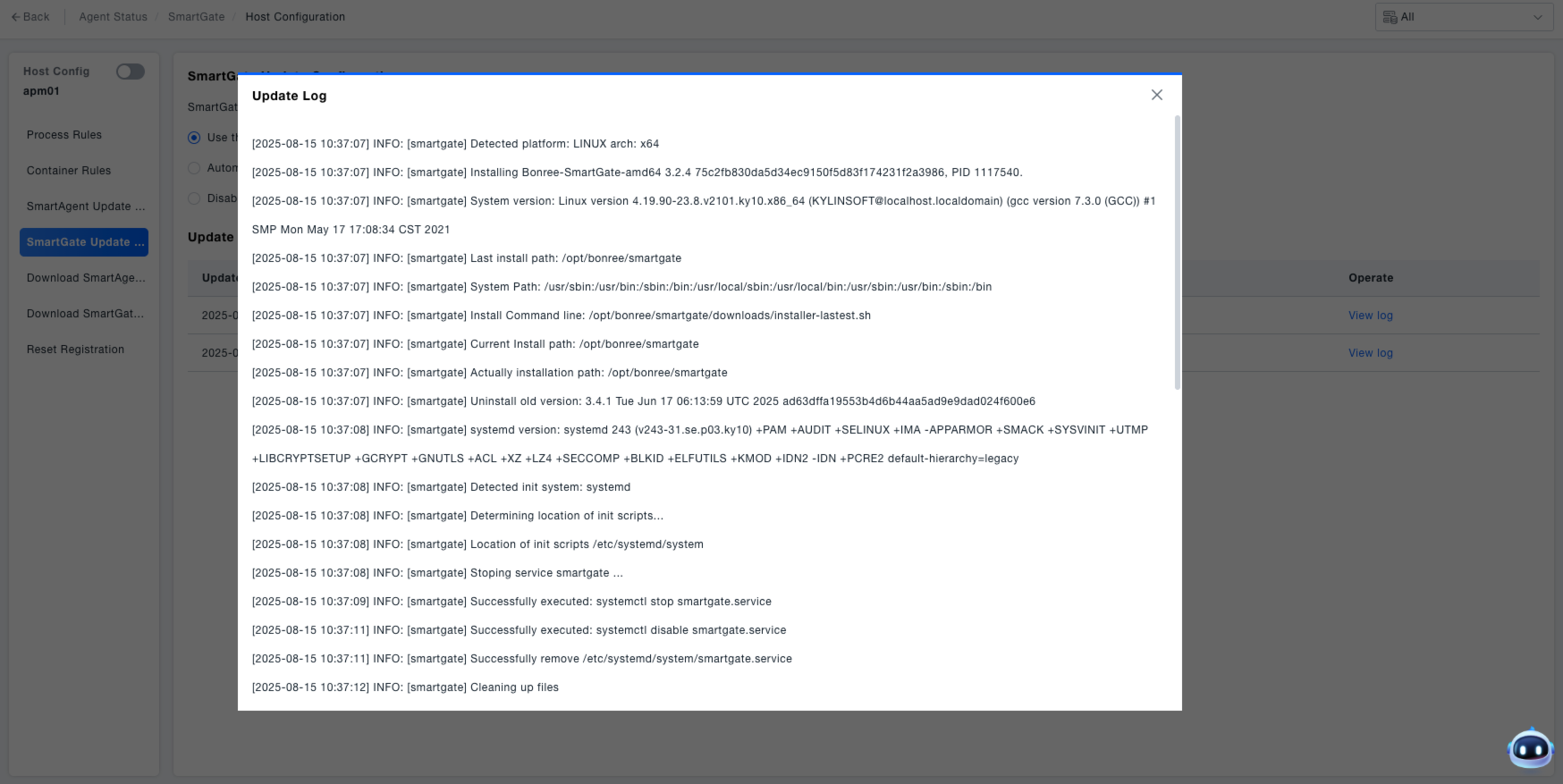
- Click "View Logs" to see detailed update logs and identify any anomalies during the update process.
Downloading SmartGate Logs
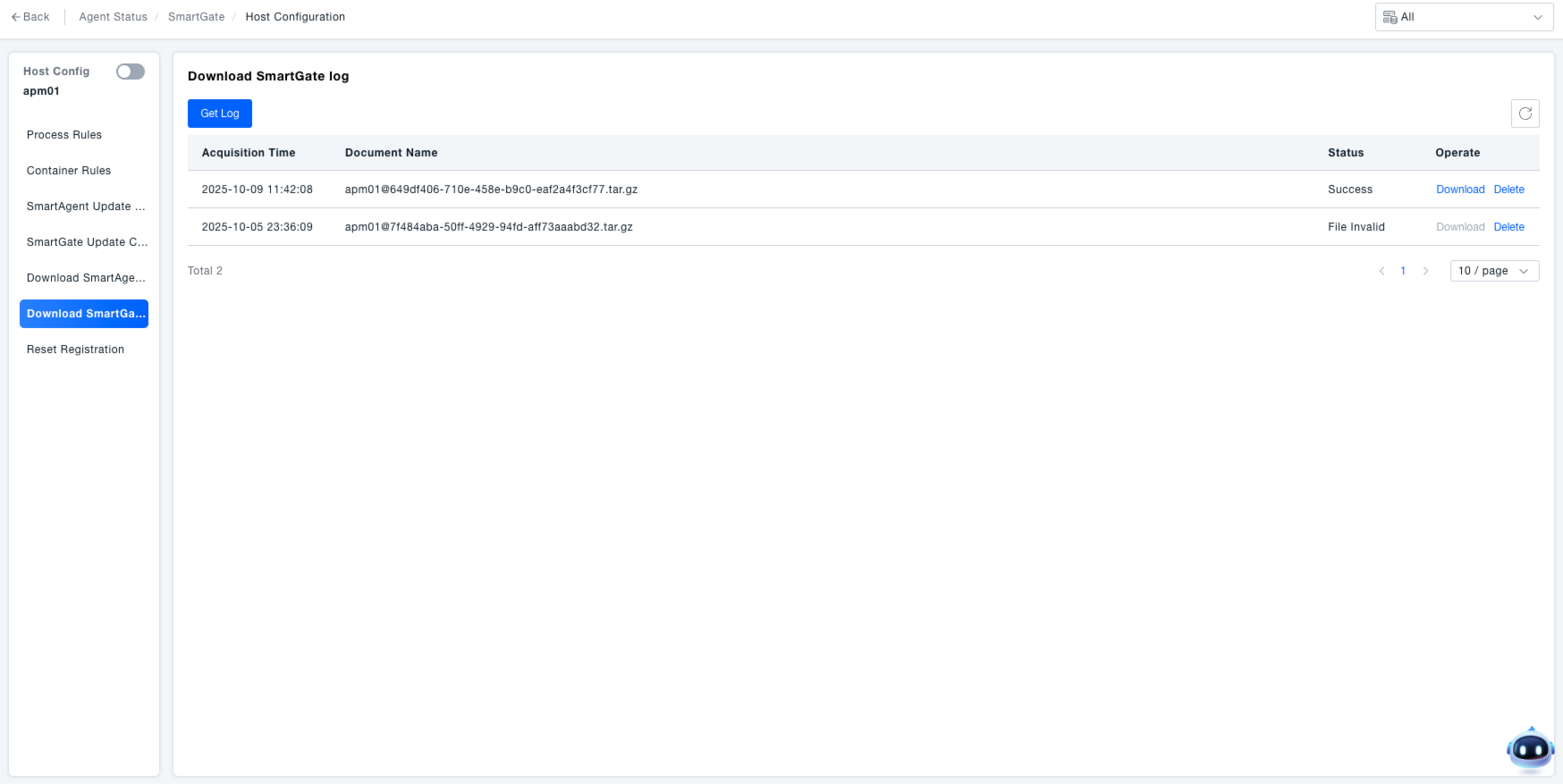
Access the "SmartGate Log Download" interface within the host configuration to retrieve SmartGate operational logs for troubleshooting data transmission issues (e.g., monitoring data failing to report, connection timeouts).
Fetching Logs: Click the "Fetch Logs" button to initiate the retrieval of SmartAgent logs.
Managing Logs:
Once logs are fetched, view information such as fetch time, file name, and status in the list.
For logs with a "Success" status, click "Download" to save the log file locally for subsequent problem investigation.
Click "Delete" to remove the log record.
Registration Reset
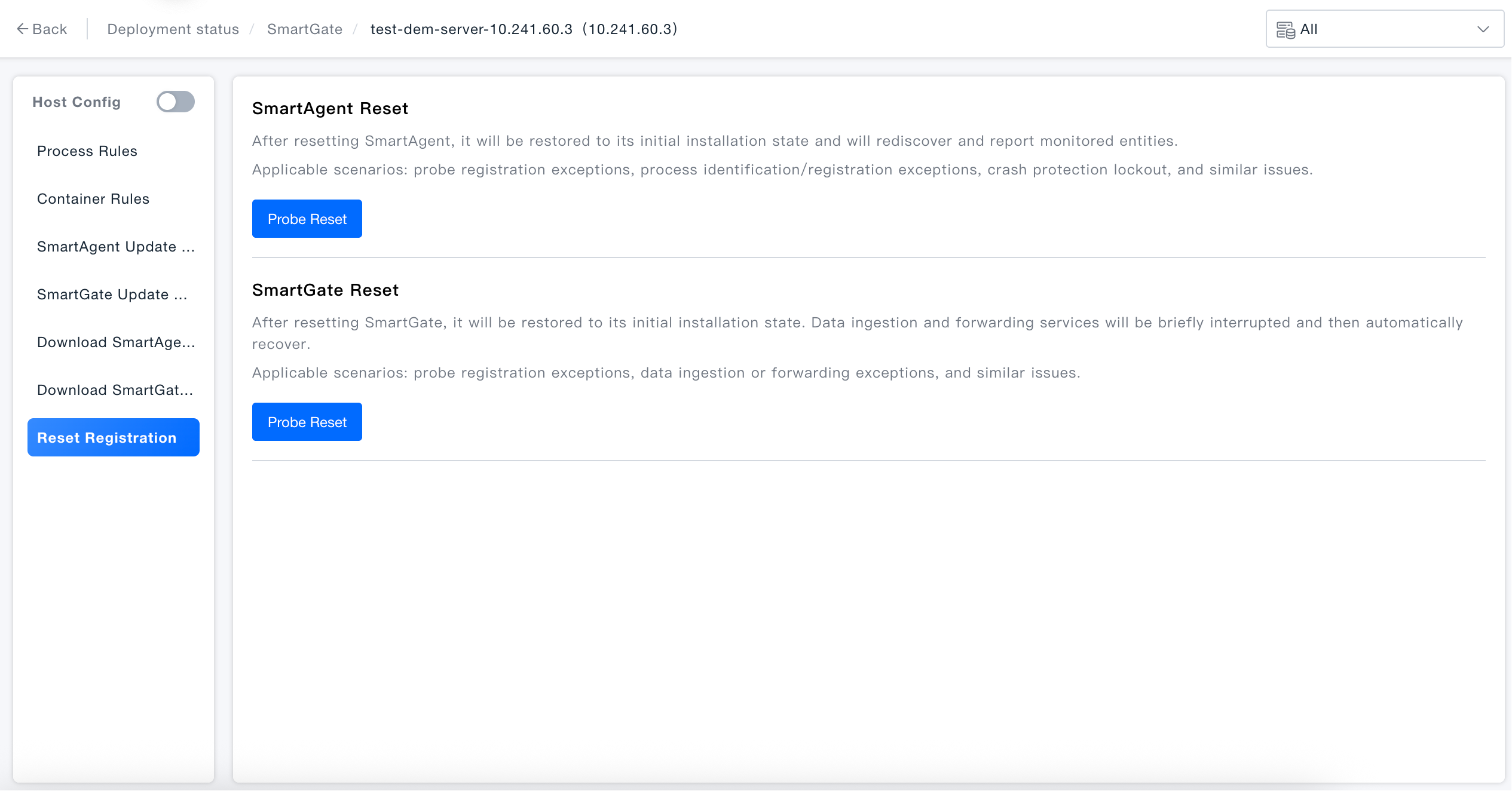
Access the "Registration Reset" interface within the host configuration to resolve severe anomalies with SmartAgent or SmartGate by resetting them to their initial state.
Resetting SmartAgent: Click the "Agent Reset" button under "SmartAgent Reset" to restore SmartAgent to its initial installed state and re-discover and report monitoring entities.
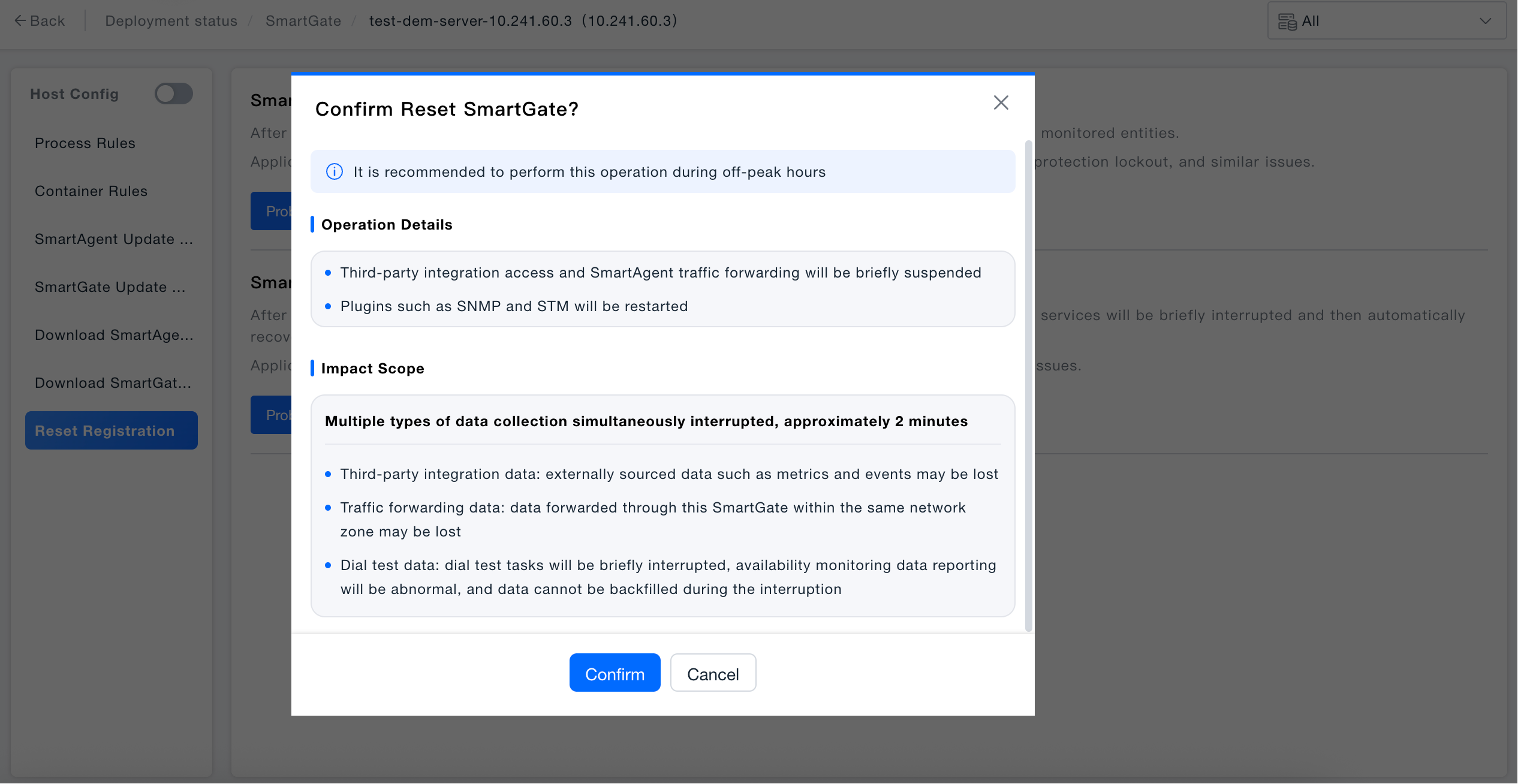
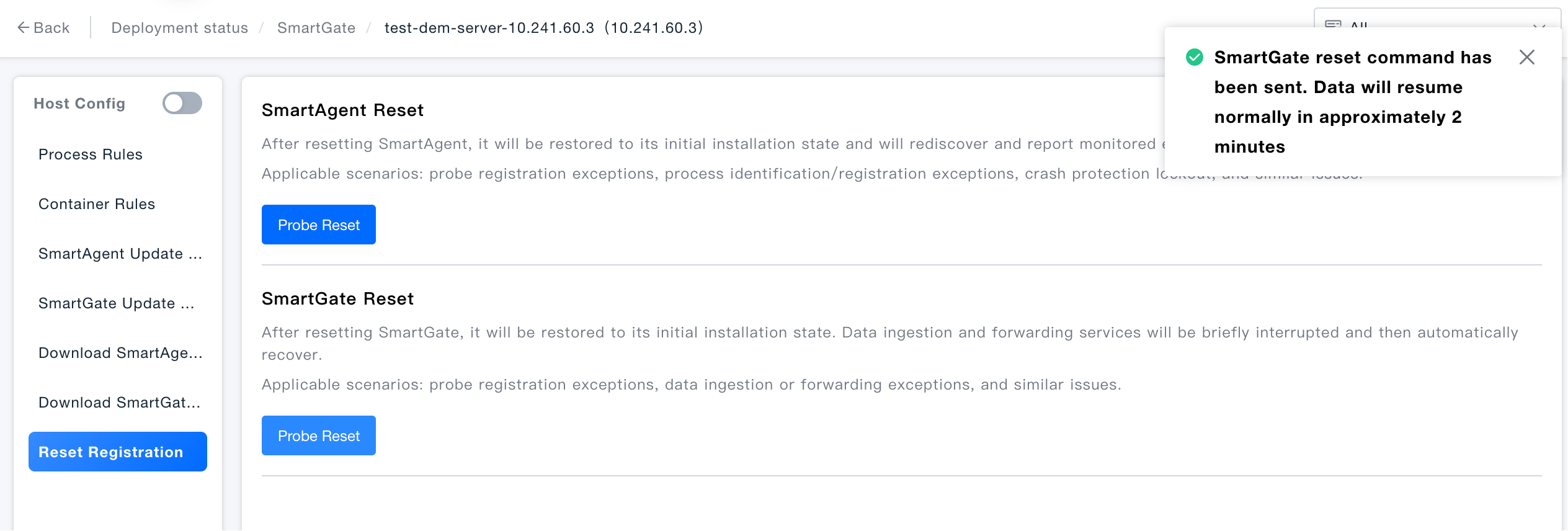
Resetting SmartGate: Click the "Agent Reset" button under "SmartGate Reset" to restore SmartGate to its initial installed state. Data access and forwarding services will be briefly interrupted and then automatically resumed.
- Third-party integration access and SmartAgent traffic forwarding will be briefly stopped
- Plugins such as SNMP and STM will be restarted
- Third-party integration access data: metrics, events, and other external data may be lost
- Traffic forwarding data: data forwarded through this SmartGate within the same network zone may be lost
- Test data: Test tasks will be briefly interrupted, availability monitoring data reporting will be abnormal, and data cannot be backfilled during the interruption period