Tools
Prerequisites
- Feature menu: Access to AI Studio / Resources / Tools is required.
- Operation permission: Read-Write access is required to add, edit, and delete MCP Servers; Read-Only access supports viewing.
- Data permission: Access to at least one resource domain under an environment is required.
- Embedding model: MCP tool invocation depends on an embedding model to build semantic vector indexes of tool metadata and recall the right tool for a user request—this is a prerequisite for reliable tool routing. In private deployments, add and enable a compatible embedding model under AI Studio > Security Operations > Model Management beforehand. Without it, MCP tool routing and invocation may not work correctly. You can also enable a degradation strategy in the related Nacos configuration by setting
MCP_TOOL_SEARCH_MODE=offunder AI_ENGINE; without an embedding model, the system can match the target tool directly from the full tool list, but efficiency and accuracy cannot be guaranteed.
Overview
The Tools module is the key entry point for extending Agent capabilities. It integrates external service tools into the platform via the Model Context Protocol (MCP). After configuring an MCP Server URL, the platform automatically loads associated tools (log query, metrics analysis, alert retrieval, etc.) for Agents in fault diagnosis, intelligent summarization, and other scenarios.
The platform includes a built-in ONE MCP service ready out of the box. You can also connect your MCP Server (streamableHttp only) to integrate custom tools for direct invocation in Agents and Sage AI.
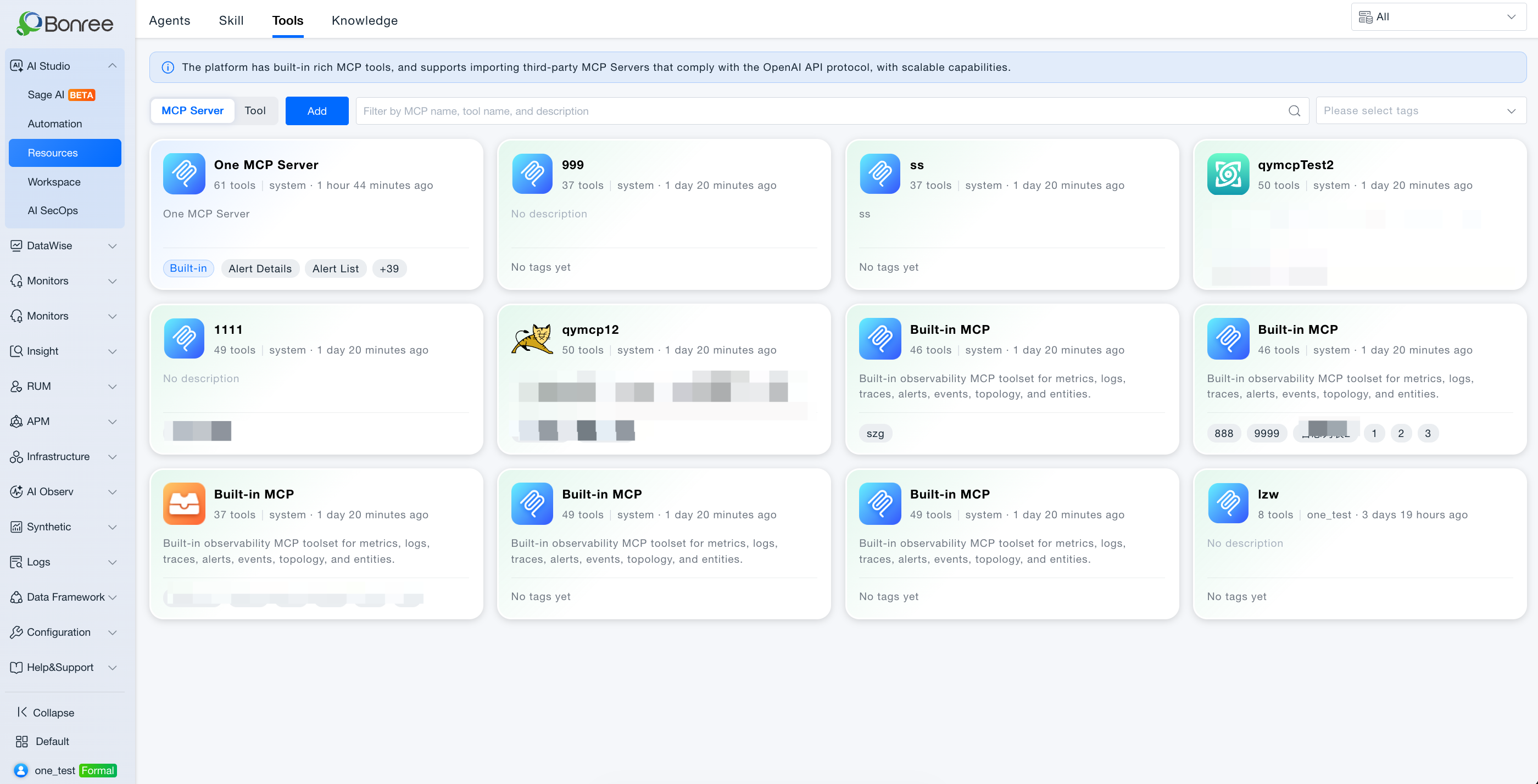
The Tools page offers MCP Services and Tools views, toggled at the top of the page for different management perspectives.
Value
-
Ready out of the box
Built-in ONE MCP service provides core observability capabilities without configuration. -
Standardized extension
MCP-compliant Server URLs enable bulk integration of custom tools. -
Dual-view management
MCP Services view manages connections; Tools view focuses on individual tools with label-based filtering. -
Fine-grained invocation control
Specify available tools during Agent orchestration to prevent misuse. -
External client access
Use MCP Key to expose built-in ONE MCP to Cursor, Claude Desktop, and other MCP clients.
Use Cases
Reference built-in ONE MCP tools in Agents
- Who it's for: Agent creators and operations analysts.
- Typical tasks: Associate
search_alerts,list_logs,list_apm_traceswith alert diagnosis Agents for combined analysis. - Recommended approach:
- Review ONE MCP service details under Resources > Tools > MCP Services (see Built-in MCP Server Tools);
- Edit the Agent in Workspace and select tools in the MCP tools step;
- Publish and test in Sage AI or Automation.
- Expected outcome: Agents query platform observability data without custom APIs.
Connect a team MCP Server
- Who it's for: Integration engineers.
- Typical tasks: Register internal CMDB or ticketing MCP Servers for cross-system queries.
- Recommended approach:
- Click Add in MCP Services view and fill in streamableHttp URL and metadata;
- Wait for connectivity validation and tool list loading;
- Reference tools when orchestrating Agents in Workspace.
- Expected outcome: Custom MCP appears alongside built-in services in the current resource domain.
Manage tools by label in Tools view
- Who it's for: Tool administrators in multi-MCP environments.
- Typical tasks: Label log and metrics tools for faster filtering.
- Recommended approach: Switch to Tools view, open a tool card, add or edit labels; filter by label in the toolbar.
- Expected outcome: Labels sync between Tools view and MCP service detail panels.
Refresh tool lists after MCP Server updates
- Who it's for: Maintainers after MCP Server releases.
- Typical tasks: Sync new tools after a custom MCP Server upgrade.
- Recommended approach: Click Update in MCP Services view; fix connectivity issues if any Server fails validation.
- Expected outcome: Tool lists match actual MCP Server capabilities.
External AI clients via MCP Key
- Who it's for: Developers using Cursor or Claude Desktop to query ONE data.
- Typical tasks: Natural language alert and log queries in external clients.
- Recommended approach: Follow MCP Key to create a Key and configure streamableHttp connection.
- Expected outcome: External clients invoke built-in tools within Key scope.
Operation Scenarios
-
Open Tools
- Go to AI Studio > Resources > Tools.
- Switch MCP Services / Tools views at the top.
- Filter by MCP name, tool name, or description.
-
MCP Services — list
- Cards show icon, name, tool count, description, last update.
- ONE MCP service (built-in) is pinned first with a Built-in badge; not editable or deletable.
-
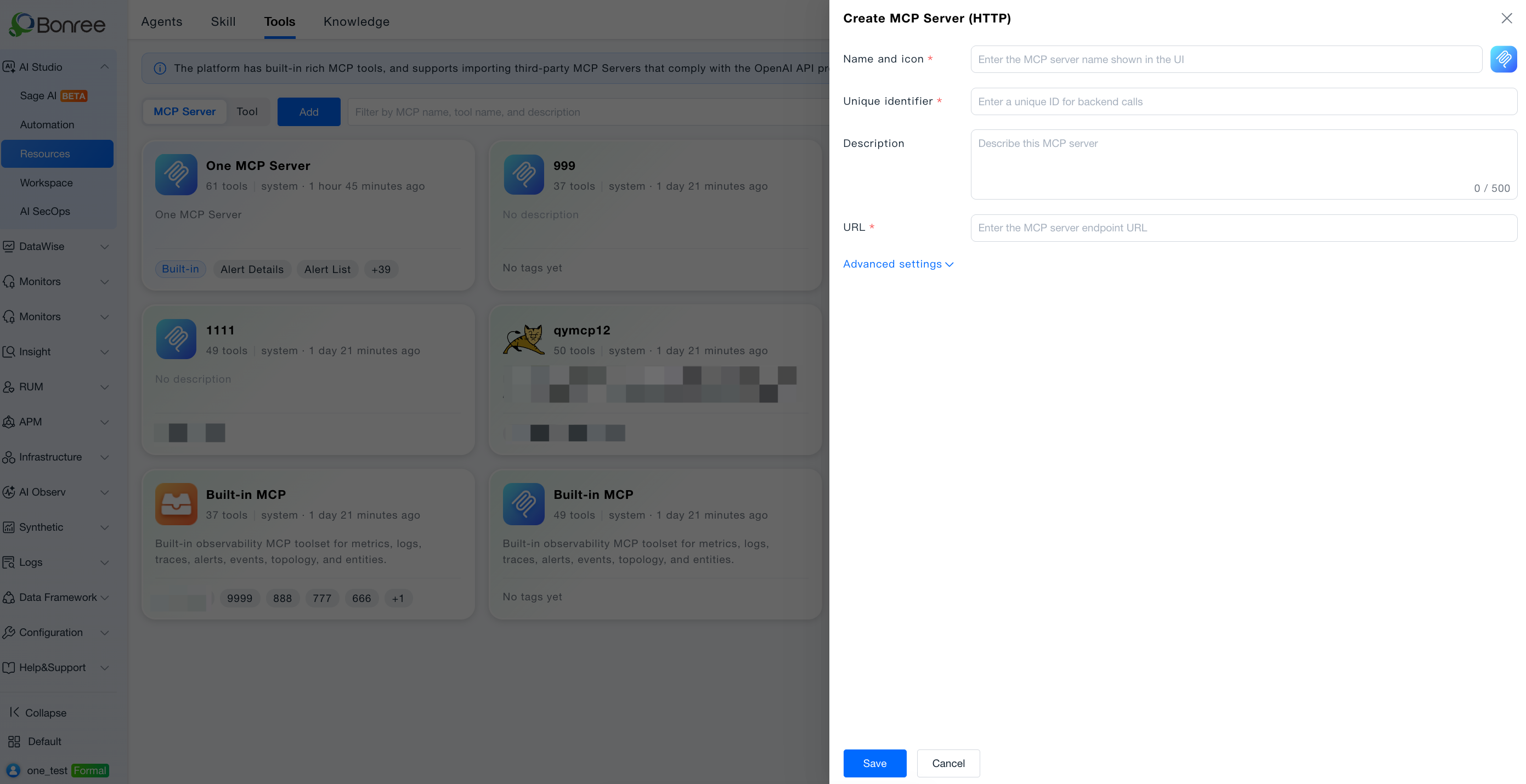
MCP Services — add
- Click Add, complete the form, save; URL connectivity is validated automatically.
-
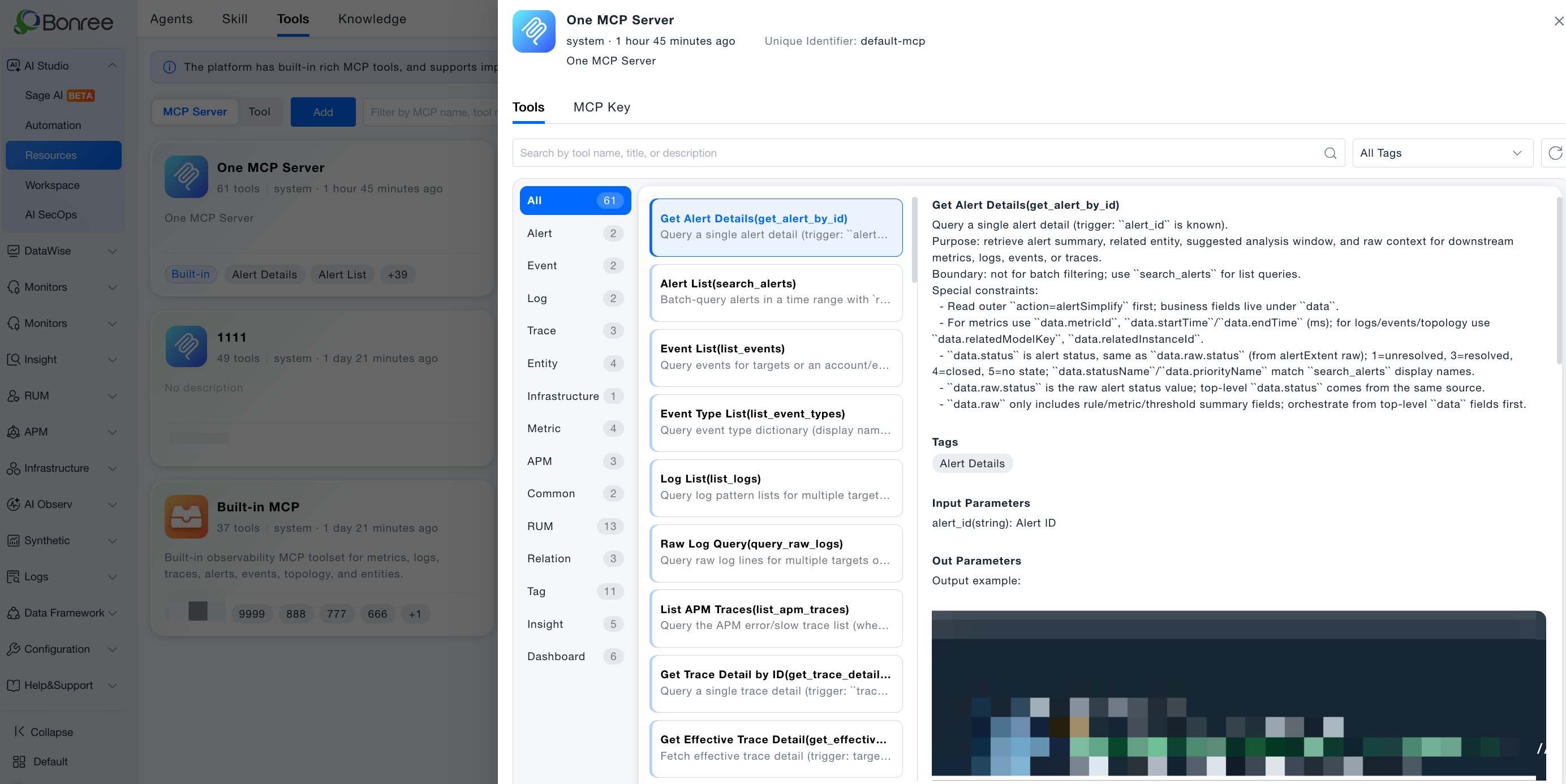
MCP Services — detail
- Click a service card to open the detail drawer with service info and tool list.
- Built-in ONE MCP detail has Tools and MCP Key tabs.
-
MCP Services — edit / delete
- Custom servers show Edit/Delete on hover; deletion requires confirmation.
-
MCP Services — update
- Click Update to refresh all servers and validate connectivity.
-
Tools view
- Flat list of all tools; filter by name/description, label, or parent MCP Server; add labels per tool.
-
Use in Agents
- Tools are maintained in Resources; reference happens in Workspace during Agent MCP tool selection.
Getting Started
Add an MCP Server
- Go to Resources > Tools, MCP Services view.
- Click Add and fill in:
| Field | Required | Description |
|---|---|---|
| Name | Yes | Display name, 2–50 characters |
| Icon | No | Default or JPG/PNG upload (≤200 KB) |
| Unique Identifier | Yes | Unique per account+environment; immutable after save |
| Description | No | Max 500 characters |
| URL | Yes | MCP Server endpoint, streamableHttp (http/https) |
| Advanced — Request Headers | No | Up to 10 pairs, ≤50 chars each |
| Request Timeout (s) | Yes | Default 30, 0–3600 |
| Execution Timeout (s) | Yes | Default 300, 0–3600 |
- Click Save and wait for connectivity validation.
View ONE MCP service details
- Click the ONE MCP service (built-in) card.
- Use the Tools tab to browse and filter by tag.
- Click a tool for description, parameters, and output examples.
- Full catalog: Built-in MCP Server Tools.
Notes
- Built-in ONE MCP service cannot be edited or deleted; always pinned first.
- Unique identifier is immutable after save.
- Labels in Tools view are local to Tools module only.
- Update refreshes all servers; failures show specific error messages.
- Confirm no Agent references a server before deletion.
- External access uses MCP Key, separate from in-platform Agent orchestration.
Related Documentation
- MCP Key
- Built-in MCP Server Tools
- User Guide: Overview of Resources
- Agents