Knowledge
Prerequisites
- Feature menu: Access to the AI Studio / Resources menu is required.
- Operation permission: Read-Write access is required to create and edit knowledge bases; Read-Only access supports browsing and viewing.
- Data permission: Access to at least one resource domain under an environment is required.
- Embedding model: Knowledge bases rely on an embedding model to vectorize documents for knowledge “memory” and precise retrieval—this is a prerequisite for using knowledge bases. In private deployments, add and enable a compatible embedding model under AI Studio > Security Operations > Model Management beforehand. Without it, for knowledge bases you cannot create knowledge bases, upload documents, or perform other management operations.
Overview
A Knowledge Base stores team operations documents, architecture notes, runbooks, FAQs, and similar content for retrieval by Agents and Sage AI during Q&A, improving accuracy and domain alignment.
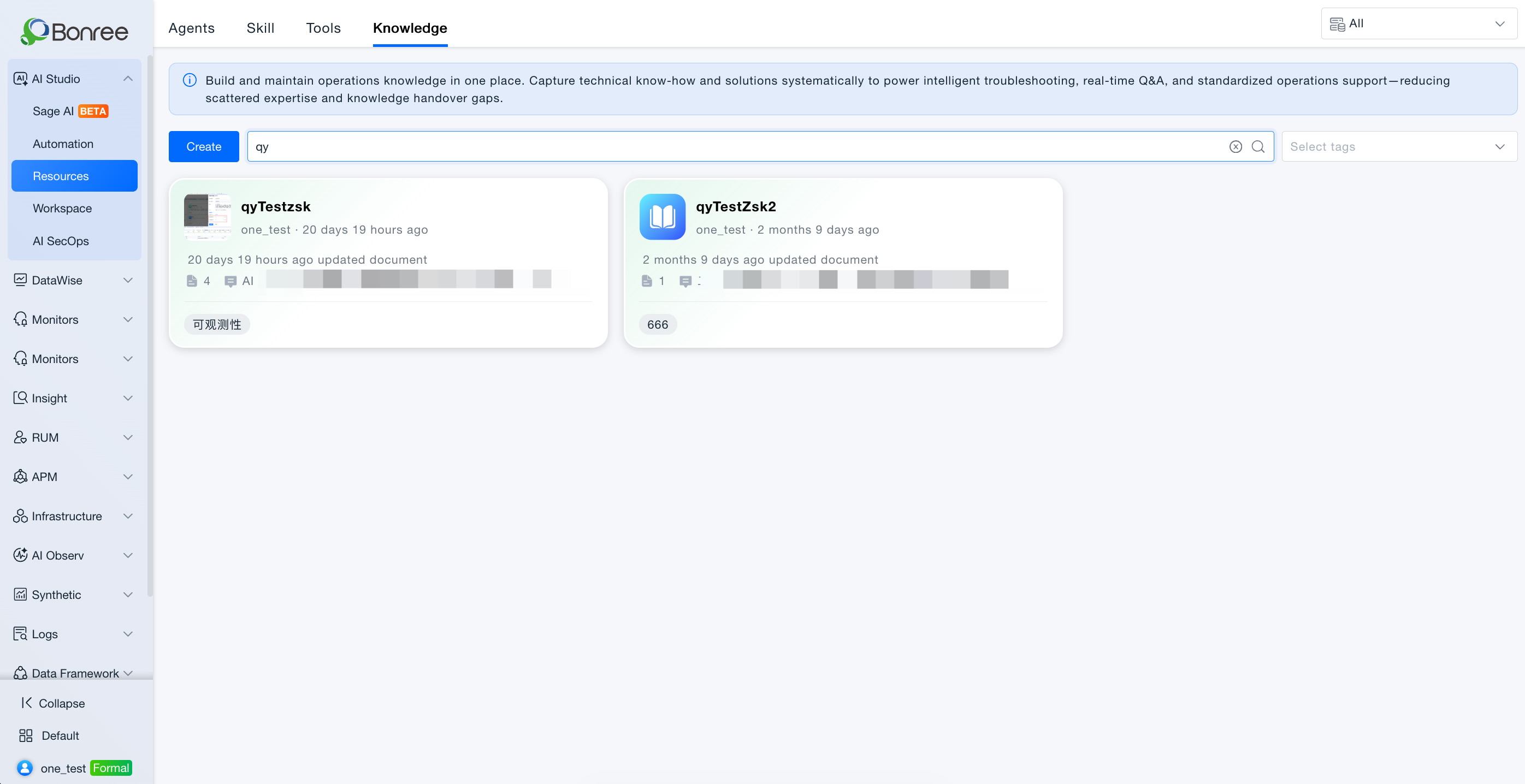
The Knowledge Base tab in Resources lists knowledge bases in the current resource domain with create, search, and view capabilities. Knowledge bases are shared platform resources—after creation, reference them via @ in Sage AI, or associate them as knowledge sources when configuring Agents in Workspace.
Unlike Agents and Skills, knowledge bases do not use a "add from Public to My Resources" flow—they are referenced directly once created or visible in the current resource domain (visibility subject to resource domain and permissions).
Value
-
Centralized operations knowledge
Consolidate scattered documents into knowledge bases, reducing duplicate uploads and version chaos. -
Improved AI answer accuracy
Sage AI and Agents retrieve knowledge base content to reduce hallucination and align with internal standards. -
Isolated by resource domain
Knowledge bases for different environments and teams remain separated for data boundaries. -
Linked with Agent orchestration
Select knowledge bases when configuring Agents in Workspace for a complete knowledge + tools + Skill chain.
Use Cases
Create a Team Operations Knowledge Base
- Who it's for: Operations leads and knowledge administrators.
- Typical tasks: Create an "Operations Troubleshooting" knowledge base with runbooks and emergency playbooks.
- Recommended approach:
- Resources > Knowledge Base, click Create;
- Fill in name, description, tags, etc.;
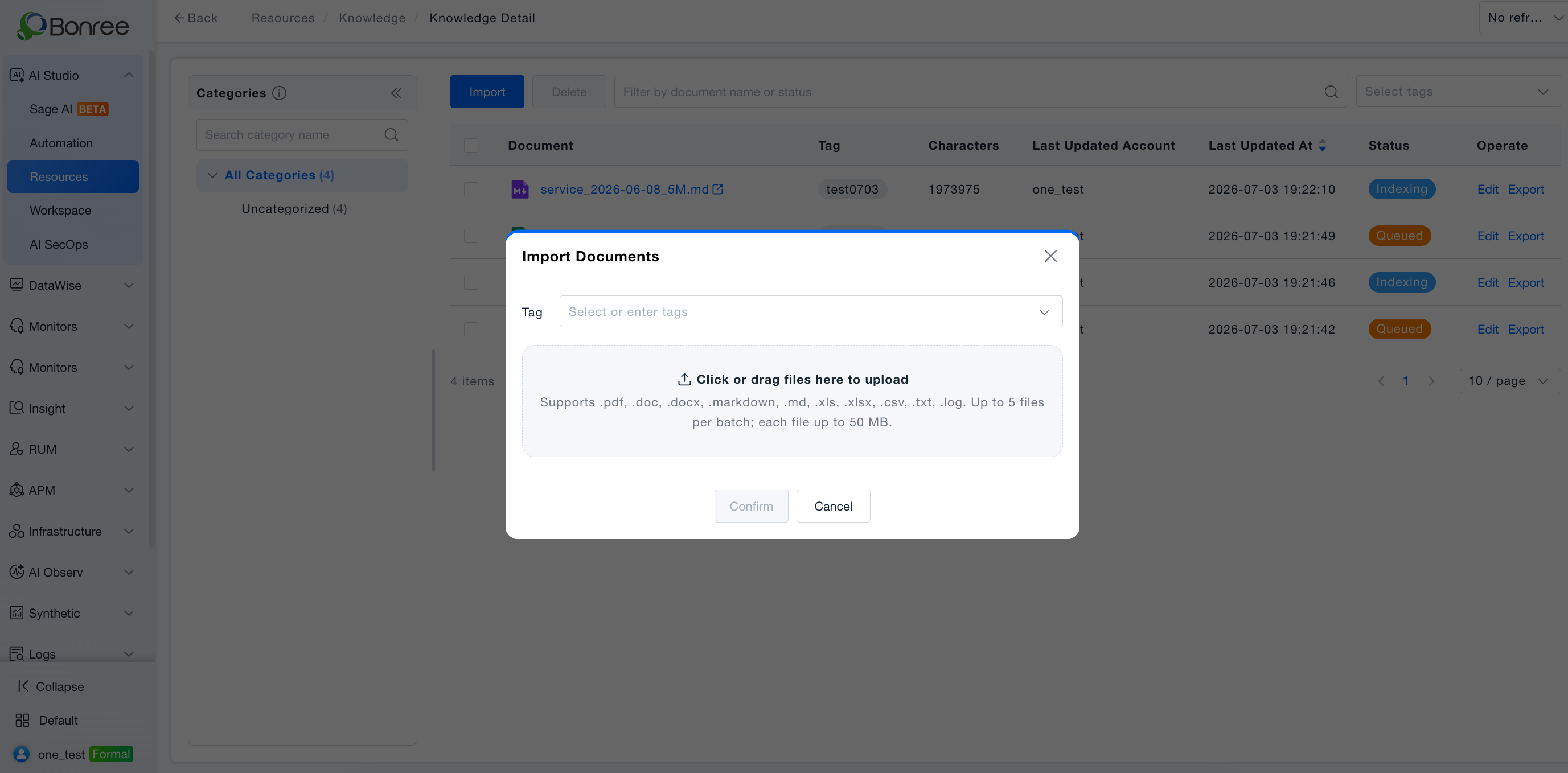
- Upload or import documents (supported formats depend on UI);
- Save and manage from the list.
- Expected outcome: Knowledge base is available in the current resource domain for Sage AI @ reference or Agent association.
Reference a Knowledge Base in Sage AI Q&A
- Who it's for: Frontline operations staff and new hires.
- Typical tasks: Ask internal policy questions such as SOP for an alert type or how to request environment access.
- Recommended approach:
- Open Sage AI;
- Type
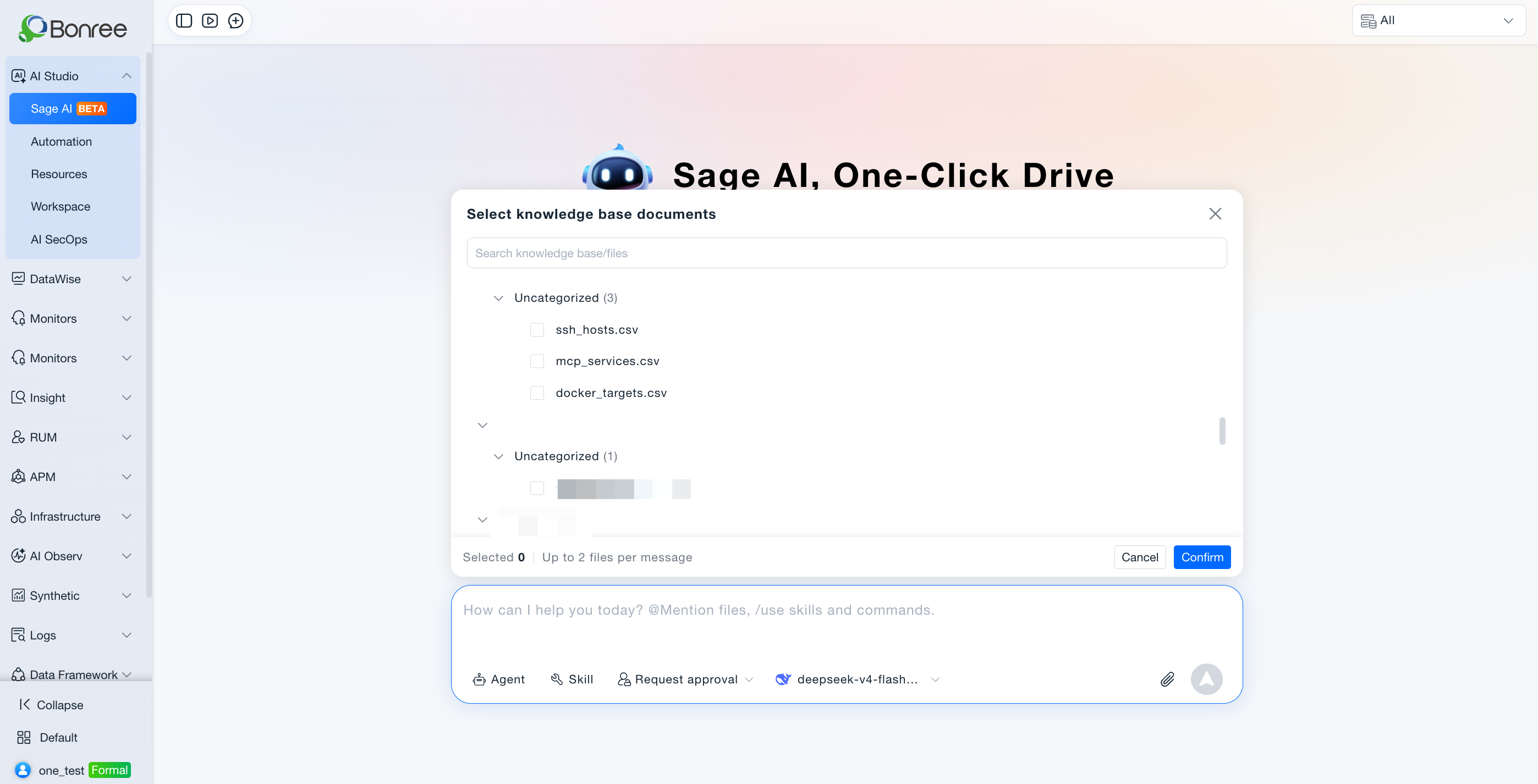
@and select the target knowledge base; - Enter a natural language question and send.
- Expected outcome: Answers based on retrieved knowledge base content with reference snippets.
Associate a Knowledge Base with an Agent
- Who it's for: Agent creators.
- Typical tasks: Link a "Product FAQ" knowledge base to Intelligent Customer Service Assistant to constrain answers to official docs.
- Recommended approach:
- Confirm the knowledge base exists in Resources with documents indexed;
- In Workspace, edit the Agent and select the knowledge base under knowledge sources;
- Publish and test in Sage AI or Resources.
- Expected outcome: Agent answers prioritize associated knowledge base content.
Maintain and Update Documents
- Who it's for: Knowledge base owners.
- Typical tasks: Update runbooks after SOP changes; remove outdated content.
- Recommended approach:
- Open the knowledge base from the list;
- Update, add, or delete documents;
- Notify the team of updates (referencing parties use latest index per platform mechanism).
- Expected outcome: Sage AI and linked Agents use the latest knowledge content.
Operation Scenarios
-
Open the knowledge base list
- Resources > Knowledge Base tab.
- Filter by name, description, or tags via the search box.
-
Create a knowledge base
- Click Create, fill in basic info, upload/import documents.
- Save and return to the list.
-
Export knowledge bases / files
- Export one or more knowledge bases from the list (offline; download the ZIP from export records).
- In detail view, export selected knowledge files; export records are next to the export actions.
-
View and manage
- Click a card to open detail/management page.
- Maintain document collections, metadata, and tags (UI-dependent).
-
Reference in Sage AI
- Type
@in Sage AI and select a knowledge base. - Bring knowledge context into the current conversation.
- Type
-
Associate in Agents
- Select knowledge bases in the Linked knowledge step when orchestrating Agents in Workspace.
- Published Agents include that knowledge source.
Getting Started
Create a Knowledge Base
- Go to Resources > Knowledge Base.
- Click Create.
- Fill required and optional fields (name, description, tags, etc.).
- Upload documents or import per guidance.
- Save and confirm in the list.
Use in Sage AI
- Open Sage AI.
- Type
@in the input box and select a created knowledge base. - Ask a question, e.g., "Per the runbook, how do I handle sustained high CPU alerts?"
- Review retrieved references and conclusions in the answer.
Notes
- Knowledge bases are managed by resource domain; lists change when switching domains.
- Deleting a knowledge base or documents may affect Agents linked to it—assess impact first.
- For sensitive content, use content security policies in AI SecOps > Security.
- Agents referencing a knowledge base require access permission in the current resource domain; domains without permission may not be selectable (consistent with Agent listing scope rules).
- Detail and management capabilities depend on the UI; for large imports, monitor indexing and sync status.