Agents
Prerequisites
- Feature menu: Access to the AI Studio / Resources menu is required.
- Operation permission: Read-Write access is required to add, remove, and update Agents; Read-Only access supports browsing and viewing details.
- Data permission: Access to at least one resource domain under an environment is required.
- Model configuration: Some Agents depend on LLM inference; if no model is configured, related capabilities may not work properly.
Overview
An Agent is an AI execution unit for a specific business scenario, encapsulating reasoning logic, tool invocation, Skill collaboration, and knowledge sources. The Agents tab in Resources displays built-in Agents, publicly listed Agents, and Agents in My Resources for the current resource domain.
Agents added from Public can be invoked in Sage AI and Automation. When a new version is published, you can choose whether to upgrade; until you upgrade, your installed version continues to work without being affected by the latest public release.
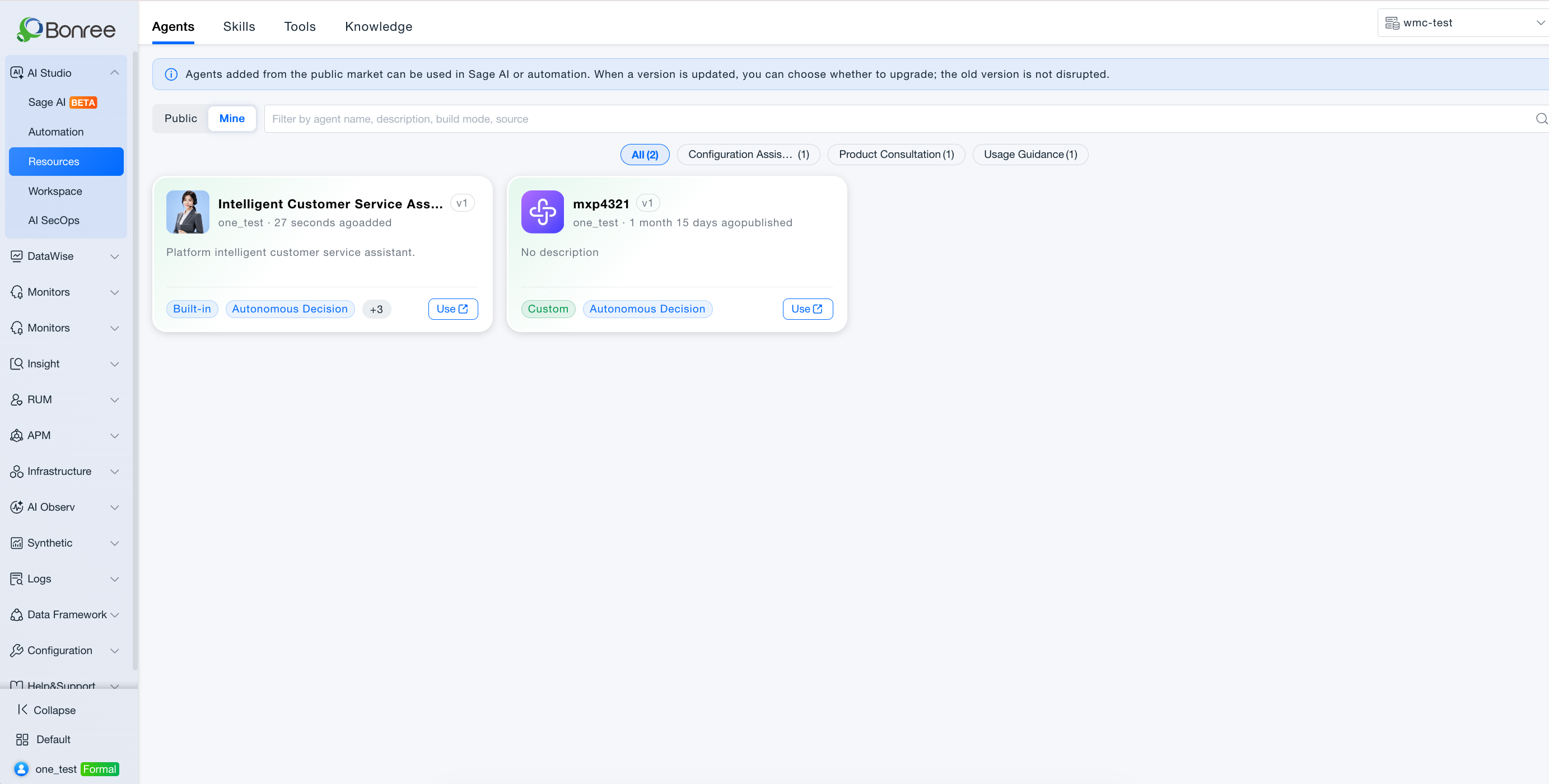
Public vs My Resources
The Agents tab provides a Public / My Resources toggle at the top left. The two views differ in scope and actions:
| Aspect | Public | My Resources |
|---|---|---|
| What you see | Built-in Agents and Agents publicly listed after listing review in the resource domain | Agents added in the current resource domain, plus Agents you published from Workspace |
| Source | Platform presets + resources approved for public listing by other creators | Local copies after adding from Public, or resources published from Workspace |
| Visibility | Browsable and addable by all permitted users in the resource domain | Instances added or published in the current resource domain only—isolated per domain |
| Card actions | Add: install the Agent into My Resources | Use (open Sage AI), Remove (uninstall); Update when a new version is available |
| Details and preview | View details and read-only orchestration for selection | View details, use, and manage versions; edit orchestration in Workspace |
| Version policy | Shows the latest listed public version; after adding, you choose whether to upgrade locally | Added Agents can independently follow or defer public version upgrades |
| Listing | Appears here after a creator’s listing request is approved | Self-published Agents appear here by default; they enter Public only after listing approval |
Typical flow: Browse Public and Add → switch to My Resources and Use or @ reference in Sage AI. After removal, the Agent is unavailable in Sage AI and Automation.
Quick classification (by tag)
Under the search box, Resources provides tag tabs (AND with search). All is first (total resource count); then each tag with its count. One resource may appear under multiple tags. Untagged resources appear only under All. Tags with count 0 may be hidden.
Value
-
Built-in, ready to use
The platform provides preset Agents such as alert diagnosis, system inspection, and intelligent customer service—add and use without building from scratch. -
Public sharing for team reuse
Agents listed by creators appear in Public after review; other users can add them with one click for use in their resource domain. -
Clear management in My Resources
My Resources centralizes added and self-published Agents with use, remove, and version update actions. -
Preview before selection
Detail pages show basic information and read-only orchestration; autonomous Agents support debug preview to reduce selection risk. -
Optional version upgrades
When a new public version is available, users who added the Agent can review release notes before upgrading.
Use Cases
Add Built-in Agents from Public
- Who it's for: First-time AI Studio users and teams needing standard operations capabilities.
- Typical tasks: Add Agents such as Alert Diagnosis Assistant or System Inspection Assistant for Sage AI conversations or automated inspections.
- Recommended approach:
- Go to Resources > Agents > Public;
- Browse or filter by scenario tags;
- Click Add on the target card and wait for installation;
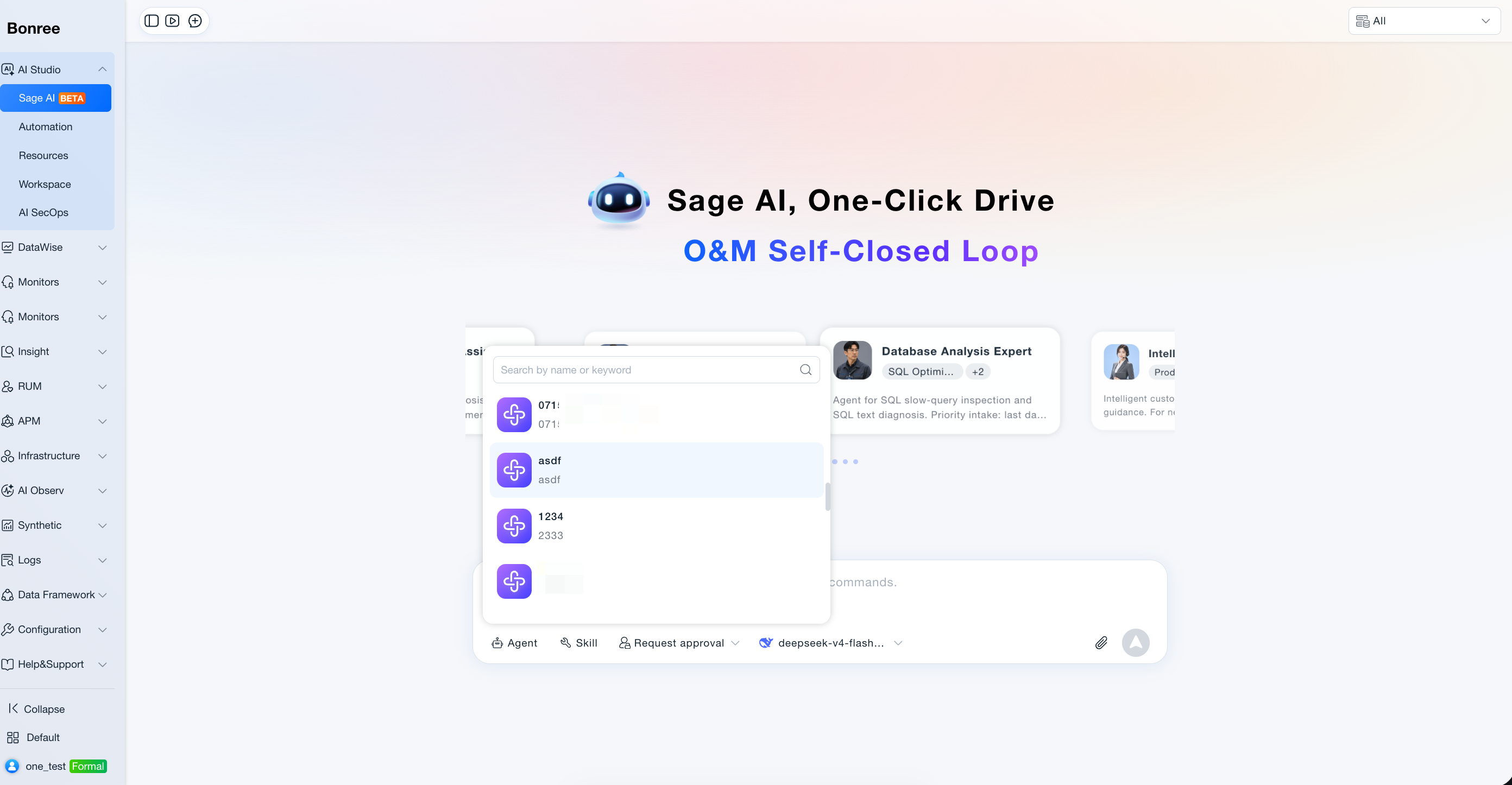
- Switch to My Resources, click Use, or @ reference in Sage AI.
- Expected outcome: The Agent is installed in the current resource domain and available in Sage AI and Automation.
Add Team-Shared Custom Agents
- Who it's for: Business teams that need capabilities published by other creators.
- Typical tasks: Add a team's "Order Service Diagnosis" Agent to run analysis per team SOP.
- Recommended approach:
- Search by name or description in Public;
- Open the detail page to review build mode, tags, default questions, and orchestration summary;
- Return to the list and click Add after confirming fit.
- Expected outcome: The Agent appears in My Resources and runs per the creator's orchestration.
Use Self-Published Agents (Creators)
- Who it's for: Creators who develop Agents in Workspace.
- Typical tasks: Verify visibility in Resources after publishing; self-test or share with colleagues.
- Recommended approach:
- Publish the Agent in Workspace;
- Open Resources > Agents > My Resources and find the new resource;
- Click Use to try in Sage AI, or submit a listing review for others to add from Public.
- Expected outcome: The Agent appears in My Resources; after listing approval, it appears in Public.
Version Updates and Impact Assessment
- Who it's for: Users with added Agents when a new public version exists; automation task owners.
- Typical tasks: An Agent upgrades from v2.0 to v3.0—assess impact on configured automation tasks.
- Recommended approach:
- Check version update indicators on My Resources cards;
- Click Update and read release notes and version history;
- Confirm upgrade; verify automation tasks referencing the Agent.
- Expected outcome: Installed version is updated; automation tasks referencing the Agent automatically use the new version (assess change impact).
Start an Agent Conversation in Sage AI
- Who it's for: Daily operations and analysis staff.
- Typical tasks: Use the Database Analysis Expert Agent to analyze slow SQL and get optimization suggestions.
- Recommended approach:
- Click Use in My Resources, or select Agent in the Sage AI input area;
- The system loads the Agent greeting and recommended questions;
- Send a recommended question or customize the task description.
- Expected outcome: A Sage AI session starts in the context of that Agent.
Operation Scenarios
-
Open the Agent list
- Go to AI Studio > Resources and select the Agents tab.
- Switch between Public and My Resources.
- Use scenario tags, More, or advanced filters to narrow results.
-
Read card information
- Cards show name, version, summary, tags, add count, etc.
- Public cards have Add at the bottom; My Resources has Remove, Use, and Update when a new version exists.
-
Add an Agent (Public)
- Click Add and wait for installation.
- Some flows require confirming Add and open immediately.
- After adding, manage the Agent in My Resources.
-
Use / Remove (My Resources)
- Use: Opens Sage AI and starts a conversation with the Agent.
- Remove: Uninstalls from My Resources after confirmation; Sage AI and Automation can no longer use it.
-
Version update (My Resources)
- Click Update, review changes from the current to target version.
- Confirm to complete the upgrade.
-
View Agent details
- Click the card body (not the footer buttons) to open the detail page.
- Basic information: Name, summary, description, build mode, tags, default questions, etc.
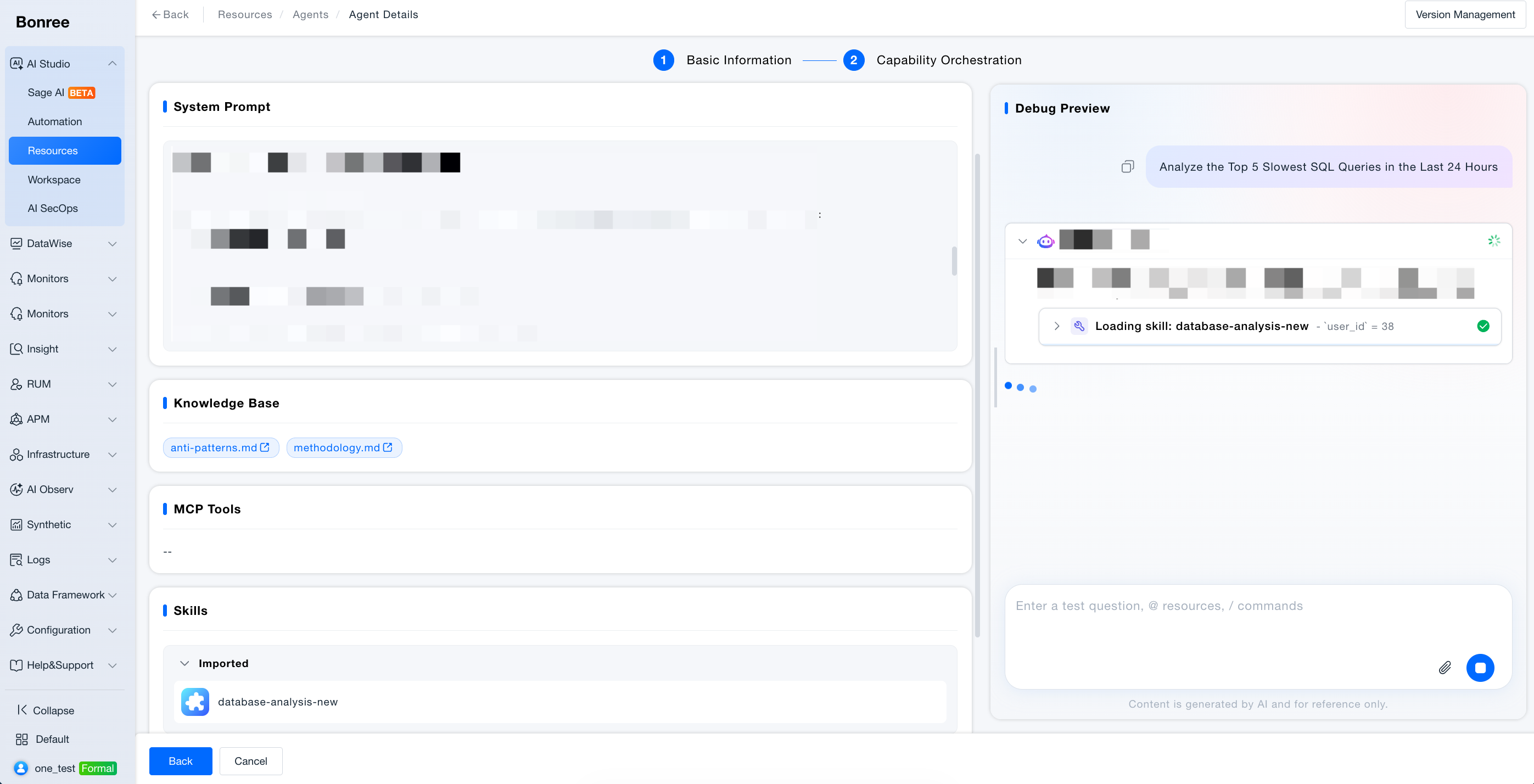
- Orchestration (step 2): Inference model, linked knowledge, MCP tools, Skills, etc. (read-only preview).
- Workflow Agents show a read-only workflow canvas; autonomous Agents support debug preview on the right (read-only, does not modify configuration).
- Built-in Agents support version management for history.
Getting Started
Add and Use a Built-in Agent
- Go to Resources > Agents > Public.
- Find the target built-in Agent and click Add.
- Switch to My Resources and click Use.
- Send a recommended question or custom task description in Sage AI.
View Agent Details
- Click the Agent card body in the list.
- Read content on the Basic information step.
- For non-built-in Agents, click Next to view Orchestration.
- For autonomous Agents, enter test questions in the debug panel on the right.
Submit for Listing (Creators)
After publishing in Workspace, the Agent appears in My Resources by default. To allow others to add from Public:
- Submit a listing review from Workspace or Resources (entry depends on UI).
- Select listing scope (resource domains) and reviewers.
- After approval, the Agent appears in Public for others to add.
Notes
- Agent lists and added resources in My Resources are isolated by resource domain; lists change when you switch domains.
- After removing an Agent, automation tasks referencing it may fail—update task configuration promptly.
- When an Agent publishes a new version, automation tasks referencing it automatically use the new version—read update notes before upgrading.
- For Agents added from Public, version upgrades are optional; your installed version remains until you confirm an update.
- Orcheation and prompts on the detail page are read-only; edit in Workspace (customize built-in Agents by cloning).
Related Documentation
- User Guide: Overview of Resources
- Sage AI: Reference Agents in conversations
- Automation: Specify Agent trigger in tasks